

Step 1: Enabling team ownership entity editing
Users with theConfigure Settings permission can enable the team ownership entity editing setting.
Team ownership entity editing must be enabled before you can assign entity editing access.
- From the main sidebar, click your avatar in the bottom-left corner.
- Click Settings.
- From the Settings menu, locate the Workspace section, then expand Entities.
- Select Teams.
- In the Team settings section, toggle on Team ownership entity editing. Enabling this feature ensures that the default user role is automatically updated and will not include generic permissions for editing entities.
- Note that the
Configure catalogpermission supersedes the Team ownership entity editing feature, so any users assigned a custom role with that permission can continue editing all entities, regardless of ownership. Remove theConfigure catalogpermission from the custom role(s) to restrict the ability to edit entities.
- Note that the
- Optionally, toggle on Give edit access to all team members to give editing access to all members of the team who own an entity.
Step 2: Specifying team editors
Follow the steps below to define editing access to specific users within a team. Note that you cannot specify specific users if the Give edit access to all team members option is enabled. See Adjusting team settings for more information.- From the main sidebar, expand Catalogs, then select Teams.
- Do one of the following:
- Select the All tab to search and filter across all of your organization’s entities.
- Select the Mine tab to search and filter only the entities you own.
- Note that Cortex saves your selection and restores it the next time you open this page.
- Select a team.
- In the upper-right corner, click Configure entity.
- From the configuration sidebar, select Members.
- Locate the user you want to make an editor, then click the pencil icon next to their name.
- In the side panel, toggle on the Editor setting. Note that if the team member does not have an associated Cortex account, they cannot be made an editor.
- Click Update.
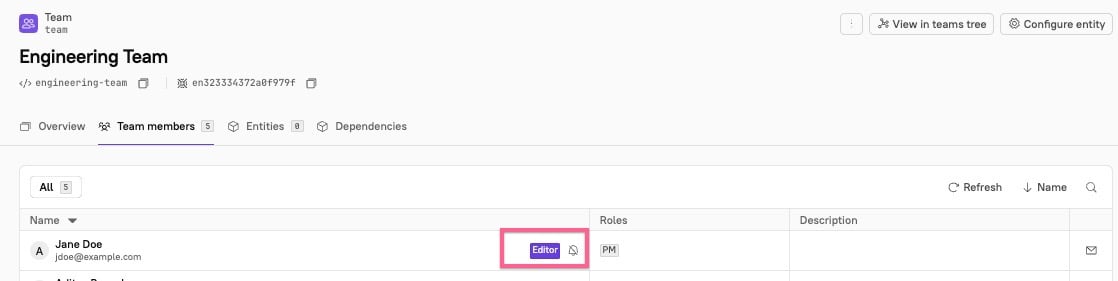
Editor label next to any members you’ve marked as editors. Members without a configured identity mapping won’t appear as editors.
Troubleshooting and FAQ
See frequently asked questions below.Can team editors import entities?
Can team editors import entities?
No, team editors can not import entities. To import entities, a user must have the
Configure catalog permission, which also gives users the permission to edit ALL entities, not just the ones they own.Can team editors delete entities they own?
Can team editors delete entities they own?
No, team editors can not delete any entities, even if they own them.
Can users with the Viewer role edit entities if this feature is enabled?
Can users with the Viewer role edit entities if this feature is enabled?
Yes, if they are a member of the owning team and either Give edit access to all team members is enabled or they have been individually marked as an editor. The team ownership editing feature overrides workspace-level role restrictions for editing team-owned entities.
Why does a team member not have the Editor label after I enabled edit access to all team members?
Why does a team member not have the Editor label after I enabled edit access to all team members?
This can happen if the team member’s identity mapping has not been configured.