

cortex.yaml file, which declares the entity’s identity, ownership, dependencies, and links to the tools that support it (CI/CD, observability, on-call, documentation, and more). Once defined, a service becomes a first-class entity in your catalog, automatically enriched with live data pulled from your integrations.
Services are typically the most numerous entity type in a catalog and the closest match to how engineering teams already think about their work: as discrete units of code that do something specific, owned by someone, deployed somewhere, and depended on by other things. Modeling them consistently gives your organization a single place to answer questions that otherwise require digging through multiple tools—who owns this, what it depends on, whether it meets your standards, and where it runs. The result is a shared understanding that connects day-to-day engineering work to broader goals around quality, ownership, and operational maturity.
Adding service entities to Cortex
Users with theEdit Catalog and Edit Services permissions can add service entities to Cortex.
When configuring an entity, you can’t add archived teams as owners or archived entities as dependencies, parents, or children.
Services can be added manually, imported, defined in YAML via GitOps, or created via the API.
Importing services from an integration
- From the main sidebar, expand Catalogs, then select All entities.
- In the upper-right corner, click Import entities.
-
Select Import discovered entities.
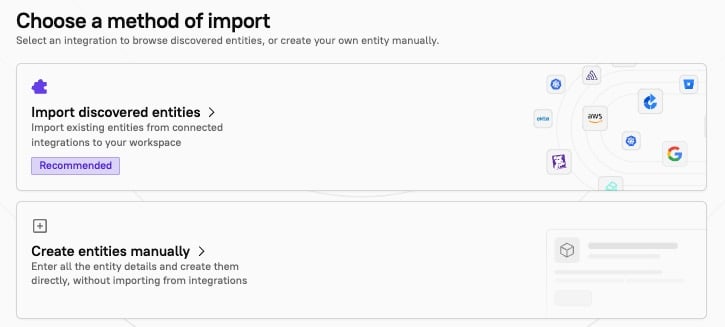
- Select the integration to import from. The Select entities to import page is displayed.
-
A list of entities from the integration are displayed. Select the checkboxes next to the entities you want to import. Use the search bar to find entities by name, or click the Filter icon in the upper-right corner of the results list to filter by entity type. For Azure DevOps integrations, you can also filter by project name. Search and filters run server-side, so they stay responsive even with large catalogs.
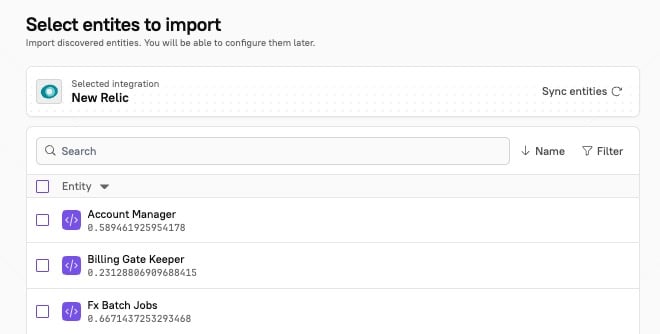
- In the bottom-right corner, click Next step. The Edit details page is displayed.
-
Configure the following options. The options shown are filtered at runtime based on the
entityType(e.g. ‘Members’ is team-only, ‘Dependencies’ excludes domains/teams) and whether the required integrations are enabled (e.g. ‘Communications’ requires Slack, ‘On-call’ requires Opsgenie/PagerDuty, etc.).- From the Type drop-down menu, select Service.
- In the Details section:
- Under Entity name, enter a name for the entity (required).
- The Cortex tag field is auto-populated based on the name of the entity (required). It’s a unique identifier for the entity. This is also known as the
x-cortex-tag. - Under Description, enter a description of the entity to help others understand its purpose.
- From the Groups drop-down, select a group or groups to segment the entity.
- In the Repository section:
- From the Provider drop-down menu, select the repo provider.
- From the Alias drop-down menu, select the alias of the connected provider account that has access to the repository.
- From the Repository drop-down menu, select the repo associated with the entity. If you don’t see it listed, click Refresh repositories to pull in the latest list.
- Under Basepath, enter the subdirectory within the repo where the entity’s code lives. Leave blank if the entity occupies the entire repo.
- In the Owners section, define ownership for the entity. Ownership can be assigned to either teams or individual users. It’s recommended to select team owners to keep the ownership information up to date through any future personnel changes. To add a team or teams, click Add in the Teams area. To add an individual user or users, click Add in the Users area.
- Cortex may recommend owners based on your catalog data. You can accept or reject the recommendations.
- In the Links section, click Add to add links to external documentation, such as runbooks, docs, logs, or custom categories.
- In the Slack channels section, click Add to link a Slack channel to the entity. If enabled, you’ll receive notifications about the entity in the selected Slack channel.
- In the Parents section, select a parent domain or domains from the drop-down menu. This is where you configure the hierarchy for your entity, which can be visualized in the relationship graph.
- In the Dependencies section, click Add entity to select an entity or entities that this entity depends on. These can be visualized in the relationship graph.
-
If you selected more than one entity, click Next entity in the bottom-right corner of the page.
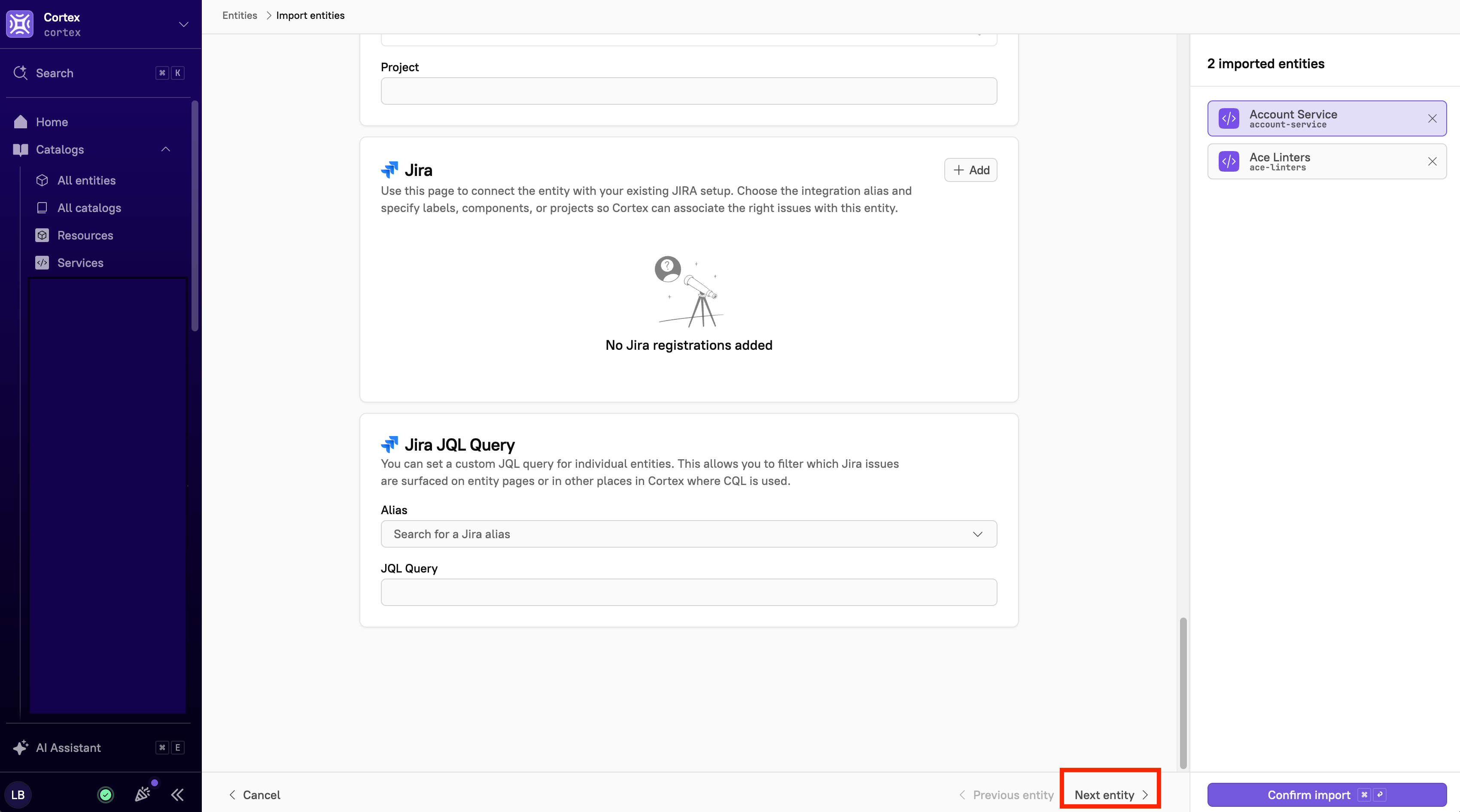
- Click Confirm import. The entity is imported into Cortex.
Manually adding services
- From the main sidebar, expand Catalogs, then select All entities.
- In the upper-right corner, click Import entities.
- Select Create entities manually. The Edit details page is displayed.
- Configure the following options. The options shown are filtered at runtime based on the
entityType(e.g. ‘Members’ is team-only, ‘Dependencies’ excludes domains/teams) and whether the required integrations are enabled (e.g. ‘Communications’ requires Slack, ‘On-call’ requires Opsgenie/PagerDuty, etc.).- From the Type drop-down menu, select Service.
- In the Details section:
- Below Entity name, enter a name for the entity (required).
- The Cortex tag field is auto-populated based on the name of the entity (required). Its a unique identifier for the entity. This is also known as the
x-cortex-tag. - Below Description, enter a description of the entity to help others understand its purpose.
- From the Groups drop-down, select a group or groups to segment the entity.
- In the Repository section:
- From the Provider drop-down menu, select the repo provider.
- From the Alias drop-down menu, select the alias of the connected provider account that has access to the repository.
- From the Repository drop-down menu, select the repo associated with the entity. If you don’t see it listed, click Refresh repositories to pull in the latest list.
- Below Basepath, enter the subdirectory within the repo where the entity’s code lives. Leave blank if the entity occupies the entire repo.
- In the Owners section, define ownership for the entity. Ownership can be assigned to either teams or individual users. It’s recommended to select team owners to keep the ownership information up to date through any future personnel changes. To add a team or teams, click Add in the Teams area. To add an individual user or users, click Add in the Users area.
- Cortex may recommend owners based on your catalog data. You can accept or reject the recommendations.
- In the Links section, click Add to add links to external documentation, such as runbooks, docs, logs, or custom categories.
- In the Slack channels section, click Add to link a Slack channel to the entity. If enabled, you’ll receive notifications about the entity in the selected Slack channel.
- In the Parents section, select a parent domain or domains from the drop-down menu. This is where you configure the hierarchy for your entity, which can be visualized in the relationship graph.
- In the Dependencies section, click Add entity to select an entity or entities that this entity depends on. These can be visualized in the relationship graph.
- Optionally, if you’d like to add another entity, click Add entity in the upper-right corner of the page.
- Click Confirm import. The entity is imported into Cortex. If there are any errors, a banner appears at the bottom of the page with the errors that need to be fixed.
Adding a service in YAML via GitOps
Before creating a service entity via GitOps, be sure UI-based editing is disabled in Cortex. See Managing entities via GitOps. Service entity descriptor A blank spec file has the OpenAPI version, along with aninfo section that contains some basic details.
info: title, x-cortex-tag, and x-cortex-type. The description is optional, but highly recommended as a best practice.
Expand to see the example YAML
Expand to see the example YAML
Adding a service via the Cortex API
You can create, update, and delete services using the Cortex API. See Catalog entities for more information.Viewing services
The Services catalog page lists every service entity that’s been imported into Cortex. To open it, expand Catalogs in the main sidebar and select Services. Each row shows the entity’s name and tag.
Select the All tab to view all entities. Select the Mine tab to view only entities where you are an owner or member. Cortex saves your selection and restores it the next time you open this page.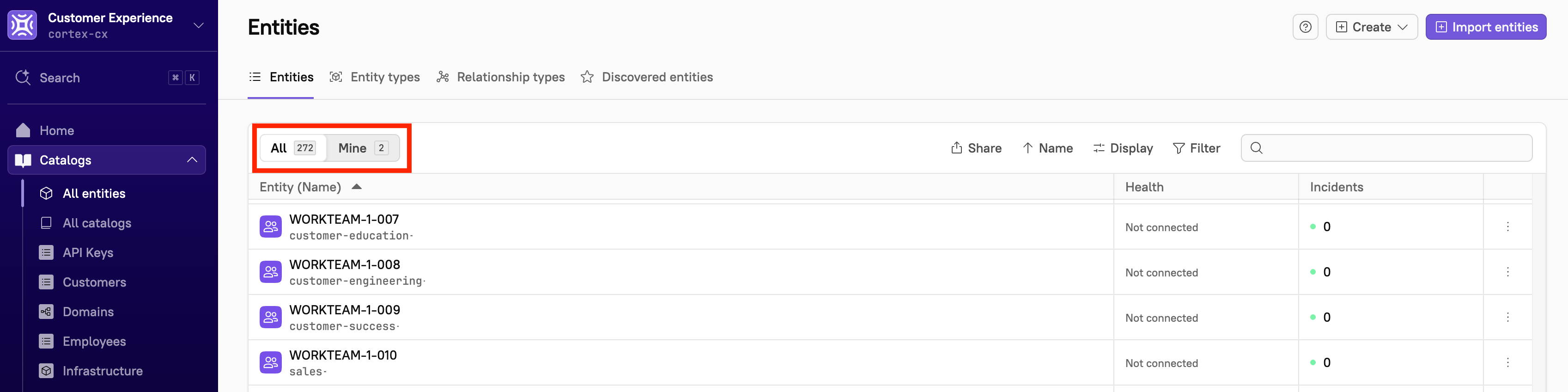
Searching across and filtering services

- From the main sidebar, expand Catalogs, then select Services.
- Do one of the following:
- Select the All tab to search and filter across all of your organization’s services.
- Select the Mine tab to search and filter only the services you own.
- Note that Cortex saves your selection and restores it the next time you open this page.
- Do any or all of the following:
- To find specific services, use the search bar in the upper-right corner of the page and type to search. The search bar shows which fields you can search on and which field your query is matching. For more information, see Using search in Cortex.
- Click Name to select whether you want to sort by name or identifier, and whether to sort by ascending or descending order.
- Click Display to choose whether to show archived services in the list, and select which columns to display alongside services.
- Click into a row to learn more about:
- Incidents - Displays how many active incidents are associated with a given service. This information is pulled from FireHydrant, incident.io, PagerDuty, and Rootly.
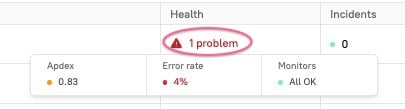
- Health - When you click into this column in an service’s row, you can view more information about:
-
Monitors - Shows how services are performing against monitors you’ve created in your APM. When a service is passing all monitors, this cell will display
All OK; otherwise, it displaysFailing,Warning, orNo Data, along with how many monitors the service is not hitting. This information is pulled from Datadog. - Error rate - Shows the percentage of transactions that result in a failure during a pre-specified window. This information is pulled from New Relic.
-
Apdex (Application Performance Index) - Ratio of the number of satisfied and tolerating requests to the total number requests made. This information is pulled from New Relic.
-
Monitors - Shows how services are performing against monitors you’ve created in your APM. When a service is passing all monitors, this cell will display
- Columns that rely on an integration display Not connected when the integration hasn’t been set up. If the integration is connected but the entity has no associated data or configuration, the cell displays None instead.
- Click Filter to narrow down your list by by domain, entity type, group, owner, or team.
Editing a service entity
Users with theEdit Catalog and Edit Services permissions can edit service entities.
Service entities can be modified at any time. Follow the steps below to edit a service entity.
- Navigate to the entity’s page.
- In the upper-right corner, click Configure entity. The entity details page opens.
- In the upper-right corner, select either UI editor or YAML editor.
- Make your changes. Note that the Cortex tag is uneditable.
- Click Save changes. The service entity is updated.
It’s possible to change the entity type via the Cortex YAML. See Changing an entity’s type for more information.