

Manager role and they are a member of a team assigned the Admin role, then they will have admin permissions throughout Cortex. Using custom roles may introduce other permissions that supersede default roles.
If a user does not have permission to perform an action, the option will not appear for them.
Roles in Cortex
Default roles
When you first access your Cortex account, the following roles are available by default:- Admins: Admins are the owners of the workspace. They have global access to everything within Cortex: settings, Scorecards, and entities.
- Managers: Managers have most of the same abilities as admins, but cannot modify permissions or other settings. Managers can create and edit Scorecards, entities, and teams.
- Users: Users cannot modify settings, nor can they edit or create Scorecards. Users can edit and create entities and teams.
- Viewers: Viewers cannot create or edit anything within the workspace. This is a read-only role.
Custom roles
Cortex gives you the ability to create custom roles with granular permissions so users have the access they need. Learn more in the Custom Roles documentation.Permissioning in Workflows
In addition to the granular permissions listed on this page that apply to Workflows, it is also possible to:- Configure specific users, teams, or roles who are allowed to run a Workflow
- Require a user to be an Owner or Editor of an entity in order to run a workflow
Viewing and assigning roles
View roles
In Settings > Roles and permissions in Cortex, users with the Admin role can view a list of all users in the workspace and their assigned roles. On this page, you can also assign roles and create custom roles.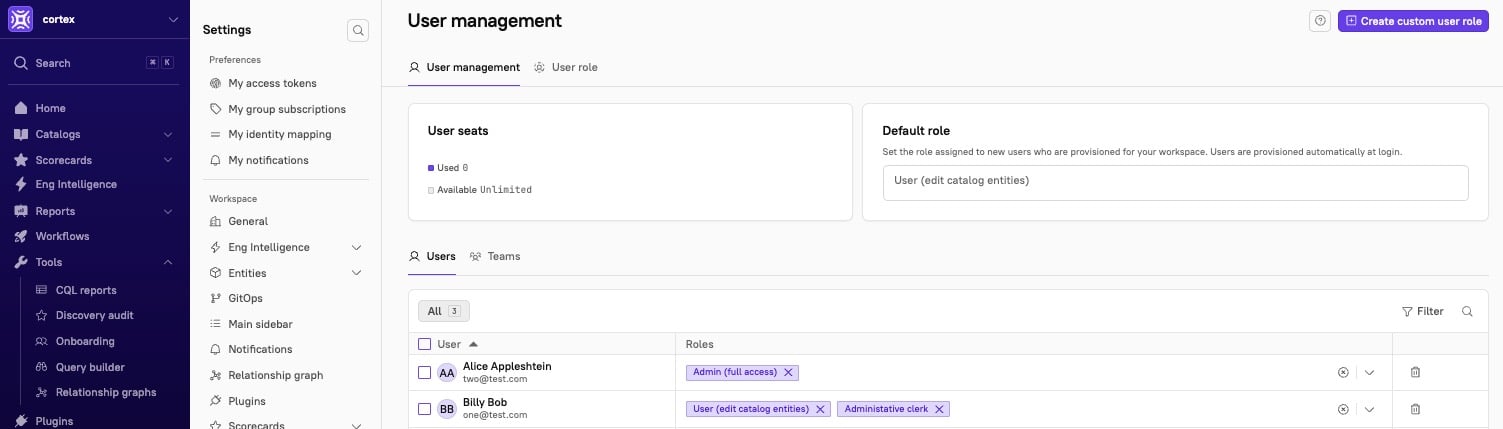
Filter the list

- To filter the list by role, click Filter in the upper right corner of the user list, then select and apply filters.
- To filter the list by user, click the magnifying glass icon in the upper right corner of the list, then type in a name.
Assigning a role to a user
Users with theEdit Roles permission can change the roles assigned to a user. From the Edit user roles side panel, you can add roles, remove a single role, or remove all of a user’s roles at once.
Every user must have at least one role assigned. If you remove all of a user’s roles, add at least one role back before you save.
- From the main sidebar, click your avatar in the bottom-left corner.
- Click Settings.
- From the Settings menu, locate the Security and access section, then click Permissions.
- From the Users tab, locate the user, then click the pencil icon next to their name.
- In the side panel, do any of the following:
- To add a role, select one or more roles from the dropdown.
- To remove a single role, click Remove next to that role.
- To remove every role at once, click Remove all.
- Click Save changes.
Assigning roles to multiple users
- From the main sidebar, click your avatar in the bottom-left corner.
- Click Settings.
- From the Settings menu, locate the Security and access section, then click Permissions.
- From the Users tab, select the checkboxes next to the users you want to assign a role to.
- In the box that appears near the bottom of the list, click Roles, then select Add roles.
- In the side panel, do one of the following:
- To give every selected user an additional role, select Add to existing roles, then select the roles from the Roles to be added dropdown.
- To overwrite the roles for every selected user, select Replace existing roles, then select their new roles from the dropdown.
- Click Add and save.
Removing a single role isn’t supported for bulk edits, because the same role may not apply to every selected user. To take one role away from several users, edit each user individually, or use Replace existing roles and select only the roles they should keep.
Assigning a role to a team
Users with theEdit Roles permission can change the roles assigned to a team.
Team roles allow you to assign the team permissions to a set of users all at once. When you add a new member to a team, Cortex automatically assigns the team role to them.
- From the main sidebar, click your avatar in the bottom-left corner.
- Click Settings.
- From the Settings menu, locate the Security and access section, then click Permissions.
- From the Teams tab, locate the team, then click the pencil icon next to its name.
- In the side panel, do any of the following:
- To add a role, select one or more roles from the dropdown.
- To remove a single role, click Remove next to that role.
- To remove every role at once, click Remove all.
- Click Save changes.
Assigning roles to multiple teams
- From the main sidebar, click your avatar in the bottom-left corner.
- Click Settings.
- From the Settings menu, locate the Security and access section, then click Permissions.
- From the Teams tab, select the checkboxes next to the teams you want to assign a role to.
- In the box that appears near the bottom of the list, click Roles, then select Add roles.
- In the side panel, do one of the following:
- To give every selected team an additional role, select Add to existing roles, then select the roles from the Team roles dropdown.
- To overwrite the roles for every selected team, select Replace existing roles, then select their new roles from the dropdown.
- Click Add and save.
Adding and removing Cortex users
Review users
At the top of the Roles and permissions settings page, you can see the total number of seats, the number of users who have logged in to your instance, the number of users who have only received notifications but have not logged in, and the number of available seats remaining. You can also view this information in the About page under Workspace settings.Set a default role for new users
To set a default role for all new users provisioned for your workspace:- At the top of the Roles and permissions settings page, click into the field under “Default roles.”
- Select the desired role.
Add a user
To add a new user to the platform, first direct the user to attempt to log in to your organization’s Cortex account. If the user has the appropriate email domain, they will be added automatically upon login. If the user sees an “access denied” error, this indicates that the user is not authorized to access the app via your SSO tool.Add a secondary domain
Cloud customers who need to add a secondary email domain should contact help@cortex.io for assistance. This restriction does not apply to self-hosted customers.Remove a user
To delete a user:- In the list of User permissions, locate the user you need to delete.
-
Click the trash icon for the user.
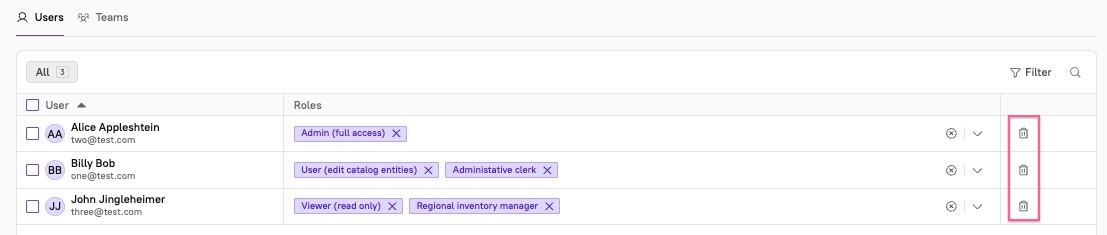
- In the confirmation modal, click Delete.
What is retained
When a user is deleted, all data created by the user — such as Scorecards, custom entities, Workflows, and other configuration — will remain in Cortex and continue to function normally. However, any personal access tokens created by the user will be permanently removed.Ownership and team membership
Deleting a Cortex user only removes their ability to log in and their personal access tokens. It does not automatically remove their email from:- Entity ownership fields — such as service owners or business owners defined in the Cortex UI or via
x-cortex-ownersin YAML - Team membership — defined in the Cortex UI, YAML, or synced from external systems (e.g., GitHub, PagerDuty, Opsgenie)
- Notification targets — any notification rules, Workflow steps, or on-call references that use the user’s email
Visibility of deleted users on teams
Depending on your workspace configuration, deleted users may or may not remain visible on Team pages after their account is removed. Team membership is stored separately from user accounts and can be controlled by workspace-level settings.Contact Cortex Support if you need deleted users to remain visible on teams for ownership tracking purposes.
Reactivation
If a deleted user later regains access to your identity provider (for example, Okta or Google) and logs back into Cortex with the same email address, a new Cortex user account will be created. They will be assigned the workspace’s default role. Any ownership or team membership that still references their email will continue to be associated with them automatically — no manual re-linking is required. If an individual has left your organization entirely and is no longer a user in your identity provider, they will not be able to regain access to your organization’s Cortex account.Footnotes
- This permission is scoped to admins by default to avoid issues with rate limiting, but it can be added to a custom role. ↩