

Viewing the Teams catalog page
The Teams catalog page lists every team entity that’s been added to Cortex. To open it, expand Catalogs in the main sidebar and select Teams. Each row shows the entity’s name and number of team members.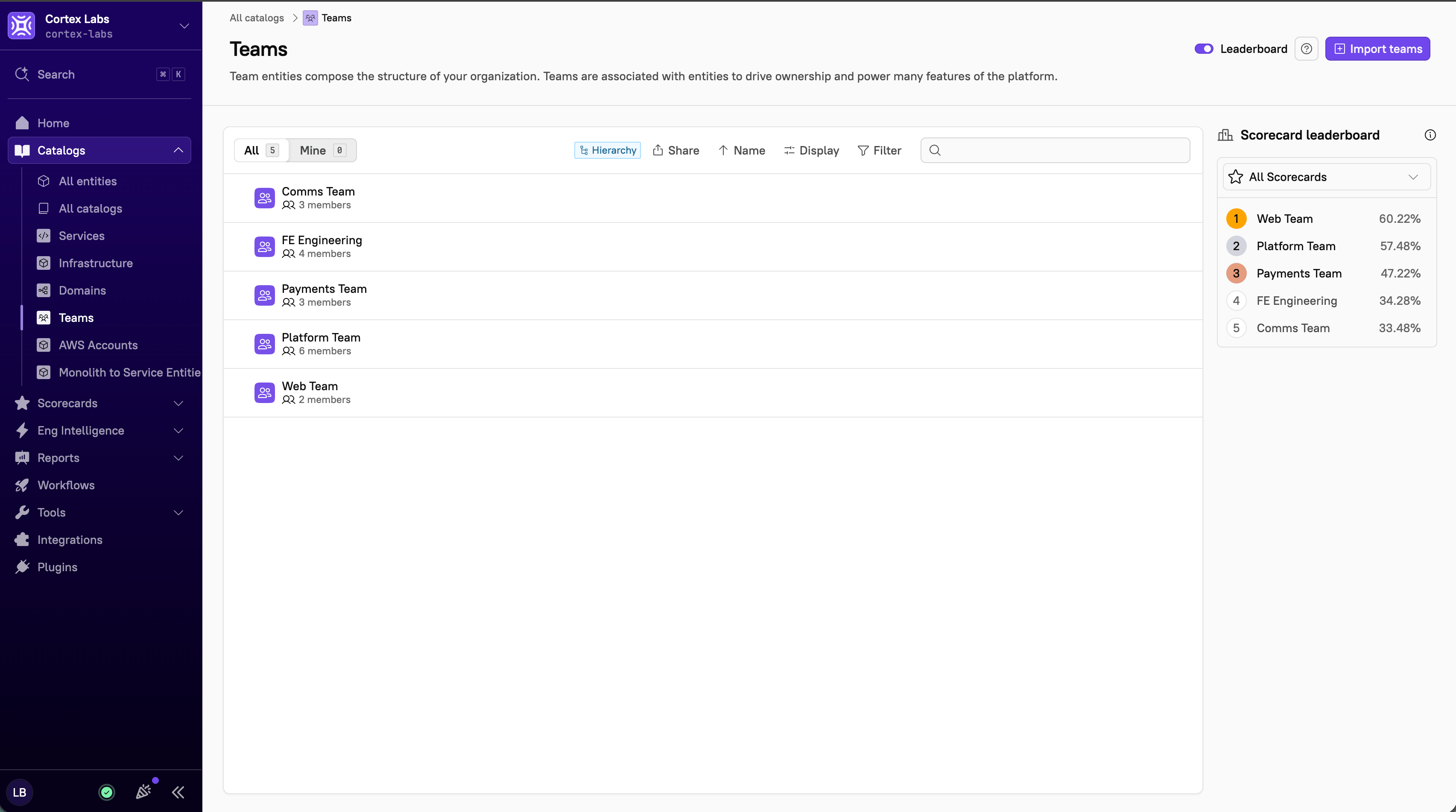
Select the All tab to view all entities in your workspace. Select the Mine tab to view only entities you own, either as an individual owner or as a member of a team that owns them. In the Teams catalog, Mine shows the teams you’re a member of. Cortex saves your selection and restores it the next time you open this page.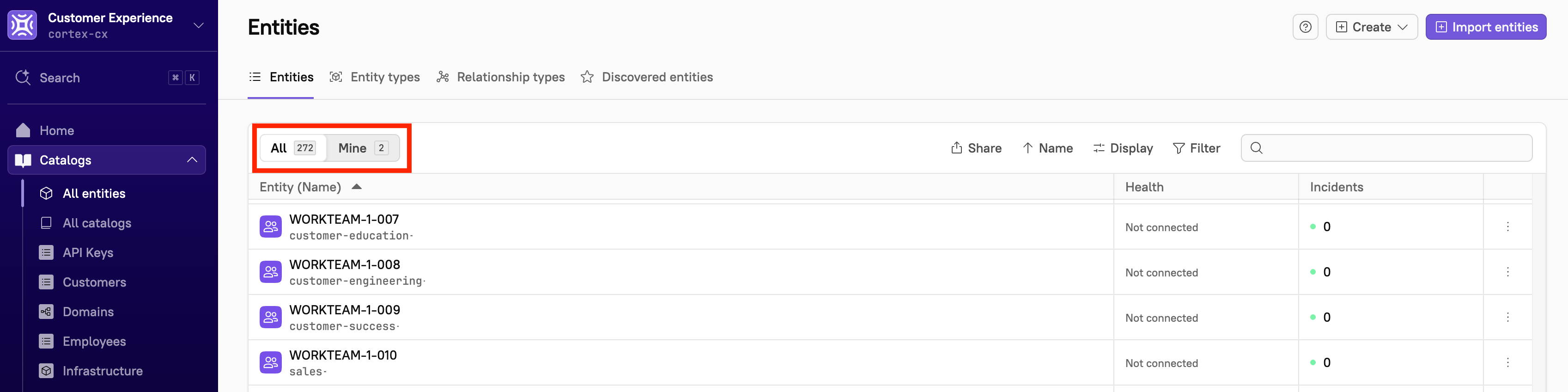
Searching across and filtering teams

- From the main sidebar, expand Catalogs, then select Teams.
- Do one of the following:
- Select the All tab to search and filter across all of your organization’s teams.
- Select the Mine tab to search and filter only the teams you’re a member of.
- Note that Cortex saves your selection and restores it the next time you open this page.
- Do any or all of the following:
- To find specific teams, use the search bar in the upper-right corner of the page and type to search. The search bar shows which fields you can search on and which field your query is matching. For more information, see Using search in Cortex.
- Click Name to select whether you want to sort by name or identifier, and whether to sort by ascending or descending order.
- Click Display to choose whether to show archived teams and/or display teams by hierarchy.
- Click Filter to narrow down your list by team, member, or group.
Viewing team hierarchy
Follow the steps below to display teams in hierarchy.- From the main sidebar, expand Catalogs, then select Teams.
- Click Display at the top of the teams list.
- Toggle on Display hierarchy.
.jpg?fit=max&auto=format&n=WknxdPOUKwxfFHMJ&q=85&s=c7aaf1849984160bebe956b220b9e132 "Display Hierarchy (1)")
- Click Done.
You can also view the hierarchy for a given team on its entity details page.
Understanding hierarchies
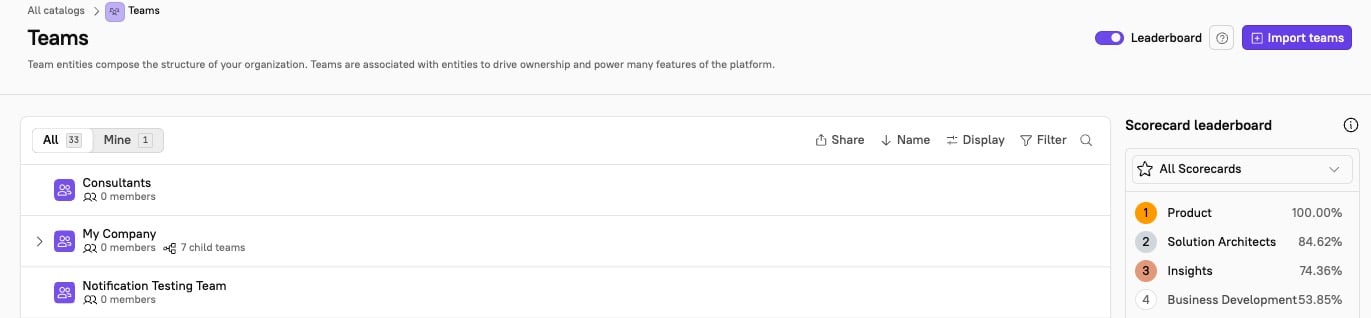
Cortex lets you structure teams to reflect your organization’s real hierarchy, whether you’re creating teams manually or importing them. Any team can be both a parent to other teams and a child of another, so multi-level structures are fully supported. The Teams catalog page displays individual and parent teams by default. An arrow next to a team’s name indicates it has children; click to expand and view child teams. In the image below,My Company is a parent team with 7 child teams nested under it.
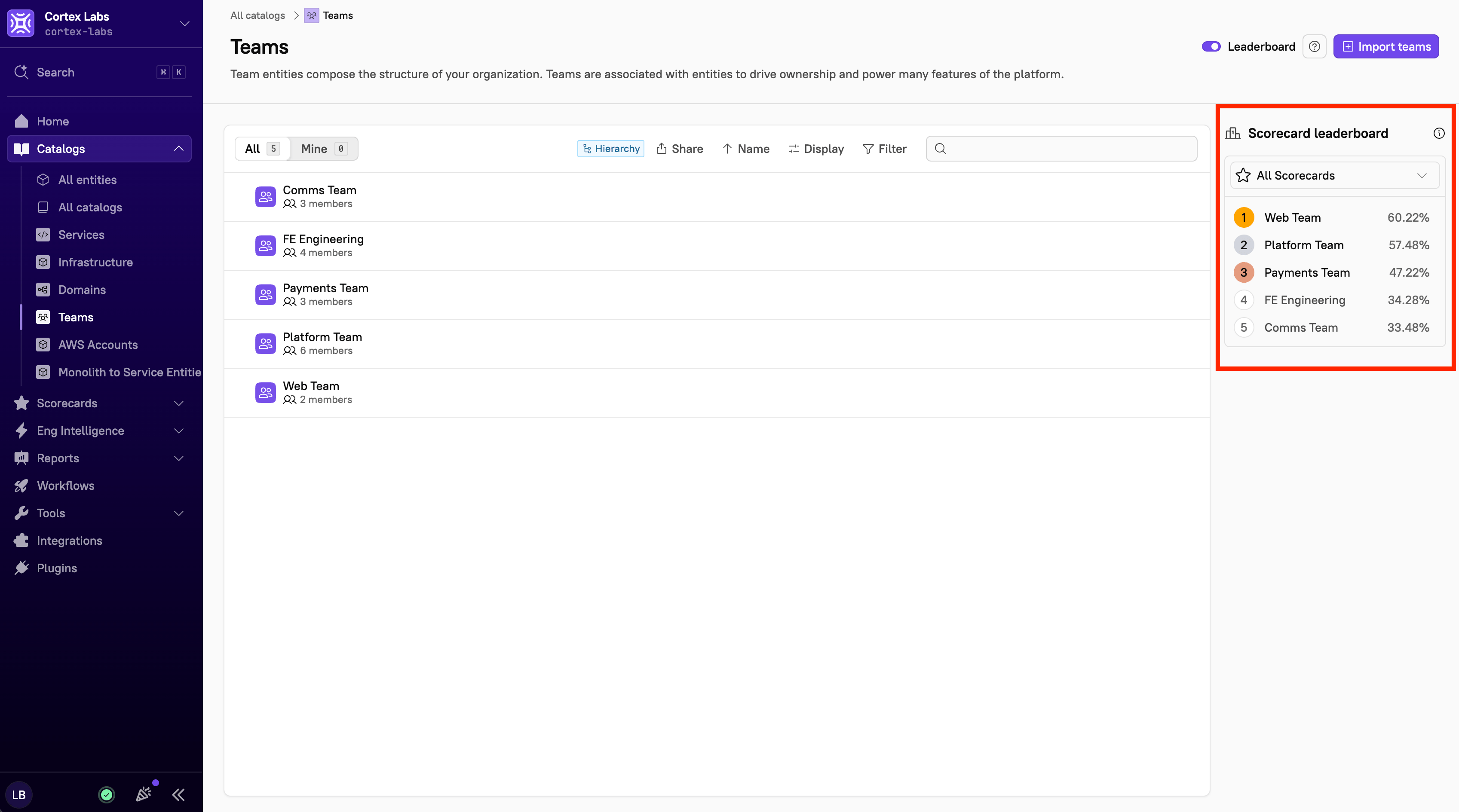
Viewing the Scorecard leaderboard
Viewing an individual team’s page
Every team has a dedicated details page displaying its key information. Follow the steps below to access a team’s details page.- From the main sidebar, expand Catalogs, then select Teams.
- Select a team to view its individual page.
- The entity details sidebar
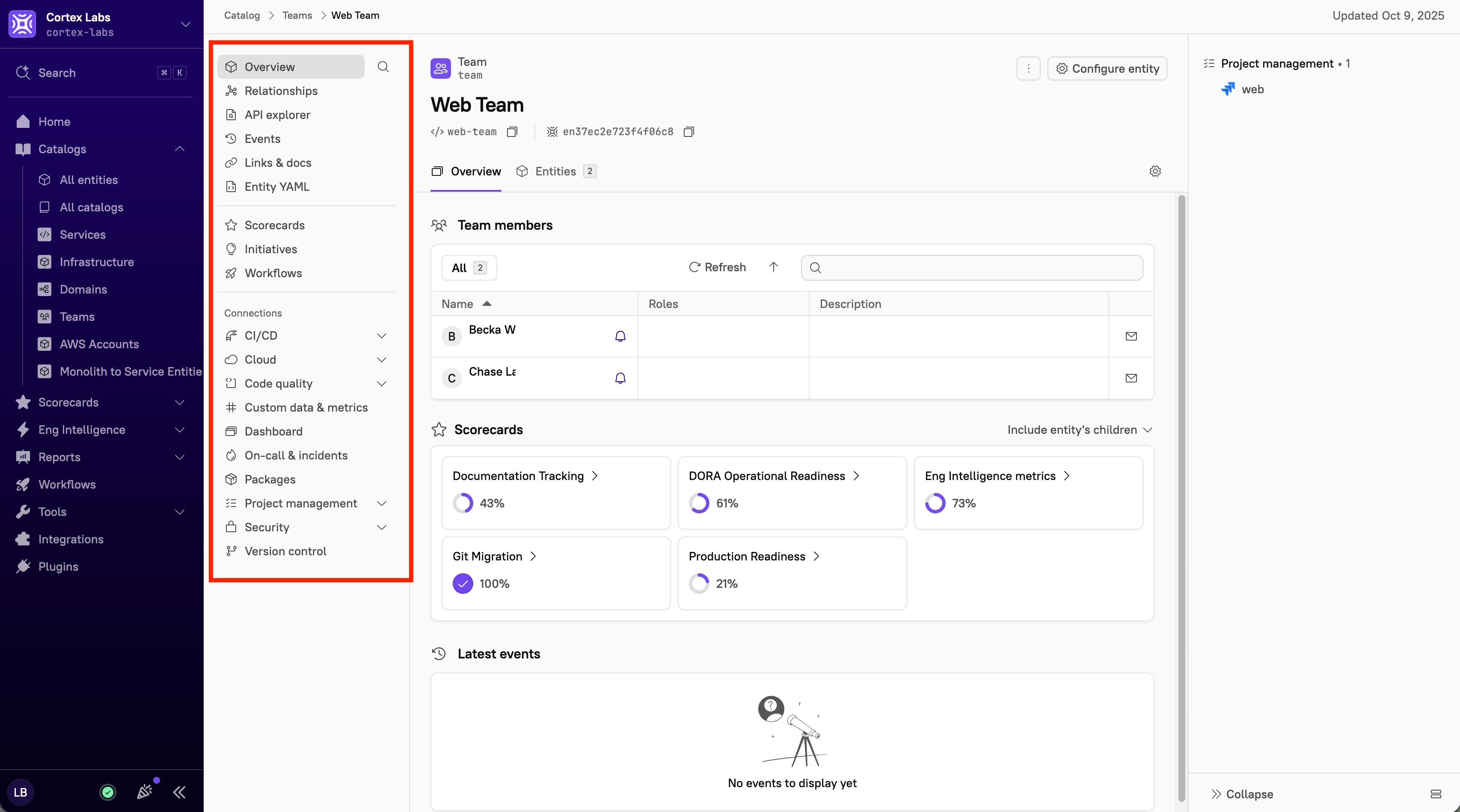
- The team name and tag
- The main Overflow menu icon and the Configure entity button
- The Overview tab:
- The Team members section
- Includes a list of all team members, their roles, and their emails. When available, Cortex pulls in profile photos from your Git provider.
- The Scorecards section
- An overview of how the team is performing across Scorecards. By default, the snapshot shows the level that the team’s entities have reached in each Scorecard. Optionally, click the arrow next to This entity only to include entity’s children.
- The Latest events section
- A list of recent events associated with this team, such as alerts from PagerDuty.
- The Team members section
- The Entities tab:
- Shows a list of linked entities, including number of incidents and health status. Click into an entity to learn more about it. Optionally, click the Overflow menu to copy the entity to your clipboard or view the entity in the relationship graph.
- The metadata sidebar