

Adding domain entities to Cortex
Users with theEdit Catalog and Edit Domains permissions can add domain entities to Cortex.
When configuring an entity, you can’t add archived teams as owners or archived entities as dependencies, parents, or children.
Domains can be added manually, imported, defined in YAML via GitOps, or created via the API.
For simplicity, it’s recommended to add the highest-level domain first, then select it as the parent for subsequent domains. However, you can add parents and children to any domain at any point.
Importing domains from an integration
- From the main sidebar, expand Catalogs, then select All entities.
- In the upper-right corner, click Import entities.
-
Select Import discovered entities.
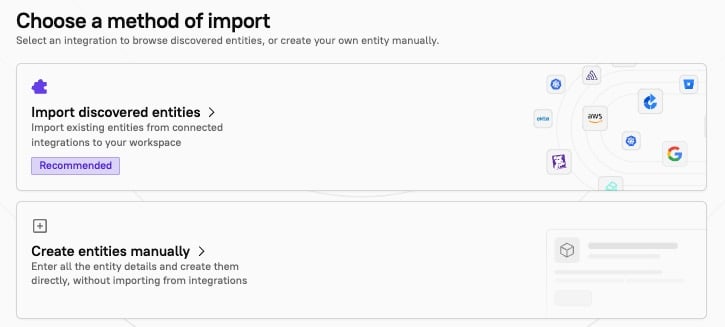
- Select the integration to import from. The Select entities to import page is displayed.
-
A list of entities from the integration are displayed. Select the checkboxes next to the entities you want to import. Use the search bar to find entities by name, or click the Filter icon in the upper-right corner of the results list to filter by entity type. For Azure DevOps integrations, you can also filter by project name. Search and filters run server-side, so they stay responsive even with large catalogs.
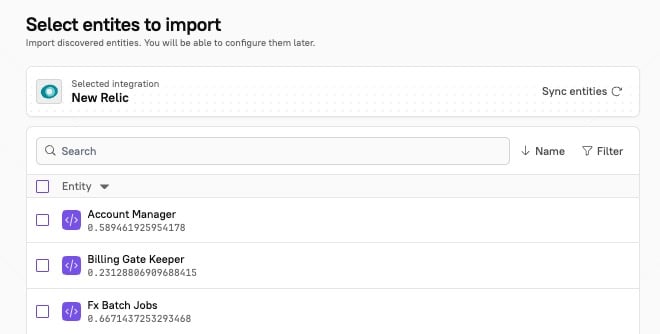
- In the bottom-right corner, click Next step. The Edit details page is displayed.
-
Configure the following options. The options shown are filtered at runtime based on the
entityType(e.g. ‘Members’ is team-only, ‘Dependencies’ excludes domains/teams) and whether the required integrations are enabled (e.g. ‘Communications’ requires Slack, ‘On-call’ requires Opsgenie/PagerDuty, etc.).- From the Type drop-down menu, select Domain.
- In the Details section:
- Under Entity name, enter a name for the entity (required).
- The Cortex tag field is auto-populated based on the name of the entity (required). It’s a unique identifier for the entity. This is also known as the
x-cortex-tag. - Under Description, enter a description of the entity to help others understand its purpose.
- From the Groups drop-down, select a group or groups to segment the entity.
- In the Repository section:
- From the Provider drop-down menu, select the repo provider.
- From the Alias drop-down menu, select the alias of the connected provider account that has access to the repository.
- From the Repository drop-down menu, select the repo associated with the entity. If you don’t see it listed, click Refresh repositories to pull in the latest list.
- Under Basepath, enter the subdirectory within the repo where the entity’s code lives. Leave blank if the entity occupies the entire repo.
- In the Owners section, define ownership for the entity. Ownership can be assigned to either teams or individual users. It’s recommended to select team owners to keep the ownership information up to date through any future personnel changes. To add a team or teams, click Add in the Teams area. To add an individual user or users, click Add in the Users area.
- Cortex may recommend owners based on your catalog data. You can accept or reject the recommendations.
- When adding an owner, you can also configure one of the following inheritance options:
- Append - Select this option to add your entity as an additional owner to all of its child entities.
- Fallback - Select this option to add your entity as an owner to child entities if the child entity has no other valid owners.
- None - Select this option if you do not want to configure inheritance. The owner owns the domain you are creating, but will not be configured as an appended or a fallback owner.
- In the Links section, click Add to add links to external documentation, such as runbooks, docs, logs, or custom categories.
- In the Slack channels section, click Add to link a Slack channel to the entity. If enabled, you’ll receive notifications about the entity in the selected Slack channel.
- In the Parents section, select a parent domain or domains from the drop-down menu. This is where you configure the hierarchy for your entity, which can be visualized in the relationship graph.
- In the Children section, select children entities. This is where you configure the hierarchy for your entity, which can be visualized in the relationship graph.
-
If you selected more than one entity, click Next entity in the bottom-right corner of the page.
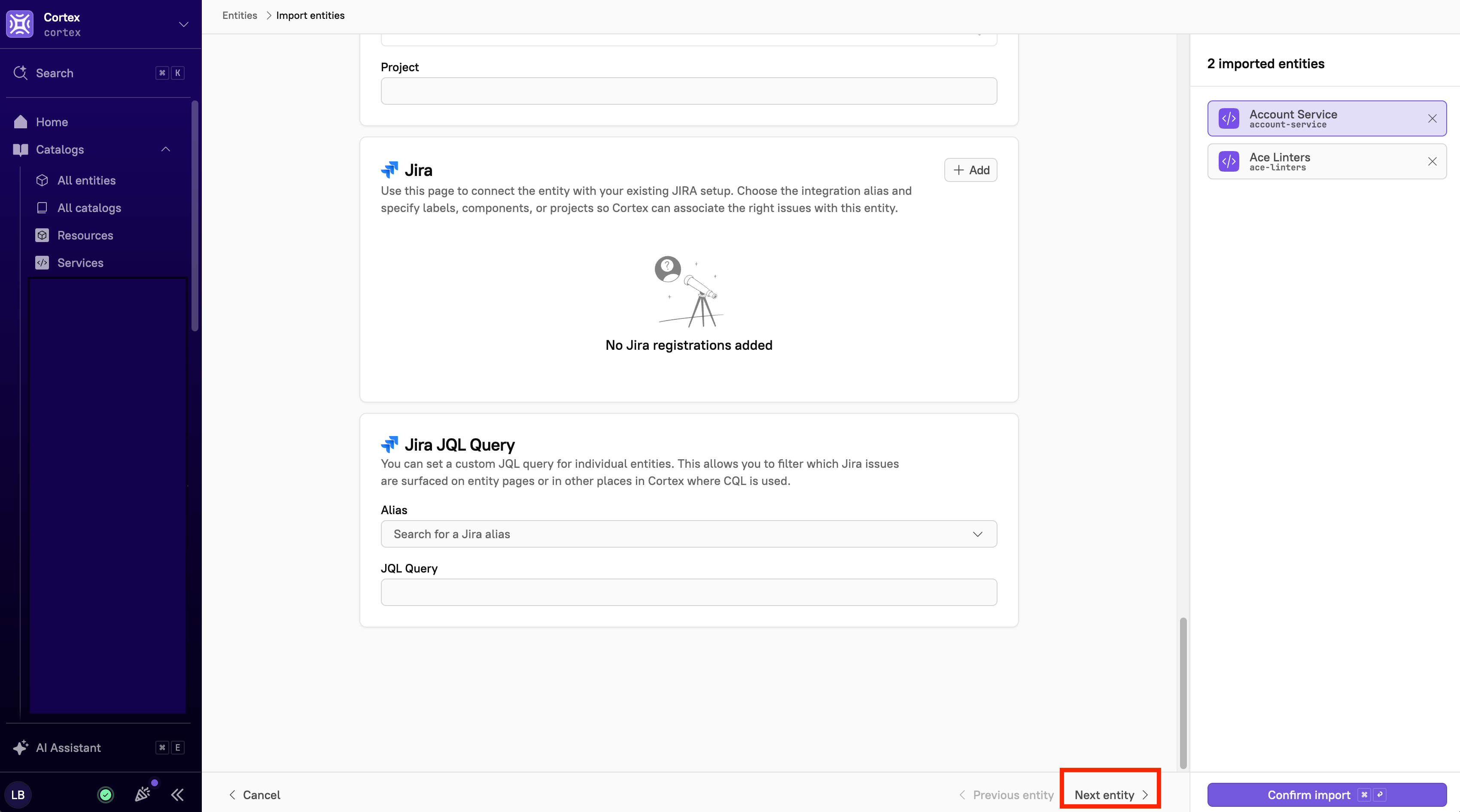
- Click Confirm import. The entity is imported into Cortex.
Manually adding domains
- From the main sidebar, expand Catalogs, then select All entities.
- In the upper-right corner, click Import entities.
- Select Create entities manually. The Edit details page is displayed.
- Configure the following options. The options shown are filtered at runtime based on the
entityType(e.g. ‘Members’ is team-only, ‘Dependencies’ excludes domains/teams) and whether the required integrations are enabled (e.g. ‘Communications’ requires Slack, ‘On-call’ requires Opsgenie/PagerDuty, etc.).- From the Type drop-down menu, select Domain.
- In the Details section:
- Below Entity name, enter a name for the entity (required).
- The Cortex tag field is auto-populated based on the name of the entity (required). Its a unique identifier for the entity. This is also known as the
x-cortex-tag. - Below Description, enter a description of the entity to help others understand its purpose.
- From the Groups drop-down, select a group or groups to segment the entity.
- In the Repository section:
- From the Provider drop-down menu, select the repo provider.
- From the Alias drop-down menu, select the alias of the connected provider account that has access to the repository.
- From the Repository drop-down menu, select the repo associated with the entity. If you don’t see it listed, click Refresh repositories to pull in the latest list.
- Below Basepath, enter the subdirectory within the repo where the entity’s code lives. Leave blank if the entity occupies the entire repo.
- In the Owners section, define ownership for the entity. Ownership can be assigned to either teams or individual users. It’s recommended to select team owners to keep the ownership information up to date through any future personnel changes. To add a team or teams, click Add in the Teams area. To add an individual user or users, click Add in the Users area.
- Cortex may recommend owners based on your catalog data. You can accept or reject the recommendations.
- When adding an owner, you can also configure one of the following inheritance options:
- Append - Select this option to add your entity as an additional owner to all of its child entities.
- Fallback - Select this option to add your entity as an owner to child entities if the child entity has no other valid owners.
- None - Select this option if you do not want to configure inheritance. The owner owns the domain you are creating, but will not be configured as an appended or a fallback owner.
- In the Links section, click Add to add links to external documentation, such as runbooks, docs, logs, or custom categories.
- In the Slack channels section, click Add to link a Slack channel to the entity. If enabled, you’ll receive notifications about the entity in the selected Slack channel.
- In the Parents section, select a parent domain or domains from the drop-down menu. This is where you configure the hierarchy for your entity, which can be visualized in the relationship graph.
- In the Children section, select children entities. This is where you configure the hierarchy for your entity, which can be visualized in the relationship graph.
- Optionally, if you’d like to add another entity, click Add entity in the upper-right corner of the page.
- Click Confirm import. The entity is imported into Cortex. If there are any errors, a banner appears at the bottom of the page with the errors that need to be fixed.
Adding a domain in YAML via GitOps
Before creating a domain entity via GitOps, be sure UI-based editing is disabled in Cortex. See Managing entities via GitOps. The hierarchy of entities in Cortex is based on that hierarchy being defined in the entity’s YAML file; Cortex does not set hierarchies based on a YAML file’s location in your repository. Domain entity descriptor If your entity is a domain, you must specifyx-cortex-type as domain:
- Top-down (from the parent) - Use the
x-cortex-childrentag in the parent entity YAML to list its children. - Bottom-up (from the child) - Use the
x-cortex-parentstag in the child entity YAML to list its parents.
x-cortex-parents tag:
Parent entities must be of type
domain.x-cortex-children tag:
inheritance type for each owner can be one of APPEND, FALLBACK, or NONE. If not set, inheritance is defaulted to NONE.
APPEND- This owner is appended to the list of owners for all child entities.FALLBACK- In the case where a child has no valid owners, including fallbacks, this fallback will be assigned as the owner. Note that this only applies to a child entity down the hierarchy; it is not the fallback for the parent domain itself.NONE- This owner owns the domain, but not necessarily any of its children (no inheritance).
The YAML definition for a domain entity can take file names other than
cortex.yaml or cortex.yml; see the GitOps example repository structure.Adding a domain via the Cortex API
You can create, update, and delete domains using the Cortex API. See Catalog entities for more information.Viewing domains
The Domains catalog page lists every domain entity that’s been imported into Cortex. To open it, expand Catalogs in the main sidebar and select Domains. Each row shows the entity’s name and tag.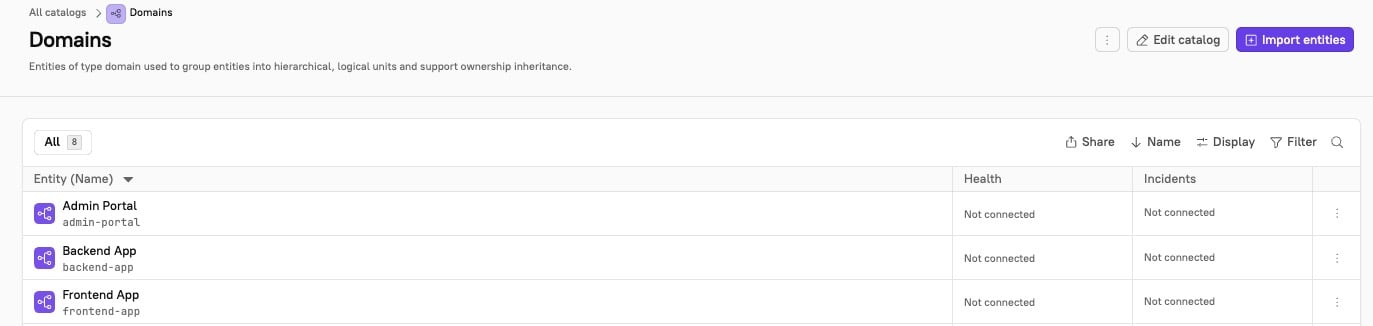
Select the All tab to view all entities in your workspace. Select the Mine tab to view only entities you own, either as an individual owner or as a member of a team that owns them. In the Teams catalog, Mine shows the teams you’re a member of. Cortex saves your selection and restores it the next time you open this page.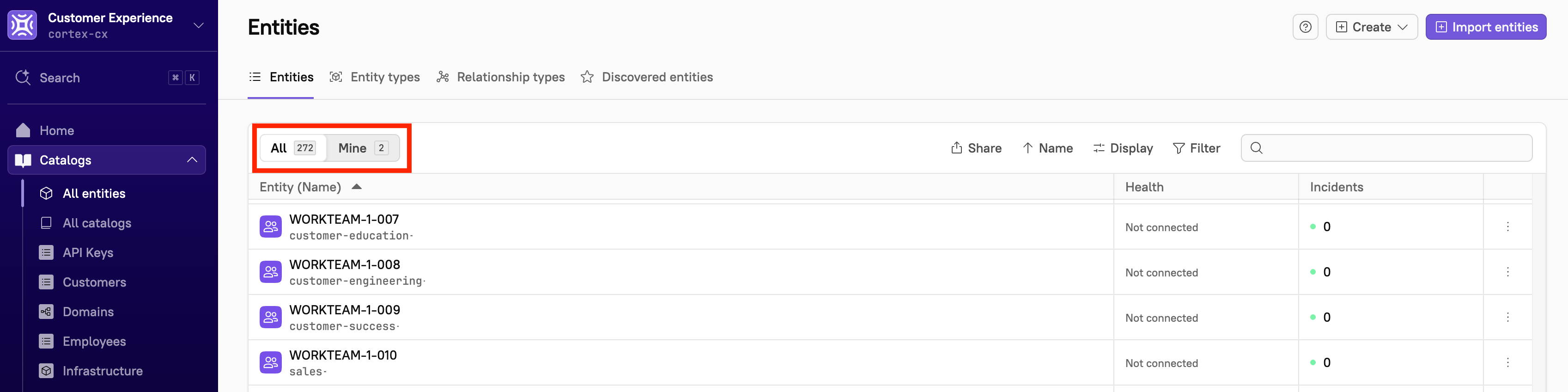
Searching across and filtering domains

- From the main sidebar, expand Catalogs, then select Domains.
- Do one of the following:
- Select the All tab to search and filter across all of your organization’s domains.
- Select the Mine tab to search and filter only the domains you or your teams own.
- Note that Cortex saves your selection and restores it the next time you open this page.
- Do any or all of the following:
- To find specific domains, use the search bar in the upper-right corner of the page and type to search. The search bar shows which fields you can search on and which field your query is matching. For more information, see Using search in Cortex.
- Click Name to select whether you want to sort by name or identifier, and whether to sort by ascending or descending order.
- Click Display to choose whether to show archived domains, display domains by hierarchy, and/or display empty domains.
- Click Filter to narrow down your list by domain, entity type, group, owner, or team.
Viewing the domain hierarchy
Follow the steps below to display domains in hierarchy.- From the main sidebar, expand Catalogs, then select Domains.
- Click Display at the top of the domains list.
-
Toggle on Display hierarchy.
.jpg?fit=max&auto=format&n=WknxdPOUKwxfFHMJ&q=85&s=c7aaf1849984160bebe956b220b9e132 "Display Hierarchy (1)")
- Click Done.
You can also view the hierarchy for a given domain on its entity details page.
Viewing the Relationships page
If the domain has parents or children, those appear on the Relationships page.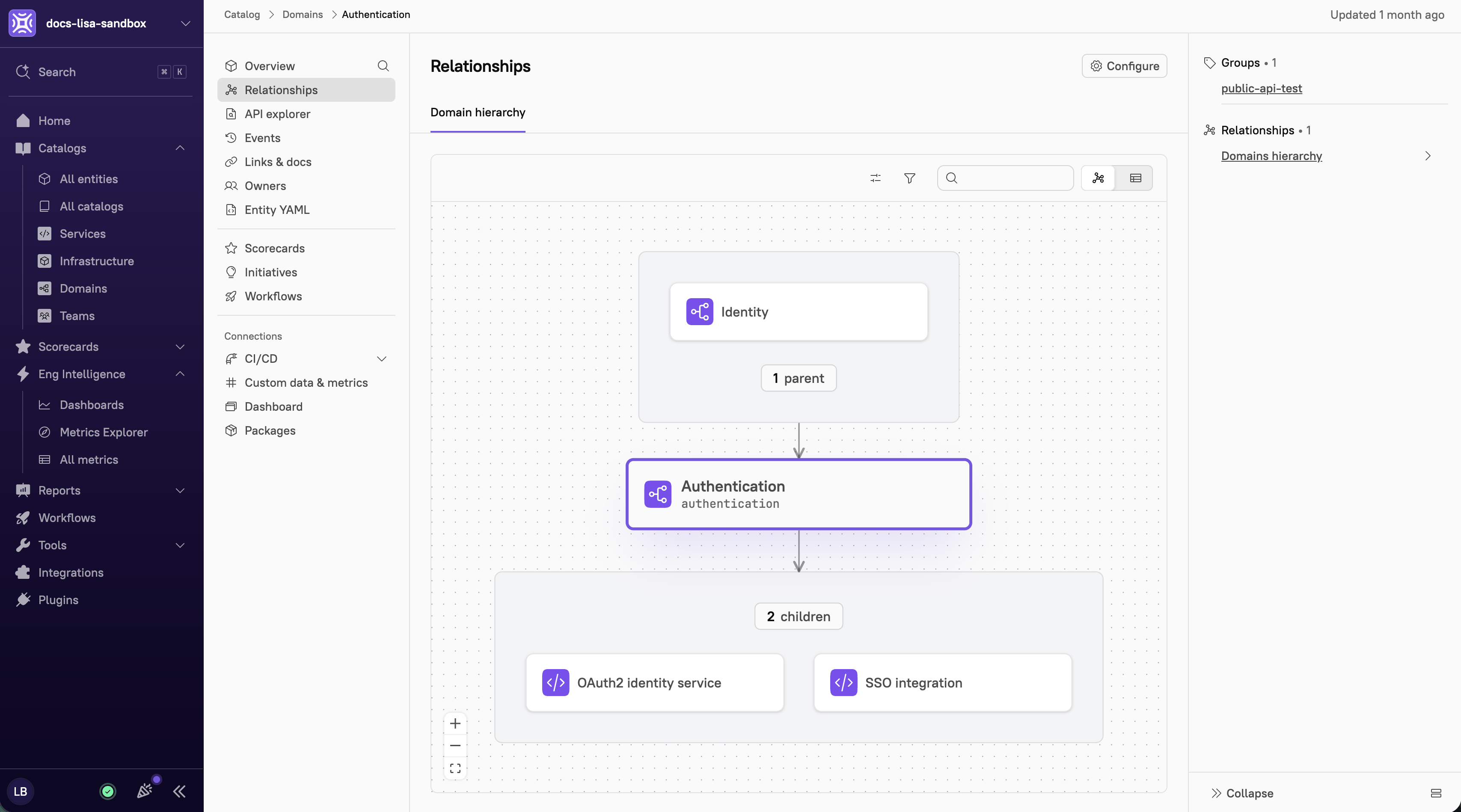
- From the main sidebar, expand Catalogs, then select Domains.
- Click Display at the top of the domains list.
- Select the entity whose relationship graph you want to view.
-
In the entity sidebar, select Relationships.
.png?fit=max&auto=format&n=TKBM5XkYAo_gc56V&q=85&s=dd052daeb60e80d6992a2f537ecb93b3 "Relationships Page Sidebar (1)")
-
Do any of the following:
- Click the Archive icon to show or hide archived relationships.
- Click the Filter icon to narrow the scope of the graph.
- By default, the domain hierarchy is displayed as a graph. Click the Table mode icon to switch to a tabular view.
- Click Configure in the upper-right corner to configure the relationship type and its associated entities.
Editing a domain entity
Users with theEdit Catalog and Edit Domains permissions can edit domain entities.
Domain entities can be modified at any time. Follow the steps below to edit a domain entity.
- Navigate to the entity’s page.
- In the upper-right corner, click Configure entity. The entity details page opens.
- In the upper-right corner, select either UI editor or YAML editor.
- Make your changes. Note that the Cortex tag is uneditable.
- Click Save changes. The domain entity is updated.
It’s possible to change the entity type via the Cortex YAML. See Changing an entity’s type for more information.