

Adjusting general settings for entities
Admins and users with theConfigure Settings permission can adjust system-wide settings for entities under Settings > Entities > General. See Entity settings.
Defining entities with YAML
Every entity in your Cortex catalog is defined by a YAML file known as the Cortex entity descriptor (or Cortex YAML, named after thecortex.yaml file used in the GitOps approach). This applies whether you manage entities through the UI or GitOps—the descriptor is the underlying source of truth either way.
You can extend an entity by adding metadata to the info section of its descriptor. Throughout the docs, you’ll see snippets prefixed with x-cortex-*; these are descriptor blocks that belong inside info and unlock additional Cortex functionality.
See Defining entities with YAML for more information.
Unique identifiers for entities
Cortex tag
The Cortex tag (formerly the entity tag) is a customizable, unique identifier used to reference an entity throughout Cortex. It’s defined by thex-cortex-tag value in an entity’s YAML file and powers core functionality like declaring dependencies between entities.
Each Cortex tag must be globally unique across all entities in your workspace.
Changing a Cortex tag
Editing an entity’s x-cortex-tag doesn’t rename the existing entity, it creates a new one. Cortex generates a new entity with the updated tag and leaves the original entity untouched, regardless of whether the change is made through the UI editor, the API, or GitOps. Both entities continue to exist in your catalog until you archive or delete the original.
Reusing a Cortex tag
A Cortex tag can only be associated with one entity at a time. To reuse a tag that’s already in use, the entity currently holding it must be archived first.
Using forward slashes in a Cortex tag
Cortex tags may contain forward slashes (/), including leading, trailing, and consecutive slashes, e.g. payments/checkout or /services/payments-api).
When you reference a tag that contains forward slashes in an API request path, URL-encode each slash as %2F. Cortex matches the tag exactly as encoded—including any leading, trailing, or consecutive slashes—and does not collapse repeated slashes.
For example, to archive an entity whose tag is /services/payments-api:
Tags containing slashes (including consecutive slashes such as
//) are supported through the API only. The Cortex UI does not support creating or editing tags with leading, trailing, or consecutive slashes, so behavior between the API and UI differs by design.Cortex ID
The Cortex ID (CID) is a unique, immutable identifier assigned to every entity in Cortex. Unlike the Cortex tag, which you define and can change, the CID is automatically generated, fixed for the life of the entity, and 18 characters long, making it ideal for historical tracking, reporting, and any system of record outside of Cortex. You can use the CID anywhere you’d reference an entity: in the API, in CQL queries, throughout the app, and with the Cortex AI Assistant. Where to find the CID The CID appears in an entity’s URL and at the top of its details page. It doesn’t appear in the entity’s YAML file, since it can’t be modified.
Managing entities via GitOps
Accounts are configured to edit entities through the UI by default. It’s strongly recommended to start with the UI editor, which includes a built-in YAML editor, then moving to GitOps when you’re ready to scale. Follow the steps below to enforce GitOps-only creation and editing of entities.- From the main sidebar, click your avatar in the bottom-left corner.
- Click Settings.
- From the Settings menu, locate the Workspace section, then click GitOps.
- From the Entities tab, scroll to Options by entity type.
- Do the following:
- To only allow editing of entities via GitOps, toggle off Enable UI editing for new entity types.
- To only allow creation of entities via GitOps, toggle off Enable UI importing for new entities.
-
To override these settings for a specific entity type, disable the UI editing and UI importing toggles next to that type in the list. This enforces a GitOps-only approach for that entity type.
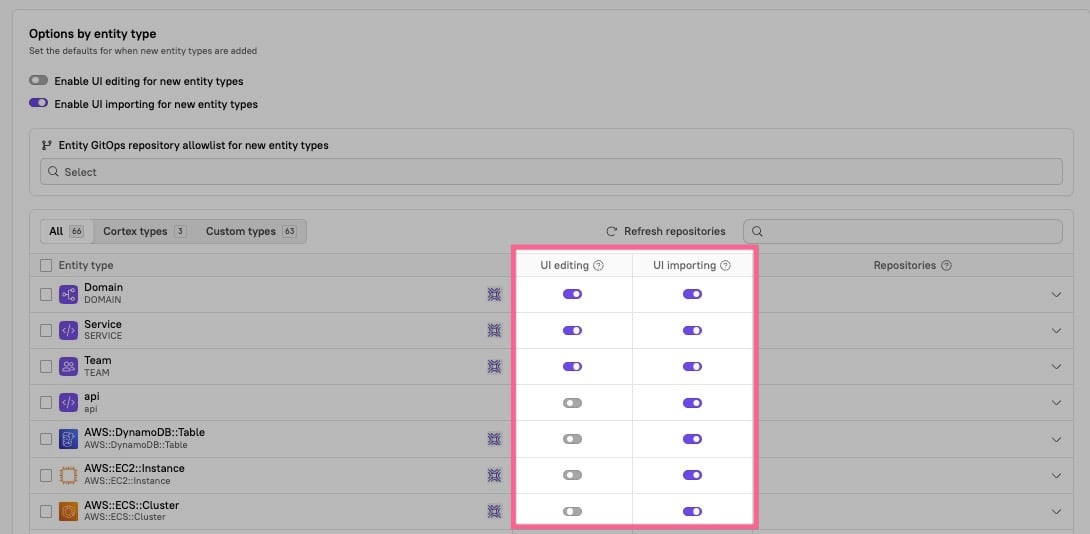
Things to keep in mind when using GitOps
When using GitOps, you can define any number of entities in any repository.- Domain definitions should live in the
.cortex/domainsdirectory in your repository. - Team definitions should live in the
.cortex/teamsdirectory in your repository.
Adding entities to catalogs
Each catalog has entity type criteria that determine which entities it includes. When an entity is created or imported, it’s automatically added to any catalog whose criteria it meets. You set these criteria when creating a custom catalog. Default catalogs have their entity type criteria set automatically:- The Services catalog contains
serviceentity types - The Domains catalog contains
domainentity types - The Teams catalog contains
teamentity types - The Infrastructure catalog contains any entities that are not the types
service,domain, orteam.-
Its catalog filter is set to exclude the types
service,domain, andteam: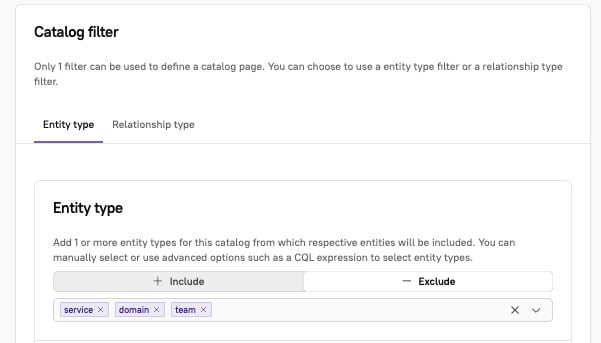
- By default, any custom entity types you create belong to the Infrastructure catalog. If you don’t want an entity type to belong to this catalog, you can add the entity type to a different catalog.
-
Its catalog filter is set to exclude the types
Managing entities across catalogs
The All entities page lists every entity that’s been imported into Cortex, regardless of type. To open it, expand Catalogs in the main sidebar and select All entities. The page opens to the Mine tab if you own any entities, and defaults to the All entities tab otherwise. Each row shows the entity’s name and tag. Most workspaces start with just a few dozen entities, but catalogs often grow to hundreds (or thousands!) of entities over time as more of your ecosystem is brought into Cortex.Searching across and filtering entities
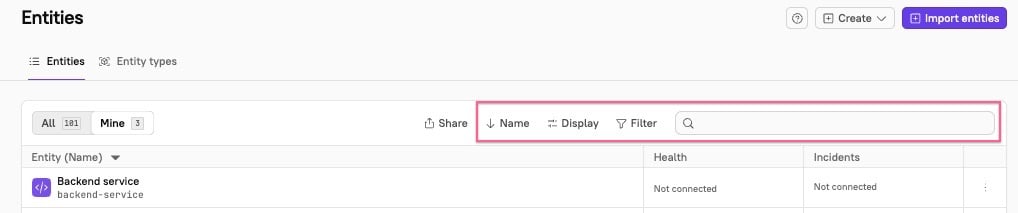
- From the main sidebar, expand Catalogs, then select All entities.
- Do one of the following:
- Select the All tab to search and filter across all of your organization’s entities.
- Select the Mine tab to search and filter only the entities you own.
- Note that Cortex saves your selection and restores it the next time you open this page.
- Do any or all of the following:
- To find specific entities, use the search bar in the upper-right corner of the entities list and type to search.
- Click Name to select whether you want to sort by name or identifier, and whether to sort by ascending or descending order.
- Click Display to choose whether to show archived entities in the list, and select which columns to display alongside entities.
- Incidents - Displays how many active incidents are associated with a given entity. This information is pulled from FireHydrant, incident.io, PagerDuty, and Rootly.
- Health - When you click into this column in an entity’s row, you can view more information about:
-
Monitors - Shows how entities are performing against monitors you’ve created in your APM. When an entity is passing all monitors, this cell will display
All OK; otherwise, it displaysFailing,Warning, orNo Data, along with how many monitors the entity is not hitting. This information is pulled from Datadog. - Error rate - Shows the percentage of transactions that result in a failure during a pre-specified window. This information is pulled from New Relic.
-
Apdex (Application Performance Index) - Ratio of the number of satisfied and tolerating requests to the total number requests made. This information is pulled from New Relic.
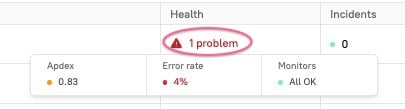
-
Monitors - Shows how entities are performing against monitors you’ve created in your APM. When an entity is passing all monitors, this cell will display
- Columns that rely on an integration display Not connected when the integration hasn’t been set up. If the integration is connected but the entity has no associated data or configuration, the cell displays None instead.
- Click Filter to narrow down your list by associated Git repository, unowned entities, AWS account ID or region, domain, entity type, group, team, or user.
Viewing entity types
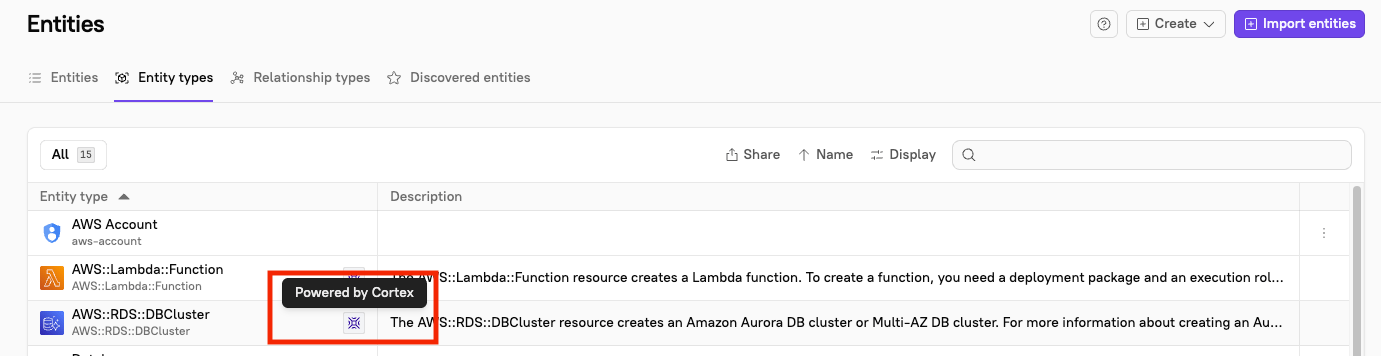
Select the Entity types tab to view all entity types in your workspace. Click any entity type to see more details about it.
Changing an entity’s type
Entities can be reclassified to a different type as their role in your catalog evolves. For example, an entity originally created as a service could later be changed to a domain. This gives you flexibility to restructure your catalog as your organization changes—useful when entities were initially imported under the wrong type, or when you want to consolidate, split, or rethink how parts of your ecosystem are modeled. Admins or users with theConfigure Settings permission can change an entity’s type.
Prerequisites
- Toggle on the option to change an entity type:
- From the main sidebar, click your avatar in the bottom-left corner.
- Click Settings.
- From the Settings menu, locate the Workspace section, then click Entities.
- Click General.
- In the Entity settings section, toggle on Enable changing entity type.
If you’d rather keep entity types fixed after creation, keep this option toggled off to enforce stability across your catalog.
x-cortex-type field in the entity’s YAML descriptor to the new type. This can only be done via YAML, not through the UI.
A Cannot change the type of the entity error means the Enable changing entity type option is disabled. Turn it on to allow the change. See the prerequisite section above.
Deleted entities can be re-created with a different type, regardless of this setting.
Viewing relationship types
Software ecosystems are rarely flat. Services depend on each other, teams own different parts of the stack, and domains nest inside larger business areas. Relationship types let you capture these connections in Cortex, so your catalog reflects how your organization actually fits together. A relationship type defines how two entities relate to one another and which entity types are allowed as the source and destination of that relationship. Cortex supports a few different ways to model these connections:- Entity relationships - Custom relationships you define between any entity types, either hierarchical or cyclical.
- Team hierarchies - Hierarchical relationships between team entities, including ownership over other entities.
- Domain hierarchies - Hierarchical relationships between domain entities, with optional ownership inheritance from higher levels of the hierarchy.
- Dependencies - Cyclical relationships between non-team entities, used to model how services and resources rely on each other.
