

Adding team entities to Cortex
Users with theEdit Catalog and Edit Domains permissions can add team entities to Cortex.
When configuring an entity, you can’t add archived teams as owners or archived entities as dependencies, parents, or children.
Teams can be added manually, imported, defined in YAML via GitOps, or created via the API.
Importing teams from an integration
If you already have a source of truth for teams and members, integrate your identity provider to import them. Cortex syncs team pages daily, eliminating duplicate updates when membership changes. Teams can be imported from the following integrations:- Azure DevOps
- BambooHR
- Entra ID
- GitHub
- GitLab
- Okta
- OpsGenie
- ServiceNow
- Configure table mappings before importing
- Workday
- Optionally, enable automatic import of discovered teams
- From the main sidebar, expand Catalogs, then select All entities.
- In the upper-right corner, click Import entities.
-
Select Import discovered entities.
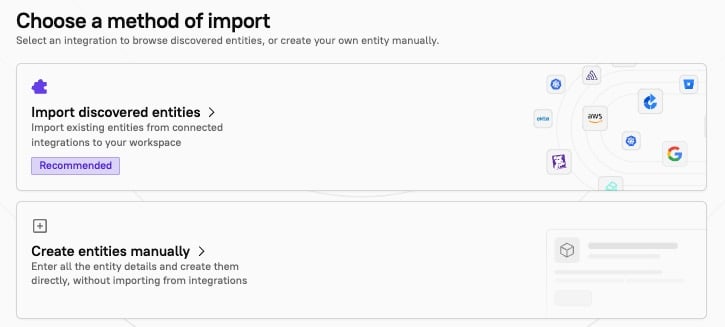
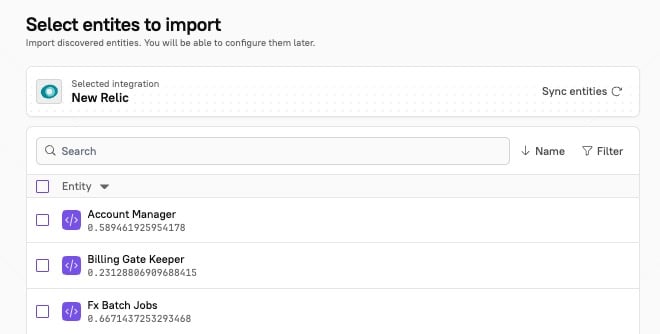
- Select the integration to import from. The Select entities to import page is displayed.
-
A list of entities from the integration is displayed. Select the checkboxes next to the entities you want to import. Use the search bar to find entities by name, or click the Filter icon in the upper-right corner of the results list to filter by entity type. Search and filters run server-side, so they stay responsive even with large catalogs.
- In the bottom-right corner, click Next step. The Edit details page is displayed.
-
Configure the following options. The options shown are filtered at runtime based on the
entityType(e.g. ‘Members’ is team-only, ‘Dependencies’ excludes domains/teams) and whether the required integrations are enabled (e.g. ‘Communications’ requires Slack, ‘On-call’ requires Opsgenie/PagerDuty, etc.).- From the Type drop-down menu, select Team.
- In the Details section:
- Under Entity name, enter a name for the entity (required).
- The Cortex tag field is auto-populated based on the name of the entity (required). It’s a unique identifier for the entity. This is also known as the
x-cortex-tag. - Under Description, enter a description of the entity to help others understand its purpose.
- From the Groups drop-down, select a group or groups to segment the entity.
- In the Members section, click Add member. In the side panel, do the following:
- Select a user from the drop-down menu OR enter their information manually. If entering the information manually:
- Under Name, enter the user’s first and last name.
- Under Email, enter the user’s email address.
- Under Description, enter any relevant information about the user, e.g. their timezone.
- From the Team role drop-down menu, select the user’s team role.
- Optionally, toggle on Notifications to turn on notifications for the user. See Notifications for more information.
- Click Add.
- Select a user from the drop-down menu OR enter their information manually. If entering the information manually:
- In the Links section, click Add to add links to external documentation, such as runbooks, docs, logs, or custom categories.
- In the Slack channels section, click Add to link a Slack channel to the entity. If enabled, you’ll receive notifications about the entity in the selected Slack channel.
- In the Parents section, select a parent team or teams from the drop-down menu. This is where you configure the hierarchy for your entity, which can be visualized in the relationship graph.
- In the Children section, select children entities. This is where you configure the hierarchy for your entity, which can be visualized in the relationship graph.
- In the Jira section, click Add to connect the entity to Jira. In the side panel, do the following:
- From the Jira Service Type drop-down menu, select the service type:
- Component - The sub-sections of a project used to group issues.
- Label - Text-based tags used to categorize and track issues.
- Space - The area where teams organize, track, and manage their operational work.
- From the Alias drop-down menu, select the service type’s alias.
- Depending on the service type you selected, configure the appropriate field:
- Select a Jira component from the drop-down menu.
- Enter the name of the label.
- Select a Jira space from the drop-down menu.
- Click Add.
- From the Jira Service Type drop-down menu, select the service type:
- In the Jira JQL Query section, select an alias from the drop-down menu. Enter a custom JQL query for the entity.
-
If you selected more than one entity, click Next entity in the bottom-right corner of the page.
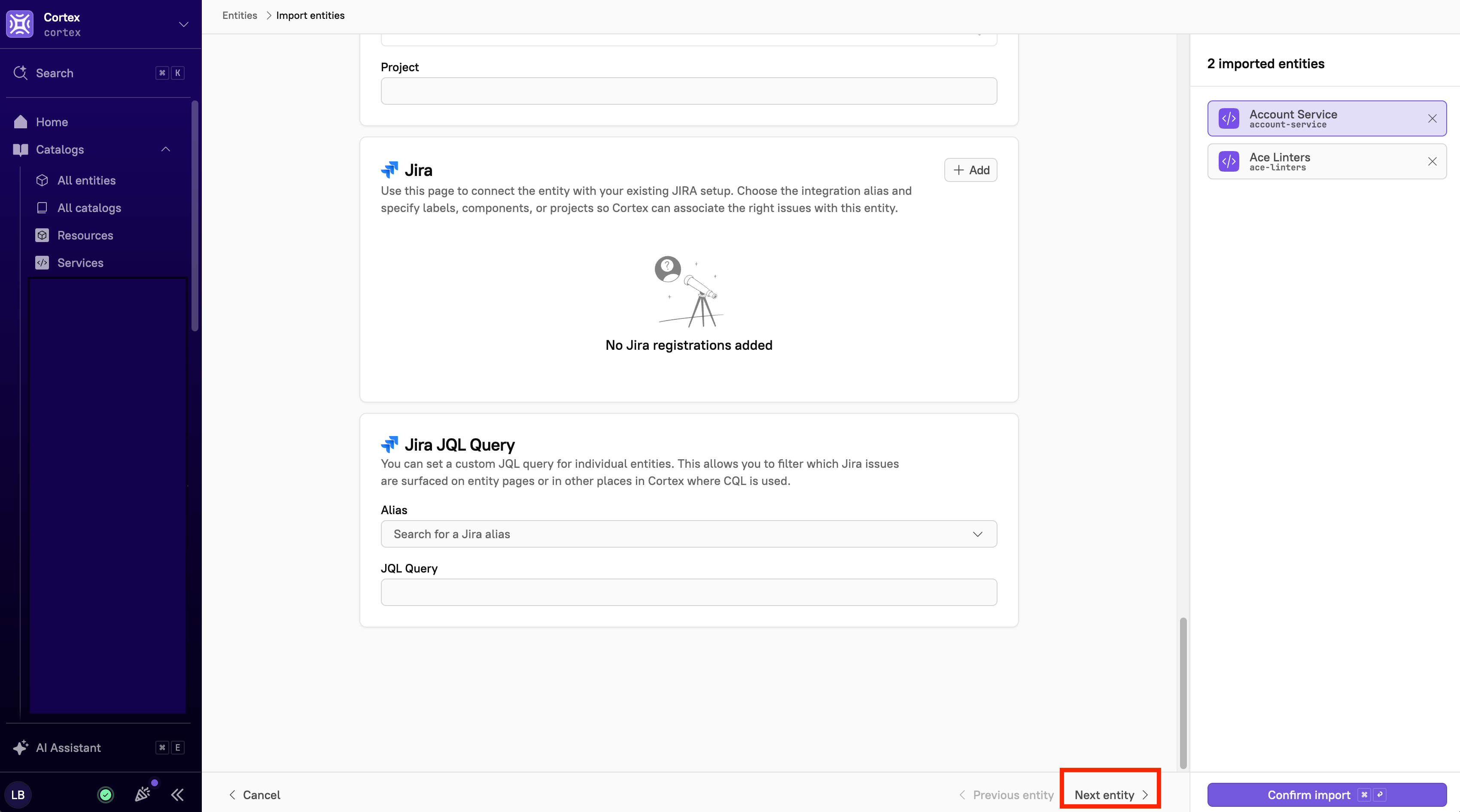
- Click Confirm import. The entity is imported into Cortex.
Manually adding teams
If you don’t have an identity provider with updated team information, you can create teams manually in Cortex. Teams are essential for effective ownership, so it’s recommended to set them up even without a single source of truth.- From the main sidebar, expand Catalogs, then select All entities.
- In the upper-right corner, click Import entities.
- Select Create entities manually.
- Configure the following options. The options shown are filtered at runtime based on the
entityType(e.g. ‘Members’ is team-only, ‘Dependencies’ excludes domains/teams) and whether the required integrations are enabled (e.g. ‘Communications’ requires Slack, ‘On-call’ requires Opsgenie/PagerDuty, etc.).- From the Type drop-down menu, select Team.
- In the Details section:
- Under Entity name, enter a name for the entity (required).
- The Cortex tag field is auto-populated based on the name of the entity (required). Its a unique identifier for the entity. This is also known as the
x-cortex-tag. - Under Description, enter a description of the entity to help others understand its purpose.
- From the Groups drop-down, select a group or groups to segment the entity.
- In the Members section, click Add member. In the side panel, do the following:
- Select a user from the drop-down menu OR enter their information manually. If entering the information manually:
- Under Name, enter the user’s first and last name.
- Under Email, enter the user’s email address.
- Under Description, enter any relevant information about the user, e.g. their timezone.
- From the Team role drop-down menu, select the user’s team role.
- Optionally, toggle on Notifications to turn on notifications for the user. See Notifications for more information.
- Click Add.
- Select a user from the drop-down menu OR enter their information manually. If entering the information manually:
- In the Links section, click Add to add links to external documentation, such as runbooks, docs, logs, or custom categories.
- In the Slack channels section, click Add to link a Slack channel to the entity. If enabled, you’ll receive notifications about the entity in the selected Slack channel.
- In the Parents section, select a parent team or teams from the drop-down menu. This is where you configure the hierarchy for your entity, which can be visualized in the relationship graph.
- In the Children section, select children entities. This is where you configure the hierarchy for your entity, which can be visualized in the relationship graph.
- In the Jira section, click Add to connect the entity to Jira. In the side panel, do the following:
- From the Jira Service Type drop-down menu, select the service type:
- Component - The sub-sections of a project used to group issues.
- Label - Text-based tags used to categorize and track issues.
- Space - The area where teams organize, track, and manage their operational work.
- From the Alias drop-down menu, select the service type’s alias.
- Depending on the service type you selected, configure the appropriate field:
- Select a Jira component from the drop-down menu.
- Enter the name of the label.
- Select a Jira space from the drop-down menu.
- Click Add.
- From the Jira Service Type drop-down menu, select the service type:
- In the Jira JQL Query section, select an alias from the drop-down menu. Enter a custom JQL query for the entity.
- If you selected more than one entity, click Next entity in the bottom-right corner of the page.
- Click Confirm import. The entity is imported into Cortex.
Adding a team in YAML via GitOps
Before creating a team entity via GitOps, be sure UI-based editing is disabled in Cortex. See Managing entities via GitOps. Teams can be created manually in Cortex or defined directly in the entity descriptor, where they can also be assigned as owners. See Defining ownership for more information. If your entity is a team, you must specifyx-cortex-type as team :
The
x-cortex-team tag has two main sections: groups and members.Adding groups to the team entity descriptor
Usegroups to connect a team entity to a matching team on another platform you’ve integrated with Cortex (such as Okta, GitHub, or Azure AD). Only one group can be linked per team entity.
For example, you can specify:
okta-firewall-whisperers under groups populates your team with every member of that Okta group.
Once linked, any entity that lists okta-firewall-whisperers in x-cortex-owners automatically recognizes firewall-whisperers as an owning team, no extra configuration required.
For example, a service owned by the team would look like:
Adding team members to the team entity descriptor
Usemembers when you need to define team membership directly in Cortex, rather than syncing from an external platform. This is useful when a team doesn’t map cleanly to a single group in one of your integrations, or when you need finer-grained control over who belongs and in what role.
For example, you can specify:
role field is optional per member. Roles themselves must be defined in the entity’s settings page, under the Teams tab.
A team doesn’t need a linked group. You can define membership with
members instead, link one group, or use both.Team children
Usex-cortex-children to define sub-teams, letting you model your org structure as a hierarchy in Cortex. The full hierarchy is visible in the Teams catalog.
Cortex derives hierarchy from what’s declared in each YAML file, not from where those files live in your repository.
Team parents
x-cortex-children defines relationships top-down, but if it’s more natural to declare a team’s place in the hierarchy from its own YAML, use x-cortex-parents instead. Both approaches produce the same result; use whichever fits how your team’s YAML is maintained.
For example, you can specify:
Example cortex.yaml
The example below shows a fully defined team entity combining groups, members, children, Slack, and PagerDuty. Note that the file doesn’t need to be namedcortex.yaml or cortex.yml . See GitOps example repository structure for more information.
Adding a team via the Cortex API
You can create, update, and delete teams using the Cortex API. See Teams for more information.Editing a team entity
Users with theEdit Catalog and Edit Teams permissions can edit team entities.
Team entities can be modified at any time. Follow the steps below to edit a team entity.
- Navigate to the entity’s page.
- In the upper-right corner, click Configure entity. The entity details page opens.
- In the upper-right corner, select either UI editor or YAML editor.
- Make your changes. Note that the Cortex tag is uneditable.
- Click Save changes. The team entity is updated.
It’s possible to change the entity type via the Cortex YAML. See Changing an entity’s type for more information.