

Cortex connects to many third-party vendors whose system interfaces frequently change. As a result, integration behavior or configuration steps may shift without notice. If you encounter unexpected issues, check with your system administrator or refer to the vendor’s documentation for the most current information. Additionally, integration sync times vary and are subject to scheduling overrides and timing variance.
Cortex conducts a background sync of Slack identities every day at 10 a.m. UTC.
Connecting an entity to a Slack channel
Slack channels can be associated with entities in Cortex. Connect them through the Cortex UI or via YAML. Slack channels can also be added as external documentation links on an entity, even without configuring the integration.Connecting via the Cortex UI
- Go to an entity’s details page.
- In the upper-right corner, click Configure entity.
- In the left entity menu, select Communications.
- In the Slack channels section, click Add.
- In the Slack side panel, do the following:
- From the Channel name dropdown, type in or select your Slack channel’s name (required).
- Under Description, add a description to help others understand the purpose of the Slack channel.
- Optionally, toggle on Notifications to receive notifications about this entity to the selected Slack channel.
- Click Add.
Connecting via YAML
Editing the YAML
For any entity type, you can define Slack channels in its YAML by name or ID, and turn notifications on or off for each channel. Those channels then appear on the entity’s details page in Cortex, including the Owners block in the entity’s sidebar.The YAML examples on this page show only the
x-cortex-* block. When you add one to an entity descriptor, nest it inside the info section. Blocks at the root level of the file are ignored without an error. For a full example, see Defining entities with YAML.Slack channels are contacts, not owners. They show people where to reach an entity’s owners, but they don’t count toward ownership. To assign owners, use
x-cortex-owners. See Owners, on-call, and contact channels.When to define by channel name vs. channel ID
Defining by name is more easily recognizable to users when viewing the entity’s YAML. However, if a Slack channel’s name is likely to change, it’s better to define by ID as it won’t break the entity’s Slack link in Cortex. Slack channels registered by ID alone inx-cortex-slack automatically resolve to their channel names in the entity sidebar. If no cached name is available, the channel ID is shown as a fallback.
Defining by channel names
It’s recommended to register Slack channels by ID, rather than by name, as channel names may change over time. When you register a channel by ID, Cortex resolves the channel name automatically for display in the entity view.
Defining by channel IDs
Connect channels to entities without configuring the integration for Slack
You can connect Slack channels to entities without configuring the Slack integration. Note that this method only provides a link to Slack from the entity; it won’t include any features of the Slack integration, such as ownership tracking, notifications, Slack Bot, and the ability to use CQL to query Slack data.
Use Slack’s redirect link format,
https://slack.com/app_redirect?channel={channel_name}, to add the link to an entity YAML, under the x-cortex-slack block. Make sure to replace channel_name with your Slack channel’s name.
Viewing Slack information in Cortex
Slack channels appear at the top of an entity’s details page in the Communications block. Click a channel name to go directly to that channel in Slack.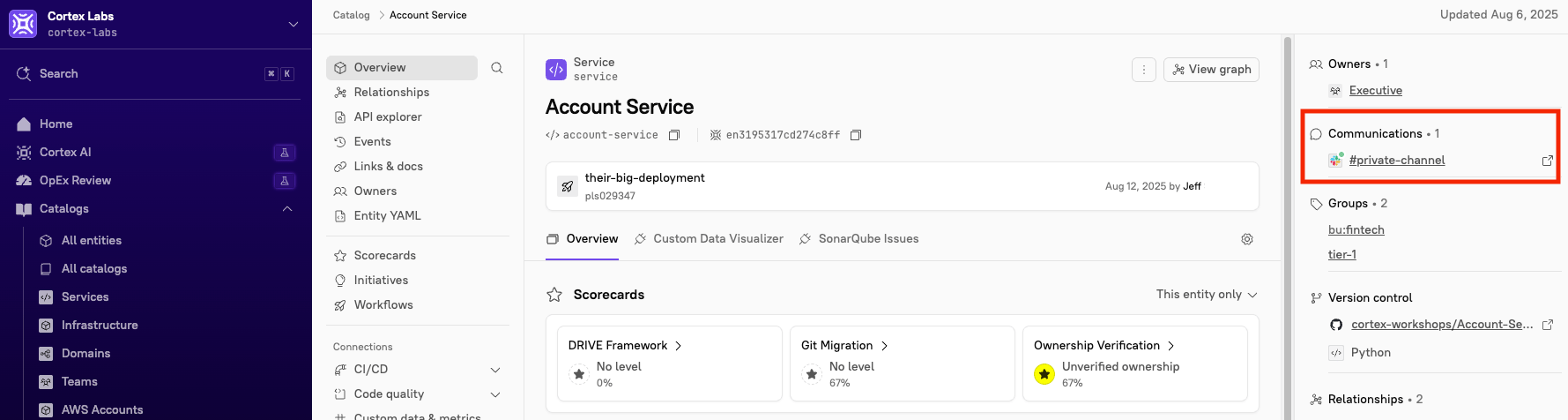
Using the AI assistant
To use the AI assistant in Slack, you must be a member of your organization’s Cortex workspace, and your Cortex account must be mapped to your Slack identity. The AI assistant does two things: it answers questions in natural language, and it delivers notifications. Natural-language chat Mention@Cortex in a channel or direct message and ask a question in plain language, such as “Which services does my team own?” This works best for open-ended or analytical questions. Cortex responds in a thread. See Cortex’s prompt library for more examples.
To ask a follow-up, reply in that same thread. Cortex keeps the context of the conversation, so you can drill down without repeating information. Context is scoped to the thread: a new top-level message starts a fresh conversation with no prior context.
The AI assistant is read-only. It can query Cortex, but it can’t make changes or write data.
When you mention @Cortex, Cortex:
- Interprets your question.
- Determines which Cortex API endpoints to call.
- Retrieves the relevant data from your Cortex workspace.
- Returns a formatted response in Slack.
:thumbs_up: or :thumbs_down: to rate the answer. Cortex uses this feedback to improve future responses.
Notifications
The AI assistant also delivers Scorecard, Initiative, and weekly summary notifications to users and channels. See Managing Slack notifications below.
Adding the AI assistant to a Slack channel
You must add the AI assistant to a channel before you can use it there. Both public and private channels are supported.- Open the Slack channel where you want to add the app.
-
Type
@Cortexand press Enter. Slack prompts you to take action. - Click Add them. The AI Assistant is added to the channel.
Available capabilities
The following API endpoints are accessed when chatting with Cortex:Creating Scorecard rules and writing CQL queries with the Slack integration
See examples below.Check if Slack channel is set
Check if Slack channel is set
Checks if an entity has a registered Slack channel in its entity descriptor.Definition - Defining a rule to make sure a Slack channel is set is a good way to make sure that users can reach out to entity owners for more information or if an issue arises.
slack (==/!=) nullExampleFor a Scorecard focused on onboarding entities, you can define a rule to make sure each entity has a registered Slack channel:Number of Slack channels
Number of Slack channels
Counts the number of Slack channels registered for a given entity.Definition - This rule makes sure that there is at least one Slack channel set.
slack.channels().lengthExampleSimilar to slack != null, you can use this expression to write a rule checking that entities are linked to a Slack channnel:Total number of members across Slack channel
Total number of members across Slack channel
Counts the total number of members across all registered Slack channels.Definition - If an entity is linked to an empty Slack channel, it might indicate a gap in your notification process.
slack.numOfMembers()ExampleYou can use this expression in the Query Builder to find entities linked to empty Slack channels:Managing Slack notifications
Slack notifications are controlled at two levels:- Workspace settings - In Cortex, admins (or users with the
Configure Workspace Notification Settingspermission) can enable or disable Slack as a delivery channel for each notification type. This determines which notifications are available to send via Slack across the workspace.- Note that if a notification type is disabled at the workspace level, users won’t be able to opt into it in their personal settings.
- Personal settings - Individual users can then choose which of the available Slack notifications they want to receive in their own personal notification settings.
- User-based notifications are sent as direct messages to the relevant user.
- Team-based notifications are sent to the Slack channel associated with a team.
- Entity-based notifications are sent to the Slack channel associated with an entity.
Viewing Slack integration logs
This feature is available in Cortex cloud.
- From the main sidebar, select Integrations.
- Locate Slack, then click Settings.
- Select the Logs tab. Note that logs are retained for 7 days.