

Cortex connects to many third-party vendors whose system interfaces frequently change. As a result, integration behavior or configuration steps may shift without notice. If you encounter unexpected issues, check with your system administrator or refer to the vendor’s documentation for the most current information. Additionally, integration sync times vary and are subject to scheduling overrides and timing variance.
- Quickly find the relevant MS Teams channel to communicate with the right team, allowing for easier collaboration on projects and faster communication during an incident
- MS Teams channels appear in the “Owners” block on entity details pages.
- Receive actionable notifications directly in MS Teams for Scorecard changes, upcoming Initiatives, weekly summaries of entity performance, and more
- Create Scorecards that enforce standards such as having an MS Teams channel set for projects
How to configure Microsoft Teams with Cortex
Step 1: Configure the integration in Cortex
- In Cortex, navigate to the Microsoft Teams settings page.
- Click Integrations from the main nav. Search for and select Microsoft Teams.
- Click Add configuration.
- In the side panel, click Connect account via Microsoft Teams OAuth. A popup window will appear.
- In the pop-up window, follow the prompts to log in to your Microsoft account. The user configuring the integration must accept the delegated permissions listed below:
After authenticating, you will be redirected to the Microsoft Teams integration settings page in Cortex. In the upper right corner of the page, click Test configuration to ensure Microsoft Teams was configured properly.
Step 2: Install the Cortex app for Teams through Microsoft AppSource
- On the Microsoft Teams settings page in Cortex, click the Microsoft AppSource link.
- In AppSource, click Get it now. You will be redirected to a page where you can choose whether to download a desktop app or use the web app.
Step 3: Configure a setup policy for Cortex in Teams
MS Teams admins can configure a setup policy for Cortex, can choose whether to automatically download the Cortex app into the personal Teams environments for users, and can choose to pin the app to make it more easily accessible. If admins do not add a policy to install the Cortex app, then users will need to download the app during setup.- Navigate to the Teams admin center under Teams app > Setup policies.
- Click Add to start configuring a setup policy for the Cortex app.
- After configuring a policy, navigate to the Installed apps section. Add the Cortex app here.
- This will automatically download the app in users’ personal Teams environments.
- MS Teams admins can also apply the policy to specific users in the Teams admin center under Users > Manage Users.
- To pin the app, follow Microsoft’s instructions on pinning apps.
Limitations
Cortex does not automatically discover MS Teams channels based on a Cortex tag so you must define channels for each entity as described below.How to connect Cortex entities to Microsoft Teams
In order to use this integration’s functionality, your MS Teams channels need to be associated with entities in Cortex. Cortex does not automatically discover channels for MS Teams, so you must define them in the entity descriptor.Editing the entity descriptor
To associate a Microsoft Teams channel with an entity, define ax-cortex-microsoft-teams block in an entity descriptor as shown in the example below.
Defining a Teams channel will provide direct access to the channel via the entity page in Cortex.
Using the Microsoft Teams integration
Viewing Microsoft Teams information across Cortex
-
Entity details page: After MS Teams channels are defined in an entity’s YAML, MS Teams channels will appear at the top of an entity’s overview page in the MST channels block. Channels are also listed in the “Owners” page in an entity’s sidebar. You can click any channel name to go directly to that channel in Microsoft Teams.

- You can write CQL queries and Scorecard rules based on Microsoft Teams channels. Learn more under Scorecards and CQL.
Managing Microsoft Teams notifications
After configuring the Microsoft Teams integration, you can choose whether to allow Microsoft Teams notifications for your workspace.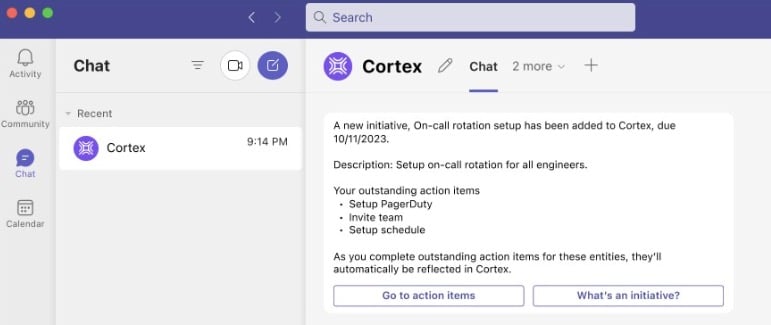
Configure workspace notification settings permission can enable or disable the option to receive notifications via MS Teams for each type of notification. Users can also adjust their personal notification settings to control which notifications they receive via MS Teams.
Team, user, and entity MS Teams notifications
Notifications are user-based, team-based, or entity-based. DMs and channel notifications are sent from the Cortex app.- User-based notifications are sent to users via a DM from the Cortex app.
- Team-based notifications are sent to the MS Teams channel associated with a team.
- Entity-based notifications are sent to the MS Teams channel associated with an entity.
Scorecards and CQL
With the Microsoft Teams integration, you can create Scorecard rules and write CQL queries based on Microsoft Teams channels. See more examples in the CQL Explorer in Cortex.Check if Microsoft Teams channel is set
Check if Microsoft Teams channel is set
Checks if a given entity has a registered Teams channel in its entity descriptor.Definition:
microsoftTeams (==/!=) nullExampleFor a Scorecard focused on team operations, you can make sure that each team entity has registered a Microsoft Teams channel:Number of Microsoft Teams channels
Number of Microsoft Teams channels
Counts the number of Microsoft Teams channels for a given entity.
- Channel name
- Team name
microsoftTeams.channels().lengthExampleYou can use this expression in the Query builder to identify teams missing a Microsoft Teams channel:Total number of members across Microsoft Teams channels registered for the entity
Total number of members across Microsoft Teams channels registered for the entity
Counts the total number of members across all Microsoft Teams channels registered for a given entity.
- Channel name
- Member name
- Team name
microsoftTeams.members().lengthExampleFor a Scorecard focused on team operations, you can verify that the Microsoft Teams channel has at least one member in it:View integration logs
This feature is available in Cortex cloud.

Privacy Policy
We will retain basic Microsoft Teams metadata like user IDs for the period necessary to fulfill the purposes outlined in our Privacy Policy unless a longer retention period is required or permitted by law, or where the Customer Agreement requires or permits specific retention or deletion periods.Still need help?↗
The following options are available to get assistance from the Cortex Customer Engineering team:- Email: help@cortex.io, or open a support ticket in the in app Resource Center
- Slack: Users with a connected Slack channel will have a workflow added to their account. From here, you can either @CortexTechnicalSupport or add a
:ticket:reaction to a question in Slack, and the team will respond directly.