# Humanitec

{% hint style="info" %}
Cortex connects to many third-party vendors whose system interfaces frequently change. As a result, integration behavior or configuration steps may shift without notice. If you encounter unexpected issues, check with your system administrator or refer to the vendor's documentation for the most current information. Additionally, integration sync times vary and are subject to scheduling overrides and timing variance.
{% endhint %}

[Humanitec](https://humanitec.com/) offers products to build on top of your Engineering Operations Platform for containerized workloads.

Integrating Humanitec with Cortex allows you to run a Humanitec pipeline directly from Cortex.

## How to integrate Humanitec with Cortex

### Prerequisites

Before getting started:

* You should have an app with a working pipeline configured in Humanitec.
* Create a service user in Humanitec, and create an [API token in Humanitec](https://developer.humanitec.com/platform-orchestrator/docs/platform-orchestrator/reference/api-references/#authentication) for the service user.

### Step 1: Create a Workflow in Cortex

1. Follow the instructions to [begin creating a Workflow](/streamline/workflows/create.md#step-1-choose-a-template-or-a-blank-workflow) and [configure its basic settings](/streamline/workflows/create.md#step-2-configure-your-workflow-settings).
2. Add an **HTTP request** block to your Workflow. Configure the block:
   * **Block name**: Enter a descriptive name for the block.
   * **Slug**: Enter a unique identifier for the block.
   * **HTTP method**: Select `POST`.
   * **URL**: Enter a Humanitec API URL based on the Humanitec call [`createPipelineRun`](https://api-docs.humanitec.com/#tag/PipelineRuns/operation/createPipelineRun), e.g., `https://api.humanitec.io/orgs/<your-Humanitec-org>/<your-app-ID>/pipelines/<pipeline-ID>/runs`
3. At the bottom of the side panel, click **Save**.
4. Make any other necessary changes to your Workflow, then in the upper right corner of the page, click **Save workflow**.

Alternatively, you can also use an **Async HTTP request** block in your Workflow, using the [Humanitec action `actions/humanitec/http@v1`](https://developer.humanitec.com/platform-orchestrator/docs/integration-and-extensions/humanitec-pipelines/available-actions/#actionshumanitechttpv1) to call back to Cortex.

### Step 2: Run the Workflow

* At the top of your Workflow in Cortex, click **Run**.

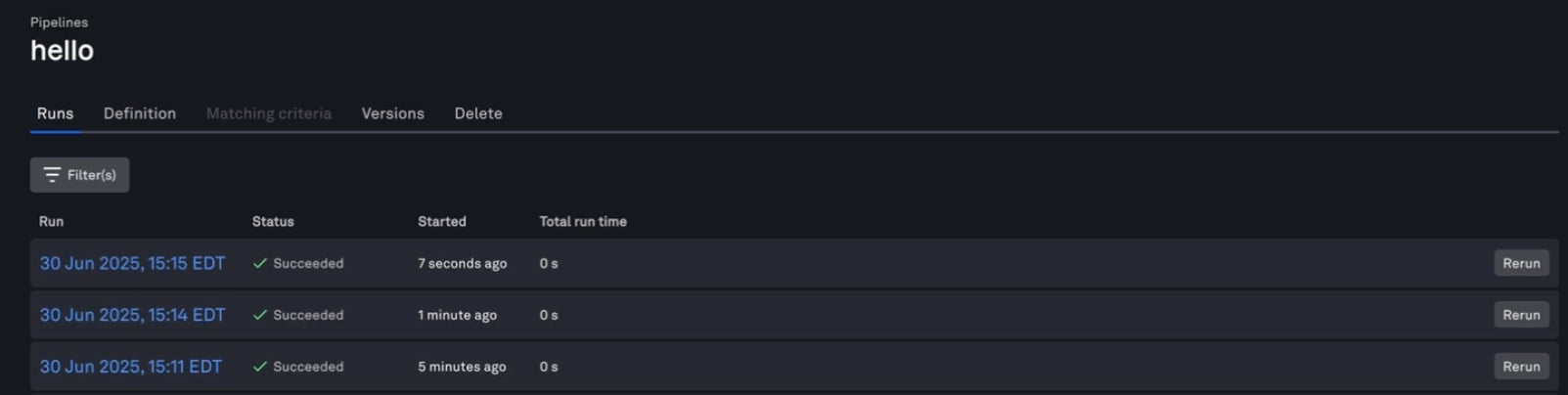
In your Humanitec workspace under your app's pipelines, you will see the run listed under the **Runs** tab:

<figure><img src="/files/n9o0b2AVLD81anbB0Bcx" alt="Runs are listed in Humanitec under the app&#x27;s pipeline runs tab."><figcaption></figcaption></figure>

## Example using Cortex with AWS, Humanitec, and Terraform

See the video below where a member of the Humanitec team walks through advanced end-to-end setup on AWS using Cortex, Humanitec as the orchestrator, and Terraform modules deployed via ECS runners. The video demonstrates detecting a policy violation and remediating it.

{% embed url="<https://www.youtube.com/watch?t=44s&v=iFYO0TFF5cs>" %}


---

# Agent Instructions: Querying This Documentation

If you need additional information that is not directly available in this page, you can query the documentation dynamically by asking a question.

Perform an HTTP GET request on the current page URL with the `ask` query parameter:

```
GET https://docs.cortex.io/ingesting-data-into-cortex/integrations/humanitec.md?ask=<question>
```

The question should be specific, self-contained, and written in natural language.
The response will contain a direct answer to the question and relevant excerpts and sources from the documentation.

Use this mechanism when the answer is not explicitly present in the current page, you need clarification or additional context, or you want to retrieve related documentation sections.