

Types of owners
Owners can be defined as:- A team (recommended)
- If you link a
groupfrom an external platform (such as Okta), Cortex automatically updates team membership when someone leaves your organization and is removed from your identity provider.
- If you link a
- An individual user
Methods for assigning ownership
Owners can be assigned:- By accepting Cortex’s automated recommendations for owners, based on signals from across your catalog
- By pulling information from third-party integrations in the entity’s YAML
- Ownership can also be inherited via fallback or append configuration
- Directly in the Cortex UI
- Automatically if Cortex detects that an entity is owned by a team that does not yet exist in Cortex
- If an entity’s YAML references a team, but that team doesn’t have a corresponding entry within Cortex, Cortex automatically creates the team. A label next to the team name denotes that team was Automatically created by Cortex.
Assigning ownership via Cortex recommendations
Cortex’s ownership recommendations uses a machine learning model to suggest team owners for entities in your catalog. It draws on the context of all the data in your catalog, including code contribution activity, the owners of related services, entity names and descriptions, domain structures, metadata, and connections to other tools, such as on-call and issue tracking tools. The model works even with very little data to start. The richer and better connected your catalog is, the more the model can extend that signal to the rest of your catalog, and the more accurate its recommendations are.Ownership tool previewNot seeing the results you expect? This is an early version of the Ownership tool. Please submit feedback via this form. Note the following considerations:
- To get recommendations, you must have teams configured in Cortex, and your team members must have Git identity mappings. The more teams and people you map, the better your recommendations.
- To accept or reject the recommended owner, the user must have the
Edit Entitiespermission (Edit and create entities in Roles and permissions). - If you are using GitOps, you can view recommendations, but you cannot accept them from the UI.
Reviewing recommendations per entity
You can review and accept recommendations from an entity’s details page in one of two ways: via the Owners block in the metadata sidebar and via the entity’s settings. Prerequisites- UI editing must be enabled for the entity type
- The user must have entity-level access via RBAC or fine-grained access control
- The user must have the
Edit ServicesandEdit Catalogroles.
- Navigate to the entity’s details page.
- Make sure the metadata sidebar is expanded.
.png?fit=max&auto=format&n=OnaYqLHqq-U_XM2R&q=85&s=c414bf74a450e476b3e96fa7b84da804)
- In the Owners block, click the Recommendations button.
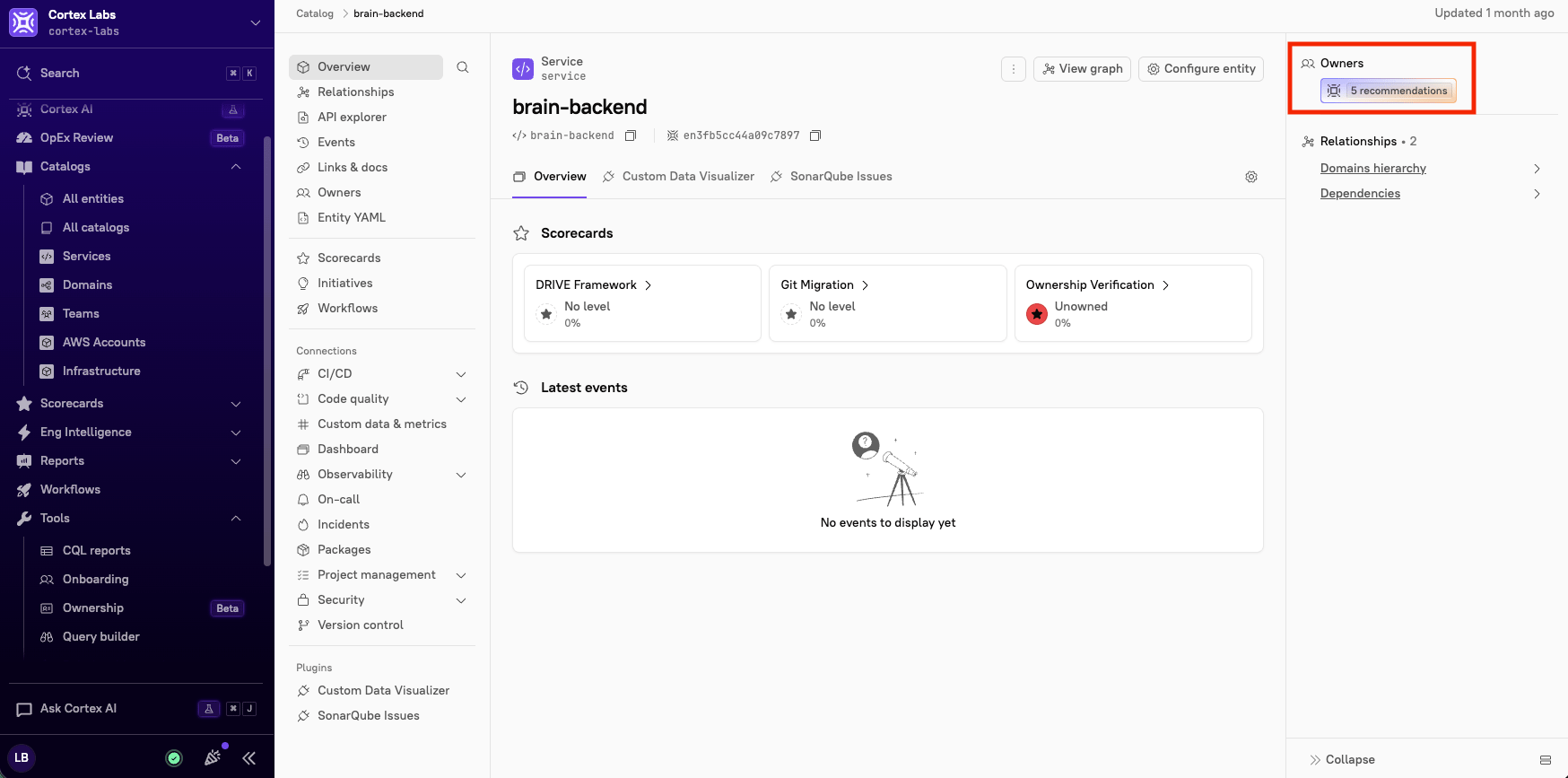
- Review the suggested owners. Do one of the following:
- To accept a recommendation, click the checkmark next to that entity.
- To accept more than one recommendation, select the checkboxes next to those entities, then click Apply.
- To remove a recommendation, click the X next to the entity.
- To remove more than one recommendation, select the checkboxes next to those entities, then click Reject.
- To remove all recommendations, click Dismiss all.
- Navigate to the entity’s details page.
- In the upper-right corner, click Configure entity.
- From the left entity details sidebar, click Owners.
- Review the suggested owners. Do one of the following:
- To accept a recommendation, click the checkmark next to that entity.
- To accept more than one recommendation, select the checkboxes next to those entities, then click Apply.
- To remove a recommendation, click the X next to the entity.
- To remove more than one recommendation, select the checkboxes next to those entities, then click Reject.
- To remove all recommendations, click Dismiss all.
Reviewing recommendations on the Ownership page
The Ownership page shows the teams Cortex recommends as owners for your entities, so you can review and accept them in one place. To open it, go to Tools > Ownership in the main sidebar.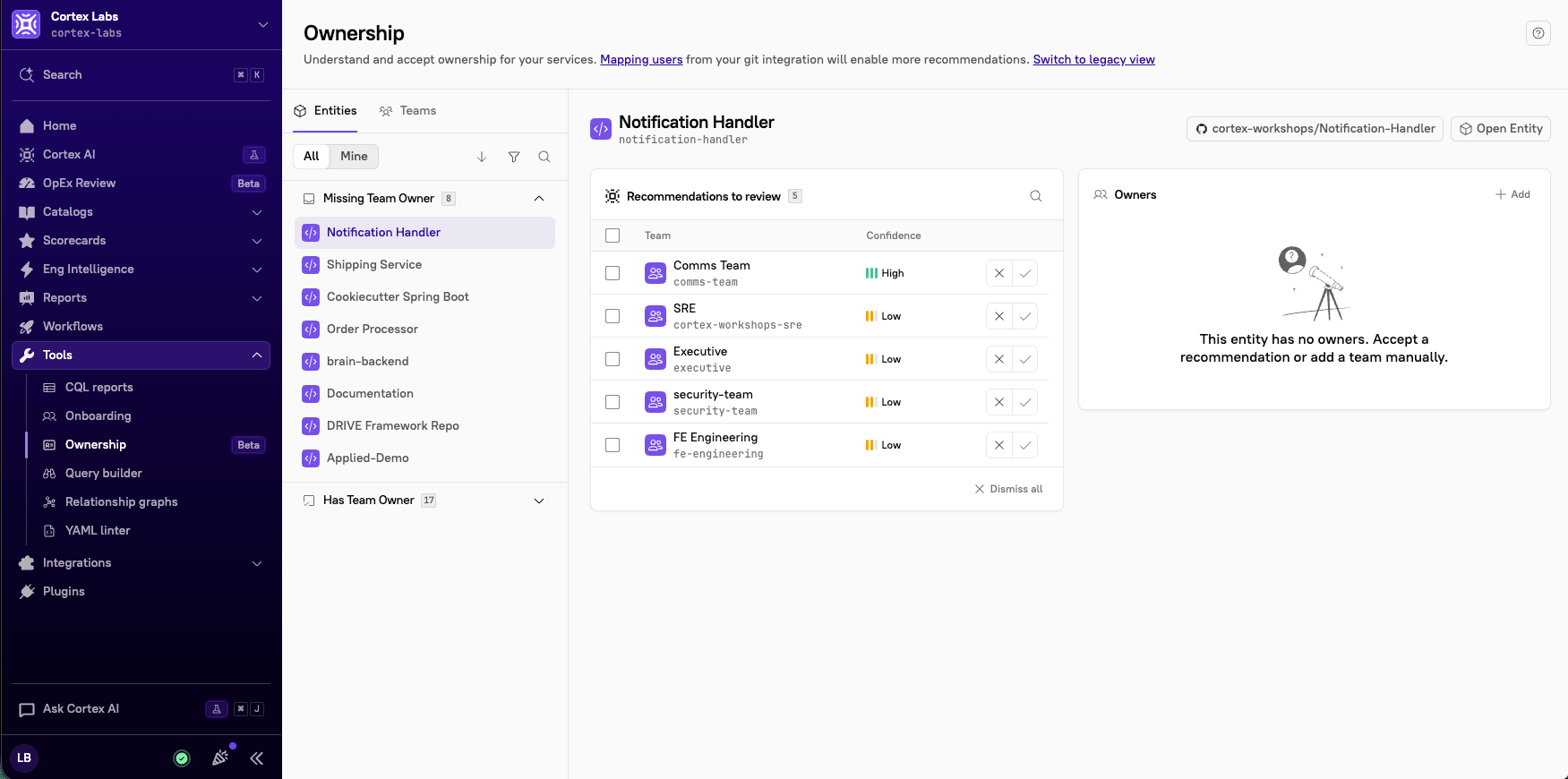
- Left pane - Lists the entities or teams you can review, grouped by status.
- Right pane - Shows the recommendations and current owners for whatever you select in the left pane.
- Entities - Lists entities, grouped into Missing Team Owner and Has Team Owner. Select an entity to see the teams recommended to own it, how confident each recommendation is, and its current owners. Click Open Entity to go to the entity’s details page, or click the repository link to open it in your git provider.
- Teams - Lists teams, grouped into Has recommendations and No recommendations. Select a team to see the entities recommended for it and the entities it already owns. Click Open Team to go to the team’s details page.
- All - Shows every entity or team in your workspace.
- Mine - Shows only the entities or teams associated with you.
- Click the sort icon.
- Select Name, or select Recommendations to sort by confidence (high to low). Click the arrows next to the selected option to reverse the order.
- Click the filter icon.
- In the left side of the filter panel, click + next to a field you want to filter by:
- Domains - Available on the Entities and Teams tabs.
- Entity types - Available on the Entities tab only.
- Choose one or more values from the Select dropdown.
- Click Apply.
- In the left pane, select an entity or team.
- In the Recommendations to review table, find the recommendation:
- To accept it, click the checkmark.
- To reject it, click the X.
- Select the checkbox next to each recommendation you want to act on. To select all of them, select the checkbox in the table header.
- In the action bar at the bottom of the table, click Apply to accept the selected recommendations, or click Reject to reject them.
Assigning ownership via an entity’s YAML
Use thex-cortex-owners field to define owners directly in your entity’s YAML. Each owner is either a group (a team from Cortex or a connected integration) or an individual identified by email.
Each owner entry requires the type field, set to either group or email. For group owners, the name and provider fields are also required. For email owners, the email field is required.
Cortex recognizes groups from the following integrations: Azure Active Directory, Azure DevOps, BambooHR, GitHub, GitLab, Google, Okta, Opsgenie, ServiceNow, and Workday.
provider field tells Cortex which system the group comes from. Supported values are: ACTIVE_DIRECTORY, AZURE_DEVOPS, BAMBOO_HR, BITBUCKET, CORTEX (use for teams defined natively in Cortex, including teams Cortex creates automatically from Workday), GITHUB, GITLAB, GOOGLE, OKTA, OPSGENIE, SERVICE_NOW, and WORKDAY.
The name field is case-sensitive. What it refers to depends on the provider:
The
description field is optional on any owner entry and is purely for human reference.Assigning ownership via the Cortex UI
Users with theEdit Entities or Edit Catalog role can assign ownership via the Cortex UI.
- From the main sidebar, expand Catalogs, then select All entities.
- Do one of the following:
- Select the All tab to search and filter across all of your organization’s entities.
- Select the Mine tab to search and filter only the entities you own.
- Note that Cortex saves your selection and restores it the next time you open this page.
- Select the entity whose ownership you want to edit.
- In the upper-right corner, click Configure entity.
- From the left entity details sidebar, click Owners.
- Do one or both of the following:
- To assign a team ownership:
-
Locate the Teams section, then click Add.
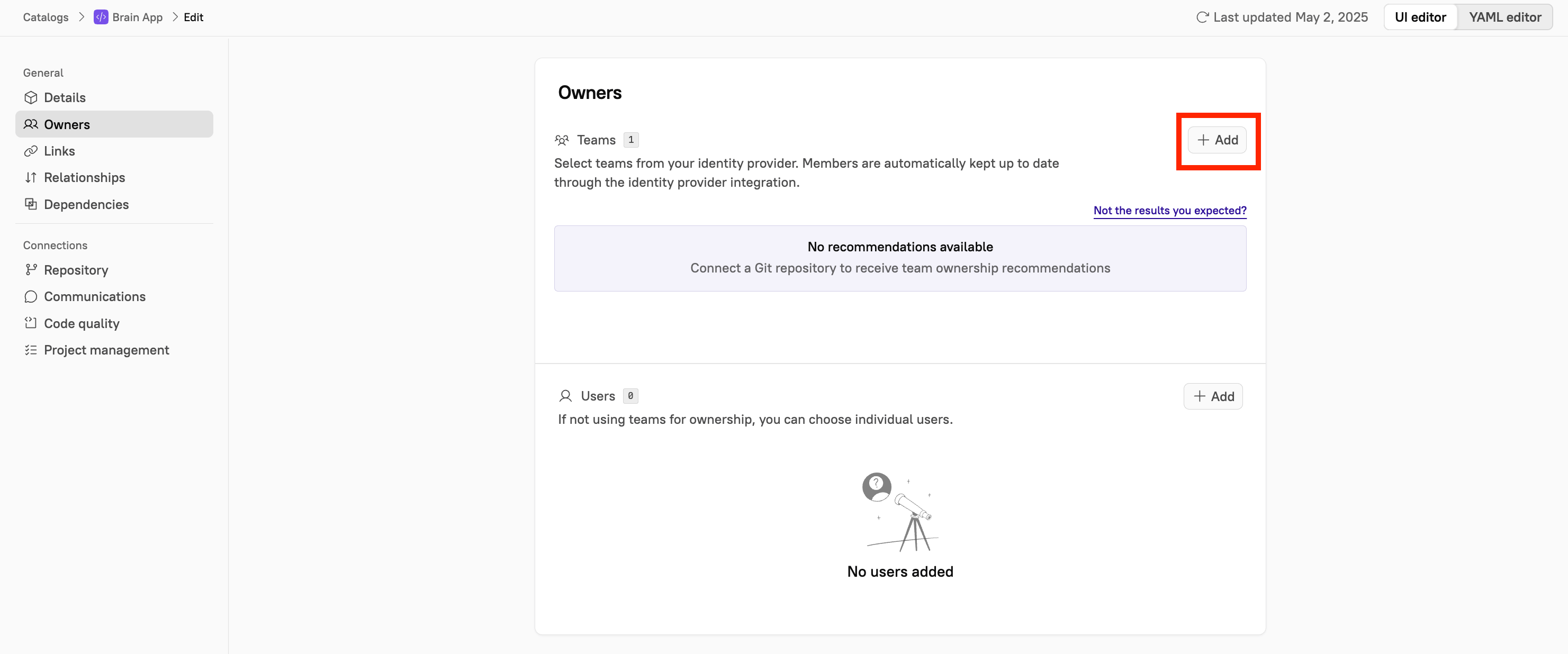
- In the Add Teams side panel, select the team from the drop-down menu.
- Optionally, enter a description for the team.
- Click Add.
-
Locate the Teams section, then click Add.
- To assign an individual user ownership:
-
Locate the Users section, then click Add.
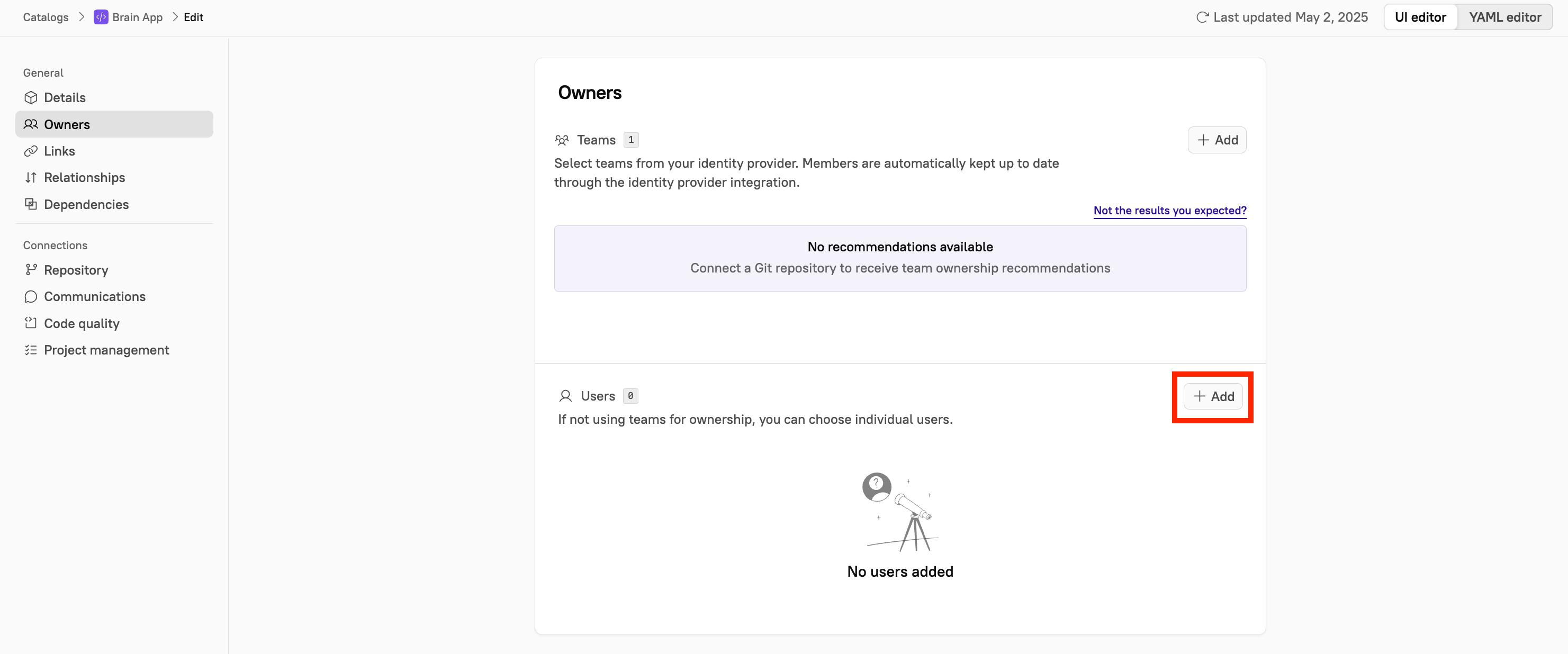
-
In the User side panel, do one of the following:
- Select a Cortex user from the drop-down menu. To find a user not shown in the list, use the Search field.
- To add a user who is not listed in Cortex, enter their email address into the Email address field. The drop-down populates with the user’s email address.
- Optionally, enter a description for the user.
- Click Add.
-
Locate the Users section, then click Add.
- To assign a team ownership: