

We’d love your feedback!
If you’re using the Cortex MCP, we’d love to hear your direct feedback on the configuration process, the tools available, and how you’ve been using it. Your feedback helps us improve and expand Cortex’s capabilities. If you’re interested in helping guide Cortex’s MCP direction, take the survey.
If you’re using the Cortex MCP, we’d love to hear your direct feedback on the configuration process, the tools available, and how you’ve been using it. Your feedback helps us improve and expand Cortex’s capabilities. If you’re interested in helping guide Cortex’s MCP direction, take the survey.
Starting a new chat
In your MCP client, ask a question about your Cortex workspace. The client uses the Cortex API to provide detailed answers based on your data. Examples-
You might ask what’s going on with a specific Scorecard. The MCP client responds with an overview, Scorecard structure information, a progress summary, and suggestions for next steps.
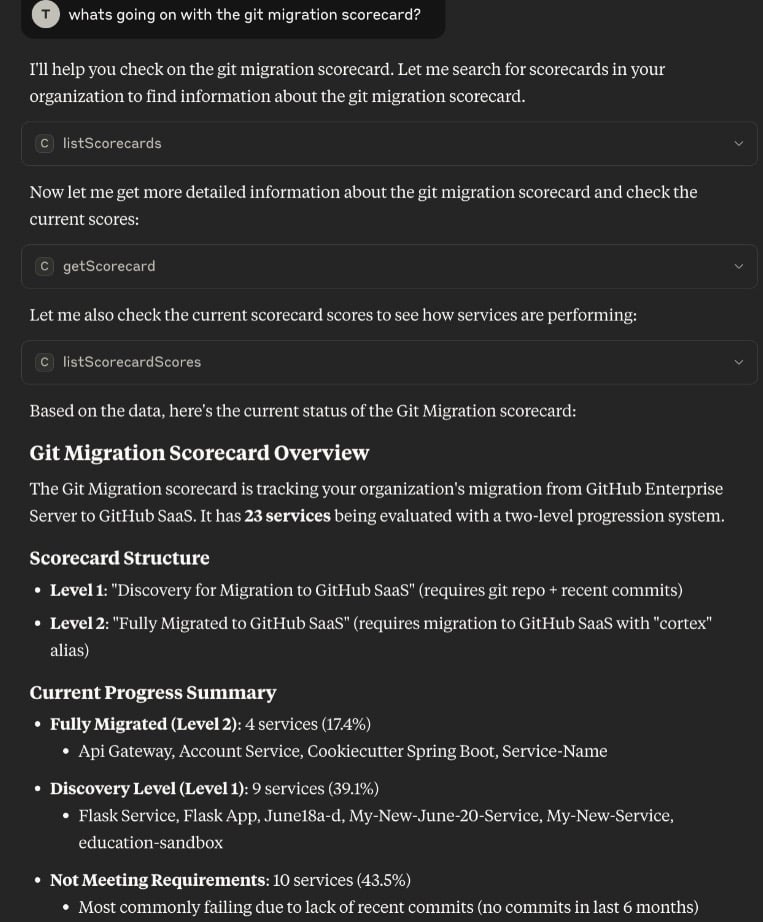
-
You could ask about an entity’s custom data. The MCP client responds with that entity’s custom data and information about when it was created.
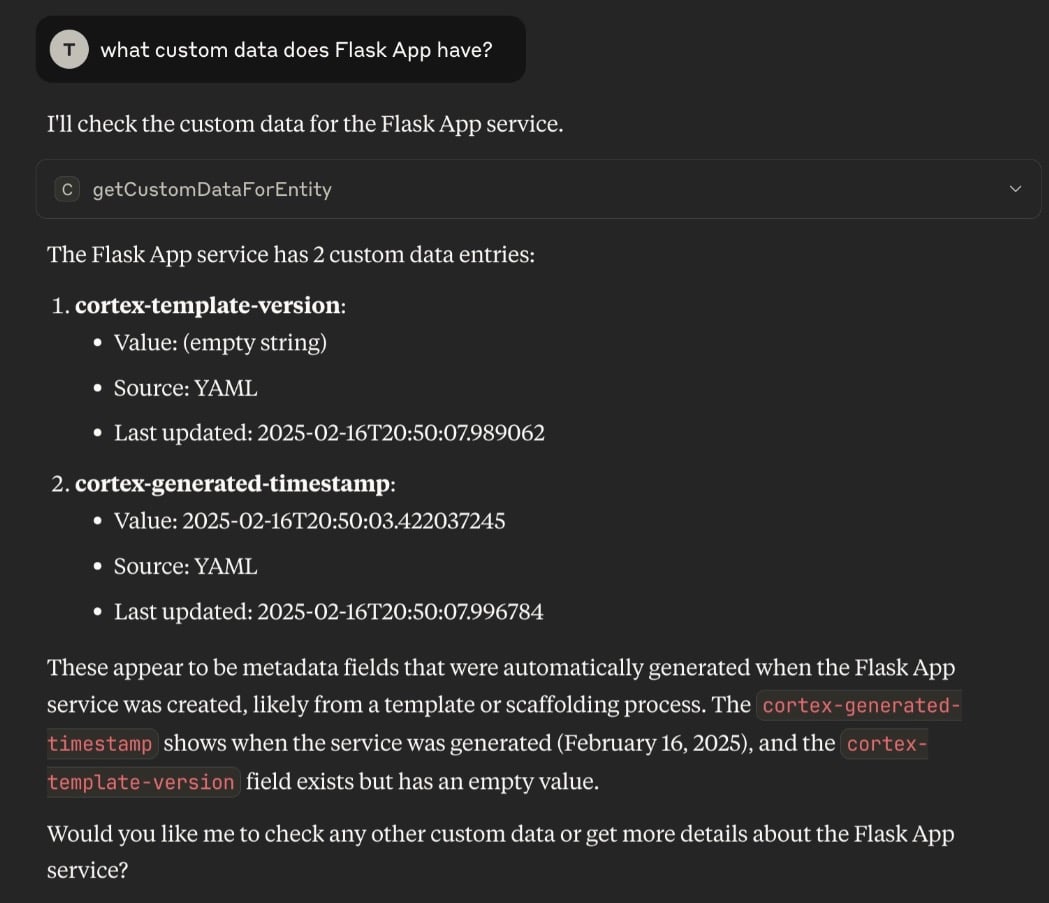
-
You could ask about an entity’s dependencies. The MCP client responds with a list of incoming and outgoing dependencies.
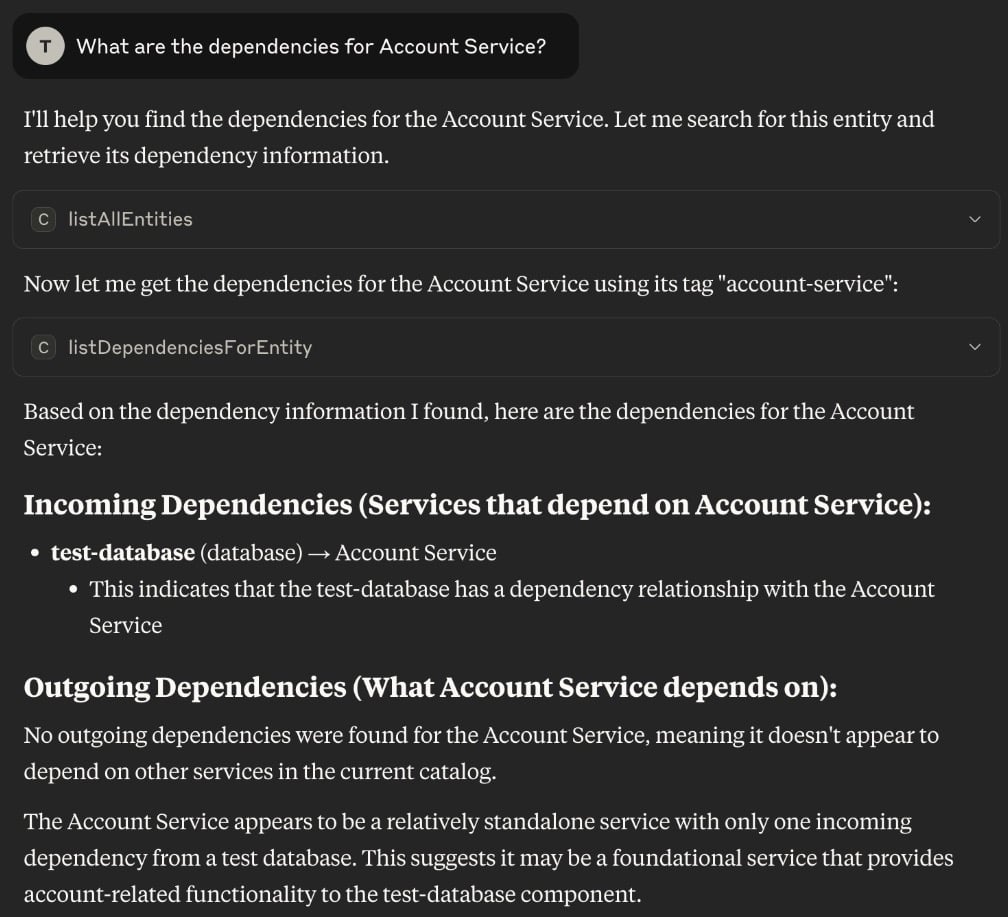
Available MCP tools
The Cortex MCP can use the following Cortex REST API endpoints. Some tools read data, and others create or update data in your workspace. The Cortex MCP can’t delete data. It runs bulk operations only on ownership recommendations. See Making changes with the Cortex MCP.Catalog / Entities
Catalog / Entities
- searchCatalog - Find entities by relevance; the primary way to search the catalog
- listAllEntities - Enumerate entities by structured filters (groups, types, owners, repos)
- getEntityDetails - Full details for one entity: metadata, ownership, hierarchy, relationships
- getEntityDescriptor - A single entity’s descriptor (optionally YAML)
- listEntityDescriptors - List entity descriptors (optionally YAML)
- createOrUpdateEntity - Create an entity, or replace the descriptor of an existing entity
- createOrPatchEntity - Create an entity, or update only the fields you include
- archiveEntity - Archive an entity
- unarchiveEntity - Restore an archived entity
- listGroupsForEntity - Groups assigned to an entity
- addGroupsToEntity - Add groups to an entity
- listDefinitions - All entity types (definitions)
- getDefinition - Schema and details for one entity type
- createDefinition - Create an entity type
- updateDefinition - Update an entity type
- listCatalogPages - All catalogs in your workspace
- getCatalogPage - One catalog’s configuration, by slug
- upsertCatalogPage - Create a catalog, or replace an existing one
- getOpenApiDocForEntity - OpenAPI documentation attached to an entity
- KubernetesGetK8sResourcesForEntity - Kubernetes resources linked to an entity
- AWSGetAwsResources - Cached Amazon Web Services (AWS) resource details for an entity
getMyWorkspace- Enabled by default, this tool supports the “Mine” capabilities that are available in the Cortex UI. Ask questions like, “show me my Cortex entities” or “tell me how my entities are performing against the Production Readiness Scorecard.”
Custom data and events
Custom data and events
- getCustomDataForEntity - All custom key-value data for an entity
- getCustomDataForEntityByKey - One custom data value by key
- retrieveCustomDataForEntityAdvanced - Custom data across entities
- addCustomDataForEntity - Add a custom data key-value pair to an entity
- addCustomDataForEntityAdvanced - Add custom data to an entity, identified in the request body
- listCustomEventsForEntity - Custom events for an entity (filter by type/time)
- getCustomEventForEntityByUuid - One custom event by UUID
- createCustomEventForEntity - Add a custom event to an entity
- replaceCustomEventForEntityByUuid - Update a custom event by UUID
Dependencies and relationships
Dependencies and relationships
- listDependenciesForEntity - Incoming + outgoing dependencies (blast radius)
- getDependency - Details of one dependency between two entities
- createDependency - Create a dependency between two entities
- updateDependency - Update a dependency between two entities
- listRelationshipTypes - All relationship types
- getRelationshipTypeDetails - Config/rules for one relationship type
- createRelationshipType - Create a relationship type
- updateRelationshipType - Update a relationship type
- listEntityRelationships - Full org graph for a relationship type
- listEntitySourcesForRelationshipType - Sources for a relationship type & entity
- listEntityDestinationsForRelationshipType - Destinations for a relationship type & entity
Scorecards
Scorecards
- listScorecards - All scorecards (filter by group/entity/team)
- getScorecard - Full scorecard config, rules, levels, weights
- createOrUpdateScorecard - Create a Scorecard from a YAML descriptor, or replace the Scorecard that has the same tag
- listScorecardScores - Scores for all entities on a scorecard
- listScorecardScoresForEntity - An entity’s scores across all Scorecards
- refreshScorecardScoreForEntity - Re-evaluate an entity’s score on a Scorecard
- getScorecardNextStepsForEntity - Steps to reach an entity’s next maturity level
- listScorecardRuleExemptions - Rule exemptions across Scorecards, with status, requester, approver, and expiry
- requestScorecardRuleExemption - Request a rule exemption for an entity
- approveScorecardRuleExemption - Approve a pending rule exemption
- denyScorecardRuleExemption - Deny a pending rule exemption
- revokeScorecardRuleExemption - Revoke an approved rule exemption
Initiatives
Initiatives
- listInitiatives - All initiatives (optional draft/expired)
- getInitiative - One initiative’s goals, timeline, targets, progress
- createInitiative - Create an Initiative
- updateInitiative - Update an Initiative
Verifications
Verifications
- listVerifications - Entity verifications across your workspace
- listVerificationPeriods - All verification periods
- retrieveVerificationPeriod - Details for one verification period
- createVerificationPeriod - Create a verification period
- updateVerificationPeriod - Update a verification period
- listVerificationsForEntity - Verification history for an entity
- verifyEntityForPeriod - Verify one entity for a verification period
Metrics
Metrics
- getCustomMetricData - Custom metric time-series for an entity
- createCustomMetricData - Add a single custom metric data point for an entity
- listCustomMetricDefinitions - Custom metric definitions in your workspace
- getCustomMetricDefinition - A single custom metric definition by key
- createCustomMetricDefinition - Define a new API custom metric
- updateCustomMetricDefinition - Replace the definition of an API custom metric
- queryTraceEvents - Individual Eng Intelligence event records (filter, sort, paginate)
listMetricDefinitions- This tool returns the Eng Intelligence metrics available in your workspace, along with the metadata needed to query them. Ask questions like, “which engineering metrics can I ask about?” or “what deployment data is available in Eng Intelligence?”queryPointInTimeMetrics- This tool returns current values for one or more Eng Intelligence metrics, with optional comparisons against a previous period and grouping by team, entity, or user. Ask questions like, “what’s our deployment frequency this quarter compared to last?” or “show me change failure rate by team for the last 30 days.”
Teams and on-call
Teams and on-call
- getTeamDetails - Team members, Slack channels, metadata
- updateCortexTeamMembers - Update the members of a Cortex-managed team
- archiveTeam - Archive a team
- unarchiveTeam - Restore an archived team
listTeamMemberRoles- All team member roles in your workspacecreateTeamMemberRole- Create a team member role- getTeamHierarchyRelationships - Parent and child relationships between teams
- getCurrentOncallForEntity - Real-time on-call for an entity
Ownership recommendations
Ownership recommendations
- listOwnershipRecommendations - Team ownership recommendations for entities, strongest first, filtered by entity, team, confidence, or status
- listOwnershipRecommendationEntities - Entities that have ownership recommendations, with the number of open recommendations for each
- acceptOwnershipRecommendation - Add the recommended team as an owner of the entity
- batchAcceptOwnershipRecommendations - Accept many recommendations in one request
- rejectOwnershipRecommendation - Hide a recommendation from the open list
- batchRejectOwnershipRecommendations - Reject many recommendations in one request
- restoreOwnershipRecommendation - Open a rejected recommendation again
- batchRestoreOwnershipRecommendations - Restore many recommendations in one request
Deploys
Deploys
- getDeploysForEntity - Deployment history for an entity
- searchDeploys - Search deployments across all entities
- listDeployEnvironments - All deploy environments in your workspace
- addDeployForEntity - Add a deploy to an entity
- updateDeployByUuid - Update a deploy by UUID
Workflows
Workflows
- listWorkflows - All Workflows
- getWorkflow - One Workflow’s configuration and actions
- validateWorkflowDescriptor - Check a Workflow’s YAML descriptor for errors before you save it
- createOrUpdateWorkflow - Create a Workflow, or replace the Workflow that has the same tag. Requires the
Edit Workflowspermission. - runWorkflow - Start a run of a Workflow. Requires the
Execute Workflow Runspermission. - getWorkflowRun - One Workflow run, including the outcome of each action
- listWorkflowRuns - Workflow runs from the last 30 days, with filters and pagination
Plugins
Plugins
- listAllPlugins - All plugins in your workspace
- getPluginByTag - One plugin’s configuration
- createPlugin - Create a plugin
- updatePlugin - Replace a plugin’s full configuration
patchPlugin- Update only the plugin fields you include
Scaffolder
Scaffolder
- listScaffolders - All Scaffolder templates
- getScaffolder - One Scaffolder template’s configuration
- createOrUpdateScaffolder - Create a Scaffolder template, or replace an existing one
- updateScaffolder - Update a Scaffolder template
CQL queries
CQL queries
- createQuery - Run a CQL query across your entities. This doesn’t change any data.
- getQueryResults - Results of a CQL query you ran
Packages
Packages
Upload a dependency manifest or lockfile to record an entity’s packages:
- uploadJavaPackage - A single Java package
- uploadMavenPom - Maven
pom.xml - uploadNpmPackageJson - npm, Yarn, or pnpm
package.json - uploadNpmPackageLockJson - npm
package-lock.json - uploadPnpmLock -
pnpm-lock.yaml - uploadYarnLock -
yarn.lock - uploadPipfileLock -
Pipfile.lock - uploadRequirementsTxt -
requirements.txt - uploadGoSumPackage -
go.sum - uploadNugetCsproj - NuGet
.csproj - uploadNugetPackagesLock - NuGet
packages.lock.json uploadNugetPackagesConfig- NuGetpackages.config
Docs and meta
Docs and meta
- listIntegrationStatuses - Installed integrations and the result of each one’s most recent connection check
query_docs- This tool queries the Cortex help center.get_more_tools- This tool discovers additional specialized tools.
Limiting tools with toolsets
Some MCP clients and AI model providers limit how many tools a single request can include, and that limit counts the client’s own built-in tools too. If the full set of Cortex MCP tools goes over your client’s limit, the client may fail to connect or return an error. Toolsets let you connect to a smaller, named set of Cortex tools instead. Toolsets are available for the remote Cortex MCP.Available toolsets
If you don’t specify a toolset, the Cortex MCP lists every available tool. The tools in each toolset can change as Cortex adds new tools.
Selecting a toolset
Add thetoolsets query parameter to the end of your MCP server URL. Toolsets work whether you sign in with a personal access token or with OAuth:
If your workspace is in the EU region, replace
mcp.cortex.io with mcp.eu.cortex.io. With a personal access token, keep sending the Authorization: Bearer <CORTEX_TOKEN> header as usual.
To use more than one toolset, separate the names with commas. The Cortex MCP lists every tool that’s in at least one of the toolsets you choose:
readonly toolset:
Put quotes around the URL when you use it in a terminal command. Some shells, such as zsh, treat
? as a special character and won’t run the command if the URL isn’t quoted.Enabling and disabling provided tools
Before submitting questions or commands, you may want to limit the number of provided tools being used by the MCP provider. For example, you might want to use the MCP to ask about entities, but you don’t want to allow questions about Scorecards. If you want the Cortex MCP to stay read-only, the simplest option is thereadonly toolset. You can also turn off individual tools in your MCP client: turn off the tools that create, update, archive, upload, approve, or run something. Read tools generally start with get, list, search, retrieve, or query. createQuery runs a CQL query without changing data, so you can leave it on.
Example
In the settings of your MCP client, it’s possible to limit which Cortex tools are being used. For example, in Claude desktop:
- Navigate to Settings > Connectors > Cortex > 3 dots icon > Tools and Settings.
- Below Provided Tools, toggle off the options you don’t need.
- Restart Claude.
- Navigate to your Claude chat and enter commands.
Eng Intelligence metrics in the Cortex MCP
Eng Intelligence metrics are also available to Cortex MCP. This brings metric data directly into the Cortex MCP, enabling richer AI-assisted insights, not only into engineering performance, but across your entire Cortex ecosystem. It allows you to be a more proactive leader and enables more data-driven planning sessions.Querying Eng Intelligence metrics in the Cortex MCP
Ensure you have the latest Cortex MCP version configured in your environment. Once enabled, the MCP automatically includes endpoints for Eng Intelligence metrics. You can then query Eng Intelligence metrics alongside ownership, Scorecard, and Initiative information. For example:- Evaluate my DORA metric performance in Q3. Highlight where the team is performing well and bring areas of improvement to my attention.
- Which services have concerning MTTR trends, and what scorecard gaps are contributing?
- Recommend initiatives and scorecard changes I could consider to address my upward trend in incidents.
- Review last quarter’s performance against our goals, identify the top three bottlenecks, and suggest changes to our scorecards to address them.
- Is there a correlation between my PR size and how fast we ship?
Making changes with the Cortex MCP
In addition to answering questions, the Cortex MCP can create and update data in your workspace. For example, you can ask your client to create an Initiative, record a deploy for an entity, or request a Scorecard rule exemption. See Available MCP tools for the full list.Prerequisites
- The Cortex MCP acts as the user who owns your personal access token. It can only make changes that user has permission to make in Cortex.
- Make sure you’re using the latest version of the Cortex MCP. If you host it locally, pull the latest
ghcr.io/cortexapps/cortex-mcp:latestimage.
Example prompts
- Create an Initiative that asks every service in the Payments group to reach Gold on the Production Readiness Scorecard by March 31, 2027.
- Add a deploy to the
payments-apientity for version 2.4.1 in the production environment. - Request an exemption from the “Has a runbook” rule on the Production Readiness Scorecard for
legacy-billing. It’s being retired this quarter. - Archive the
old-searchentity. - Add
tier: 1as custom data on thecheckoutentity. - Find entities in the Payments domain without a team owner and accept Cortex’s high-confidence ownership recommendations.
What the Cortex MCP can’t do
- Delete data. To protect your data from accidental removal, no delete endpoints are available through the Cortex MCP. This includes deleting custom data, deploys, and custom events. Delete data in Cortex or with the Cortex REST API instead. See Deleting custom data for more information.
- Run bulk operations. Endpoints that change many records at once aren’t available, except the endpoints that accept, reject, or restore many ownership recommendations. This includes adding custom data, dependencies, or custom metric data points in bulk, verifying entities in bulk, uploading multiple Java packages at once, and replacing all team hierarchy relationships. Make these changes in Cortex or with the REST API.
- Create teams, edit team details, or change relationships and OpenAPI docs. The Cortex MCP can’t create a team, update a team’s details, add or update an entity’s relationship sources and destinations, or update an entity’s OpenAPI documentation. Make these changes in Cortex or with the REST API.
- Manage workspace administration. Integration configurations, API keys, users, and workspace settings aren’t available through the Cortex MCP.
Things to know
- Some tools create a new object or replace an existing one that has the same tag:
createOrUpdateEntity,createOrUpdateScorecard,createOrUpdateScaffolder,upsertCatalogPage, andupdatePlugin. If you aren’t sure whether the tag is already in use, ask your client to look it up first. - To change only some fields on an entity or plugin, ask your client to use
createOrPatchEntityorpatchPlugin, which leave everything else as is. - Archiving is reversible. Use
unarchiveEntityorunarchiveTeamto restore an archived entity or team. - Many MCP clients ask you to approve each tool call. Check the details before you approve a change.
Creating and running Workflows with the Cortex MCP
You can use the Cortex MCP to create, update, and run Workflows without leaving your MCP client. For example, you can ask your client to build a Workflow from a description, start a run, and then check on the run until it finishes.Prerequisites
- To create or update a Workflow, the user who owns your personal access token needs the
Edit Workflowspermission. - To run a Workflow, the user needs the
Execute Workflow Runspermission. The Viewer role doesn’t include this permission. - The Workflow must be published (not a draft) and have Runnable via API turned on. See Enabling API access.
Example prompts
- Run the “Provision staging database” Workflow.
- Run the “Rotate service credentials” Workflow for the
payments-apientity, then tell me when it finishes. - Create a Workflow that posts a message to the #deploys Slack channel, and make it runnable via API.
- Show me the runs of the “Onboard new service” Workflow from the last week. Did any of them fail?
Things to know
createOrUpdateWorkflowreplaces any existing Workflow that has the same tag. Ask your client to look up the Workflow first if you aren’t sure the tag is unique.- When you run a Workflow for a specific entity, include the entity in your prompt. A Workflow scoped to an entity can’t run without one.
- By default, run results returned to the MCP leave out the run context (for example, secret names and the entity descriptor) to keep responses short. To get the context, ask your client to include it.
listWorkflowRunsreturns runs from the last 30 days.- You can’t delete Workflows through the Cortex MCP. Delete them in Cortex instead.
Crafting effective MCP prompts
The Cortex MCP becomes more powerful when using it becomes second nature to your teams. That shift happens when you have developed prompts that fit your specific role, answer your recurring questions, and surface information in the exact moments you need it. Refer to the Cortex MCP Prompt Library for more information.Troubleshooting and FAQ
See frequently asked questions below.When I ask a question in my MCP client, why do I see an error that says I hit the max length for this chat?
When I ask a question in my MCP client, why do I see an error that says I hit the max length for this chat?
This can happen if you’re on the free plan of your MCP client.
Why does my MCP client say the Cortex MCP has too many tools?
Why does my MCP client say the Cortex MCP has too many tools?
Some MCP clients and AI model providers limit how many tools a request can include. Connect with a toolset, such as
?toolsets=common or ?toolsets=readonly, so your client sees fewer Cortex tools.Can I make changes via the Cortex MCP?
Can I make changes via the Cortex MCP?
Yes. The Cortex MCP can create and update many kinds of data, such as entities, Scorecards, Initiatives, and Workflows, if the user who owns your personal access token has the required permissions. It can’t delete data or run bulk operations. See Making changes with the Cortex MCP.
How do I resolve "file not found" errors in the MCP?
How do I resolve "file not found" errors in the MCP?
Ensure your OpenAPI spec path is correct when mounting.
How do I resolve connection issues with the MCP?
How do I resolve connection issues with the MCP?
Verify your Cortex API endpoint is accessible.
How do I resolve a 403 forbidden error in the remote MCP?
How do I resolve a 403 forbidden error in the remote MCP?
Ensure that you set up the remote MCP with a personal access token generated in Cortex. Remote MCP setup requires a personal access token, not an API key.
Why do I see an SSL certificate error while using the MCP?
Why do I see an SSL certificate error while using the MCP?
This is most likely caused by an issue within your network. It’s recommended to contact your organization’s infrastructure or security team to troubleshoot.