

Cortex AI chat is in Research Preview
- Responses can be slow, especially for questions spanning many teams or entities.
- Not all Cortex data is reachable from chat yet, so it can’t answer every question about your organization.
- It can’t take action on your behalf. It won’t create or edit Scorecards, Initiatives, Dashboards, or Workflows, and it won’t change the report’s content or filters.
Accessing Cortex AI
Admins and users with the Enable AI Chat permission can use Cortex AI. The same permission covers chat inside OpEx Review. It does not cover the Slack AI assistant or the Cortex MCP, which have their own access.
There are two ways to access Cortex AI chat, and they share the same conversations:
Ask Cortex AI
Ask Cortex AI sits at the bottom of the main sidebar and opens chat in a panel beside whatever you’re looking at, so you can ask a question without losing your place.- Click Ask Cortex AI in the main sidebar, or press ⌘J (Ctrl+J on Windows and Linux).
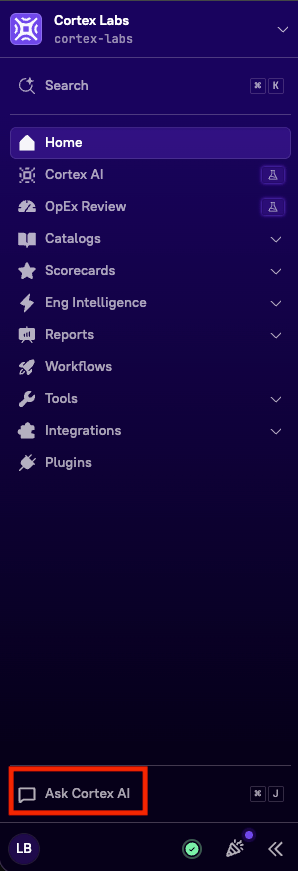
- Enter your question, then press Enter.
Cortex AI
Cortex AI in the main sidebar opens a dedicated page built for longer sessions, with your conversation history beside the chat.What you can ask
Cortex AI is built for the questions that come up while you’re working, rather than for a fixed set of reports. For example:- Who owns payments-service, and who’s on call for it?
- Which services are failing our production readiness Scorecard, and what’s the most common failing rule?
- How has deployment frequency changed for my teams over the last quarter?
- Which Workflows have been failing this week?
- What’s the status of our Go 1.22 migration Initiative?
- How do I set up a custom Scorecard rule?
- Your catalog - Entities, ownership, teams, and entity details
- Scorecards - Definitions, scores, and how entities are performing against them
- Initiatives - What’s in flight and how it’s progressing
- Workflows - Recent runs and which ones are failing
- Eng Intelligence metrics - Deployment frequency, cycle time, incident metrics, and custom metrics, broken down by team, entity, or time period
- Cortex documentation - How a Cortex feature works, answered from the public docs
Managing your conversations
On the Cortex AI page, your past conversations are listed beside the chat.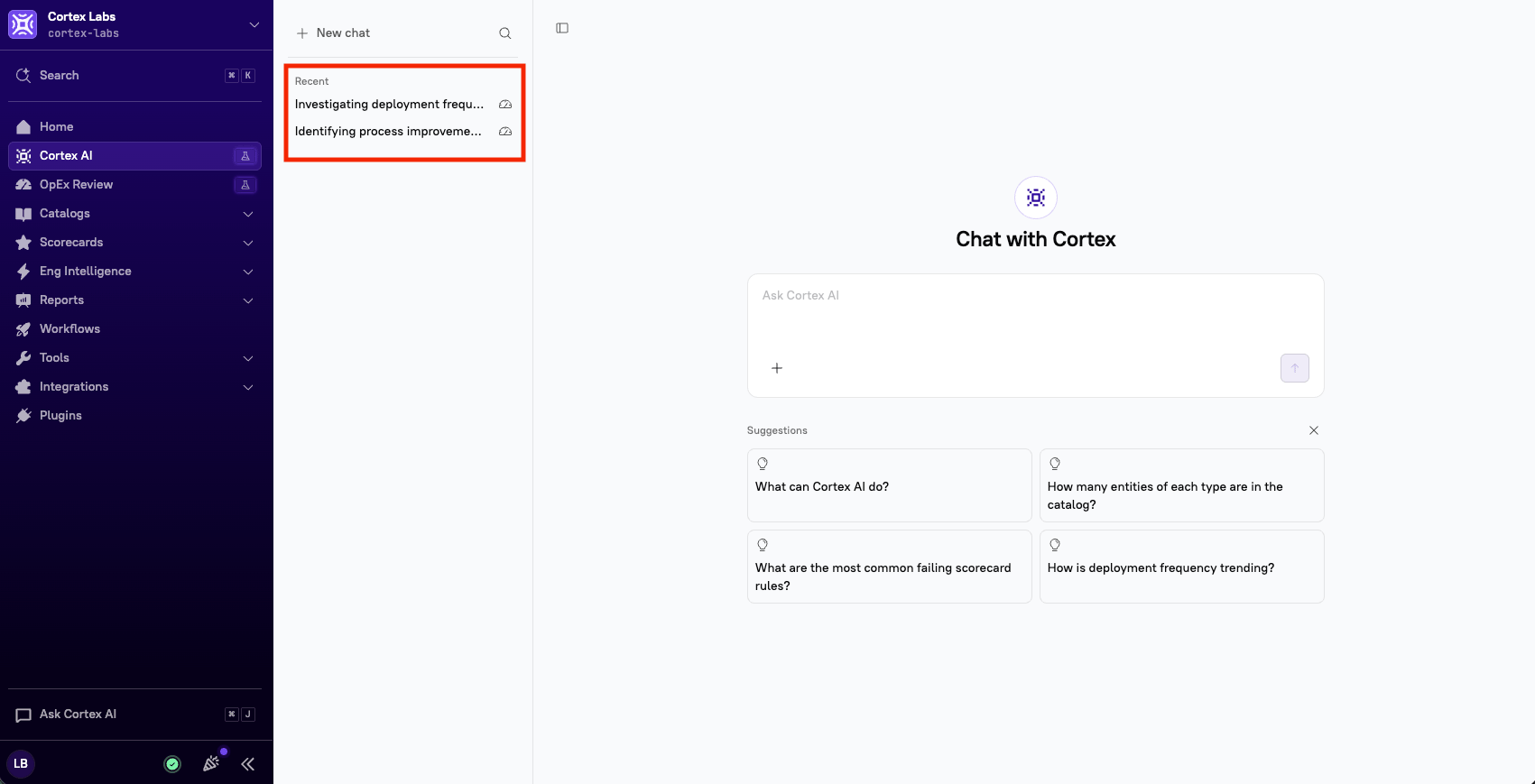
- Select a chat to pick it back up.
- While in a chat, click the overflow menu icon in the upper-right corner to rename or delete it.
- Click New chat to start a fresh conversation.