

This feature is available for Cortex cloud.
Prerequisites
Before you get started:- Copy your Cortex MCP server URL. In Cortex, go to Integrations > MCP Authorization in the main sidebar, then copy the Endpoint. Your region and tenant code are already filled in. If you aren’t the Glean admin who will add the server, send them this URL.
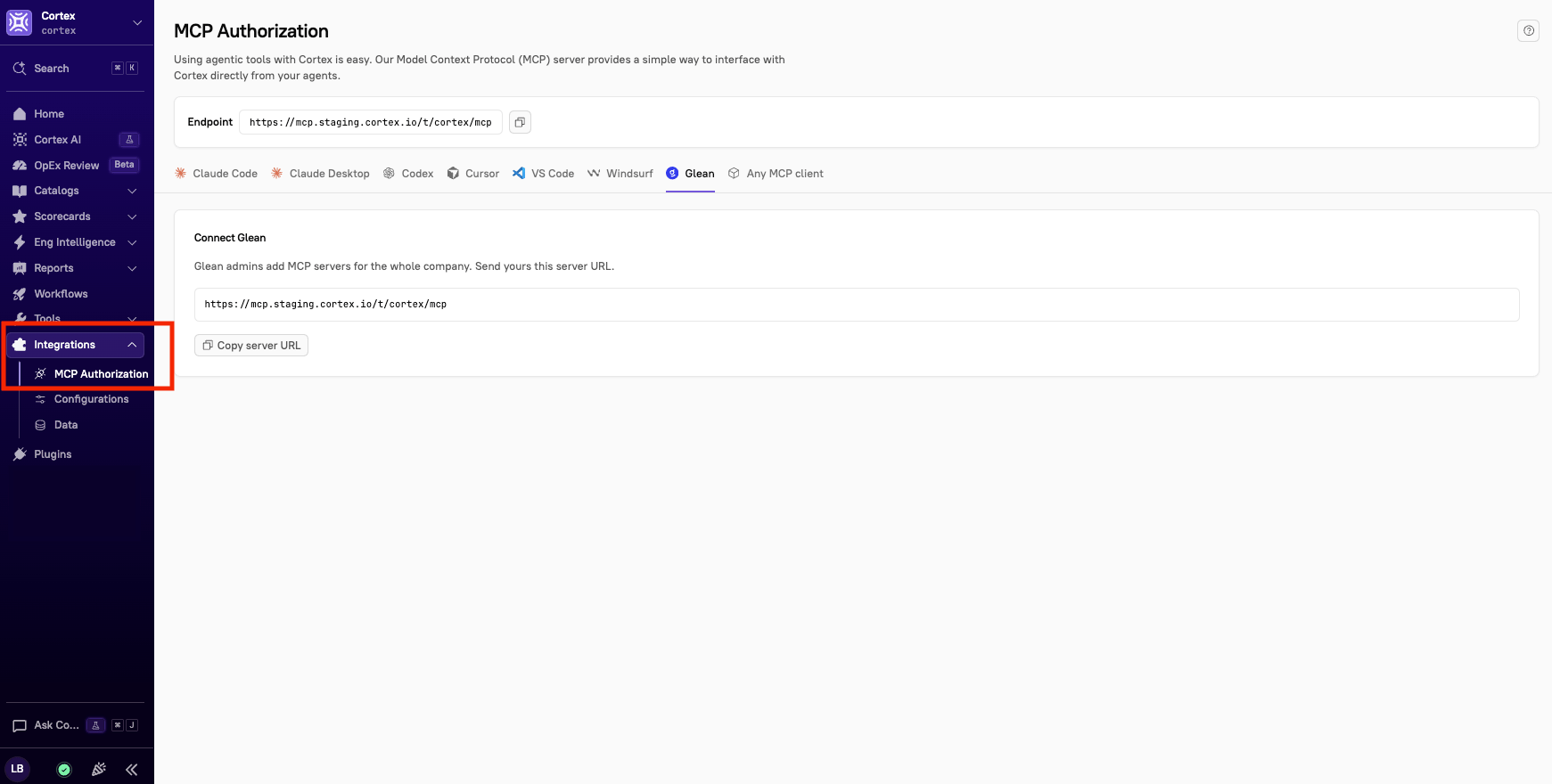
- Make sure you have the Glean roles and permissions described in each section below.
Connecting the Cortex MCP server in Glean
To add the Cortex MCP server in Glean, you need the Glean Admin or MCP Server Moderator role, and you must also be a Cortex user. Glean signs in to Cortex as you to discover the available tools. To make the tools available to other users after setup, you need the Glean Admin role.
1
Add a new MCP server
In Glean, start the + MCP flow to add a remote MCP server, then open the Configuration tab.
2
Name the server
Enter an MCP server name and Description, for example
Cortex MCP.3
Enter the server URL
In MCP server URL, paste the Endpoint from Integrations > MCP Authorization in Cortex. To build the URL yourself instead, see Choosing your MCP server URL. Leave Use Glean proxy cleared unless you have trouble connecting.
4
Choose the transport and authentication
Under Transport type, select Streaming HTTP. Under Authentication method, select Dynamic client registration. Glean fills in the Client ID automatically.
5
Connect to Cortex
Under Connect to server, sign in to Cortex when prompted. When the status shows Connected, click Refresh tools to load the Cortex MCP tools.
6
Enable the tools
Under Enable tools, click Edit settings and choose which teammates can use the Cortex tools. Then click Save.
Adding the Cortex skill in Glean
Thecortex-glean skill teaches Glean Assistant how to use the Cortex MCP tools to answer questions about your services, such as who owns them, who’s on call, and whether they pass their Scorecards. With the skill added, Glean checks Cortex first for these questions, even when you don’t mention Cortex by name, and tells you when an answer came from Cortex. Add the skill after you connect the Cortex MCP server in Glean.
To upload a skill, you need access to Skills and permission to create Skills in Glean. To share the skill with your whole organization, you need Glean admin permission.
1
Save the Cortex skill as a file
Copy the contents of the Cortex skill below, then save them in a file named
SKILL.md.2
Upload the skill to Glean
In Glean, go to Settings > Skills, click Add, then select Upload a Skill. Select your
SKILL.md file. The skill appears under the Personal tab.3
Share the skill with your team (optional)
Find the skill, click its three-dot menu, and select Share. Under People with access, add the teammates, departments, or groups who use the Cortex MCP in Glean. To share it with everyone, change General access so anyone at your company with the link can view it.
Using the Cortex skill in Glean
When you ask Glean Assistant a question the skill covers, Glean uses it automatically. To use it directly, type/cortex-glean in the Glean chat composer, or mention the Cortex skill in your prompt.
The skill helps Glean answer questions such as:
- Who owns a service or API, and who to talk to about it.
- Who’s on call for a service right now.
- What a service depends on, and what depends on it.
- Whether a service passes its Scorecards, and what it needs to fix to reach the next level.
- When a service last deployed.
- Where to find a service’s runbook, repository, or Slack channel.
- What you or your team own.
Glean doesn’t load skills in Fast mode. If Glean doesn’t seem to use the Cortex skill, switch to a different mode and try again. If a teammate shared the skill with you, open the Shared tab under Settings > Skills, add the skill, and keep it enabled so Glean can use it.