Dashboards are automatically visible within your organization to users with the View Eng Intelligence permission, so everyone can view the same insights and stay aligned.To create a share link to send to another user:
From the main sidebar, expand Eng Intelligence, then click Dashboards.
Select the dashboard you want to share.
In the upper-right corner, click the Overflow menu icon.
Dashboard-level filters let you apply a consistent scope across all modules in a dashboard at once. Instead of setting the same team, date range, or domain filter on every module individually, you set it once at the top and it propagates to all applicable modules automatically.
To add a dashboard-level filter, click Add filter at the top of the dashboard while in edit mode. Select one or more filters from the global filter list; your selections are saved as part of the dashboard definition.When you add a dashboard-level filter, Cortex will display a message confirming that it will override the same filter if it’s also set on an individual module.Date filter defaults:
Dashboards created after this feature launched automatically include a date filter. You can remove it.
Dashboards created before this feature launched do not have a date filter automatically applied.
Dashboard-level filters appear at the top of the dashboard. Setting a filter there applies it immediately to all modules that support it. If a filter isn’t applicable to a module (for example, applying a Domain filter to an AI Adoption rate module), that module is unaffected.You can still override a filter for an individual module as module-level filters take precedence over dashboard-level filters for that module.If a dashboard-level date filter is set, individual module date filters are hidden. If no dashboard-level date filter is defined, module-level date filters remain visible.
Last modified on November 2, 2026
{"docsConfig":{"theme":"aspen","$schema":"https://mintlify.com/docs.json","name":"Cortex","colors":{"primary":"#653EE8","light":"#9378EF","dark":"#5132BA"},"logo":{"light":"https://mintcdn.com/cortex-290c0c42/JcmXgfdiEzZzqS2M/logo/cortex-light.svg?fit=max\u0026auto=format\u0026n=JcmXgfdiEzZzqS2M\u0026q=85\u0026s=3d32dd91336a0de9463a57e04f9b8bb3","dark":"https://mintcdn.com/cortex-290c0c42/JcmXgfdiEzZzqS2M/logo/cortex-dark.svg?fit=max\u0026auto=format\u0026n=JcmXgfdiEzZzqS2M\u0026q=85\u0026s=e664b364295c3625385d56e02110b4a7"},"favicon":{"light":"https://mintcdn.com/cortex-290c0c42/09VjkT_e7zMKfZOT/images/favicon.png?fit=max\u0026auto=format\u0026n=09VjkT_e7zMKfZOT\u0026q=85\u0026s=1689c84dea2d7ff7c17603f1d27163ae","dark":"https://mintcdn.com/cortex-290c0c42/09VjkT_e7zMKfZOT/images/favicon.png?fit=max\u0026auto=format\u0026n=09VjkT_e7zMKfZOT\u0026q=85\u0026s=1689c84dea2d7ff7c17603f1d27163ae"},"api":{"playground":{"display":"interactive"},"examples":{"prefill":true}},"appearance":{"default":"system"},"background":{"decoration":"gradient"},"navbar":{"links":[{"icon":"/images/us-flag.png","href":"https://app.getcortexapp.com/","label":"US"},{"icon":"/images/eu-flag.png","href":"https://app.eu.cortex.io/","label":"EU"}],"primary":{"type":"button","label":"Get a Demo","href":"https://www.cortex.io/demo"}},"footer":{"socials":{"github":"https://github.com/cortexapps","linkedin":"https://www.linkedin.com/company/cortexapp","youtube":"https://www.youtube.com/@cortex611","x":"https://twitter.com/GetCortexApp"},"links":[{"header":"Cortex","items":[{"label":"Cortex website","href":"https://cortex.io"},{"label":"Product log in (US)","href":"https://app.getcortexapp.com/login"},{"label":"Product log in (EU)","href":"https://app.eu.cortex.io/login"},{"label":"Privacy Policy","href":"https://www.cortex.io/legal/privacy-policy"},{"label":"Security Policy","href":"https://www.cortex.io/legal/security-policy"},{"label":"Terms of Service","href":"https://www.cortex.io/legal/terms-of-service"},{"label":"Status Page","href":"https://status.cortex.io/"}]},{"header":"Resources","items":[{"label":"Cortex Academy","href":"https://academy.cortex.io/"},{"label":"Blog","href":"https://www.cortex.io/blog"},{"label":"Engineering Blog","href":"https://builders.cortex.io/"},{"label":"Braintrust","href":"https://www.braintrust.cortex.io/"},{"label":"Contact Support","href":"https://support.cortex.io/"}]}]},"fonts":{"heading":{"family":"Inter"},"body":{"family":"Inter"}},"icons":{"library":"fontawesome"},"styling":{"eyebrows":"breadcrumbs","latex":false},"contextual":{"options":["copy","view","chatgpt","claude","download-pdf"],"display":"header"},"interaction":{"drilldown":true},"metadata":{"timestamp":true},"navigation":{"pages":[]}},"deployment":{"deploymentMetadataValue":{"subdomain":"cortex-290c0c42","hasAudioNarration":false,"actualSubdomain":"cortex-290c0c42","customDomains":["docs.cortex.io"],"gitSource":{"type":"github","owner":"cortexapps","repo":"brainpower","deployBranch":"main","contentDirectory":"","isPrivate":true,"mountPath":"","label":""},"chroma":{"liveDeploymentHistoryId":"6aecc415423e32f52d43b822","collectionId":"1e6be74f-65c1-4362-ba12-45727dfde5e7","schemaVersion":"v3","latestBuiltDeploymentHistoryId":"6aecc415423e32f52d43b822"},"feedback":{"thumbs":true,"agentFeedback":true},"entitlements":{"AI_CHAT":{"status":"ENABLED"},"REMOVE_BRANDING":{"status":"ENABLED"},"CONTEXTUAL_FEEDBACK":{"status":"ENABLED"},"CODE_SNIPPET_FEEDBACK":{"status":"ENABLED"},"WEB_MCP":{"status":"ENABLED"},"NARRATION":{"status":"ENABLED"}},"buildId":"6aecf55a9a2fa30d226d115b","clientVersion":"0.0.4071","searchFilterCounts":[{"language":"default","tag":"API Reference","count":567},{"language":"default","tag":"REST API operations","count":566},{"language":"default","tag":"Integrations","count":424},{"language":"default","tag":"Product Docs","count":181},{"language":"default","tag":"Connect data","count":96},{"language":"default","tag":"Cookbooks","count":39},{"language":"default","tag":"Workflows","count":39},{"language":"default","tag":"Product areas","count":38},{"language":"default","tag":"Configure","count":27},{"language":"default","tag":"Scorecards","count":27}],"searchSettings":{"showContentSnippets":true}},"assistantConfig":{"enableAskAiButton":false,"enableStarterQuestions":false,"enableContextualStarterQuestions":false,"enableAskAiSearchBar":true},"basePath":"","hasChatPermissions":false,"hasWebMcpPermissions":true,"toggles":[{"name":"kill-isr","enabled":true,"variant":{"name":"disabled","enabled":false,"feature_enabled":true},"impressionData":false},{"name":"agent-mintlify-slack","enabled":true,"variant":{"name":"disabled","enabled":false,"feature_enabled":true},"impressionData":false},{"name":"agent-integrations-settings","enabled":true,"variant":{"name":"disabled","enabled":false,"feature_enabled":true},"impressionData":false},{"name":"rbac-expansion","enabled":true,"variant":{"name":"disabled","enabled":false,"feature_enabled":true},"impressionData":false},{"name":"automations-pr-grouping","enabled":true,"variant":{"name":"disabled","enabled":false,"feature_enabled":true},"impressionData":false},{"name":"custom-prefix","enabled":true,"variant":{"name":"disabled","enabled":false,"feature_enabled":true},"impressionData":false},{"name":"analytics-v7","enabled":true,"variant":{"name":"disabled","enabled":false,"feature_enabled":true},"impressionData":false},{"name":"user-flows-analytics","enabled":true,"variant":{"name":"disabled","enabled":false,"feature_enabled":true},"impressionData":false},{"name":"no-publish-flow","enabled":true,"variant":{"name":"disabled","enabled":false,"feature_enabled":true},"impressionData":false},{"name":"workos-onboarding","enabled":true,"variant":{"name":"disabled","enabled":false,"feature_enabled":true},"impressionData":false},{"name":"llms-txt-v2","enabled":true,"variant":{"name":"disabled","enabled":false,"feature_enabled":true},"impressionData":false},{"name":"snapshot-serving-live","enabled":true,"variant":{"name":"disabled","enabled":false,"feature_enabled":true},"impressionData":false},{"name":"stripTemperatureMiddleware","enabled":true,"variant":{"name":"disabled","enabled":false,"feature_enabled":true},"impressionData":false},{"name":"support-platform-pylon-zendesk","enabled":true,"variant":{"name":"disabled","enabled":false,"feature_enabled":true},"impressionData":false},{"name":"snapshot-serving","enabled":true,"variant":{"name":"disabled","enabled":false,"feature_enabled":true},"impressionData":false},{"name":"instant-rollback","enabled":true,"variant":{"name":"disabled","enabled":false,"feature_enabled":true},"impressionData":false},{"name":"granular-notifications-server","enabled":true,"variant":{"name":"disabled","enabled":false,"feature_enabled":true},"impressionData":false},{"name":"granular-notifications","enabled":true,"variant":{"name":"disabled","enabled":false,"feature_enabled":true},"impressionData":false},{"name":"automations-fable","enabled":true,"variant":{"name":"disabled","enabled":false,"feature_enabled":true},"impressionData":false},{"name":"fixed-ai-action-pricing","enabled":true,"variant":{"name":"disabled","enabled":false,"feature_enabled":true},"impressionData":false},{"name":"automation-resolve-merge-conflict","enabled":true,"variant":{"name":"disabled","enabled":false,"feature_enabled":true},"impressionData":false},{"name":"scoped-publishing","enabled":true,"variant":{"name":"disabled","enabled":false,"feature_enabled":true},"impressionData":false},{"name":"mintql","enabled":true,"variant":{"name":"disabled","enabled":false,"feature_enabled":true},"impressionData":false},{"name":"page-level-analytics","enabled":true,"variant":{"name":"disabled","enabled":false,"feature_enabled":true},"impressionData":false},{"name":"editor-version-history-v2","enabled":true,"variant":{"name":"disabled","enabled":false,"feature_enabled":true},"impressionData":false},{"name":"billing-page-v2","enabled":true,"variant":{"name":"disabled","enabled":false,"feature_enabled":true},"impressionData":false},{"name":"full-page-search","enabled":true,"variant":{"name":"disabled","enabled":false,"feature_enabled":true},"impressionData":false},{"name":"workspace-projects","enabled":true,"variant":{"name":"disabled","enabled":false,"feature_enabled":true},"impressionData":false},{"name":"assistant-v5","enabled":true,"variant":{"name":"disabled","enabled":false,"feature_enabled":true},"impressionData":false},{"name":"fork-pr-previews","enabled":true,"variant":{"name":"disabled","enabled":false,"feature_enabled":true},"impressionData":false},{"name":"revalidation-jwt","enabled":true,"variant":{"name":"disabled","enabled":false,"feature_enabled":true},"impressionData":false},{"name":"vite-origin","enabled":true,"variant":{"name":"disabled","enabled":false,"feature_enabled":true},"impressionData":false},{"name":"workos-sso-scim","enabled":true,"variant":{"name":"disabled","enabled":false,"feature_enabled":true},"impressionData":false},{"name":"hobby-abuse-scan","enabled":true,"variant":{"name":"disabled","enabled":false,"feature_enabled":true},"impressionData":false},{"name":"dashboard-inbox","enabled":true,"variant":{"name":"disabled","enabled":false,"feature_enabled":true},"impressionData":false},{"name":"workos-signup","enabled":true,"variant":{"name":"disabled","enabled":false,"feature_enabled":true},"impressionData":false},{"name":"turbopuffer-dual-write","enabled":true,"variant":{"name":"disabled","enabled":false,"feature_enabled":true},"impressionData":false},{"name":"workos-enabled","enabled":true,"variant":{"name":"disabled","enabled":false,"feature_enabled":true},"impressionData":false},{"name":"approve-review-flow","enabled":true,"variant":{"name":"disabled","enabled":false,"feature_enabled":true},"impressionData":false},{"name":"sso-setup-deadline-banner","enabled":true,"variant":{"name":"disabled","enabled":false,"feature_enabled":true},"impressionData":false},{"name":"turbopuffer-serve","enabled":true,"variant":{"name":"disabled","enabled":false,"feature_enabled":true},"impressionData":false},{"name":"live-agents","enabled":true,"variant":{"name":"disabled","enabled":false,"feature_enabled":true},"impressionData":false}],"privacy":{"consentBanner":{"enabled":true}},"googleFontsInlined":false},"customCss":[{"filePath":"style.css","content":":where(img[src^=\"/images/\"]){display:block;margin-left:auto;margin-right:auto;max-width:100%;height:auto}#navbar li.navbar-link>a{background-color:rgb(3 7 18 / 0.06)}#navbar li.navbar-link>a:hover{background-color:rgb(3 7 18 / 0.12)}html.dark #navbar li.navbar-link>a{background-color:rgb(255 255 255 / 0.07)}html.dark #navbar li.navbar-link>a:hover{background-color:rgb(255 255 255 / 0.14)}#content-area .mdx-content{--tw-prose-links: #7458DB;--tw-prose-invert-links: #C0AFFF}html.dark #content-area .mdx-content :where(a):not(:where([class~=\"not-prose\"],[class~=\"not-prose\"] *)){color:#C0AFFF}.product-tab{background-color:#F3F4F6!important;color:#000!important}.product-tab[data-active=\"true\"]{background-color:#E6E7E9!important}html.dark .product-tab{background-color:rgb(255 255 255 / 0.1)!important;color:#fff!important}html.dark .product-tab[data-active=\"true\"]{background-color:#653EE8!important}.product-item[data-active=\"true\"]{background-color:#E6E7E9}html.dark .product-item[data-active=\"true\"]{background-color:rgb(255 255 255 / 0.05)}.product-item-arrow{opacity:0}.product-item-arrow svg{width:14px!important;height:14px!important;max-width:14px;max-height:14px;flex-shrink:0}.product-item-arrow[data-active=\"true\"]{opacity:1}#kapa-search-ask-row{display:flex;align-items:center;gap:0.5rem;margin:0 0.375rem 0.375rem;padding:0.625rem 0.75rem;border-top:1px solid rgb(229 231 235);background:transparent;font-size:0.875rem;font-weight:500;color:rgb(3 7 18);text-align:left;cursor:pointer}#kapa-search-ask-row[hidden]{display:none}#kapa-search-ask-row:hover{background:rgb(0 0 0 / 0.03)}#kapa-search-ask-row svg{width:1rem;height:1rem;flex-shrink:0;color:rgb(var(--primary))}#kapa-search-ask-row .kapa-search-ask-label{flex:1;min-width:0;overflow:hidden;text-overflow:ellipsis;white-space:nowrap}#kapa-search-ask-row kbd{padding:0 0.3rem;border:1px solid rgb(229 231 235);border-radius:0.25rem;font-family:inherit;font-size:0.75rem;color:rgb(107 114 128)}.dark #kapa-search-ask-row{border-top-color:rgb(255 255 255 / 0.1);color:#fff}.dark #kapa-search-ask-row:hover{background:rgb(255 255 255 / 0.05)}.dark #kapa-search-ask-row svg{color:rgb(var(--primary-light))}.dark #kapa-search-ask-row kbd{border-color:rgb(255 255 255 / 0.1);color:rgb(156 163 175)}#assistant-entry,#assistant-entry-mobile{display:none!important}#kapa-ask-button{display:none;flex:none;align-items:center;gap:0.375rem;height:2.25rem;margin-left:0.5rem;padding:0 0.875rem 0 0.75rem;border-radius:9999px;background:rgb(3 7 18 / 0.03);font-size:0.875rem;font-weight:500;color:rgb(55 65 81);cursor:pointer}@media (min-width: 1024px){#kapa-ask-button{display:flex}}#kapa-ask-button:hover{background:rgb(3 7 18 / 0.1)}#kapa-ask-button svg{width:1rem;height:1rem;color:rgb(var(--primary))}html.dark #kapa-ask-button{background:rgb(255 255 255 / 0.03);color:rgb(209 213 219)}html.dark #kapa-ask-button:hover{background:rgb(255 255 255 / 0.1)}html.dark #kapa-ask-button svg{color:rgb(var(--primary-light))}"},{"filePath":"status-tags.css","content":".nav-tag-pill[data-status]{background-color:var(--status-tag-color)!important;border-color:var(--status-tag-color)!important}.nav-tag-pill[data-status],.nav-tag-pill[data-status] .nav-tag-pill-text{color:#FFFFFF!important}.nav-tag-pill[data-status=\"research-preview\"]{--status-tag-color: #7B2D6B}.nav-tag-pill[data-status=\"public-beta\"]{--status-tag-color: #1D4ED8}.nav-tag-pill[data-status=\"private-beta\"]{--status-tag-color: #8C1D3A}"}],"page":{"pagePath":"improve/eng-intelligence/dashboards/custom/managing-custom-dashboards","slug":"/improve/eng-intelligence/dashboards/custom/managing-custom-dashboards","pageMetadata":{"title":"Managing custom dashboards","description":null,"href":"/improve/eng-intelligence/dashboards/custom/managing-custom-dashboards"},"pageType":"default","mdx":{"mdxSource":{"compiledSource":"\"use strict\";const{Fragment:_Fragment,jsx:_jsx,jsxs:_jsxs}=arguments[0];const{useMDXComponents:_provideComponents}=arguments[0];function _createMdxContent(props){const _components={a:`a`,code:`code`,li:`li`,ol:`ol`,p:`p`,strong:`strong`,ul:`ul`,..._provideComponents(),...props.components},{Heading,OptimizedImage}=_components;if(!Heading)_missingMdxReference(`Heading`,true);if(!OptimizedImage)_missingMdxReference(`OptimizedImage`,true);return _jsxs(_Fragment,{children:[_jsxs(_components.p,{children:[`This article covers sharing, editing, and filtering custom dashboards. See `,_jsx(_components.a,{href:`/improve/eng-intelligence/dashboards/custom`,children:`Custom dashboards`}),` for instructions on creating a dashboard.`]}),`\n`,_jsx(Heading,{level:`2`,id:`sharing-a-custom-dashboard`,children:`Sharing a custom dashboard`}),`\n`,_jsxs(_components.p,{children:[`Dashboards are automatically visible within your organization to users with the `,_jsx(_components.code,{children:`View Eng Intelligence`}),` permission, so everyone can view the same insights and stay aligned.`]}),`\n`,_jsxs(_components.p,{children:[_jsx(_components.strong,{children:`To create a share link to send to another user`}),`:`]}),`\n`,_jsxs(_components.ol,{children:[`\n`,_jsxs(_components.li,{children:[`\n`,_jsxs(_components.p,{children:[`From the main sidebar, expand `,_jsx(_components.strong,{children:`Eng Intelligence`}),`, then click `,_jsx(_components.strong,{children:`Dashboards`}),`.`]}),`\n`]}),`\n`,_jsxs(_components.li,{children:[`\n`,_jsx(_components.p,{children:`Select the dashboard you want to share.`}),`\n`]}),`\n`,_jsxs(_components.li,{children:[`\n`,_jsxs(_components.p,{children:[`In the upper-right corner, click the `,_jsx(_components.strong,{children:`Overflow menu`}),` icon.`]}),`\n`]}),`\n`,_jsxs(_components.li,{children:[`\n`,_jsxs(_components.p,{children:[`Select `,_jsx(_components.strong,{children:`Share`}),`.`,_jsx(`br`,{})]}),`\n`,_jsx(OptimizedImage,{src:`https://mintcdn.com/cortex-290c0c42/QcQzHjqU3EBU2R8X/images/custom-dashboard-share.png?fit=max\u0026auto=format\u0026n=QcQzHjqU3EBU2R8X\u0026q=85\u0026s=f84143d336b8f8a61c9353b91c5c15b8`,alt:``,\"data-og-width\":`3386`,width:`3386`,\"data-og-height\":`1140`,height:`1140`,\"data-path\":`images/custom-dashboard-share.png`,\"data-optimize\":`true`,\"data-opv\":`3`,srcset:`https://mintcdn.com/cortex-290c0c42/QcQzHjqU3EBU2R8X/images/custom-dashboard-share.png?w=280\u0026fit=max\u0026auto=format\u0026n=QcQzHjqU3EBU2R8X\u0026q=85\u0026s=950d4c66814ddf0370f669683dfd3fc5 280w, https://mintcdn.com/cortex-290c0c42/QcQzHjqU3EBU2R8X/images/custom-dashboard-share.png?w=560\u0026fit=max\u0026auto=format\u0026n=QcQzHjqU3EBU2R8X\u0026q=85\u0026s=fe4edb734c711d2612ba315eebf7efe2 560w, https://mintcdn.com/cortex-290c0c42/QcQzHjqU3EBU2R8X/images/custom-dashboard-share.png?w=840\u0026fit=max\u0026auto=format\u0026n=QcQzHjqU3EBU2R8X\u0026q=85\u0026s=380e90f0814df437dd0df1f0658a45a3 840w, https://mintcdn.com/cortex-290c0c42/QcQzHjqU3EBU2R8X/images/custom-dashboard-share.png?w=1100\u0026fit=max\u0026auto=format\u0026n=QcQzHjqU3EBU2R8X\u0026q=85\u0026s=6002ff94207eedb8e2a916163979f21d 1100w, https://mintcdn.com/cortex-290c0c42/QcQzHjqU3EBU2R8X/images/custom-dashboard-share.png?w=1650\u0026fit=max\u0026auto=format\u0026n=QcQzHjqU3EBU2R8X\u0026q=85\u0026s=ca1060dfbafb21396b5f56ca2f6047e6 1650w, https://mintcdn.com/cortex-290c0c42/QcQzHjqU3EBU2R8X/images/custom-dashboard-share.png?w=2500\u0026fit=max\u0026auto=format\u0026n=QcQzHjqU3EBU2R8X\u0026q=85\u0026s=ecdc07164b9dd8807b1aa681b7cf5198 2500w`}),`\n`]}),`\n`]}),`\n`,_jsx(Heading,{level:`2`,id:`editing-a-custom-dashboard`,children:`Editing a custom dashboard`}),`\n`,_jsxs(_components.ol,{children:[`\n`,_jsxs(_components.li,{children:[`From the main sidebar, expand `,_jsx(_components.strong,{children:`Eng Intelligence`}),`, then click `,_jsx(_components.strong,{children:`Dashboards`}),`.`]}),`\n`,_jsx(_components.li,{children:`Select the dashboard you want to edit.`}),`\n`,_jsxs(_components.li,{children:[`In the upper-right corner, click the `,_jsx(_components.strong,{children:`Edit`}),`.`]}),`\n`,_jsxs(_components.li,{children:[`Make any necessary changes including removing and adding modules. See `,_jsx(_components.a,{href:`/improve/eng-intelligence/dashboards/custom/managing-custom-dashboards#creating-a-custom-dashboard`,children:`Creating a custom dashboard`}),` for more information.`]}),`\n`,_jsxs(_components.li,{children:[`Click `,_jsx(_components.strong,{children:`Save`}),`.`]}),`\n`]}),`\n`,_jsx(Heading,{level:`2`,id:`using-dashboard-level-filters`,children:_jsx(_components.strong,{children:`Using dashboard-level filters`})}),`\n`,_jsx(_components.p,{children:`Dashboard-level filters let you apply a consistent scope across all modules in a dashboard at once. Instead of setting the same team, date range, or domain filter on every module individually, you set it once at the top and it propagates to all applicable modules automatically.`}),`\n`,_jsx(Heading,{level:`3`,id:`in-edit-mode`,children:_jsx(_components.strong,{children:`In edit mode`})}),`\n`,_jsxs(_components.p,{children:[`To add a dashboard-level filter, click `,_jsx(_components.strong,{children:`Add filter`}),` at the top of the dashboard while in edit mode. Select one or more filters from the global filter list; your selections are saved as part of the dashboard definition.`]}),`\n`,_jsx(OptimizedImage,{src:`https://mintlify.s3.us-west-1.amazonaws.com/cortex-290c0c42/images/Screenshot%202026-06-24%20at%2002.21.53%20PM.png`,alt:``}),`\n`,_jsx(_components.p,{children:`When you add a dashboard-level filter, Cortex will display a message confirming that it will override the same filter if it’s also set on an individual module.`}),`\n`,_jsx(_components.p,{children:_jsx(_components.strong,{children:`Date filter defaults:`})}),`\n`,_jsxs(_components.ul,{children:[`\n`,_jsx(_components.li,{children:`Dashboards created after this feature launched automatically include a date filter. You can remove it.`}),`\n`,_jsx(_components.li,{children:`Dashboards created before this feature launched do not have a date filter automatically applied.`}),`\n`]}),`\n`,_jsx(Heading,{level:`3`,id:`in-view-mode`,children:_jsx(_components.strong,{children:`In view mode`})}),`\n`,_jsx(_components.p,{children:`Dashboard-level filters appear at the top of the dashboard. Setting a filter there applies it immediately to all modules that support it. If a filter isn’t applicable to a module (for example, applying a Domain filter to an AI Adoption rate module), that module is unaffected.`}),`\n`,_jsx(_components.p,{children:`You can still override a filter for an individual module as module-level filters take precedence over dashboard-level filters for that module.`}),`\n`,_jsx(_components.p,{children:`If a dashboard-level date filter is set, individual module date filters are hidden. If no dashboard-level date filter is defined, module-level date filters remain visible.`})]})}function MDXContent(props={}){const{wrapper:MDXLayout}={..._provideComponents(),...props.components};return MDXLayout?_jsx(MDXLayout,{...props,children:_jsx(_createMdxContent,{...props})}):_createMdxContent(props)}return{default:MDXContent};function _missingMdxReference(id,component){throw new Error(`Expected `+(component?`component`:`object`)+\" `\"+id+\"` to be defined: you likely forgot to import, pass, or provide it.\")}","frontmatter":{},"scope":{"config":{},"pageMetadata":{"title":"Managing custom dashboards","description":null,"href":"/improve/eng-intelligence/dashboards/custom/managing-custom-dashboards"}}},"mdxSourceWithNoJs":null},"mdxExtracts":{"tableOfContents":[{"title":"Sharing a custom dashboard","slug":"sharing-a-custom-dashboard","depth":2,"children":[]},{"title":"Editing a custom dashboard","slug":"editing-a-custom-dashboard","depth":2,"children":[]},{"title":"Using dashboard-level filters","slug":"using-dashboard-level-filters","depth":2,"children":[{"title":"In edit mode","slug":"in-edit-mode","depth":3,"children":[]},{"title":"In view mode","slug":"in-view-mode","depth":3,"children":[]}]}],"codeExamples":{}},"jsLinks":["/_mintlify/custom/cortex-290c0c42/ed8d91d3153959c2/kapa.js","/_mintlify/custom/cortex-290c0c42/36b87f2caabcf780/status-tags.js"],"subdomain":"cortex-290c0c42","siteName":"Cortex","title":"Managing custom dashboards - Cortex","relatedPagesConfig":{"enabled":true,"limit":3,"mode":"automatic"},"navMaps":{"firstHrefInVersion":{},"firstHrefInLanguage":{}},"lastModified":"2026-11-05T21:03:25.966Z","gitLastModified":"2026-11-02T21:40:49.000Z","originalFileLocation":"improve/eng-intelligence/dashboards/custom/managing-custom-dashboards.mdx"},"headHtml":"\u003cscript data-mint-head>(function(){var d=document.documentElement,p=null;if(!p){try{p=localStorage.getItem(\"isDarkMode\")}catch(e){}if(p==='true')p='dark';else if(p==='false')p='light';if(p!=='light'\u0026\u0026p!=='dark'\u0026\u0026p!=='system')p=\"system\"}var r=p==='system'?(matchMedia(\"(prefers-color-scheme: dark)\").matches?'dark':'light'):p;d.classList.remove(r==='dark'?'light':'dark');d.classList.add(r);d.setAttribute(\"data-theme-preference\",p)})();\u003c/script>\u003cmeta data-mint-head name=\"application-name\" content=\"Cortex\">\u003cmeta data-mint-head name=\"generator\" content=\"Mintlify\">\u003clink data-mint-head rel=\"icon\" type=\"image/png\" sizes=\"192x192\" href=\"/mintlify-assets/_mintlify/favicons/cortex-290c0c42/GsIUSGAJ7s7HMHgE/_generated/favicon/android-chrome-192x192.png\" media=\"(prefers-color-scheme: light)\">\u003clink data-mint-head rel=\"apple-touch-icon\" type=\"image/png\" sizes=\"180x180\" href=\"/mintlify-assets/_mintlify/favicons/cortex-290c0c42/GsIUSGAJ7s7HMHgE/_generated/favicon/apple-touch-icon.png\">\u003clink data-mint-head rel=\"icon\" type=\"image/png\" sizes=\"16x16\" href=\"/mintlify-assets/_mintlify/favicons/cortex-290c0c42/GsIUSGAJ7s7HMHgE/_generated/favicon/favicon-16x16.png\" media=\"(prefers-color-scheme: light)\">\u003clink data-mint-head rel=\"icon\" type=\"image/png\" sizes=\"32x32\" href=\"/mintlify-assets/_mintlify/favicons/cortex-290c0c42/GsIUSGAJ7s7HMHgE/_generated/favicon/favicon-32x32.png\" media=\"(prefers-color-scheme: light)\">\u003clink data-mint-head rel=\"shortcut icon\" type=\"image/x-icon\" href=\"/mintlify-assets/_mintlify/favicons/cortex-290c0c42/GsIUSGAJ7s7HMHgE/_generated/favicon/favicon.ico\" media=\"(prefers-color-scheme: light)\">\u003clink data-mint-head rel=\"icon\" type=\"image/png\" sizes=\"192x192\" href=\"/mintlify-assets/_mintlify/favicons/cortex-290c0c42/GsIUSGAJ7s7HMHgE/_generated/favicon-dark/android-chrome-192x192.png\" media=\"(prefers-color-scheme: dark)\">\u003clink data-mint-head rel=\"icon\" type=\"image/png\" sizes=\"16x16\" href=\"/mintlify-assets/_mintlify/favicons/cortex-290c0c42/GsIUSGAJ7s7HMHgE/_generated/favicon-dark/favicon-16x16.png\" media=\"(prefers-color-scheme: dark)\">\u003clink data-mint-head rel=\"icon\" type=\"image/png\" sizes=\"32x32\" href=\"/mintlify-assets/_mintlify/favicons/cortex-290c0c42/GsIUSGAJ7s7HMHgE/_generated/favicon-dark/favicon-32x32.png\" media=\"(prefers-color-scheme: dark)\">\u003clink data-mint-head rel=\"shortcut icon\" type=\"image/x-icon\" href=\"/mintlify-assets/_mintlify/favicons/cortex-290c0c42/GsIUSGAJ7s7HMHgE/_generated/favicon-dark/favicon.ico\" media=\"(prefers-color-scheme: dark)\">\u003cmeta data-mint-head property=\"og:title\" content=\"Managing custom dashboards - Cortex\">\u003cmeta data-mint-head property=\"og:site_name\" content=\"Cortex\">\u003cmeta data-mint-head property=\"og:url\" content=\"https://docs.cortex.io/improve/eng-intelligence/dashboards/custom/managing-custom-dashboards\">\u003cmeta data-mint-head property=\"og:type\" content=\"website\">\u003cmeta data-mint-head property=\"og:image\" content=\"https://cortex-290c0c42.mintlify.app/_mintlify/api/og/v2?division=Custom+dashboards\u0026amp;title=Managing+custom+dashboards\u0026amp;theme=f362d88979a16e7429bae890\u0026amp;signature=e4ef5106a4031ee47235064734e80ec1bc14bbfc505d20697f99e550bccff379\">\u003cmeta data-mint-head property=\"og:image:width\" content=\"1200\">\u003cmeta data-mint-head property=\"og:image:height\" content=\"630\">\u003cmeta data-mint-head name=\"twitter:card\" content=\"summary_large_image\">\u003cmeta data-mint-head name=\"twitter:title\" content=\"Managing custom dashboards - Cortex\">\u003cmeta data-mint-head name=\"twitter:image\" content=\"https://cortex-290c0c42.mintlify.app/_mintlify/api/og/v2?division=Custom+dashboards\u0026amp;title=Managing+custom+dashboards\u0026amp;theme=f362d88979a16e7429bae890\u0026amp;signature=e4ef5106a4031ee47235064734e80ec1bc14bbfc505d20697f99e550bccff379\">\u003cmeta data-mint-head name=\"twitter:image:width\" content=\"1200\">\u003cmeta data-mint-head name=\"twitter:image:height\" content=\"630\">\u003cmeta data-mint-head name=\"msapplication-config\" content=\"/mintlify-assets/_mintlify/favicons/cortex-290c0c42/GsIUSGAJ7s7HMHgE/_generated/favicon/browserconfig.xml\">\u003cmeta data-mint-head name=\"apple-mobile-web-app-title\" content=\"Cortex\">\u003cmeta data-mint-head name=\"msapplication-TileColor\" content=\"#653EE8\">\u003clink data-mint-head rel=\"canonical\" href=\"https://docs.cortex.io/improve/eng-intelligence/dashboards/custom/managing-custom-dashboards\">\u003clink data-mint-head rel=\"alternate\" type=\"application/xml\" href=\"/sitemap.xml\">\u003clink data-mint-head rel=\"alternate\" type=\"text/markdown\" href=\"/improve/eng-intelligence/dashboards/custom/managing-custom-dashboards.md\">\u003cscript data-mint-head type=\"application/ld+json\">{\"@context\":\"https://schema.org\",\"@graph\":[{\"@type\":\"Organization\",\"@id\":\"https://docs.cortex.io/#organization\",\"name\":\"Cortex\",\"url\":\"https://docs.cortex.io\",\"logo\":{\"@type\":\"ImageObject\",\"url\":\"https://mintcdn.com/cortex-290c0c42/JcmXgfdiEzZzqS2M/logo/cortex-light.svg?fit=max\u0026auto=format\u0026n=JcmXgfdiEzZzqS2M\u0026q=85\u0026s=3d32dd91336a0de9463a57e04f9b8bb3\"}},{\"@type\":\"WebSite\",\"@id\":\"https://docs.cortex.io#website\",\"name\":\"Cortex\",\"url\":\"https://docs.cortex.io\",\"publisher\":{\"@id\":\"https://docs.cortex.io/#organization\"}},{\"@type\":\"WebPage\",\"@id\":\"https://docs.cortex.io/improve/eng-intelligence/dashboards/custom/managing-custom-dashboards#webpage\",\"url\":\"https://docs.cortex.io/improve/eng-intelligence/dashboards/custom/managing-custom-dashboards\",\"name\":\"Managing custom dashboards\",\"dateModified\":\"2026-11-02T21:40:49.000Z\",\"isPartOf\":{\"@id\":\"https://docs.cortex.io#website\"},\"breadcrumb\":{\"@id\":\"https://docs.cortex.io/improve/eng-intelligence/dashboards/custom/managing-custom-dashboards#breadcrumb\"}},{\"@type\":\"BreadcrumbList\",\"@id\":\"https://docs.cortex.io/improve/eng-intelligence/dashboards/custom/managing-custom-dashboards#breadcrumb\",\"itemListElement\":[{\"@type\":\"ListItem\",\"position\":1,\"name\":\"Improve\",\"item\":\"https://docs.cortex.io/improve/opex-review/configuring-opex\"},{\"@type\":\"ListItem\",\"position\":2,\"name\":\"Eng Intelligence\",\"item\":\"https://docs.cortex.io/improve/eng-intelligence\"},{\"@type\":\"ListItem\",\"position\":3,\"name\":\"Dashboards\",\"item\":\"https://docs.cortex.io/improve/eng-intelligence/dashboards\"},{\"@type\":\"ListItem\",\"position\":4,\"name\":\"Custom dashboards\",\"item\":\"https://docs.cortex.io/improve/eng-intelligence/dashboards/custom\"},{\"@type\":\"ListItem\",\"position\":5,\"name\":\"Managing custom dashboards\",\"item\":\"https://docs.cortex.io/improve/eng-intelligence/dashboards/custom/managing-custom-dashboards\"}]},{\"@type\":[\"Article\",\"TechArticle\"],\"@id\":\"https://docs.cortex.io/improve/eng-intelligence/dashboards/custom/managing-custom-dashboards#article\",\"headline\":\"Managing custom dashboards\",\"name\":\"Managing custom dashboards\",\"url\":\"https://docs.cortex.io/improve/eng-intelligence/dashboards/custom/managing-custom-dashboards\",\"mainEntityOfPage\":{\"@id\":\"https://docs.cortex.io/improve/eng-intelligence/dashboards/custom/managing-custom-dashboards#webpage\"},\"dateModified\":\"2026-11-02T21:40:49.000Z\",\"publisher\":{\"@id\":\"https://docs.cortex.io/#organization\"},\"isPartOf\":{\"@id\":\"https://docs.cortex.io#website\"}}]}\u003c/script>","siteName":"Cortex","nav":{"global":null,"tabs":[{"tab":"Product Docs","icon":"books","groups":[{"group":"Cortex","pages":[{"title":"Home","mode":"frame","href":""}]},{"group":"Get Started","pages":[{"group":"Cortex quick start guide","root":{"title":"Cortex quick start guide","href":"/get-started/quickstart"},"pages":[{"title":"Getting started: Logging in to Cortex and configuring your workspace","href":"/get-started/quickstart/getting-started-logging-in-to-cortex-and-configuring-your-workspace"},{"title":"Laying the foundation: Data modeling, integrations, and identity mapping","href":"/get-started/quickstart/laying-the-foundation-data-modeling-integrations-and-identity-mapping"},{"title":"Building on the foundation: Catalogs, Scorecards, Workflows, and Eng Intelligence","href":"/get-started/quickstart/building-on-the-foundation-catalogs-scorecards-workflows-and-eng-intelligence"},{"title":"Going further with Cortex","href":"/get-started/quickstart/going-further-with-cortex"}]},{"group":"AI in Cortex","root":{"title":"AI in Cortex","href":"/get-started/cortex-ai-assistant"},"pages":[{"title":"Cortex AI prompt library","href":"/get-started/cortex-ai-assistant/library"},{"group":"Cortex MCP","root":{"title":"Cortex MCP","href":"/get-started/cortex-ai-assistant/mcp"},"pages":[{"title":"Configuring the Cortex MCP","href":"/get-started/cortex-ai-assistant/mcp/configuring-cortex-mcp"},{"title":"Using the Cortex MCP","href":"/get-started/cortex-ai-assistant/mcp/using-cortex-mcp"},{"title":"Signing in to the remote Cortex MCP with OAuth","href":"/get-started/cortex-ai-assistant/mcp/mcp-oauth"},{"title":"Using the Cortex MCP in Glean","href":"/get-started/cortex-ai-assistant/mcp/glean"}]},{"title":"Cortex AI chat","tag":"RESEARCH PREVIEW","href":"/cortex-ai-chat"}]}]},{"group":"Connect data","pages":[{"title":"Ingesting data into Cortex","href":"/ingesting-data-into-cortex/overview"},{"group":"Entities overview","root":{"title":"Entities overview","href":"/ingesting-data-into-cortex/entities-overview"},"pages":[{"group":"Managing entities","root":{"title":"Managing entities","href":"/ingesting-data-into-cortex/entities-overview/entities"},"pages":[{"group":"Defining entities with YAML","root":{"title":"Defining entities with YAML","href":"/ingesting-data-into-cortex/entities-overview/entities/yaml"},"pages":[{"title":"YAML linter tool","href":"/ingesting-data-into-cortex/entities-overview/entities/yaml/linter"}]},{"group":"Adding entities","root":{"title":"Adding entities","href":"/ingesting-data-into-cortex/entities-overview/entities/adding-entities"},"pages":[{"title":"Adding services","href":"/ingesting-data-into-cortex/entities-overview/entities/adding-entities/add-services"},{"title":"Adding domains","href":"/ingesting-data-into-cortex/entities-overview/entities/adding-entities/domains"},{"group":"Adding teams","root":{"title":"Adding teams","href":"/ingesting-data-into-cortex/entities-overview/entities/adding-entities/teams"},"pages":[{"title":"Viewing teams","href":"/ingesting-data-into-cortex/entities-overview/entities/adding-entities/teams/viewing-teams"},{"title":"Team roles","href":"/ingesting-data-into-cortex/entities-overview/entities/adding-entities/teams/team-roles"},{"title":"Team ownership entity editing","href":"/ingesting-data-into-cortex/entities-overview/entities/adding-entities/teams/team-entity-editing"}]},{"group":"Adding custom entity types","root":{"title":"Adding custom entity types","href":"/ingesting-data-into-cortex/entities-overview/entities/adding-entities/entity-types"},"pages":[{"title":"Creating custom entities","href":"/ingesting-data-into-cortex/entities-overview/entities/adding-entities/entity-types/creating-custom-entities"},{"title":"Managing custom entities","href":"/ingesting-data-into-cortex/entities-overview/entities/adding-entities/entity-types/managing-custom-entities"},{"title":"Managing custom entity types","href":"/ingesting-data-into-cortex/entities-overview/entities/adding-entities/entity-types/managing-custom-entity-types"}]},{"title":"Defining dependencies","href":"/ingesting-data-into-cortex/entities-overview/entities/adding-entities/dependencies"}]},{"title":"Entity details page","href":"/ingesting-data-into-cortex/entities-overview/entities/details"},{"group":"Ownership","root":{"title":"How ownership works","href":"/ingesting-data-into-cortex/entities-overview/entities/ownership"},"pages":[{"title":"Ownership best practices","href":"/ingesting-data-into-cortex/entities-overview/entities/ownership/ownership-best-practices"},{"title":"Assigning owners to entities","href":"/ingesting-data-into-cortex/entities-overview/entities/ownership/assigning-owners-to-entities"},{"title":"Ownership inheritance","href":"/ingesting-data-into-cortex/entities-overview/entities/ownership/ownership-inheritance"},{"title":"Viewing and managing ownership","href":"/ingesting-data-into-cortex/entities-overview/entities/ownership/viewing-and-managing-ownership"},{"title":"Ownership sources reference","href":"/ingesting-data-into-cortex/entities-overview/entities/ownership/ownership-sources"}]},{"group":"Defining relationship types","root":{"title":"Defining relationship types","href":"/ingesting-data-into-cortex/entities-overview/entities/defining-relationship-types"},"pages":[{"title":"Managing relationships","href":"/ingesting-data-into-cortex/entities-overview/entities/defining-relationship-types/managing-relationships"}]},{"title":"Grouping entities","href":"/ingesting-data-into-cortex/entities-overview/entities/groups"},{"title":"Adding external documentation","href":"/ingesting-data-into-cortex/entities-overview/entities/external-docs"},{"title":"Adding deployment data via API","href":"/ingesting-data-into-cortex/entities-overview/entities/deploys"},{"title":"Adding custom data","href":"/ingesting-data-into-cortex/entities-overview/entities/custom-data"},{"title":"Discovered entities","href":"/ingesting-data-into-cortex/entities-overview/entities/discovery-audit"},{"group":"Archiving entities","root":{"title":"Archiving entities","href":"/ingesting-data-into-cortex/entities-overview/entities/archiving-entities"},"pages":[{"title":"Archiving entities automatically","href":"/ingesting-data-into-cortex/entities-overview/entities/archiving-entities/auto-archive"},{"title":"Archiving entities manually","href":"/ingesting-data-into-cortex/entities-overview/entities/archiving-entities/archiving-entities-manually"}]},{"title":"Relationship graphs","tag":"PUBLIC BETA","href":"/ingesting-data-into-cortex/entities-overview/entities/relationship-graph"},{"title":"Using On-call Assistant for incident notifications","href":"/ingesting-data-into-cortex/entities-overview/entities/oncall-assistant"},{"group":"Managing Terraform infra in Cortex","root":{"title":"Managing Terraform infra in Cortex","href":"/ingesting-data-into-cortex/entities-overview/entities/terraform"},"pages":[{"title":"Manage entities using Cortex Terraform Provider","href":"/ingesting-data-into-cortex/entities-overview/entities/terraform/terraform-provider"}]}]}]},{"group":"Catalogs overview","root":{"title":"Catalogs overview","href":"/ingesting-data-into-cortex/catalogs"},"pages":[{"title":"Viewing catalogs","href":"/ingesting-data-into-cortex/catalogs/viewing-catalogs"},{"title":"Managing catalogs","href":"/ingesting-data-into-cortex/catalogs/managing-catalogs"}]},{"group":"Integrations","root":{"title":"Integrations","href":"/ingesting-data-into-cortex/integrations"},"pages":[{"title":"Internally hosted integrations","href":"/ingesting-data-into-cortex/integrations/axon-relay"},{"group":"Apiiro","root":{"title":"Apiiro","href":"/ingesting-data-into-cortex/integrations/apiiro"},"pages":[{"title":"Connecting entities to Apiiro","href":"/ingesting-data-into-cortex/integrations/apiiro/connecting-entities-to-apiiro"},{"title":"Using the integration for Apiiro","href":"/ingesting-data-into-cortex/integrations/apiiro/using-the-integration-for-apiiro"}]},{"title":"ArgoCD","href":"/ingesting-data-into-cortex/integrations/argocd"},{"group":"AWS","root":{"title":"AWS","href":"/ingesting-data-into-cortex/integrations/aws"},"pages":[{"title":"Importing entities from AWS","href":"/ingesting-data-into-cortex/integrations/aws/importing-entities-from-aws"},{"title":"Using the integration for AWS","href":"/ingesting-data-into-cortex/integrations/aws/using-the-integration-for-aws"}]},{"title":"Azure DevOps","href":"/ingesting-data-into-cortex/integrations/azuredevops"},{"title":"Azure Resources","href":"/ingesting-data-into-cortex/integrations/azureresources"},{"title":"BambooHR","href":"/ingesting-data-into-cortex/integrations/bamboohr"},{"title":"Bitbucket","href":"/ingesting-data-into-cortex/integrations/bitbucket"},{"title":"BugSnag","href":"/ingesting-data-into-cortex/integrations/bugsnag"},{"title":"Buildkite","href":"/ingesting-data-into-cortex/integrations/buildkite"},{"title":"Checkmarx","href":"/ingesting-data-into-cortex/integrations/checkmarx"},{"title":"CircleCI","href":"/ingesting-data-into-cortex/integrations/circleci"},{"title":"ClickUp","href":"/ingesting-data-into-cortex/integrations/clickup"},{"title":"Codecov","href":"/ingesting-data-into-cortex/integrations/codecov"},{"title":"Coralogix","href":"/ingesting-data-into-cortex/integrations/coralogix"},{"title":"Custom webhook integrations","href":"/ingesting-data-into-cortex/integrations/webhook"},{"group":"Datadog","root":{"title":"Datadog","href":"/ingesting-data-into-cortex/integrations/datadog"},"pages":[{"title":"Connecting entities to Datadog","href":"/ingesting-data-into-cortex/integrations/datadog/connecting-entities-to-datadog"},{"title":"Using the integration for Datadog","href":"/ingesting-data-into-cortex/integrations/datadog/using-the-integration-for-datadog"}]},{"title":"Dynatrace","href":"/ingesting-data-into-cortex/integrations/dynatrace"},{"title":"Entra ID","href":"/ingesting-data-into-cortex/integrations/entraid"},{"title":"FireHydrant","href":"/ingesting-data-into-cortex/integrations/firehydrant"},{"title":"GitHub","href":"/ingesting-data-into-cortex/integrations/github"},{"title":"GitLab","href":"/ingesting-data-into-cortex/integrations/gitlab"},{"group":"Google Cloud Platform","root":{"title":"Google Cloud Platform","href":"/ingesting-data-into-cortex/integrations/google"},"pages":[{"title":"Connecting entities to Google Cloud Platform","href":"/ingesting-data-into-cortex/integrations/google/connecting-entities-to-google-cloud-platform"},{"title":"Using the integration for Google Cloud Platform","href":"/ingesting-data-into-cortex/integrations/google/using-the-integration-for-google-cloud-platform"}]},{"title":"Grafana","href":"/ingesting-data-into-cortex/integrations/grafana"},{"group":"Harness","root":{"title":"Harness","href":"/ingesting-data-into-cortex/integrations/harness"},"pages":[{"title":"Importing data from Harness","tag":"PUBLIC BETA","href":"/ingesting-data-into-cortex/integrations/harness/importing-data-from-harness"},{"title":"Using the integration for Harness","href":"/ingesting-data-into-cortex/integrations/harness/using-the-integration-for-harness"}]},{"title":"Humanitec","href":"/ingesting-data-into-cortex/integrations/humanitec"},{"group":"incident.io","root":{"title":"incident.io","href":"/ingesting-data-into-cortex/integrations/incidentio"},"pages":[{"title":"Connecting entities to incident.io","href":"/ingesting-data-into-cortex/integrations/incidentio/connecting-entities-to-incident.io"},{"title":"Using the integration for incident.io","href":"/ingesting-data-into-cortex/integrations/incidentio/using-the-integration-for-incident.io"}]},{"title":"Instana","href":"/ingesting-data-into-cortex/integrations/instana"},{"title":"Jenkins","href":"/ingesting-data-into-cortex/integrations/jenkins"},{"title":"Jira","href":"/ingesting-data-into-cortex/integrations/jira"},{"group":"Kubernetes","root":{"title":"Kubernetes","href":"/ingesting-data-into-cortex/integrations/kubernetes"},"pages":[{"title":"Connecting entities to Kubernetes","href":"/ingesting-data-into-cortex/integrations/kubernetes/connecting-entities-to-kubernetes"},{"title":"Using the integration for Kubernetes","href":"/ingesting-data-into-cortex/integrations/kubernetes/using-the-integration-for-kubernetes"}]},{"title":"LaunchDarkly","href":"/ingesting-data-into-cortex/integrations/launchdarkly"},{"title":"Lightstep","href":"/ingesting-data-into-cortex/integrations/lightstep"},{"title":"Mend","href":"/ingesting-data-into-cortex/integrations/mend"},{"title":"Microsoft Teams","href":"/ingesting-data-into-cortex/integrations/microsoftteams"},{"title":"New Relic","href":"/ingesting-data-into-cortex/integrations/newrelic"},{"title":"Okta","href":"/ingesting-data-into-cortex/integrations/okta"},{"title":"Opsgenie","href":"/ingesting-data-into-cortex/integrations/opsgenie"},{"group":"PagerDuty","root":{"title":"PagerDuty","href":"/ingesting-data-into-cortex/integrations/pagerduty"},"pages":[{"title":"Connecting entities to PagerDuty","href":"/ingesting-data-into-cortex/integrations/pagerduty/connecting-entities-to-pagerduty"},{"title":"Using the integration for PagerDuty","href":"/ingesting-data-into-cortex/integrations/pagerduty/using-the-integration-for-pagerduty"}]},{"title":"Prometheus","href":"/ingesting-data-into-cortex/integrations/prometheus"},{"title":"Rollbar","href":"/ingesting-data-into-cortex/integrations/rollbar"},{"group":"Rootly","root":{"title":"Rootly","href":"/ingesting-data-into-cortex/integrations/rootly"},"pages":[{"title":"Connecting entities to Rootly","tag":"PUBLIC BETA","href":"/ingesting-data-into-cortex/integrations/rootly/connecting-entities-to-rootly"},{"title":"Using the integration for Rootly","href":"/ingesting-data-into-cortex/integrations/rootly/using-the-integration-for-rootly"}]},{"title":"Semgrep","href":"/ingesting-data-into-cortex/integrations/semgrep"},{"title":"Sentry","href":"/ingesting-data-into-cortex/integrations/sentry"},{"title":"ServiceNow","href":"/ingesting-data-into-cortex/integrations/servicenow"},{"group":"Slack","root":{"title":"Slack","href":"/ingesting-data-into-cortex/integrations/slack"},"pages":[{"title":"Using the integration for Slack","href":"/ingesting-data-into-cortex/integrations/slack/using-the-integration-for-slack-ai-assistant"},{"title":"Slack integration FAQ and troubleshooting","href":"/ingesting-data-into-cortex/integrations/slack/slack-integration-faq-and-troubleshooting"}]},{"title":"Snyk","href":"/ingesting-data-into-cortex/integrations/snyk"},{"title":"SonarQube","href":"/ingesting-data-into-cortex/integrations/sonarqube"},{"title":"Splunk Observability Cloud (SignalFx)","href":"/ingesting-data-into-cortex/integrations/splunk-observability"},{"title":"Splunk On-Call (VictorOps)","href":"/ingesting-data-into-cortex/integrations/splunk-oncall"},{"title":"Sumo Logic","href":"/ingesting-data-into-cortex/integrations/sumologic"},{"title":"Syntasso Kratix Enterprise (SKE)","href":"/ingesting-data-into-cortex/integrations/syntasso"},{"title":"Veracode","href":"/ingesting-data-into-cortex/integrations/veracode"},{"title":"Wiz","href":"/ingesting-data-into-cortex/integrations/wiz"},{"group":"Workday","root":{"title":"Workday","href":"/ingesting-data-into-cortex/integrations/workday"},"pages":[{"title":"Using the integration for Workday","href":"/ingesting-data-into-cortex/integrations/workday/using-the-integration-for-workday"}]},{"title":"xMatters","href":"/ingesting-data-into-cortex/integrations/xmatters"}]}]},{"group":"Standardize","pages":[{"group":"Scorecards overview","root":{"title":"Scorecards overview","href":"/standardize/scorecards"},"pages":[{"title":"Create a Scorecard","href":"/standardize/scorecards/create"},{"title":"Reviewing and evaluating Scorecards","href":"/standardize/scorecards/evaluate"},{"title":"Scorecard rule exemptions","href":"/standardize/scorecards/rule-exemptions"},{"title":"Scorecard rule filters","href":"/standardize/scorecards/scorecard-filters"},{"title":"Scorecard examples","href":"/standardize/scorecards/scorecard-examples"},{"title":"Scorecards as code","href":"/standardize/scorecards/scorecards-as-code"},{"title":"Scorecard troubleshooting and FAQ","href":"/standardize/scorecards/scorecard-troubleshooting-and-faq"}]},{"group":"Cortex Query Language (CQL)","root":{"title":"Cortex Query Language (CQL)","href":"/standardize/cql"},"pages":[{"title":"Running and saving CQL queries","href":"/standardize/cql/run"},{"title":"Using CQL reports","href":"/standardize/cql/cql-reports"},{"title":"Using JQ in Cortex","href":"/standardize/cql/using-jq"}]}]},{"group":"Improve","pages":[{"group":"OpEx Review","root":{"title":"OpEx Review","tag":"PUBLIC BETA","href":"/improve/opex-review"},"pages":[{"title":"Configuring OpEx Review","tag":"PUBLIC BETA","href":"/improve/opex-review/configuring-opex"},{"title":"Using the OpEx Review report","tag":"PUBLIC BETA","href":"/improve/opex-review/using-opex"},{"title":"Using Cortex AI in OpEx Review","tag":"RESEARCH PREVIEW","href":"/improve/opex-review/using-opex-ai-chat"},{"title":"OpEx Review FAQ","tag":"PUBLIC BETA","href":"/improve/opex-review/opex-faq"}]},{"group":"Eng Intelligence","root":{"title":"Eng Intelligence","hidden":true,"href":"/improve/eng-intelligence"},"pages":[{"group":"Dashboards","root":{"title":"Dashboards","href":"/improve/eng-intelligence/dashboards"},"pages":[{"title":"DORA Dashboard","href":"/improve/eng-intelligence/dora-dashboard"},{"title":"Velocity Dashboard","href":"/improve/eng-intelligence/velocity-dashboard"},{"title":"AI impact dashboard for GitHub Copilot","tag":"PUBLIC BETA","href":"/improve/eng-intelligence/dashboards/ai-impact"},{"group":"Custom dashboards","root":{"title":"Custom dashboards","description":"Combine metrics from multiple sources into a unified view","href":"/improve/eng-intelligence/dashboards/custom"},"pages":[{"title":"Managing custom dashboards","href":"/improve/eng-intelligence/dashboards/custom/managing-custom-dashboards"}]}]},{"group":"Data Explorer","root":{"title":"Data Explorer","description":"Formerly 'Metrics Explorer","href":"/improve/eng-intelligence/data-explorer"},"pages":[{"title":"Available metrics in Data Explorer","href":"/improve/eng-intelligence/data-explorer/available-metrics-in-data-explorer"},{"title":"Data Explorer reference","href":"/improve/eng-intelligence/data-explorer/data-explorer-reference"}]},{"title":"Custom metrics","href":"/improve/eng-intelligence/custom-metrics"}]},{"group":"Initiatives and Action items","root":{"title":"Initiatives and Action items","href":"/improve/initiatives"},"pages":[{"title":"Creating issues based on Initiatives","href":"/improve/initiatives/issue-config"}]},{"group":"Reports","root":{"title":"Reports","href":"/improve/reports"},"pages":[{"title":"Executive report","href":"/improve/reports/executive-report"},{"title":"All Scorecards report","href":"/improve/reports/all-scorecards"},{"group":"Bird's eye report","root":{"title":"Bird's eye report","href":"/improve/reports/birds-eye"},"pages":[{"title":"Legacy Bird's Eye report","hidden":true,"href":"/improve/reports/birds-eye/legacy-birds-eye-report"}]},{"title":"Progress report","href":"/improve/reports/progress-report"},{"title":"Report card","href":"/improve/reports/report-card"}]}]},{"group":"Streamline","pages":[{"group":"Workflows","root":{"title":"Workflows","href":"/streamline/workflows"},"pages":[{"title":"Creating a Workflow","href":"/streamline/workflows/create"},{"title":"Configuring Workflow settings","href":"/streamline/workflows/configuring-workflow-settings"},{"group":"Adding blocks to a Workflow","root":{"title":"Adding blocks to a Workflow","href":"/streamline/workflows/blocks"},"pages":[{"title":"Using request signing with Workflow blocks","href":"/streamline/workflows/blocks/using-request-signing-with-workflow-blocks"},{"title":"Referencing a Workflow state in a block","href":"/streamline/workflows/blocks/states"},{"title":"Workflow block configuration reference","href":"/streamline/workflows/blocks/block-configuration-reference"}]},{"title":"Running a Workflow","href":"/streamline/workflows/run"},{"title":"Publishing a Workflow","href":"/streamline/workflows/publishing-a-workflow"},{"title":"Viewing Workflows","href":"/streamline/workflows/viewing-workflows"},{"title":"Workflows as code","href":"/streamline/workflows/workflows-as-code"},{"title":"Example Workflow definitions","href":"/streamline/workflows/example-workflow-definitions"},{"group":"Registering a Scaffolder template","root":{"title":"Registering a Scaffolder template","href":"/streamline/workflows/scaffolder"},"pages":[{"title":"Scaffolder advanced usage","href":"/streamline/workflows/scaffolder/advanced-usage"},{"title":"Convert a GitHub repo to a Cookiecutter template","href":"/streamline/workflows/scaffolder/convert-template"}]}]},{"group":"Plugins","root":{"title":"Plugins","href":"/streamline/plugins"},"pages":[{"title":"Plugin Marketplace","href":"/streamline/plugins/marketplace"},{"group":"Creating a plugin","root":{"title":"Creating a plugin","href":"/streamline/plugins/creating-plugins"},"pages":[{"title":"Creating a plugin proxy","href":"/streamline/plugins/creating-plugins/plugin-proxy"},{"title":"Editing a plugin","href":"/streamline/plugins/creating-plugins/editing-a-plugin"},{"title":"Plugin development reference","href":"/streamline/plugins/creating-plugins/plugin-development-reference"},{"title":"Styling plugins with theme tokens","href":"/styling-plugins-with-theme-tokens"}]},{"title":"Migrating Backstage plugins to Cortex","href":"/streamline/plugins/backstage-migration"},{"title":"Calling internal service endpoints via plugin proxy","href":"/streamline/plugins/calling-internal-service-endpoints-via-plugin-proxy"}]},{"title":"Engineering homepage","href":"/streamline/homepage"}]},{"group":"Configure","pages":[{"group":"Workspace Settings","root":{"title":"Workspace Settings","href":"/configure/settings"},"pages":[{"title":"Customizing your workspace","href":"/configure/settings/workspace-customization"},{"group":"Entity settings","root":{"title":"Entity settings","href":"/configure/settings/entity-settings"},"pages":[{"group":"Data verification","pages":[{"title":"Data verification","href":"/configure/settings/entity-settings/verification"},{"title":"Viewing and verifying data verifications","href":"/configure/settings/entity-settings/viewing-and-verifying-data-verifications"}]}]},{"title":"GitOps settings","href":"/configure/settings/gitops-settings"},{"group":"Notifications","root":{"title":"Notifications","href":"/configure/settings/notifications"},"pages":[{"title":"Notification logs","href":"/configure/settings/notifications/logs"}]},{"title":"Scorecard settings","href":"/configure/settings/scorecard"},{"group":"API keys, secrets, and tokens","root":{"title":"API keys, secrets, and tokens","href":"/configure/settings/api-keys"},"pages":[{"title":"Secrets","href":"/configure/settings/api-keys/secrets"},{"title":"Personal tokens","href":"/configure/settings/api-keys/personal-tokens"}]},{"title":"Audit logs","href":"/configure/settings/audit-logs"},{"title":"Adding an IP allowlist","href":"/configure/settings/ip-allowlist"},{"group":"Managing users and roles","root":{"title":"Managing users and roles","href":"/configure/settings/managing-users"},"pages":[{"group":"Roles and permissions","root":{"title":"Roles and permissions","href":"/configure/settings/managing-users/permissioning"},"pages":[{"title":"Assigning roles to users and teams","href":"/configure/settings/managing-users/permissioning/assigning-roles"},{"title":"Custom roles","href":"/configure/settings/managing-users/permissioning/custom-roles"},{"title":"Permissions reference","href":"/configure/settings/managing-users/permissioning/permissions-reference"}]},{"title":"Adding and removing users","href":"/configure/settings/managing-users/adding-and-removing-users"},{"group":"Configuring SSO for Cortex workspace logins","root":{"title":"Configuring SSO for Cortex workspace logins","href":"/configure/settings/managing-users/configuring-sso"},"pages":[{"title":"Entra ID SSO","href":"/configure/settings/managing-users/configuring-sso/entraid"},{"title":"Google SSO","href":"/configure/settings/managing-users/configuring-sso/google"},{"title":"Okta SSO","href":"/configure/settings/managing-users/configuring-sso/okta"},{"title":"Other OIDC SSO providers","href":"/configure/settings/managing-users/configuring-sso/oidc"}]},{"group":"Provisioning users with SCIM","root":{"title":"Provisioning Cortex users with SCIM","href":"/configure/settings/managing-users/scim/provisioning-users-with-scim"},"pages":[{"title":"Configuring SCIM in Cortex","href":"/configure/settings/managing-users/scim/configuring-scim"},{"title":"Configuring Microsoft Entra ID SCIM for Cortex","href":"/configure/settings/managing-users/scim/entraid-scim"},{"title":"Configuring Okta SCIM for Cortex","href":"/configure/settings/managing-users/scim/okta-scim"}]},{"title":"Configuring identity mappings","href":"/configure/settings/managing-users/identity-mapping"},{"title":"Onboarding management","href":"/configure/settings/managing-users/onboarding-mgmt"}]},{"title":"Using search in Cortex","href":"/configure/settings/search"}]},{"group":"GitOps for Cortex overview","root":{"title":"GitOps for Cortex overview","href":"/configure/gitops"},"pages":[{"title":"Using GitOps for Cortex","href":"/configure/gitops/using-gitops-for-cortex"},{"title":"GitOps logs","href":"/configure/gitops/gitops-logs"}]},{"title":"Cortex Command Line Interface","href":"/configure/cortex-command-line-interface"}]},{"group":"Resources","pages":[{"group":"Cortex beta program and release phases","root":{"title":"Cortex beta program and release phases","href":"/resources/beta"},"pages":[{"title":"AI impact dashboard for GitHub Copilot","hidden":true,"tag":"beta","href":"/resources/beta/ai-dashboard"},{"title":"Custom dashboards","hidden":true,"tag":"beta","href":"/resources/beta/custom-dashboards"},{"title":"Workflow Runs API","hidden":true,"href":"/resources/beta/workflow-runs-api"},{"title":"Entity Relationships Bird's Eye (Private Beta)","hidden":true,"href":"/resources/beta/entity-relationships-birds-eye-private-beta"},{"title":"Entity Relationships All Scorecards","hidden":true,"href":"/resources/beta/entity-relationships-birds-eye-private-beta-1"},{"title":"Incident.io: expanded incident functionality","tag":"private-beta","hidden":true,"href":"/resources/beta/incident-core-types-incident.io-private-beta"},{"title":"Incident.io On-call","tag":"private-beta","hidden":true,"href":"/resources/beta/incident.io-on-call"},{"title":"Data Explorer with Tabular View","hidden":true,"href":"/resources/beta/data-explorer-with-tabular-view"},{"title":"AWS Relationship Auto-Creation","hidden":true,"href":"/resources/beta/aws-relationship-auto-creation"}]},{"title":"Further help","href":"/resources/help"}]}]},{"tab":"Cookbooks","icon":"hat-chef","pages":[{"title":"Cookbooks","href":"/guides"}]},{"tab":"API Reference","icon":"brain","pages":[{"title":"API Reference","href":"/api"}]}]},"basePath":"","title":"Managing custom dashboards - Cortex","buildId":"dpl_GZsjphRpnhWkstV12jxWNcMHFyox","deploymentId":"dpl_GZsjphRpnhWkstV12jxWNcMHFyox","dynamics":["a74be98ba7"],"chunks":["zoom-image-lightbox-CAita2ok.js","lightbox-handle-r17bVUz3.js"]}


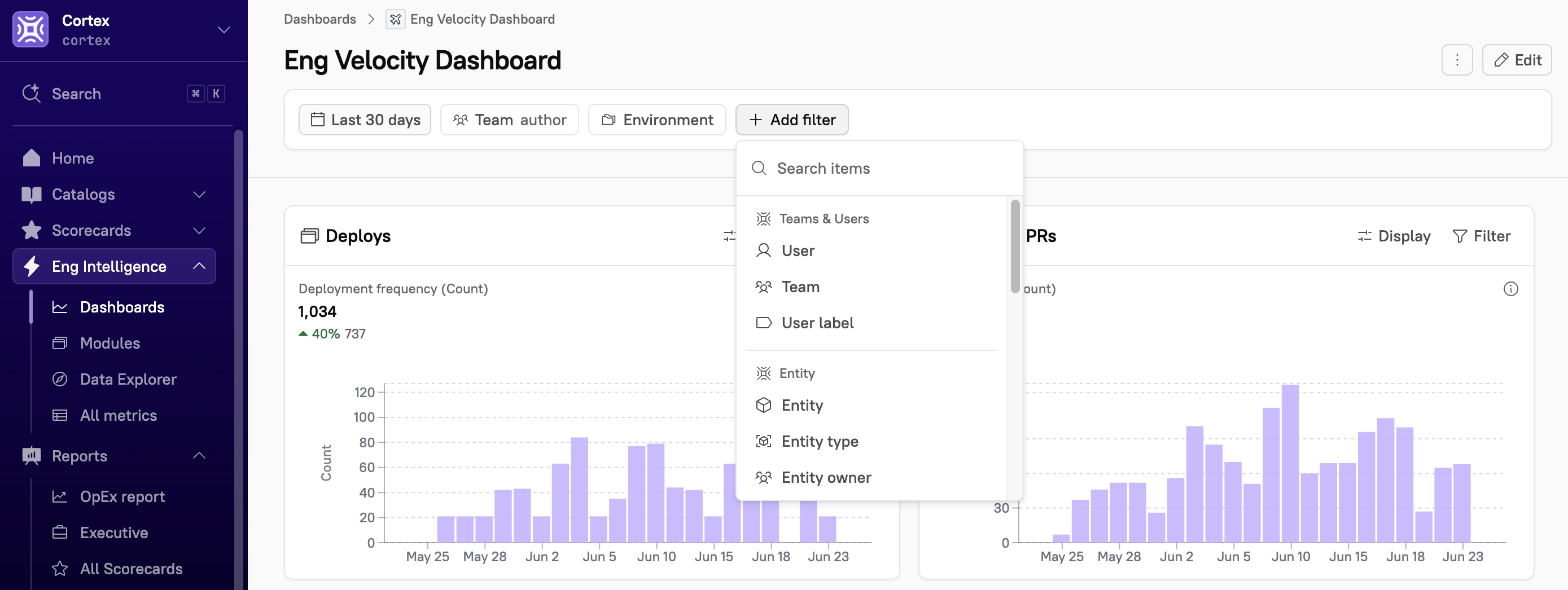 When you add a dashboard-level filter, Cortex will display a message confirming that it will override the same filter if it’s also set on an individual module.
Date filter defaults:
When you add a dashboard-level filter, Cortex will display a message confirming that it will override the same filter if it’s also set on an individual module.
Date filter defaults: