Restricting access to a Workflow
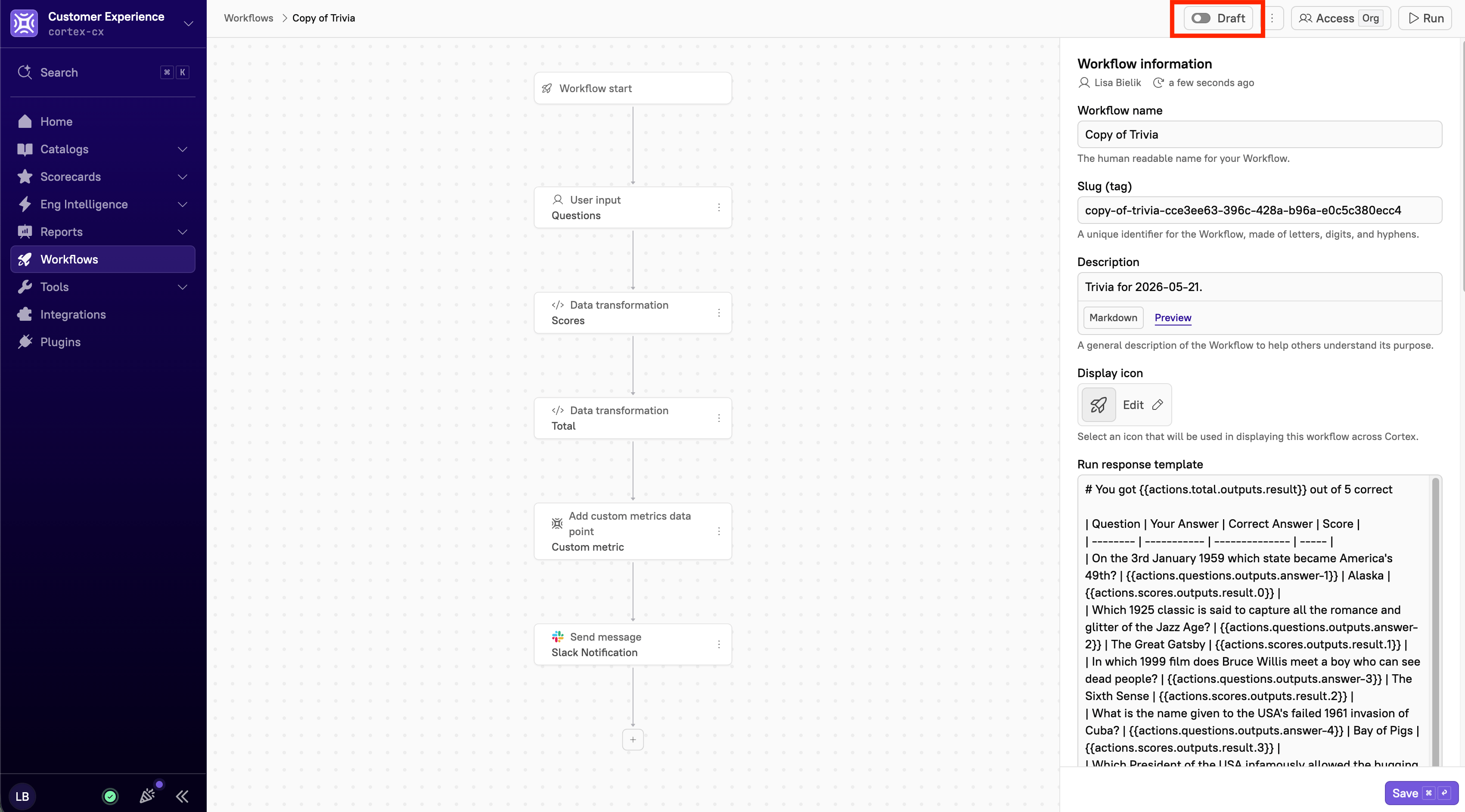
By default, published workflows are visible to anyone in your organization who has permission to view them. To restrict access, follow the steps below.When a Workflow is saved as a draft, it’s only visible to users with the
Edit Workflow permission.- From the main sidebar, select Workflows.
-
Do one of the following:
- Select the All tab to search and filter across all of your organization’s Workflows.
- Select the Mine tab to search and filter only the Workflows you own.
- Note that Cortex saves your selection and restores it the next time you open this page.
-
Locate the Workflow, then click the overflow menu icon next to it.
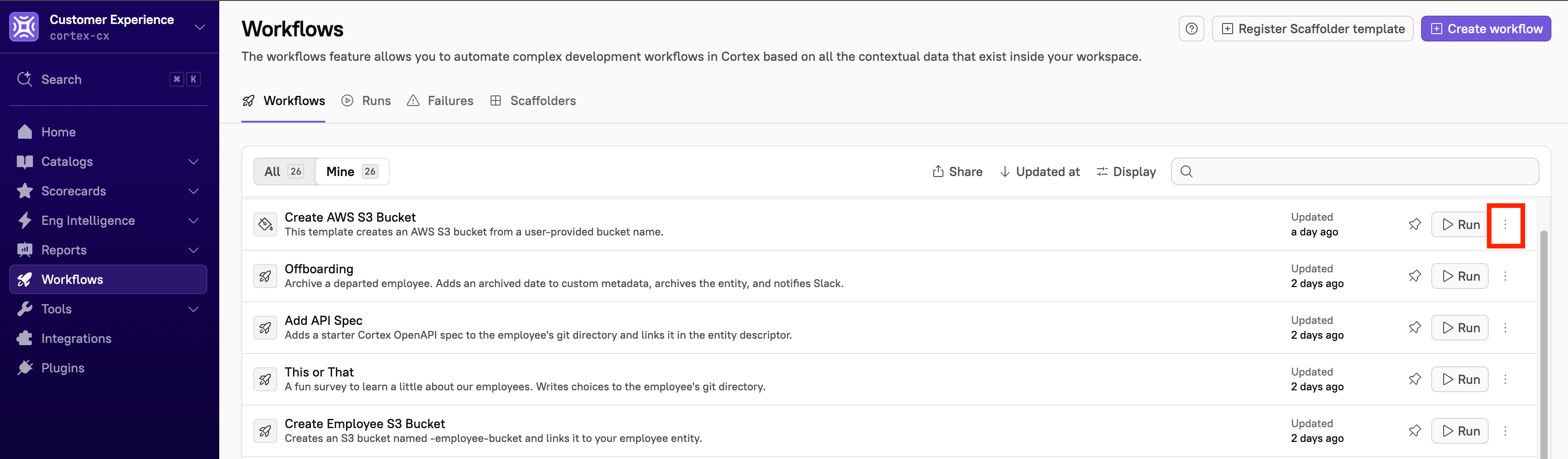
- Select Edit Workflow.
- In the upper-right corner, click Access.
- Toggle off Organization run access.
-
To set access for specific users, teams, or roles, do any the following:
- From the Select users drop-down menu, select the users who should have access to view the workflow. Note that users must have the
Execute Workflow Runspermission and they must match at least one of the users, teams, or roles specified. - From the Select teams drop-down menu, select the teams who should have access to view the workflow.
- From the Roles drop-down menu, select the roles who should have access to view the workflow.
- From the Select users drop-down menu, select the users who should have access to view the workflow. Note that users must have the
- Click Apply.
Enabling API access
Users with a personal access token or a global API key, with theExecute Workflow Runs permission, can run a Workflow via the API or the Cortex MCP.
Follow the steps below to allow a Workflow to be triggered through the Workflow Runs API.
- From the main sidebar, select Workflows.
-
Do one of the following:
- Select the All tab to search and filter across all of your organization’s Workflows.
- Select the Mine tab to search and filter only the Workflows you own.
- Note that Cortex saves your selection and restores it the next time you open this page.
-
Locate the Workflow, then click the overflow menu icon next to it.
- Select Edit Workflow.
- In the upper‑right corner, click Access.
- Toggle on Runnable via API.
- Click Apply. The Workflow can now be run via the API.
-
Repeat these steps for each Workflow you want to run via the API.
Publishing a Workflow
A workflow remains in draft mode until it’s published. Drafts are only visible to users who have permission to edit workflows. To set a workflow to public, toggle off the Draft option in the upper-right corner of the Workflow: