

Adding deployment data to Cortex
To get deployment data into Cortex, you must use the Add deployment for entity API endpoint.Deploy data pipeline examples
In these examples, the repository secret or variable contains a valid Cortex API key, and the repository name matches the Cortex tag.GitHub Action
GitHub Action
In this example, a repository secret called
CORTEX_TOKEN contains a valid Cortex API key.GitLab pipeline
GitLab pipeline
PrerequisitesBefore running this pipeline, define a CI/CD variable in GitLab that stores the Cortex API key. Confirm the repository contains a
package.json file.Failure behaviorIf any stage fails, the entire pipeline fails and a ROLLBACK event sends to Cortex.Azure DevOps
Azure DevOps
In this example, a variable called
CORTEX_TOKEN contains a valid Cortex API key.Jenkins
Jenkins
In this example, the Jenkins job is assumed to be associated with a repository, and the repository name is used to match the Cortex entity tag. The job also assumes a Global Credential named
CORTEX_TOKEN has been defined, containing a valid Cortex API key.Adding custom data to deployments
Adding acustomData object to the API call gives you the flexibility to attach metadata that matters to your organization, e.g. build numbers, commit messages, approval info, environment tags, or anything else worth tracking alongside a deploy.
If custom data is included with a deployment, it appears on the entity’s details page under CI/CD > Deploys.
To view deployment custom data:
- From the main sidebar, expand Catalogs, then select All entities.
-
Do one of the following:
- Select the All tab to search and filter across all of your organization’s entities.
- Select the Mine tab to search and filter only the entities you own.
- Note that Cortex saves your selection and restores it the next time you open this page.
- Select the entity.
- From the left entity details sidebar, locate the Connections section, expand CI/CD, then click Deploys.
-
Click Details next to the relevant deployment entry to expand it and view the custom data.
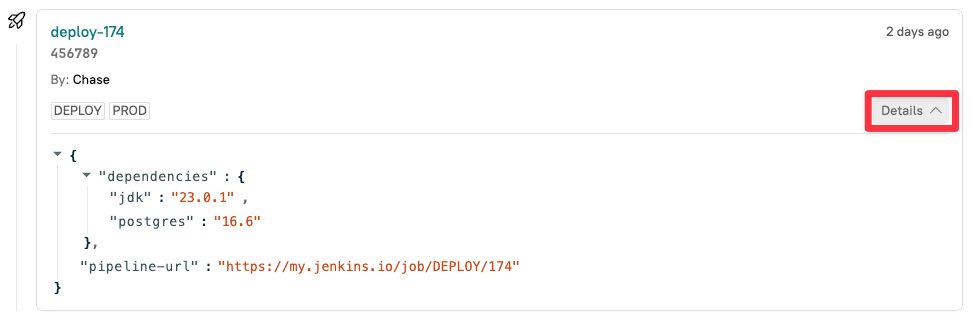
Viewing deployment data
Deployment data is found in the following areas of Cortex:Viewing deployments on entity pages
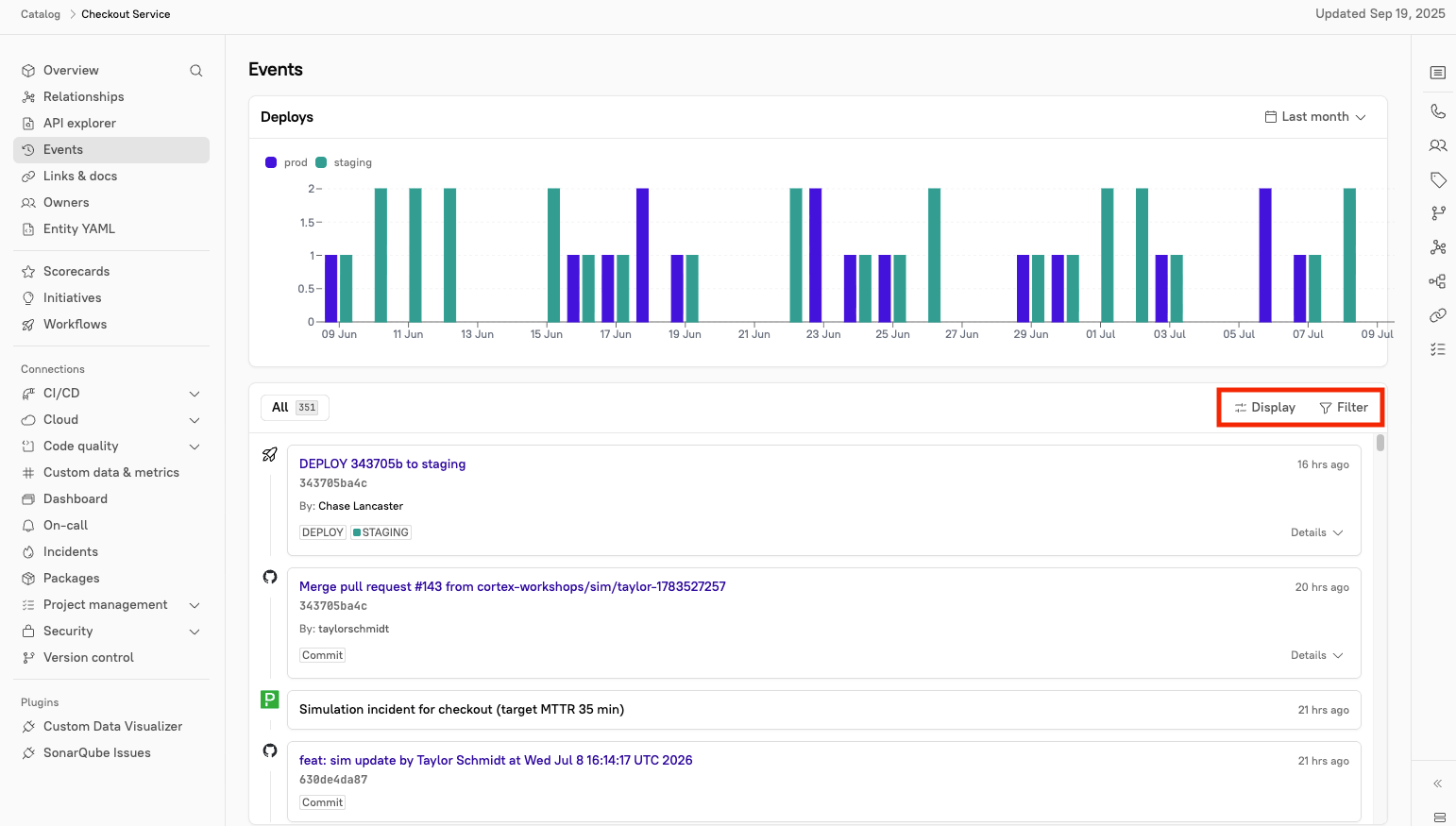
While viewing an entity’s page, you can see its latest deployment information. To access an entity’s page, expand Catalogs from the main sidebar, then click All entities. Select the entity you want to view. Deployment information appears in the following areas: Near the top of the page: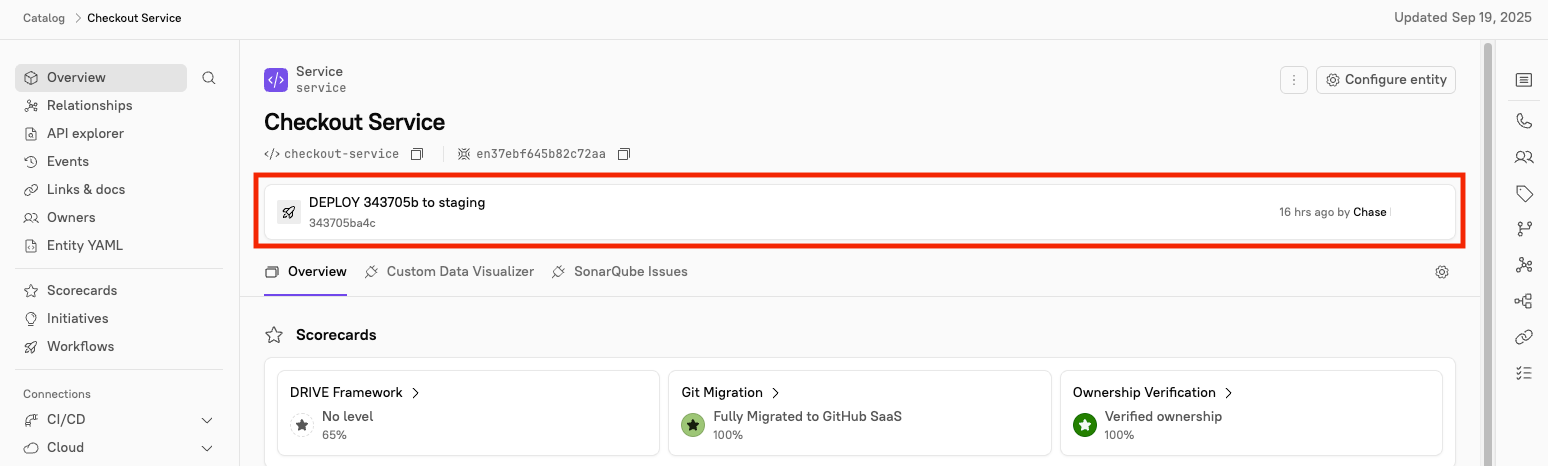
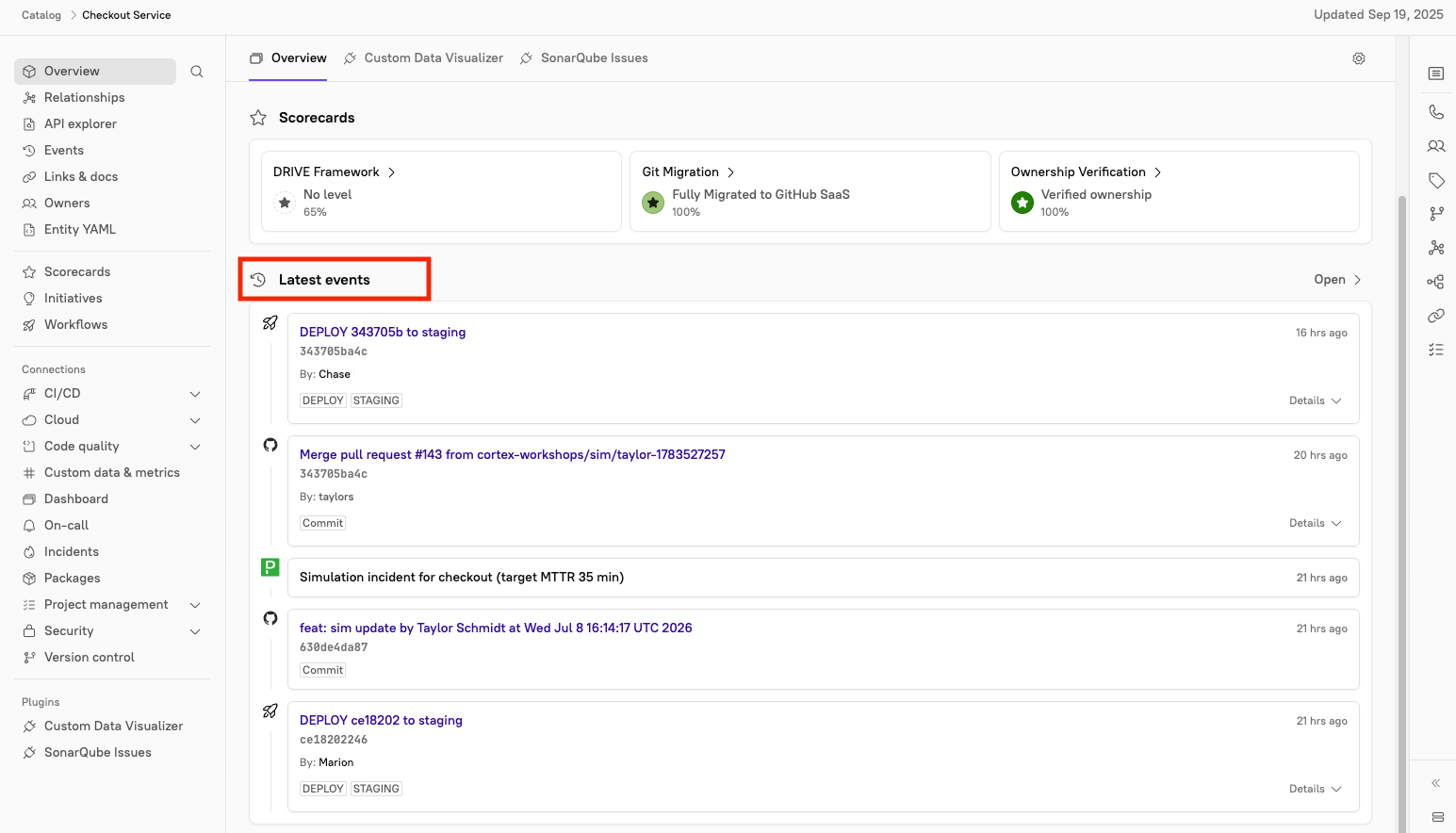
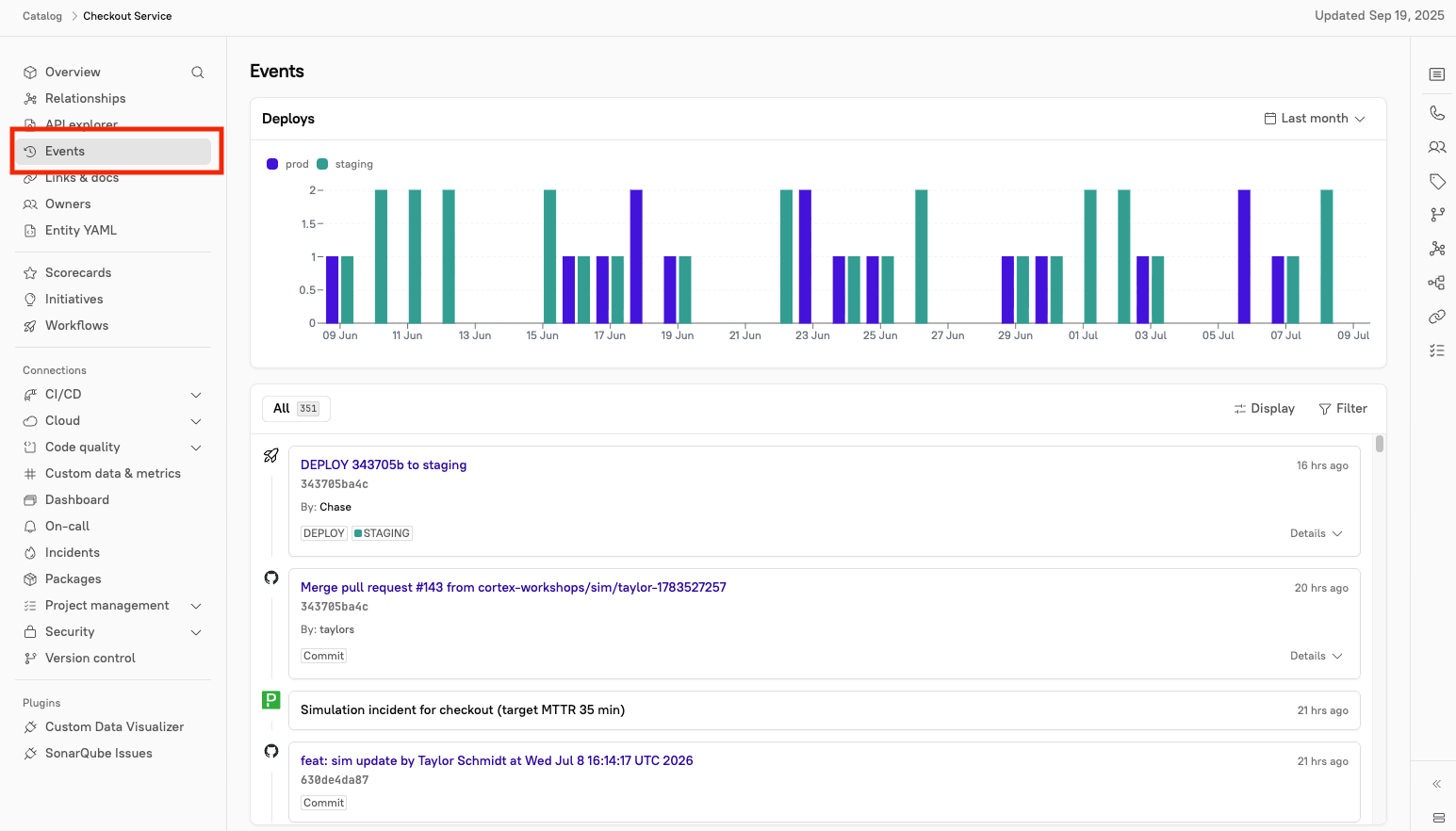
- A visual chart of deploys
- By default, the chart shows data from the last month. Click Last month in the upper-right to change the timeframe.
- All recent events for the entity
- Click Filter In the upper-right corner of the events list to filter events by type (including deploys) and date range.
- Click Display in the upper-right corner of the events list to show dependency events.
Viewing deployments in Eng Intelligence
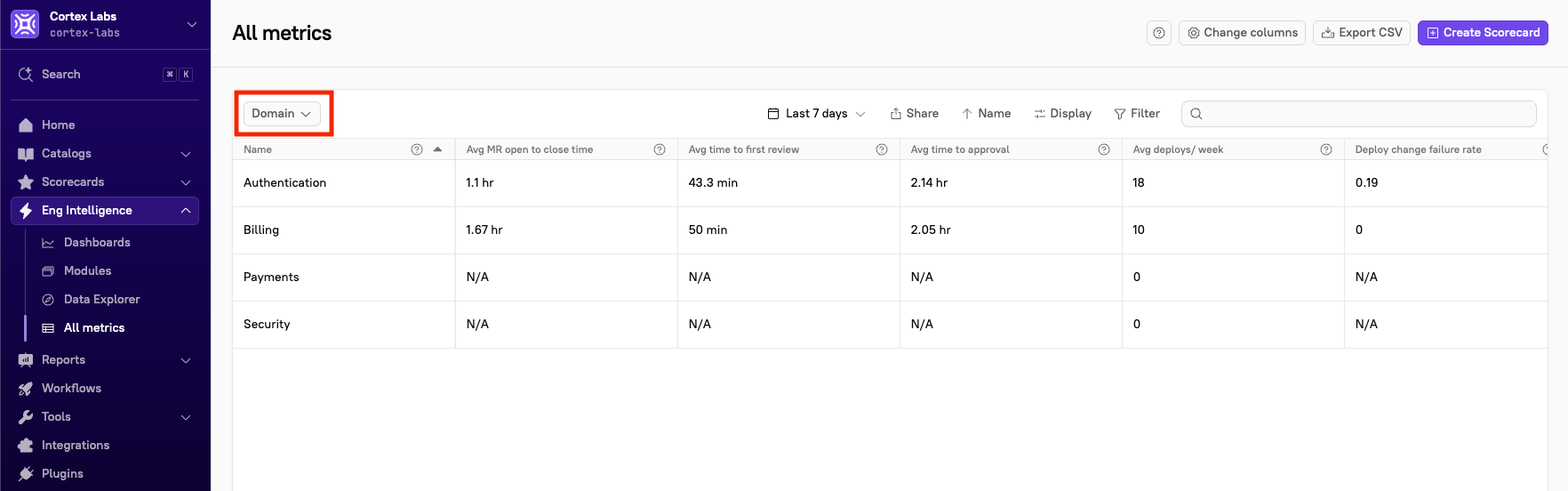
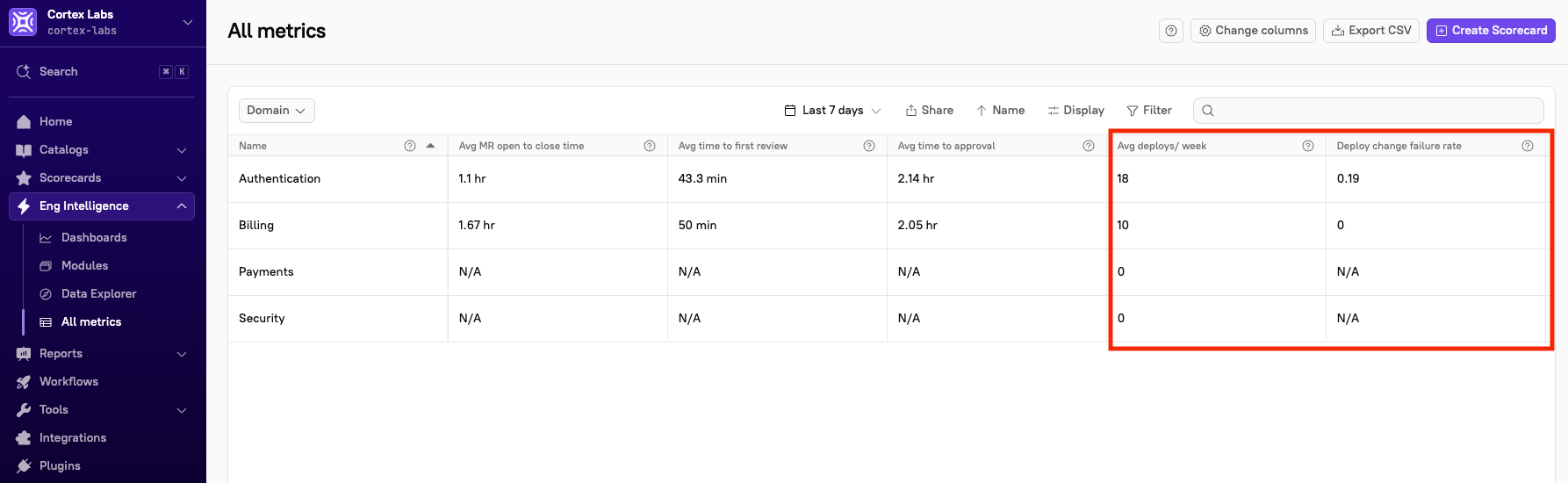
When you add deployment data to Cortex, that data feeds into Eng Intelligence reporting, giving you visibility into deploy metrics such as average deploys per week and change failure rate. To view deploy metrics in Eng Intelligence:- From the main sidebar, expand Eng Intelligence, then select All metrics.
-
In the upper-left corner, click the drop-down to change the entity type, e.g. domain.
-
Locate the entity whose deploy metrics you want to view, then click into the Avg deploys/week and Deploy change failure rate columns to get more information including trends and related activity.
Using deployment data in CQL and Scorecards
You can use deploy data to write rules for Scorecards and to create CQL reports.CQL reference
Deploys are added to an entity through the public API.deploys() returns only deploys sent through the deploys API. To query deployments imported from Harness, use cicd.deployments().
Definition - deploys(lookback: Duration, types: List): List
Example
In a Scorecard, you can write a rule to check whether an entity had fewer than 5 bug fixes in the last month: