

- You can launch a SOC 2 Compliance Scorecard. Cortex provides a prebuilt SOC 2 compliance Scorecard template that you can use to track audit-related controls and standards.
- You can launch an Initiative associated with the Scorecard, which gives your engineers a deadline for when to complete certain goals.
- Use reports and Cortex MCP to better understand progress and next steps.
Create a SOC 2 Scorecard
Prerequisites
Before using this Scorecard template:- Ensure you have configured integrations for:
- Ensure you have created custom data fields called
tls_enabledandlast_risk_assessment_date.
Step 1: Create the Scorecard and configure its basic settings
You can create a Scorecard in the Cortex UI, or you can add it to your workspace via GitOps or the Cortex API.- Cortex UI
- GitOps or API
Create Scorecard in the Cortex UI
- On the Scorecards page in your workspace, click Create Scorecard.
- On the
SOC-2 Compliancetemplate, click Use. - Configure basic settings, including the Scorecard’s name, unique identifier, description, and more.
- Learn about configuring the basic settings in the Creating a Scorecard documentation.
Step 2: Review and modify rules
Cortex’s templated rules are based on common industry standards:Level 1: Foundational Security
Level 1: Foundational Security
- On-call is set
oncall != null - Service has ownership
ownership != null - TLS is enabled
custom("tls_enabled") == true - Branch protection is set on default branch
git.branchProtection("main") != null - PR approval is required to merge
git.numOfRequiredApprovals() > 0
Level 2: Operational Compliance
Level 2: Operational Compliance
- Data retention policy linked
links("document").filter((link) => link.name.matches("data-retention*")).length > 0 - Vulnerability scan passing (medium & high)
snyk.numOfIssues(severity=["HIGH", "CRITICAL", "MEDIUM"]) <= 0 - Unit testing in place
git.workflowRuns().filter((run) => run.name.matchesIn("Unit Test")).length > 0
Level 3: Advanced SOC 2 Maturity
Level 3: Advanced SOC 2 Maturity
- Pen test linked
links("pen-test").length > 0 - Service included in Risk Assessment in last year
custom("last_risk_assessment_date").fromNow() > duration("P1Y") - Vulnerability scan passing (low, medium, & high)
snyk.numOfIssues(severity=["HIGH", "CRITICAL", "MEDIUM", "LOW"]) <= 0
Create a SOC 2 Initiative
Follow the steps below to create an Initiative:Create a SOC 2 Initiative
Create a SOC 2 Initiative
To motivate change by a certain deadline, you can create an Initiative:
- While viewing your SOC 2 Compliance Scorecard, click Create Initiative in the upper right.
- Configure the Initiative fields, including a descriptive name so your team members understand the purpose of the Initiative. For example,
Ensure data retention policy is linked for all services.- Make sure to enable notifications so users are notified if an entity they own is failing the Initiative’s goal.
- Save the Initiative.
Measuring success
To understand progress of your Scorecard:- Ask Cortex MCP, “How is my SOC 2 Scorecard doing?” The MCP will respond with information on the entities that are failing rules and suggested next steps.
-
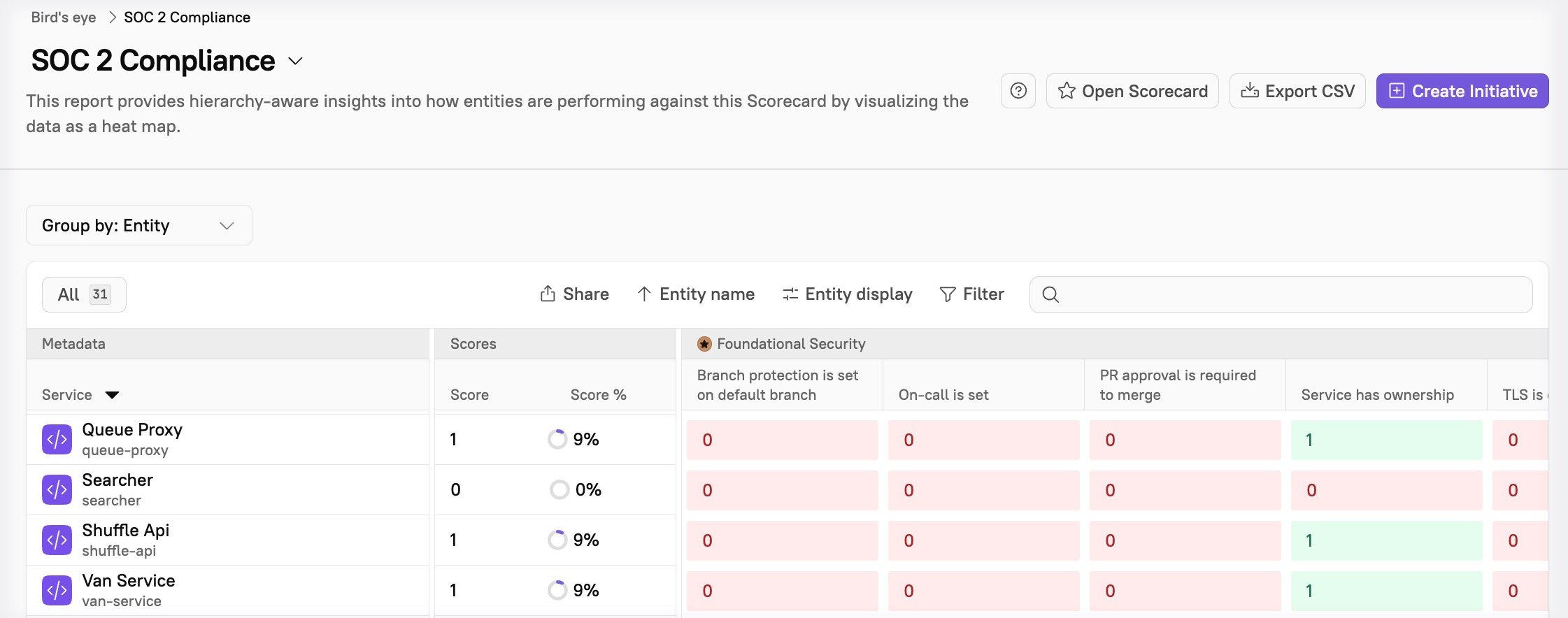
Review reports: The Bird’s Eye report gives insight into how entities are performing against the Scorecard by visualizing the data as a heat map:
- MTTR: With best practices in place, such as on-call rotation and ownership, you should see faster incident response.
- Deployment frequency: Improved governance reduces rework and manual gates. Once baselines are set, you may see deployment frequency increasing.