

- Directly after configuration
- From the Workflows page (via the main sidebar)
- From an entity
- Via the API
To run a Workflow with Cortex-based blocks, you need the appropriate permissions for each block. For example, a block that adds Eng Intelligence custom metrics to an entity requires the
Configure Eng Intelligence Custom Metrics permission to run successfully.Prerequisites
- You must have the
Execute Workflows Runspermission. - An existing Workflow. If you haven’t yet created a Workflow, refer to Creating a Workflow, Configuring Workflow settings, and Adding blocks to a Workflow.
Running a Workflow directly after configuration
-
In the upper-right corner of the page, click Run.
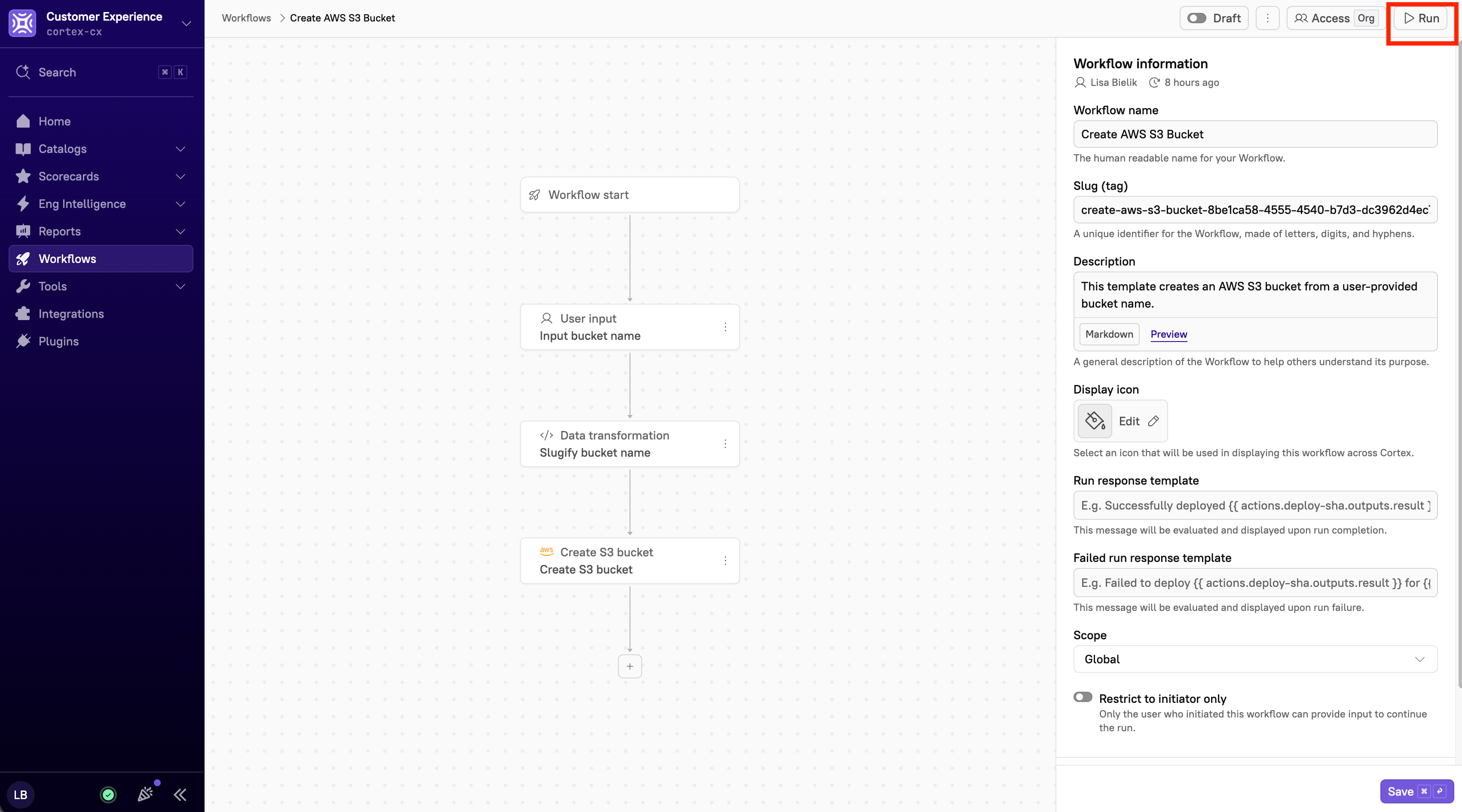
- Click Run workflow.
Running a Workflow from the Workflows page (via the main sidebar)
- From the main sidebar, select Workflows.
- Do one of the following:
- Select the All tab to search and filter across all of your organization’s Workflows.
- Select the Mine tab to search and filter only the Workflows you own.
- Note that Cortex saves your selection and restores it the next time you open this page.
- Locate the Workflow you want to run, then click Run. Note that if the Workflow is scoped to an entity, the Select an entity window opens. Select an entity from the drop-down menu, then click Run workflow.
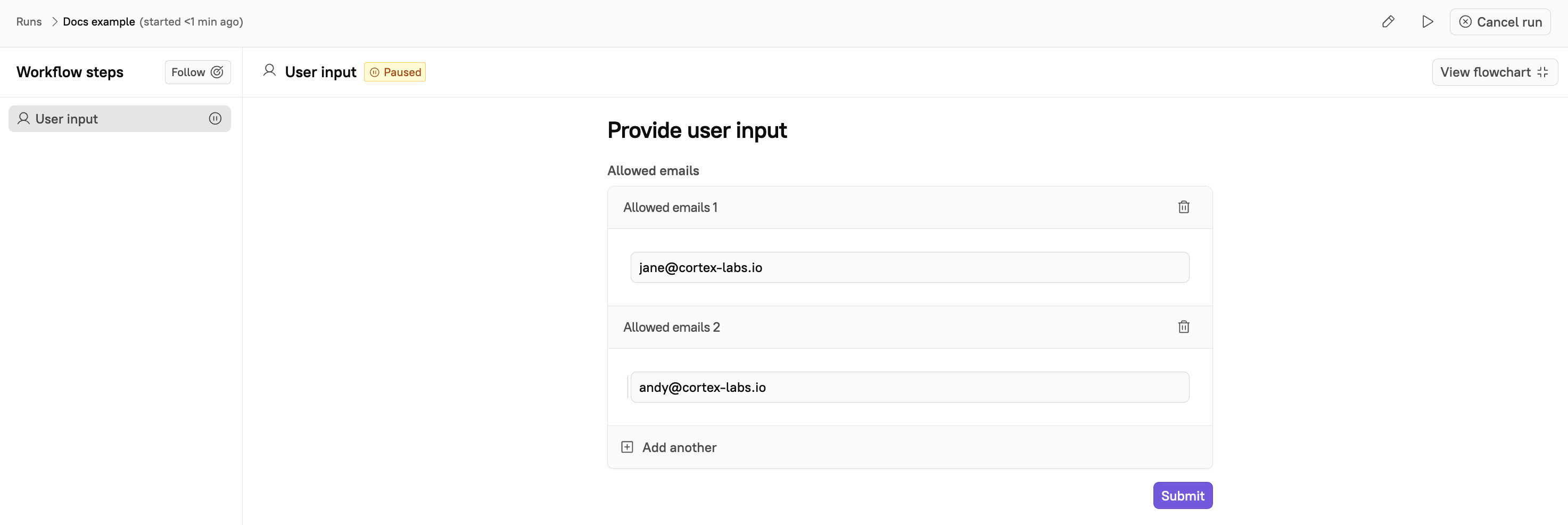
Workflows that require user input or manual approval pause until the configured input or approval is completed.
Running a Workflow from an entity
Follow the steps below to run a Workflow from an entity.Workflows are linked to entities only if specified during configuration. To link an existing Workflow to an entity, edit the Workflow first.
- From the main sidebar, expand Catalogs, then select All entities.
-
Do one of the following:
- Select the All tab to search and filter across all of your organization’s entities.
- Select the Mine tab to search and filter only the entities you own.
- Note that Cortex saves your selection and restores it the next time you open this page.
- Search for and select the entity from which you want to run the Workflow.
-
From the entity details sidebar, select Workflows.
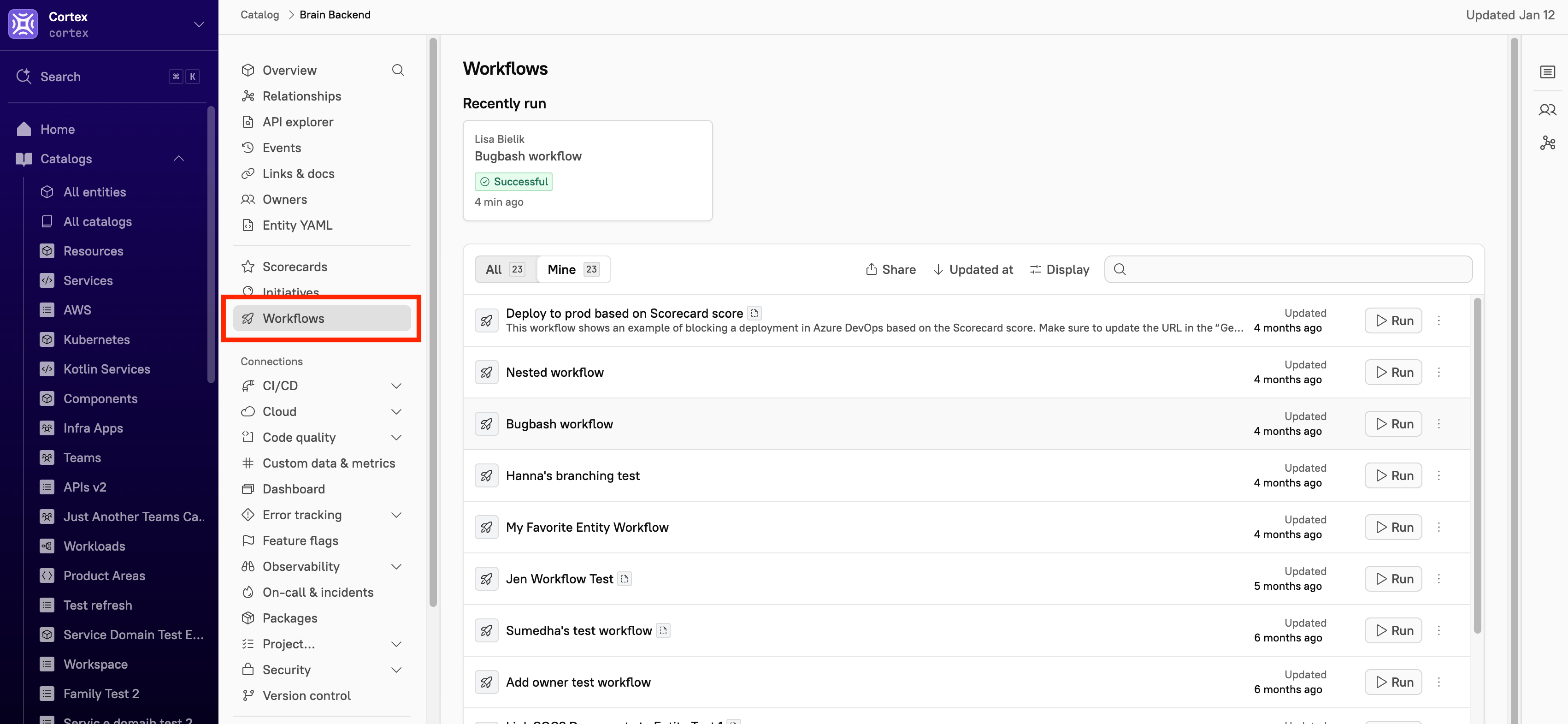
- Locate the Workflow you want to run, then click Run. The Confirm window opens.
- Click Run workflow.
-
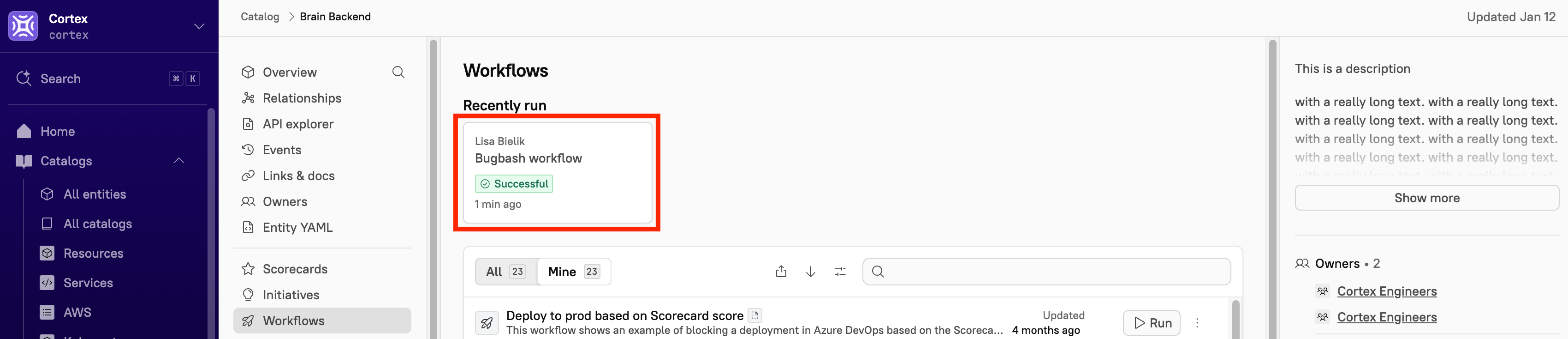
Click the tile to view the recent run.
Running a Workflow via the API
You can trigger Workflows programmatically using the Workflow Runs API. This is useful for integrating Cortex Workflows into CI/CD pipelines, scripts, and other automation. Prerequisites- The Workflow must have Runnable via API enabled. See Enabling API access.
- The caller must authenticate with a personal access token or a global API key that has the
Execute Workflow Runspermission.
- Trigger a Workflow run for a global or entity‑scoped Workflow.
- Pass runtime values into Workflow variables using
initialContext. See step 1-i in Configuring Workflow settings. - Specify the initiating user with
runAs—required when the Workflow restricts inputs to the initiator, when authenticating with a workspace or global API key, or when the Workflow contains a Scaffolder block. IfrunAsis omitted and an initiator is required, the run pauses and prompts for user selection. - Notify additional users of run events with
notificationRecipients. - Prevent duplicate runs from accidental retries by sending an
Idempotency-Keyheader. - Retrieve a specific run or list runs with filters.
Running a Workflow with secret user input
When a Workflow includes a secret user input block, Cortex prompts the user to enter a value and redacts it in the Outputs tab. If the block has regex validation configured, the user’s input must match the Validation regex set for that block. The Outputs tab shows the secret fields after the Workflow runs, but Cortex redacts the values themselves.Running a Workflow with list inputs
When a user input collects a list (nested form with the single value data type), the runner can add or remove entries within the configured element count. Number items are validated against the Integer/Decimal format and any minimum or maximum you set, and toggle items are entered as true/false switches.Viewing a Workflow run
See the documentation for viewing a Workflow run.Canceling a run
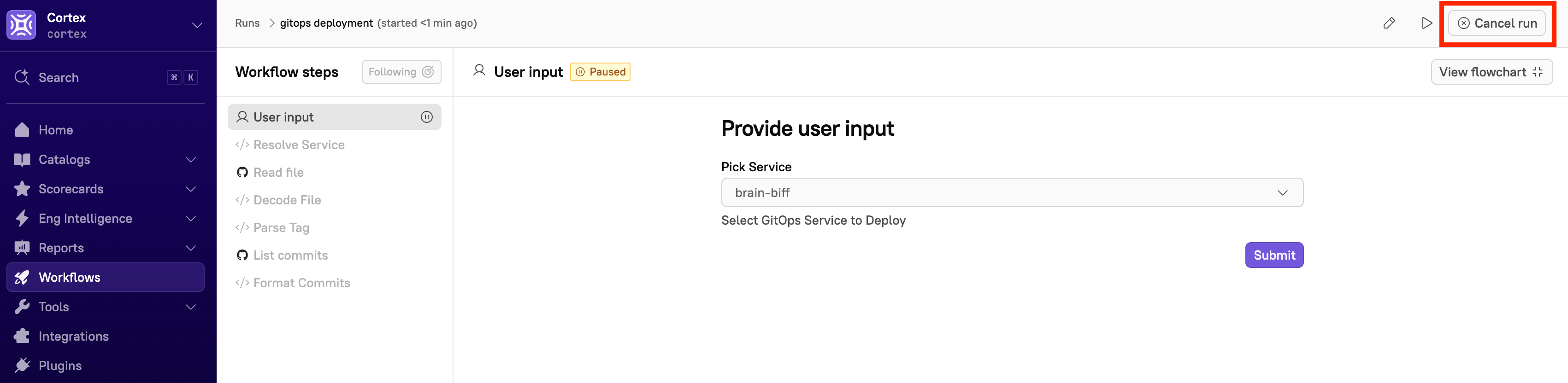
Follow the steps below to cancel a run.Canceling a partially complete run does not impact any blocks that have been successfully completed.
- On the Workflows page, select the Runs tab.
- Select the run you want to cancel.
-
In the upper-right corner of the page, click Cancel run. The run is terminated.
Troubleshooting and FAQ
When trying to run a Workflow, why might I get the 404 error could not find workflow with id: xyz?
When trying to run a Workflow, why might I get the 404 error could not find workflow with id: xyz?
This happens when you have multiple tenants and use an API key from the wrong tenant. Ensure that you are using the correct API key, or create a new API key and try again.
Why do I see a 403 Forbidden IP address error when running a Workflow?
Why do I see a 403 Forbidden IP address error when running a Workflow?
Workflow steps that call the Cortex API fail if the request originates from an IP that isn’t on your allowlist. Send a message to help@cortex.io if you need further assistance.
Why does a Workflow run fail with a message about ownership or team role?
Why does a Workflow run fail with a message about ownership or team role?
This happens when the Workflow requires Require entity ownership. Only the entity’s owner can run it. If Require team member role is also on, the owner must additionally hold one of the configured roles on the owning team—holding the role alone, without being the owner, isn’t enough. Runs triggered via the API always fail this check if Cortex can’t identify the calling user.