> For the complete documentation index, see [llms.txt](https://docs.cortex.io/llms.txt). Markdown versions of documentation pages are available by appending `.md` to page URLs; this page is available as [Markdown](https://docs.cortex.io/streamline/workflows/blocks.md).
# Adding blocks to a Workflow
Blocks (formerly called actions) are the building components of Workflows. Each block handles a specific task, and chaining them together lets you run a sequence of operations that can reference contextual data from your workspace.
Cortex offers a searchable library of blocks that can be added to your Workflows. See [How is a Workflow structured](/streamline/workflows.md#structured) for more information.
Blocks are organized into the following categories:
* **Core blocks** - Perform actions such as requiring a manual approval on a step within a Workflow.
* **Cortex blocks** - Perform Cortex-based actions, such as getting Scorecard scores for an entity.
* **Integration blocks** - Perform third-party integration actions such as creating a new GitHub repository or creating a new incident in ServiceNow.
## Prerequisites
1. You must have the `Edit Workflows` permission.
2. An existing Workflow. If you haven't yet created a Workflow, refer to [Creating a Workflow](/streamline/workflows/create.md) and [Configuring Workflow settings](/streamline/workflows/configuring-workflow-settings.md).
{% hint style="info" %}
Every block in a Workflow must have a unique slug.
{% endhint %}
## Configuring a Workflow block (basic)
1. Click the **+ icon**. The **Search for blocks** window opens.
2. Search for and select the block you want to add to the Workflow.
3. In the right pane, configure the block. Note that configuration options differ depending on the block.
4. Click **Save**.
5. Repeat Steps 1 - 4 as necessary.
## Configuring a core block
Expand the tiles below for instructions on configuring each type of block.
Branch
A **Branch** allows you to set up to five conditional paths for a Workflow.
{% hint style="success" %}
See an example demonstrating how to use a Branch block in [Referencing Workflow states in a block](/streamline/workflows/blocks/states.md#block-and-workflow-state-reference-example).
{% endhint %}
**Configuring a branch**
1. In the **Search for blocks** window, search for **Branch**, then click **Insert**.
2. In the side panel, do the following:
1. **Block name** - Optionally, change the name of the block. The name auto-populates based on the block name.
2. **Slug** - Optionally, change the slug. The slug auto-populates based on the block name and is made up of letters, digits, and hyphens.
3. Click **Add path**.
1. **Name** - Enter a name for the conditional path.
2. **Slug** - Optionally, change the slug. The slug auto-populates based on the block name and is made up of letters, digits, and hyphens.
3. **Path expression** - Enter the path expression (compatible with [CEL syntax](https://cel.dev/)). The path expression does not accept dashed values; if you reference a block's slug that contains a dash, wrap the slug in quotes and square brackets.
1. For example, if you want to reference a block with the slug `slug-example`, the expression would begin with `actions["slug-example"]`.
2. Autocomplete provides correctly formatted options based on the blocks defined in your Workflow.
4. Click **Save**.
4. Click **Add fallback path**.
1. **Name** - Enter a name for the fallback path.
2. **Slug** - Optionally, change the slug. The slug auto-populates based on the block name and is made up of letters, digits, and hyphens.
3. Click **Save**.
3. Optionally, add additional paths (up to 5).
4. Click **Save**.
{% hint style="info" %}
To add additional blocks that occur after the paths within your branch, click **+** below the **Branch** box in the Workflow editor.
{% endhint %}
**How paths work**
The paths defined run sequentially. The first path that returns `true` will execute, even if subsequent paths would also return `true`. The Workflow will then continue performing blocks in that path. You can also set a fallback path that will run if all other paths fail.
Primary and nested branches function the same way.
**Nested branches**
To nest a branch, you must have a conditional path defined.
1. In the Workflow visual, click the **+** that is branched off the original branch. The **Search for blocks** window opens.
2. Search for **Branch**, then click **Insert**.
3. Follow steps 2 - 4 above in **Configuring a branch**.
There are no limits on how many branches you can nest.
Data transformation
A **Data transformation** performs data transformations using jq. Except for the block name and slug, the only field required is the **jq expression**.
{% hint style="success" %}
**Use cases**: Manipulate or format data between steps. For example, transform user input before sending it to an API or before using it in another Workflow block.\
\
**Workflow examples**: See an example demonstrating how to use a Data transformation block in [Referencing Workflow states in a block](/streamline/workflows/blocks/states.md#block-and-workflow-state-reference-example).
{% endhint %}
**Configure a data transformation**
To configure a data transformation:
1. Click **Data transformation** from the list of blocks.
2. Enter a name.
* The slug field will automatically pre-populate based on the name you enter.
3. Enter a [jq](https://jqlang.github.io/jq/) expression. This field can pass any sort of jq expression, as long as the variables and context are referenced differently.
* Although you would typically use `{}` to template the context of your Workflow, in this field you’ll need to reference such values as jq query values.
4. Click **Save**.
HTTP request
The HTTP request makes and records a request to a given URL, allowing you to integrate with external APIs or internal systems.
For use cases requiring asynchronous operations (e.g. provisioning cloud resources or CI/CD pipelines), use the [Asynchronous HTTP request block](#http-action-async).
{% hint style="success" %}
See an example demonstrating how to use an HTTP block in [Scaffolding a new service with custom data based on user input](/guides/production-readiness/standardize-new-service-creation.md).
{% endhint %}
**Configuring an HTTP request**
1. Search for and select the **HTTP request** block.
2. In the side panel, configure the block metadata:
1. **Block name** - Optionally, change the name of the block. The name auto-populates based on the block name.
2. **Slug** - Optionally, change the slug. The slug auto-populates based on the block name and is made up of letters, digits, and hyphens.
3. **Integration** - Select a configured integration from the dropdown to authenticate the request instead of manually building headers.
* The picker only lists integrations already configured for your tenant.
* If the integration has more than one configuration, an alias picker appears so you can choose which one to use.
* If a previously selected integration is no longer configured, Cortex keeps the existing value so the block stays editable, and shows a warning that the integration is missing.
* To go back to manually configuring the full URL and headers, clear the **Integration** field. This also resets the alias picker.
4. **HTTP method** - Select one of the following options from the dropdown: `DELETE`, `GET`, `PATCH`, `POST`, or `PUT` (required).
5. **URL** - Enter a static URL or use a template to reference other blocks (required). If you selected an integration above, enter the URL as a relative path. Cortex automatically prepends the integration's base URL to your request.
* If you use `{{actions.url.outputs.result}}`, for example, you can set the URL to the output of a JQ action. In this example:
* `.actions` indicates a reference to a Workflow block
* `.url` is the slug for the referenced Workflow block
* `.outputs` is the location of the actual output of the JQ expression
* `.result` is the result field where the output is stored
* Because [Mustache](https://en.wikipedia.org/wiki/Mustache_\(template_system\)) performs HTML escaping by default, special characters referenced in a value with two curly braces (`{{}}`) will be converted to their associated HTML encoding. For example, `{{=}}` becomes `=`. To reference a non-escaped value, use three curly braces (`{{{=}}}`).
6. **Headers** - Click **Add header** to select one of the options provided, or enter your own.
* Include an Authorization header and use a [personal access token](/configure/settings/api-keys/personal-tokens.md), unless you're authenticating with a configured integration.
* When using a secret with a header, prefix the secret with `context.` .
7. **Payload** - This field only appears if you are using an HTTP request that sends a payload. The payload that you supply can also be templated and can reference an entity that the Workflow is being run with. Some additional steps are required to properly template raw JSON in the payload field:
* Single primitive values work as expected. To add JSON objects or arrays, create a [Data transformation block](#data-transformation) that accesses the relevant JSON and pipes it into the `tojson` built-in.
* For example, `.context.initiatedBy | tojson` enables a user to add the full `initiatedBy` object `()` into an HTTP request payload. When templating this value, three curly braces are needed in order to reference a non-escaped value. In this example, if the Data transformation block has the slug `transform-to-json`, then the payload would include `{{{actions.transform-to-json.outputs.result}}}`.
3. Click **Save**.
{% hint style="warning" %}
If using special characters when templating, make sure to include three curly braces to reference a non-HTML-escaped value.
{% endhint %}
HTTP action (async)
The Asynchronous HTTP request makes and records a request to a given URL. This block pauses execution until a [callback API](/api/readme/workflows.md#post-api-v1-workflows-tagorid-callback-callbackid) is invoked or a timeout occurs, enabling long-running Workflows.
{% hint style="info" %}
You can pass the callback URL to the external service by using the template variable `{{callbackUrl}}`. This can be passed as part of the URL, in a header, or in the payload.
For example, when passing the variable in a URL, it would look like the following format: `https://example.com/?url={{callbackUrl}}`.
{% endhint %}
**Configuring an Asynchronous HTTP request**
1. Search for and select the **Asynchronous HTTP request** block.
2. In the side panel, configure the block metadata:
1. **Block name** - Optionally, change the name of the block. The name auto-populates based on the block name.
2. **Slug** - Optionally, change the slug. The slug auto-populates based on the block name and is made up of letters, digits, and hyphens.
3. **Integration** - Select a configured integration from the dropdown to authenticate the request instead of manually building headers.
* The picker only lists integrations already configured for your tenant.
* If the integration has more than one configuration, an alias picker appears so you can choose which one to use.
* If a previously selected integration is no longer configured, Cortex keeps the existing value so the block stays editable, and shows a warning that the integration is missing.
* To go back to manually configuring the full URL and headers, clear the **Integration** field. This also resets the alias picker.
4. **HTTP method** - Select one of the following options from the dropdown: `DELETE`, `GET`, `PATCH`, `POST`, or `PUT` (required).
5. **URL** - Enter a static URL or use a template to reference other blocks (required). If you selected an integration above, enter the URL as a relative path. Cortex automatically prepends the integration's base URL to your request.
* If you use `{{actions.url.outputs.result}}`, for example, you can set the URL to the output of a JQ action. In this example:
* `.actions` indicates a reference to a Workflow block
* `.url` is the slug for the referenced Workflow block
* `.outputs` is the location of the actual output of the JQ expression
* `.result` is the result field where the output is stored
* Because [Mustache](https://en.wikipedia.org/wiki/Mustache_\(template_system\)) performs HTML escaping by default, special characters referenced in a value with two curly braces (`{{}}`) will be converted to their associated HTML encoding. For example, `{{=}}` becomes `=`. To reference a non-escaped value, use three curly braces (`{{{=}}}`).
6. **Headers** - Click **Add header** to select one of the options provided, or enter your own.
* Include an Authorization header and use a [personal access token](/configure/settings/api-keys/personal-tokens.md), unless you're authenticating with a configured integration.
* When using a secret with a header, prefix the secret with `context.` .
7. **Payload** - This field only appears if you are using an HTTP request that sends a payload. The payload that you supply can also be templated and can reference an entity that the Workflow is being run with. Some additional steps are required to properly template raw JSON in the payload field:
* Single primitive values work as expected. To add JSON objects or arrays, create a [Data transformation block](#data-transformation) that accesses the relevant JSON and pipes it into the `tojson` built-in.
* For example, `.context.initiatedBy | tojson` enables a user to add the full `initiatedBy` object `()` into an HTTP request payload. When templating this value, three curly braces are needed in order to reference a non-escaped value. In this example, if the Data transformation block has the slug `transform-to-json`, then the payload would include `{{{actions.transform-to-json.outputs.result}}}`.
8. **Timeout** - Configure a timeout for this action. The maximum is 30 days and the minimum is 1 minute.
* After a timeout, the block fails with the status `timed_out`. If you have [notifications](/configure/settings/notifications.md) enabled, you'll receive a notification if you initiate a Workflow and it times out.
3. Click **Save**.
{% hint style="warning" %}
If using special characters when templating, make sure to include three curly braces to reference a non-HTML-escaped value.
{% endhint %}
**Handling the callback**
Once the Asynchronous HTTP request block runs, Cortex sends the configured request and pauses the Workflow. To resume execution, the external system must call the callback URL provided by Cortex and follow the required schema.
The callback request must:
* Use the `POST` method
* Include a valid Cortex API key in the `Authorization` header (`Bearer `)
* Match the expected request body shape. Below is an example:
```
{
"message": "Provisioning complete – sandbox environment created.",
"response": {
"env_id": "sandbox-abc123"
},
"status": "SUCCESS"
}
```
See the full [Cortex API reference](https://docs.cortex.io/api/rest/workflows#post-api-v1-workflows-tagorid-callback-callbackid) for callback details and status options (`SUCCESS`, `FAILURE`, `CANCELLED`).
{% hint style="warning" %}
If the callback is missing required fields, improperly formatted, or lacks authentication, Cortex will not accept it, and the Workflow will remain paused or fail.
{% endhint %}
JavaScript
Use a JavaScript block to insert custom code or add looping and other logic to your Workflows.
The JavaScript runtime supports the [ES2020](https://tc39.es/ecma262/) specification and has an implementation of [Fetch API](https://developer.mozilla.org/en-US/docs/Web/API/Fetch_API/Using_Fetch), allowing you to make HTTP requests directly in the script rather than needing to add an additional HTTP request block to your Workflow.
{% hint style="success" %}
See an example demonstrating how to use a JavaScript block: [Looping in a JavaScript block and returning a specified output](/guides/operational-readiness/javascript-looping.md)
{% endhint %}
To test your block's code locally, you can use [Cortex's JavaScript harness](https://github.com/cortexapps/js-action-harness).
**Configuring a JavaScript block**
1. In the **Search for blocks** window, search for **JavaScript**, then click **Insert**.
2. In the side panel, do the following:
1. **Block name** - Optionally, change the name of the block. The name auto-populates based on the block name.
2. **Slug** - Optionally, change the slug. The slug auto-populates based on the block name and is made up of letters, digits, and hyphens.
3. **JavaScript** - Enter the script you want to run. The script must end with a `return` statement. The value from the `return` statement is exposed via `outputs.result`.
* For example, in the script `return {"a": 1, "b": 2}`, the result can be referenced from subsequent blocks as `actions..outputs.a`.
* You can reference previous blocks and run context by accessing `actions` and `context`. For example, `actions["jq"].outputs.result.`
* Learn more about [referencing blocks and Workflow states here](/streamline/workflows/blocks/states.md).
3. Click **Save**.
If you want the block to fail, you can use the `throw` statement. For example:
```
let previous = actions.previous.outputs.result;
if (previous == null) {
throw "Some error";
}
```
Manual approval
A **manual approval** pauses the Workflow to get approval from a member of a given Team. Like with user inputs, the Workflow proceeds to the next block once it has been approved.
**Configuring a manual approval**
1. In the **Search for blocks** window, search for **Manual approval**, then click **Insert**.
2. In the side panel, do the following:
1. **Block name** - Optionally, change the name of the block. The name auto-populates based on the block name.
2. **Slug** - Optionally, change the slug. The slug auto-populates based on the block name and is made up of letters, digits, and hyphens.
3. From the **Teams allowed to approve** dropdown, select one or more teams who are allowed to approve the request from this block. Any member of a given team can approve the block.
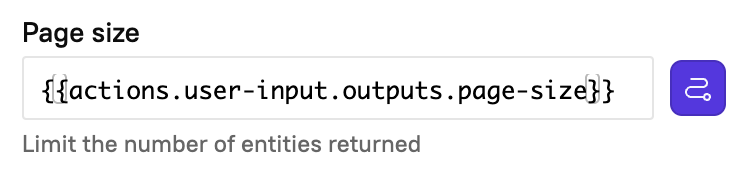
* To resolve the approving team dynamically instead of picking a fixed team, click the icon next to the field (**Use value from previous step**). The field switches to a text box where you can enter the path to a value from earlier in the Workflow. Start typing to see available paths, then select one, for example `actions.user-input.outputs.team-name`. Cortex resolves this path each time the Workflow runs, so the block can route approval to a different team depending on the inputs or entity involved in that run.
* Enter the path on its own, without template syntax. Use `actions.action-slug.outputs.field-name`, not `{{actions.action-slug.outputs.field-name}}`.
* Click the icon again to switch back to selecting a fixed team.
4. **Context for approvers** - Optionally, enter a message to be displayed to approvers to help them make a decision. This message supports Mustache templating.
5. **Timeout** - Optionally, enter the callback timeout. This value can be from one (1) minute to 30 days. The default value is 30 days.
3. Click **Save**.
**Pending approval**
When a manual approval block is triggered, users that belong to teams designated as approvers will see **Pending approvals** at the top of their Workflows page.
This section displays any blocks that are pending your approval. If manual approval actions exist within a Workflow, but do not require your approval, they will not appear here, even if you are designated to approve a different block in the same Workflow.
You can open any Workflow in the pending approval list to **Approve** or **Reject** the block.
Once all of your approval requests have been approved or rejected, this tab will disappear from the Workflows page.
Run Workflow
The **Run workflow** block calls another Workflow from inside the current one, letting you chain Workflows together.
{% hint style="info" %}
The embedded Workflow and the parent Workflow have a strict parent‑child relationship to prevent accidental Workflow looping.
{% endhint %}
**To configure a Run Workflow block**:
1. Click **Run workflow** from the list of blocks.
2. Under **Block name**, enter a name. The slug field auto‑populates based on the name.
3. From the **Workflow** drop‑down menu, select the Workflow to run.
4. Optionally, from the **Entity** drop‑down menu, select an entity to run the target Workflow against. If the target Workflow is entity‑scoped and no entity is provided, it pauses for input at runtime.
5. Click **Save**.
Scaffolder
The **Scaffolder** uses a Cortex Scaffolder template to perform a given function. You must have the `Execute Scaffolder` permission to configure a Scaffolder block.
See the docs to learn about [registering a Scaffolder template](/streamline/workflows/scaffolder.md).
{% hint style="success" %}
**Use cases**: Standardize and bootstrap service creation
**Workflow example**: See an example demonstrating how to use a Scaffolder block in [Scaffolding a new service with custom data based on user input](/guides/production-readiness/standardize-new-service-creation.md).
{% endhint %}
To configure a Scaffolder:
1. Click **Scaffolder** from the list of blocks.
2. Enter a name.
* The slug field will automatically pre-populate based on the name you enter.
3. Under **Scaffolder template**, select a template from the dropdown.
* This dropdown pulls in all templates available from the Scaffolder page.
4. Configure the remaining fields. The fields differ depending on the template's specifications and available Git providers. The option to create a repo also may or may not be visible, depending on whether the template requires a pull request.
5. Click **Save**.
{% hint style="warning" %}
If using the Scaffolder to create a new repo and the desired repo already exists, Cortex will surface an error and prevent the flow from continuing.
{% endhint %}
**Define Scaffolder template overrides**
You can also define **Scaffolder template overrides** for a block — these will override template fields with output variables from a previous Workflow step, or from the context of the Workflow.
To add an override:
1. In the bottom of the block configuration, click **Add variable**.
2. In the override variable modal, click the **Variable** dropdown to select the Scaffolder template fields to override. Note that the options in this dropdown will be pulled from fields in the Scaffolder template you selected in the first step.\

3. Under **Path**, enter the path to the actual value we want in the Workflow.
* For example, if you wanted to override the **Project name** variable for a Scaffolder with the tag of the entity you’re running, the path would be `context.entity.tag` — that will obtain and supply the value.
4. If you want to override the options that are available to a user running the Workflow, toggle on **Is value override**.
* For example, if you wanted to restrict the project name to some set of values based on a particular HTTP fetch, you would toggle this setting on.
* When toggled **on**, the value being grabbed in lieu of `project_name` is the value of the variable. When toggled **off**, the value grabbed would be the option provided for that variable, i.e. the project name.
**Running a workflow with a Scaffolder step**
When you run a workflow with a Scaffolder block, the Scaffolder will prompt you for user input. Some fields, such as **Commit message** and **Pull request title**, only appear if your Scaffolder step creates a Pull Request rather than a repository.
After the inputs are provided, the Scaffolder will run. When the run is complete, you will see a link to the newly-created repository and the entity in Cortex.
{% hint style="warning" %}
**Note:** For GitLab, Azure DevOps, and Bitbucket, the branch name entered when running this block must match the default branch of the target repository in your Git provider.
{% endhint %}
User input
The **User input** block pauses the Workflow and prompts the user for specific inputs. Once inputs are entered, the Workflow proceeds to the next block.
{% hint style="success" %}
**Use cases**: Collect new developer details (name, email, GitHub username) during onboarding, or gather IAM policy requirements before creating a policy in AWS.
**Workflow example**: Onboard a new developer > Collect user information in User input block > Subsequent actions use this data to create accounts and send notifications.\
\
See examples demonstrating how to use a User Input block in [Looping in a JavaScript block and returning specified output](/guides/operational-readiness/javascript-looping.md) and [Scaffolding a new service with custom data based on user input](/guides/production-readiness/standardize-new-service-creation.md).
{% endhint %}
{% hint style="warning" %}
Note that users with the `Edit Workflows` permission are inherently able to obtain secret values using complex data transformation on secrets or echoing services.
{% endhint %}
**To configure a user input block**:
1. In the Workflow, click the **User input** block.
2. In the **User input** side panel, do the following:
1. Under **Block name**, enter a name for the block.
2. The **Slug** field automatically pre-populates based on the block name.
3. Click **Add user input**.
3. In the **Add input** side panel, do the following:
* Under **Name**, enter a name for the input field (required).
* The **Key** field automatically pre-populates based on the name (required). This must be unique across fields in a given user input block.
* Under **Description**, enter a description of the input field.
* You can use templating to reference previous block outputs in the description. For example, if a previous step creates a Pull Request and outputs the URL of the PR, you might want to reference it in the description of a subsequent user input step using a template: `Confirm that you have merged the Pull Request created here: {{ actions..outputs.response.gitURL }}`
* From the **Type** drop-down menu, select an input type:
* **Date** - Date in `YYYY-MM-DD` format. If you select this option, configure the fields that appear:
* **Date format** - Select **Date** or **Date and time**
* **Default value** - Enter the default date value
* **Number** - A numerical value. If you select this option, configure the fields that appear:
* **Number format** - Select **Integer** or **Decimal**
* **Minimum value** - Set the minimum number value
* **Maximum value** - Set the maximum number value
* **Paragraph** - Multi-line, freeform text
* **Secret** - Capture a secret value
* **Select** - Manually configured or predefined data selection. If you select this option, configure the fields that appear:
* **Data source** - Select one of the following:
* **Cortex entity** - Filter which entities users can select. If you don't set filters, all entities are available. You can set filters under the **Filtering options** section. Optionally, toggle on the following:
* **Allow multiple** - If enabled, multiple selections are accepted.
* **Limit to workflow runner's entities** - If enabled, the user running the Workflow will only see their owned entities as options during this user input step.
* To only show teams the user belongs to, enable this toggle *and* select `team` from the **Entity type** drop-down menu.
* **Cortex user** - Filter by teams and users to set the available options. Without filters, all Cortex users and teams are available. You can set filters under the **Filtering options** section. Optionally, toggle on the following:
* **Allow multiple** - If enabled, multiple selections are accepted.
* **Manual** - Manually define each option for the input. You can select any of these defined options as the default value. Optionally, toggle on **Allow multiple** to allow multiple selections.
* Click **Add option** to add values and labels. If a label is not defined, the value is used as the label.
* **Slack channels** - Choose to include or exclude one or more Slack channels from the available options. The default values include all Slack channels registered in Cortex. Optionally, toggle on **Allow multiple** to allow multiple selections.
* Select the channels you want to include from the **Slack channels** drop-down menu.
* **Text** - Short, freeform text
* **Toggle** - Boolean value
* **Nested form** - Users can enter data multiple times for the inputs you configure. If you select this option, configure the fields that appear. See ***Additional steps for the 'Nested form' type*** below for more information.
* **Data type** - Select one of the following:
* **Object** (default) - Each item is a structured record made up of the sub-fields you define below. Use this when every entry needs more than one property, such as a list of database instances that each have a name and a size.
* **Single value** - Each item is a single value of one type. Use this to collect a simple list, such as admin emails, allowed IP addresses, or port numbers. When you select **Single value**, configure the **Value type** that appears:
* **Text** - A single line of text
* **Paragraph** - Multi-line, freeform text
* **Number** - A numeric value. Choose **Integer** (whole numbers) or **Decimal** (allows decimals), and optionally set a minimum and maximum value.
* **Toggle** - A true or false value
* **Date** - A date in YYYY-MM-DD format
* **Set the number of elements** - Toggle on to to let the user add or remove entries when running the Workflow. Set a minimum and maximum count; the minimum also serves as the default number of elements.
4. Depending on the input type you selected in the previous step, you may need to configure the following:
1. Under **Placeholder**, enter text to display when a field is empty.
2. Under **Default value**, enter a value that automatically populates the field.
3. Under **Validation regex**, set validation options for the input field. If you chose the **secret type**, enter the secret value needed to run this action.
4. Under **Path to override value**, enter the previous block output path to override the value of a given input.
* For example, if the key is `name`, entering `actions.name-action.outputs.name` in the previous block output path field will use the output from a previous step as the name.
5. Optionally, toggle on **Is override value editable**. If enabled, users can edit the override value before continuing to execute the Workflow.
5. Click **Add input**. After clicking **Add input**, you're directed back to the **User input** side panel.
6. Optionally, toggle on **Validation logic**. See ***Adding validation logic*** below for more information.
7. Click **Save**.
**Additional steps for the 'Nested form' type**
A nested form lets users provide an arbitrary number of responses. Each response can either be a sub‑form with multiple fields (one or more inputs per row) or a single value (one string per row), depending on the Data type you choose. For example, a data warehouse form might collect a name and size for each database instance (`Object`), while an allow‑list form might collect a flat list of email addresses (`String`).
Cortex supports up to 5 layers of nesting in `Object` nested forms using the `Nested form` input. `String` nested forms cannot be nested further, as each row is a leaf string.
'Nested form' type output:
* When the data type is **Single value**, the block output is a flat JSON array of the chosen type, referenced as `actions..outputs.` . For example, `["jenny", "luis"]` for Text or `[8080, 8443]` for an Integer.
* When the data type is **Object**, the output is an array of objects, for example `[{ "name": "db-1", "size": 100 }, { "name": "db-2", "size": 200 }]`.
**Adding validation logic**
Define custom JavaScript validations on Workflow input fields to ensure users complete required fields and meet your standards. For example, you might validate that a new repository follows your naming conventions, or that the chosen name is unique.
**To add validation**:
1. In the **User input** side panel, toggle on **Validation logic**.
2. Enter a JavaScript expression.
* Call `validator.addInputViolation` to display an error on a specific input, and `validator.addGlobalViolation` to display an error at the top of the form.
* If you call `validator.addInputViolation` with an invalid input key, an error displays at the top of the form.
**Example JavaScript expression**
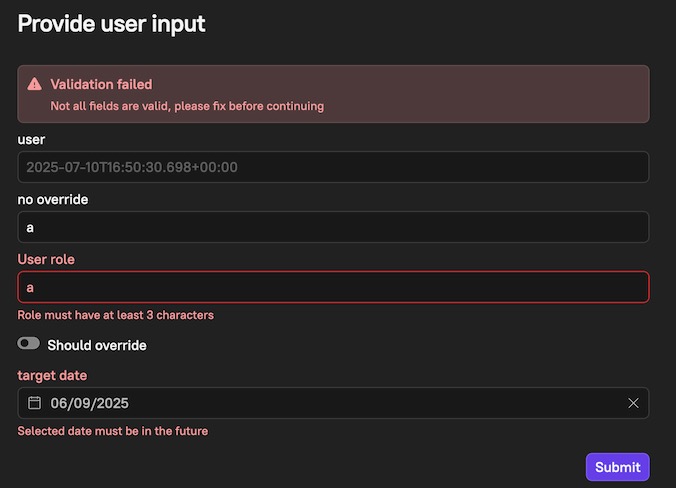
This expression requires the role value to be at least three characters and the selected date to be in the future. It displays input-specific errors for the u`ser role` and t`arget date` inputs, and a global error if any field is invalid:
```javascript
let currentOutputs = actions['user-input'].outputs;
let isAnyFieldInvalid = false;
if(currentOutputs['user-role'].length < 3) {
validator.addInputViolation('user-role', "Role must have at least 3 characters")
isAnyFieldInvalid = true;
}
let selectedDate = Date.parse(currentOutputs['target-date'])
let currentDate = Date.now()
if(selectedDate < currentDate) {
validator.addInputViolation('target-date', "Selected date must be in the future")
isAnyFieldInvalid = true;
}
if(isAnyFieldInvalid) {
validator.addGlobalViolation("Not all fields are valid, please fix before continuing");
}
```
The validation logic runs when you submit your response to the user input, flagging any issues immediately. With the example above, errors appear if the `user role` value is under three characters or the `target date` is not in the future.
Set variable(s)
This block allows you to set or update specific variables during a Workflow. The variables must be declared in the [Workflow's basic settings](/streamline/workflows/create.md#step-2-configure-your-workflow-settings).
To configure a Set variable(s) block:
1. Click **Set variable(s)** from the list of blocks.
2. Enter a slug for the block.
* The slug field will automatically pre-populate based on the name you enter.
3. In the **Variable** dropdown, select the variable you want to set/update.
4. Define how you want to set the variable's value. You can use a direct reference or use JavaScript.
5. Optionally, set additional variables.
6. Click **Save**.
## Configuring an integration block
**Prerequisites**
1. Ensure the integration is installed in your Cortex workspace.
2. Ensure the integration is configured with the correct permissions. Refer to [Integrations](/ingesting-data-into-cortex/integrations.md#third-party-integrations) for more information.
{% hint style="info" %}
If an integration supports multiple configurations, you'll be prompted to select the **configuration alias** to use with the block. The block authenticates using the selected configuration, so ensure that you select the configuration with the appropriate permissions.
{% endhint %}
Cortex provides prebuilt blocks to perform a variety of actions for the following integrations. Expand an integration below to view available blocks.
AWS
* Attach role policy
* Create EC2 security group
* Create IAM group
* Create IAM role
* Create S3 bucket
* Describe EC2 instances
* List buckets
* Put role policy
* Run EC2 instances
Azure DevOps
* Create a branch
* Create branch policies
* Create file
* Create repository
* Delete a branch
* Delete branch policy
* Delete file
* Delete repository
* Fetch latest commit ID
* Get a branch
* Get all branches
* Get branch policy
* Get file
* Get pipeline
* Get pipeline run details
* Get repository
* List branch policies
* List pipeline runs
* List pipelines
* List repositories
* Rename a branch
* Run pipeline
* Update branch policies
* Update file
Bitbucket
* Create repository
* Get file
* Update branch protection
GitHub
* Add label to pull request
* Add user to org
* Add user to team
* Create a branch
* Create deployment
* Create or update custom property values
* Create or update a file
* Create a pull request
* Create a pull request comment
* Create reference (or branch)
* Create release
* Create repository
* Create team
* Delete a branch
* Delete branch protection rules
* Delete file
* Delete team
* Find files
* Get a branch
* Get branch protection rules
* Get commit
* Get deployment
* Get file
* Get release by tag
* Get team
* Get team membership
* List branches
* List commits
* List deployments
* List organization members
* List releases
* List repositories
* List team members
* List teams
* Merge a branch
* Remove user from organization
* Remove user from team
* Rename a branch
* Trigger workflow (see additional note below)
* Update branch protection rules
* Update repository
**When using the Trigger workflow block**:
The block triggers a run of a GitHub Actions workflow in a given repository. The `response` output includes fields that identify the triggered run:
* `workflow_run_id` - The ID of the GitHub Actions run that was triggered.
* `run_url` - The GitHub API URL for the run.
* `html_url` - The link to the run in the GitHub UI.
You can reference these fields from later blocks, for example `{{actions..outputs.response.workflow_run_id}}`. This is useful for monitoring the triggered run, such as polling the GitHub API from a JavaScript block until the run completes before the Cortex Workflow continues.
Some GitHub instances, such as older GitHub Enterprise Server versions, don't return run details when a workflow is dispatched. In that case the block still succeeds, but `response` and its run detail fields are null.
GitLab
* Archive project
* Create approval rule
* Create branch protection
* Create file
* Create pipeline schedule
* Create project
* Create project access token
* Create project variable
* Create push rule
* Delete approval rule
* Delete branch protection
* Delete file
* Delete pipeline schedule
* Delete project
* Delete project variable
* Delete push rule
* Get approval configuration
* Get approval rule
* Get file
* Get pipeline schedule
* Get project
* Get project variable Get protected branch
* Get push rule
* List approval rules
* List pipeline schedules
* List project access tokens
* List project variables
* List protected branches
* Revoke project access token
* Rotate project access token
* Run pipeline
* Unarchive project
* Update approval configuration
* Update approval rule
* Update branch protection
* Update file
* Update pipeline schedule
* Update project
* Update project variable
Google Cloud
* Create project
* Delete project
* Get project
* List projects
* Update project
Harness
When using the Execute pipeline block:
The block runs a Harness pipeline in a given organization and project. It requires an **Organization identifier**, a **Project identifier**, and a **Pipeline identifier**, and optionally accepts **Runtime inputs** as YAML and **Notes** describing the run.
The block's output includes:
* `execution_id` - The identifier of the Harness pipeline execution that was started.
* `status` - The execution status Harness reported at trigger time.
* `response` - The full response object from Harness.
The block is synchronous, so it returns Harness's acknowledgment of the run rather than the pipeline's final result. The pipeline runs as the owner of the API key in the selected Harness configuration, not as the person who started the Workflow.
For more detail, including guidance for internally hosted instances, see [Using the integration for Harness](/ingesting-data-into-cortex/integrations/harness/using-the-integration-for-harness.md).
Jenkins
* Run a build
* Run a build with parameters
LaunchDarkly
* Create a feature flag
* Delete a feature flag
* Get feature flag
* List feature flags
* List projects
* Toggle feature flags
* Update a feature flag
Microsoft Teams
* Send message
PagerDuty
* Create escalation policy
* Create incident
* Create schedule
* Create service
* Create team
* Delete escalation policy
* Delete schedule
* Delete service
* Delete team
* Get escalation policy
* Get schedule
* Get service
* Get team
* List escalation policies
* List incidents
* List schedules
* List services
* List teams
* List users
* Schedule override
* Update escalation policy
* Update schedule
* Update service
* Update team
ServiceNow
* Create incident
* Create record
* Delete incident
* Delete record
* Get incident
* Get record
* Get user by email
* Get user information
* List groups
* List incident categories
* List incident subcategories
* List incidents
* List records
* List users
* Update record
Slack
* Get channel info
* Get user by email
* List channels
* List members in channel
* List users
* Send message
When using a Slack block:
1. Ensure the [Cortex AI assistant](/ingesting-data-into-cortex/integrations/slack/using-the-integration-for-slack-ai-assistant.md#using-the-ai-assistant) is added to the appropriate Slack channel.
* If the AI assistant isn't in the channel, you'll receive the following error: `Cannot send message to Slack channel without invitation`. To resolve the error, do one of the following:
* Invite the AI assistant to the specific channel OR
* Reinstall the Slack integration to get the latest scopes, which allows posting to public channels without the AI assistant needing to be a member
2. Ensure the AI assistant has the correct permission(s) scoped:
* If the channel is public and the install is up to date (has `chat:write.public`), the bot can post without being a member.
* If the channel is private, the bot needs `chat:write` and must be invited to the channel.
**To configure an integration block**:
1. Click the **+ icon**.\
The **Search for blocks** window opens.
2. Search for the block you want to add to the Workflow.
3. Select a block to view its details, including any permissions required for it to run correctly.
4. Click **Configure**.\
The block is inserted into your Workflow, and a configuration form appears in the side panel.
5. In the side panel, configure the block metadata:
* **Block name** - Optionally, change the name of the block. The name auto-populates based on the block name.
* **Slug** - Optionally, change the slug. The slug auto-populates based on the block name and is made up of letters, digits, and hyphens.
Metadata differs depending on the block. Any of these inputs can accept dynamic values using Mustache syntax (`{{ ... }}`). For fields that aren't text-based, click the **path icon** on the right of the input to switch into templating mode.
6. Click **Save**.
## Duplicating a block
There may be an instance where you want to repeat a task within your Workflow. Follow the steps below to duplicate a block.
1. Locate the block you want to duplicate.
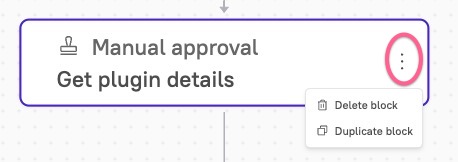
2. Click the **Overflow icon** on the right side of the block.
3. Click **Duplicate block**. A copy of the block is placed in the Workflow.
4. Optionally, hover over the block and use the **grip icon** to drag it to a new position in the Workflow.
## Using request signing with Workflow blocks
Refer to the documentation for [using request signing with Workflow blocks](/streamline/workflows/blocks/using-request-signing-with-workflow-blocks.md).
## Referencing a Workflow state in a block
Refer to the documentation for [referencing a Workflow state in a block](/streamline/workflows/blocks/states.md).
[Next step: Running a Workflow](/streamline/workflows/run.md)