

Configure Scorecard Exemptions permission can approve, deny or revoke a rule exemption. Users with the View Scorecard Exemptions permission can view exemptions in Scorecards that have been requested by any user; without that permission, a user can only see their own requested exemptions.
Requesting a rule exemption
Any user can request an exemption. This can be done via the API, or via the Cortex UI. To request a rule exemption via the Cortex UI:- From the main sidebar, expand Scorecards, then select Scorecards.
-
Do one of the following:
- Select the All tab to view all of your organization’s published Scorecards.
- Select the Mine tab to view only Scorecards you own.
- Select the Scorecard you want to view.
-
While viewing the Scorecard, select the entity on which you want to request a rule exemption.
The Scorecard details side panel opens. -
Locate the rule you want to request an exemption for, click the overflow menu icon next to it, then select Request exemption.
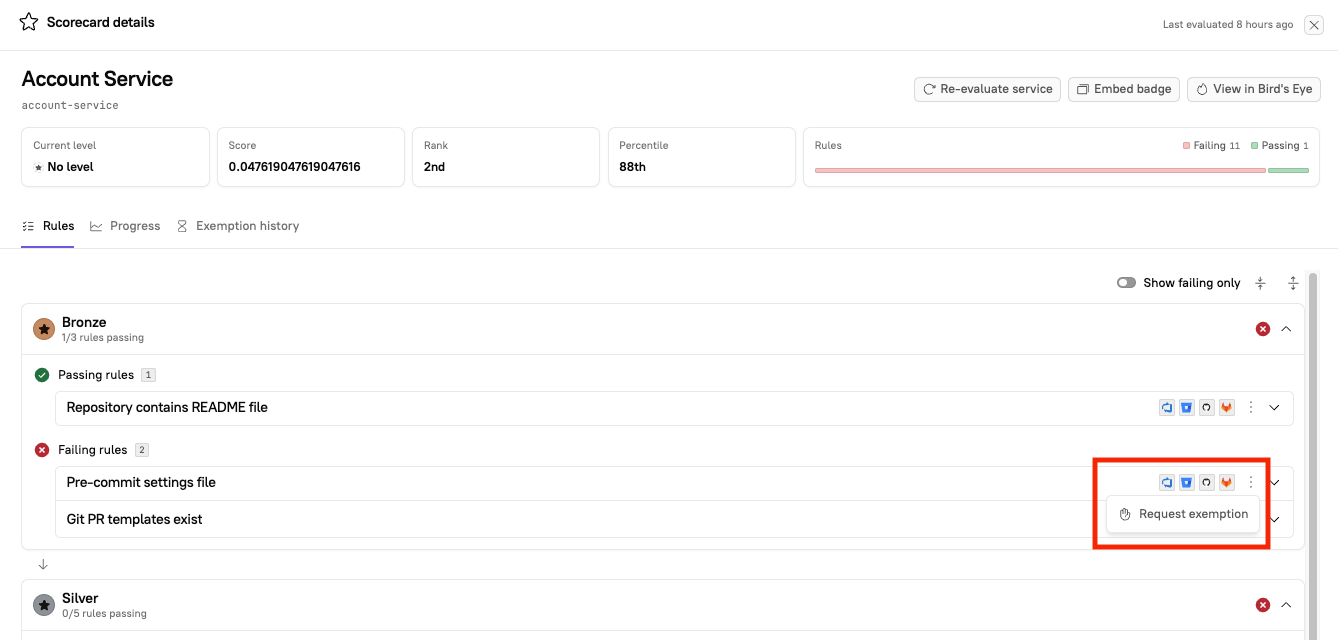
-
In the Request rule exemption side panel, do one of the following:
- To request a permanent exemption, toggle on Permanent exemption.
- To request a temporary exemption, enter the number of days you want to exempt the entity from this rule.
It’s highly recommended to include a reason when you submit an exemption request. Requests are reviewed by admins, and a clear explanation helps them determine whether an exemption makes sense. -
Click Submit request.
- If the Scorecard has user-specific notifications enabled, you’ll need to select a user to notify of the rule exemption request. That user will be able to review, and approve or reject the request. If this field is not enabled, then all Admins will be notified of the request.
- Exemptions are automatically approved only if the Scorecard has the Enable auto-approval for exemptions option enabled.
Permanent or time-bound exemptions
Use a permanent exemption when there’s no expectation that an entity will ever pass a rule. Use a time-bound exemption when an entity is expected to pass by a certain date. Time-bound exemptions often relate to an ongoing Initiative. For example, if entities need an on-call rotation set up by the end of the quarter, a developer can request an exemption that ends a few weeks earlier. The failing rule won’t add noise to their workflow in the meantime, and the expiration acts as a backup reminder if on-call still isn’t set up. When a time-bound exemption expires, the rule is evaluated again as usual: entities that pass display as passing, and the rest display as failing.Approving, denying, or revoking a rule exemption
To approve, deny, or revoke a Scorecard rule exemption, you need to be an admin or have a custom role that includes theConfigure Scorecard Exemptions permission. You can do this in the Cortex UI or through the API. Admins can also view every rule exemption in Settings, not just on individual Scorecards.
Auto-approval
If you’re an admin in your workspace, Cortex approves your exemption requests automatically.
APPROVED, with the option to revoke the exemption appearing on the right side of the rule:
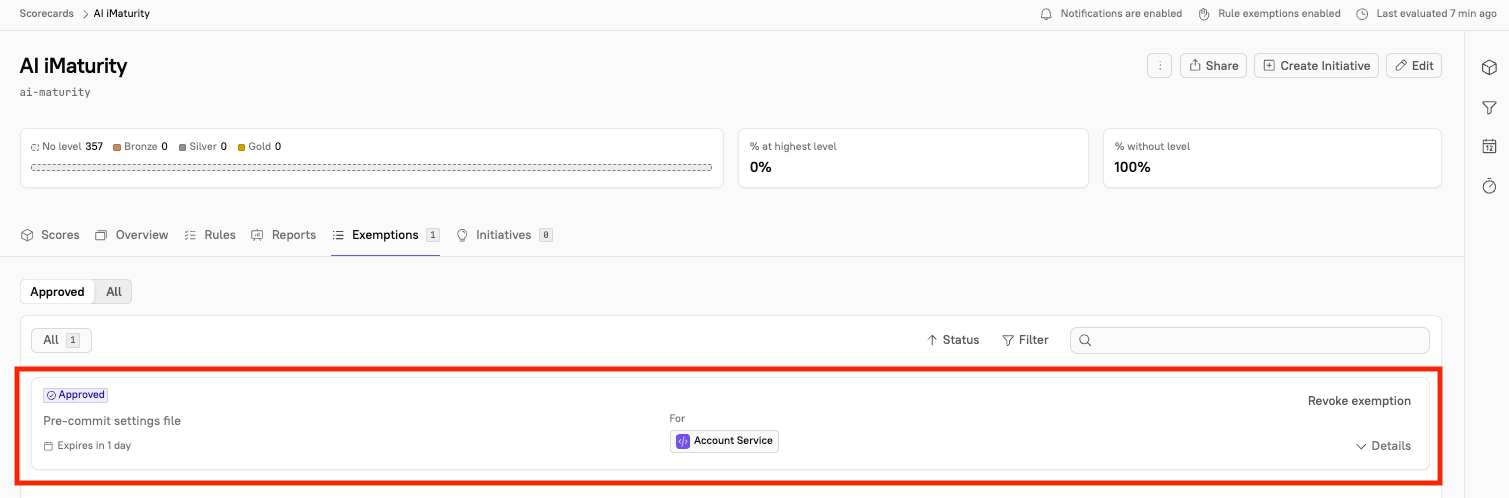
Manual approval
If you have notifications enabled for rule exemption requests, you’ll get a notification each time a user requests an exemption. The notification includes:- The requester’s name
- The rule name and its Scorecard
- The entity the exemption applies to
- The reason and timeframe the requester provided
- A direct link to approve or deny the request in Cortex
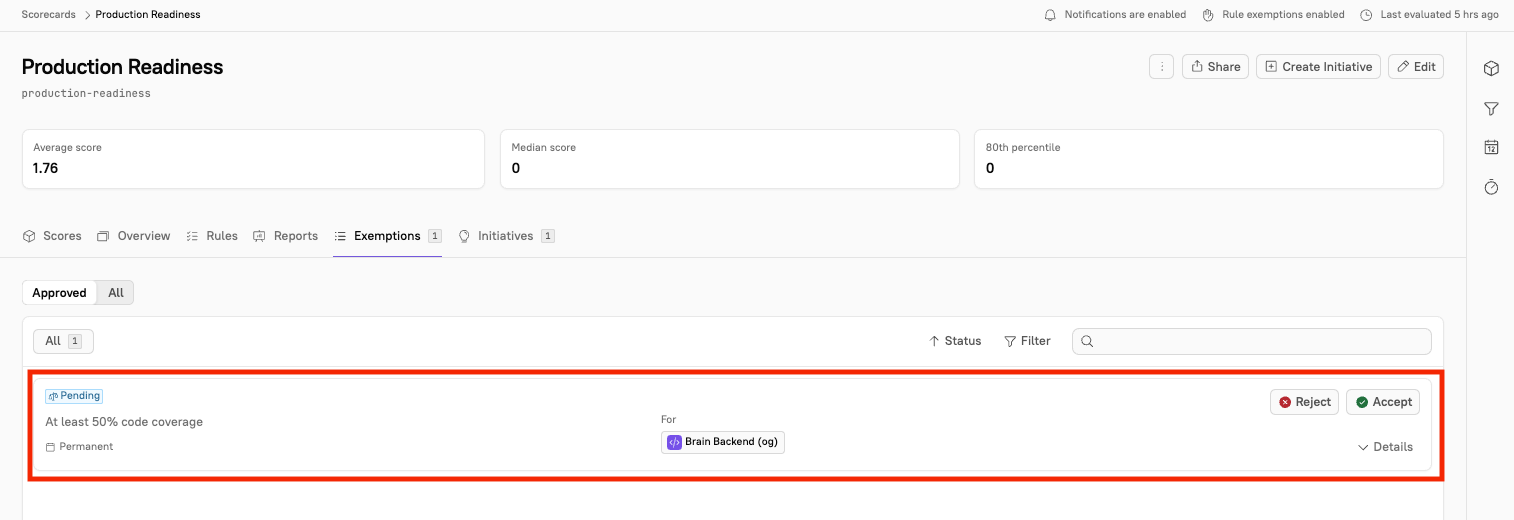
Exemption statuses
A rule exemption is always in one of five statuses. The status appears in the Cortex UI, and in theexemptionStatus field returned by the Scorecard exemption endpoints and by Retrieve Scorecard scores:
Revoking an exemption no longer deletes it or marks it as rejected; the exemption is kept with the
REVOKED status and its full approval history. Expired exemptions are reported as EXPIRED rather than continuing to display as approved.
Filter by status in the Scorecard’s Exemptions tab, in an entity’s Exemption history tab, and in Settings > Scorecards > Rule exemptions.
Viewing exempted rules
Admins and users with theConfigure Scorecard Exemptions permission can view exemption requests, approve or deny the request, and revoke exemptions.
Viewing exemptions in a Scorecard
- From the main sidebar, expand Scorecards, then select Scorecards.
- Do one of the following:
- Select the All tab to view all of your organization’s published Scorecards.
- Select the Mine tab to view only Scorecards you own.
- Select the Scorecard you want to view.
- Select the Exemptions tab. The Exemptions tab has two sub-tabs: Approved and All.
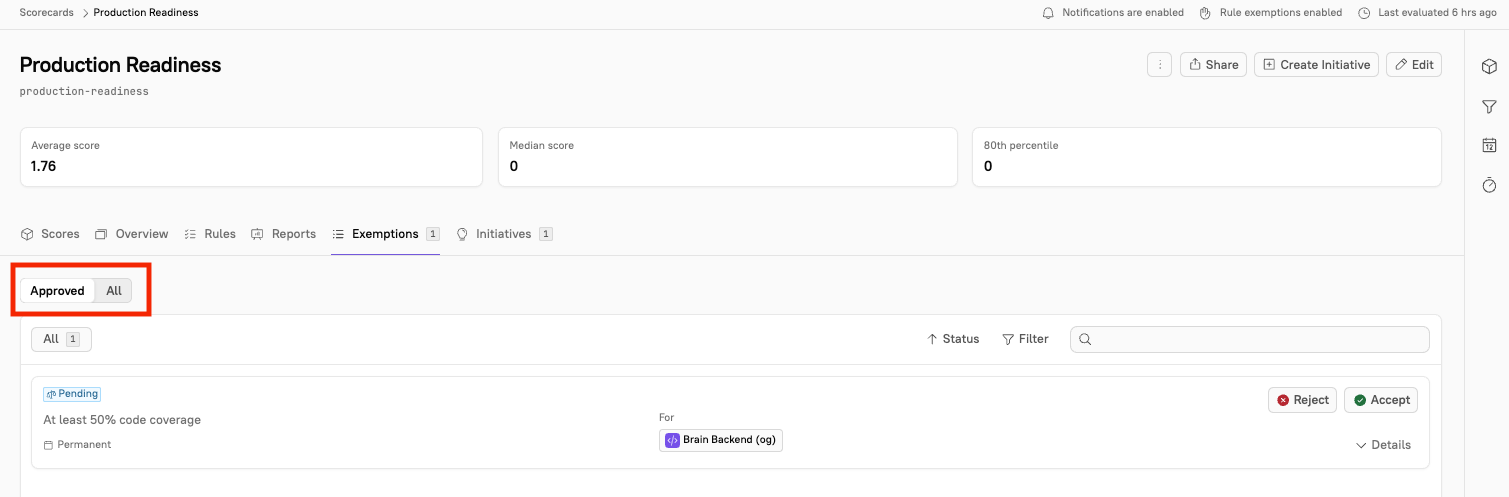
- Approved - Exemptions that are currently in force, plus requests awaiting review. Accept or reject a pending request here, or revoke an exemption that’s already approved.
- All (Exemption history) - The Scorecard’s full exemption history, including exemptions that were rejected, revoked, or expired.
- The All view lists each exemption with the date it was requested, the entity and rule it applies to, who requested it, the reason they gave, its current status, who resolved it, and when it expires. Click a column header to sort, or click Filter to narrow the list by status, entity, rule, requester, or approver.
Revoking an exemption doesn’t delete it. The exemption is kept with the
REVOKED status and its original approval details, so you can see who approved it and when alongside who revoked it. An exemption that reaches its expiration date is recorded as EXPIRED rather than staying approved.Viewing exemptions for a single entity
On a Scorecard’s Scores tab, select an entity to open its side panel. Select the Exemption history tab to see every exemption for that entity, with its status, requester, reason, and expiration date.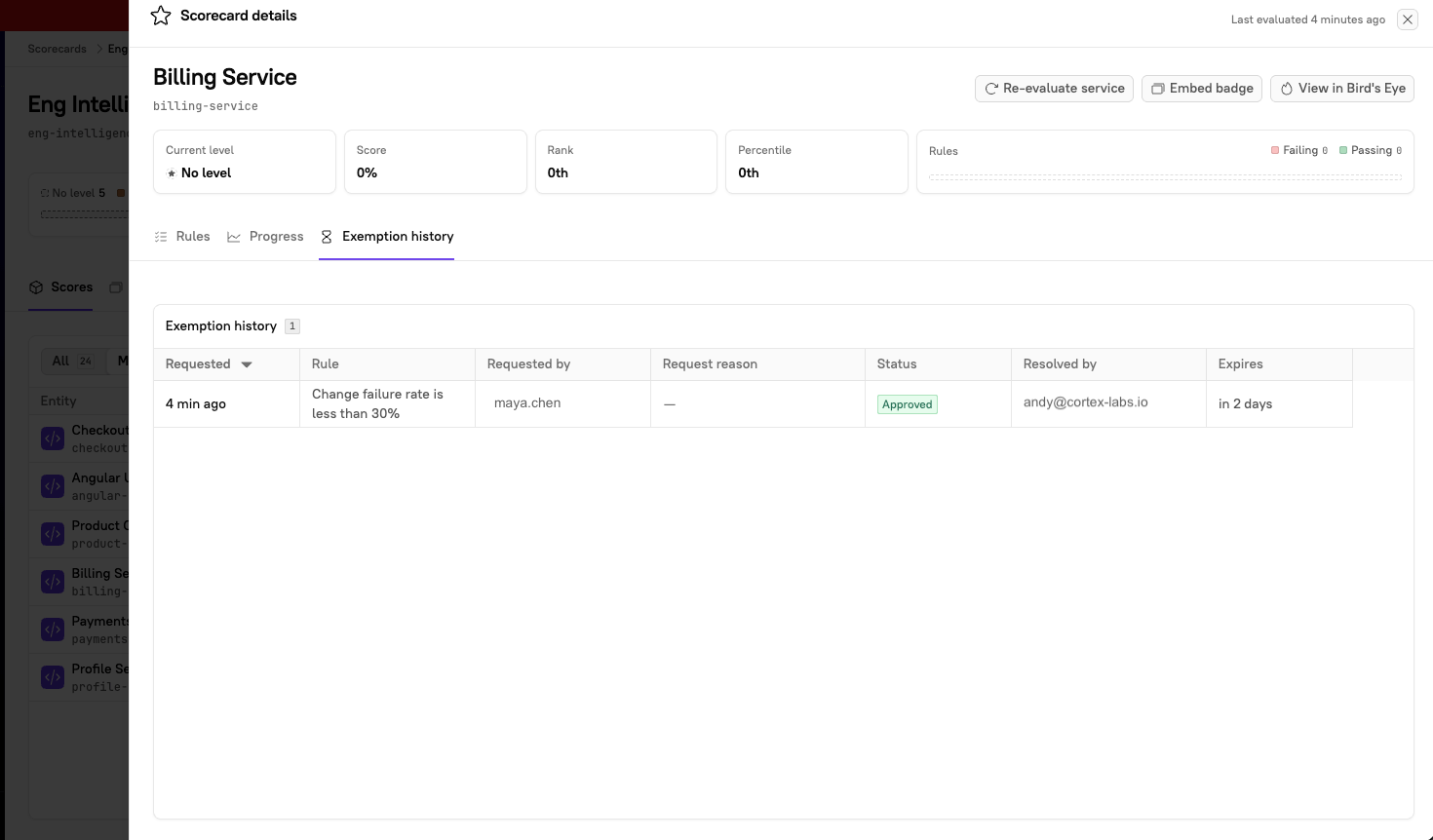
Viewing all exemptions
Admins can view a list of all requested exemptions.- From the main sidebar, click your avatar in the bottom-left corner.
- Select Settings.
- From the Settings menu, locate the Workspace section, expand Scorecards, then select Rule exemptions.
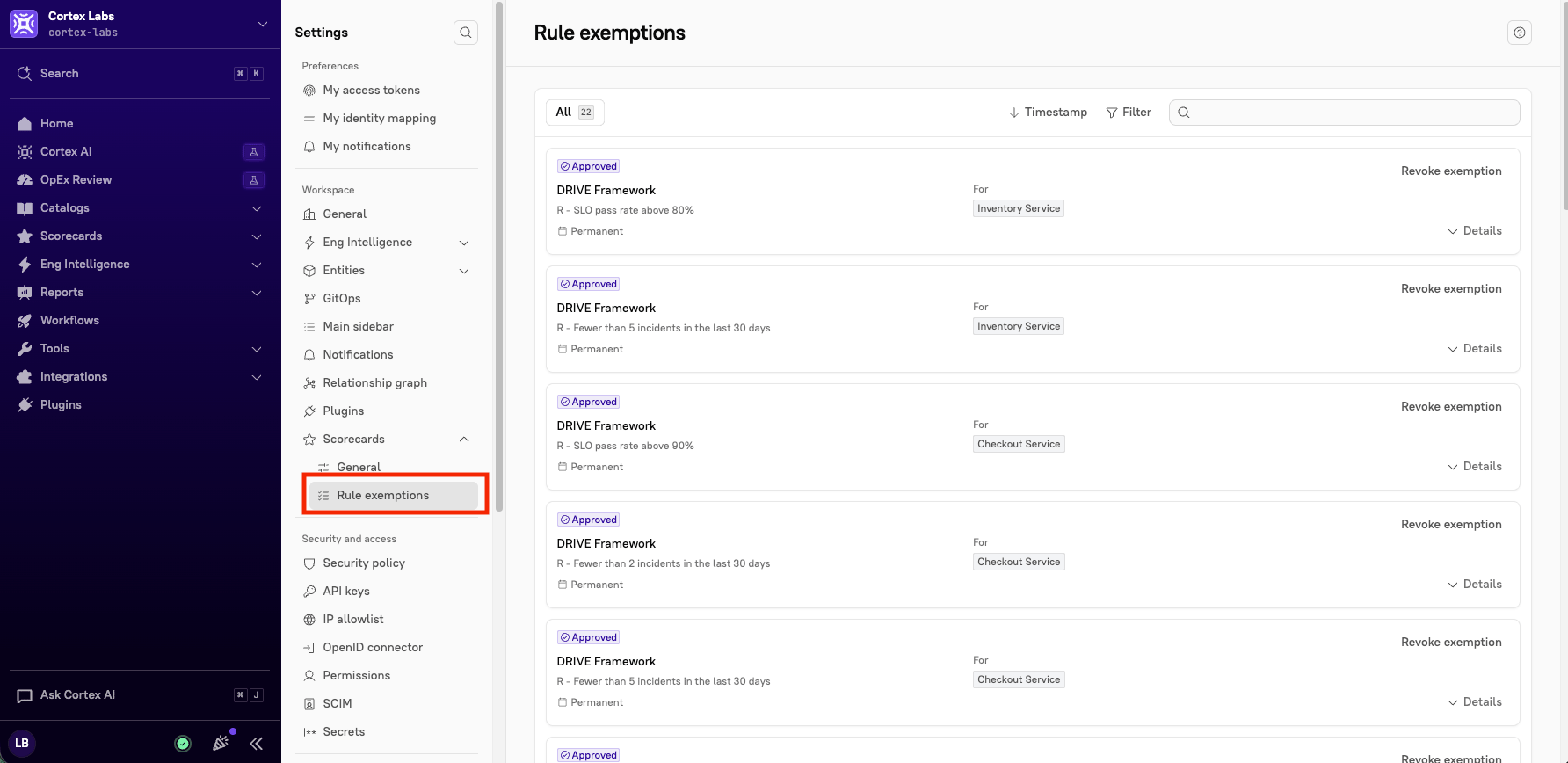
Searching across and filtering exemptions
On the Rule exemptions page, click Filter in the upper-right corner of the grid to filter exemptions based on the following:- Approver
- Entity
- Group
- Requester
- Rules
- Status
Listing exemptions via the API
Use List Scorecard rule exemptions (GET /api/v1/scorecards/exemptions) to read rule exemptions across all Scorecards, for example to audit who requested, approved, or revoked an exemption and when it expires. Results are paginated and ordered newest first.
You can narrow the results with these optional query parameters:
scorecardTag: Only exemptions on this Scorecard.ruleIdentifier: Only exemptions for this rule. RequiresscorecardTag.entityTag: Only exemptions for this entity.status:PENDING,APPROVED,REJECTED,REVOKED, orEXPIRED.APPROVEDdoes not include approvals past their expiration date; useEXPIREDfor those.requesterEmail/approverEmail: Only exemptions requested or approved by this user.onlyActive: Only exemptions that are pending, or approved and not yet expired.
View Scorecard Exemptions permission see every exemption. A personal API key without that permission sees only exemptions its user requested in the Cortex UI; exemptions requested through the API are attributed to the API key, not the user. Exemptions on entities hidden from you by entity visibility permissions are not returned.