> For the complete documentation index, see [llms.txt](https://docs.cortex.io/llms.txt). Markdown versions of documentation pages are available by appending `.md` to page URLs; this page is available as [Markdown](https://docs.cortex.io/ingesting-data-into-cortex/catalogs/viewing-catalogs.md).

# Viewing catalogs

This article explains how to view, search, filter, and sort catalogs.

## Configuring the catalog display in the main sidebar

Users with the `Configure Appearance Settings` permission can configure the catalog display.

By default, catalogs appear in alphabetical order in the main sidebar, but you can manually reorder them.

1. From the main sidebar, click your avatar in the bottom-left corner.
2. Select **Settings**.
3. Locate the **Workspace** section, then select **Main sidebar**.
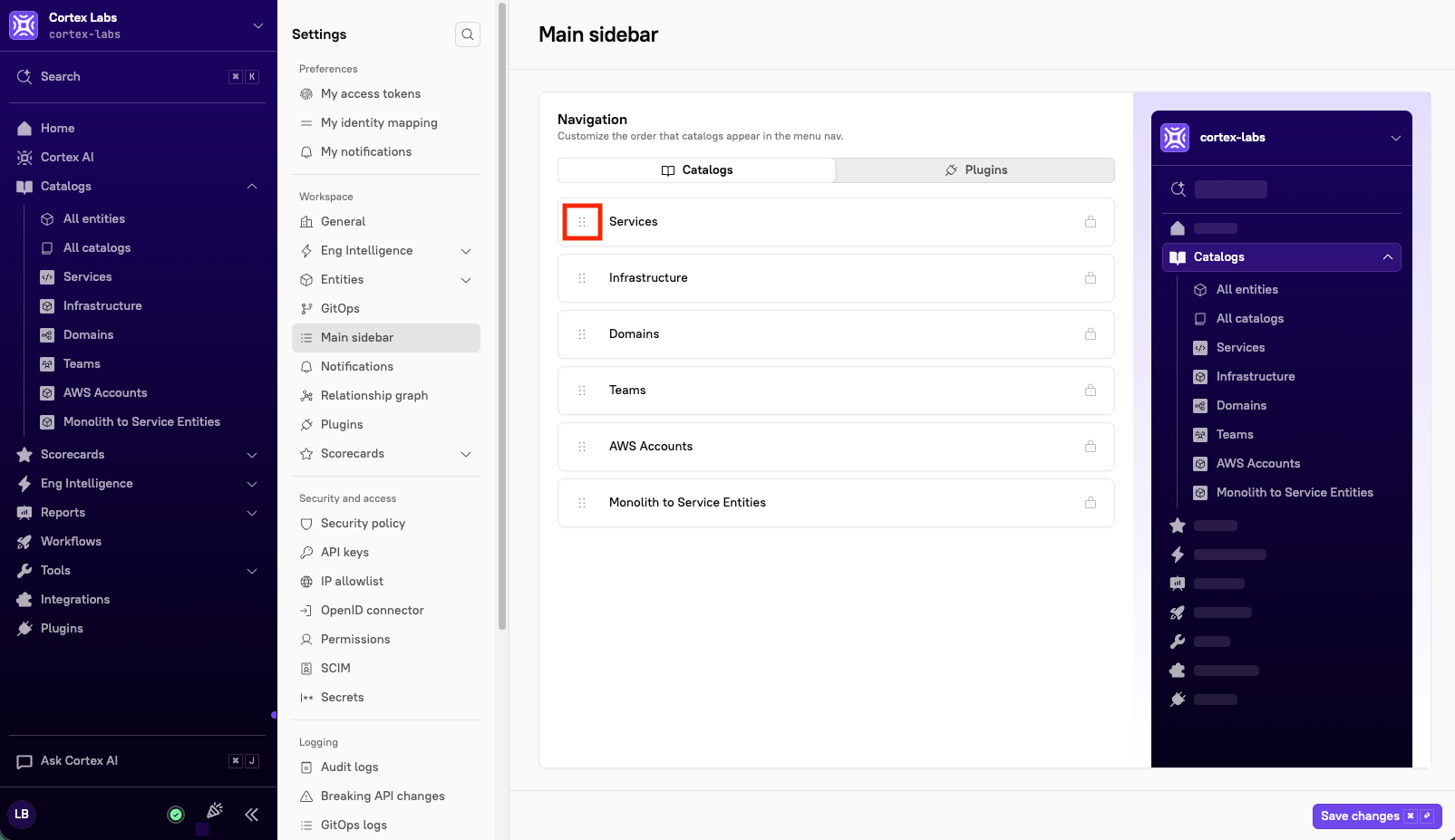
4. From the **Catalogs** tab, drag and drop catalogs into your preferred order.<br>

   <div align="left" data-with-frame="true"><figure><img src="/files/QiGTHclC5UBn2tPSZZQT" alt="" width="375"><figcaption></figcaption></figure></div>
5. Click **Save changes**.

## Viewing catalogs

### Accessing catalogs

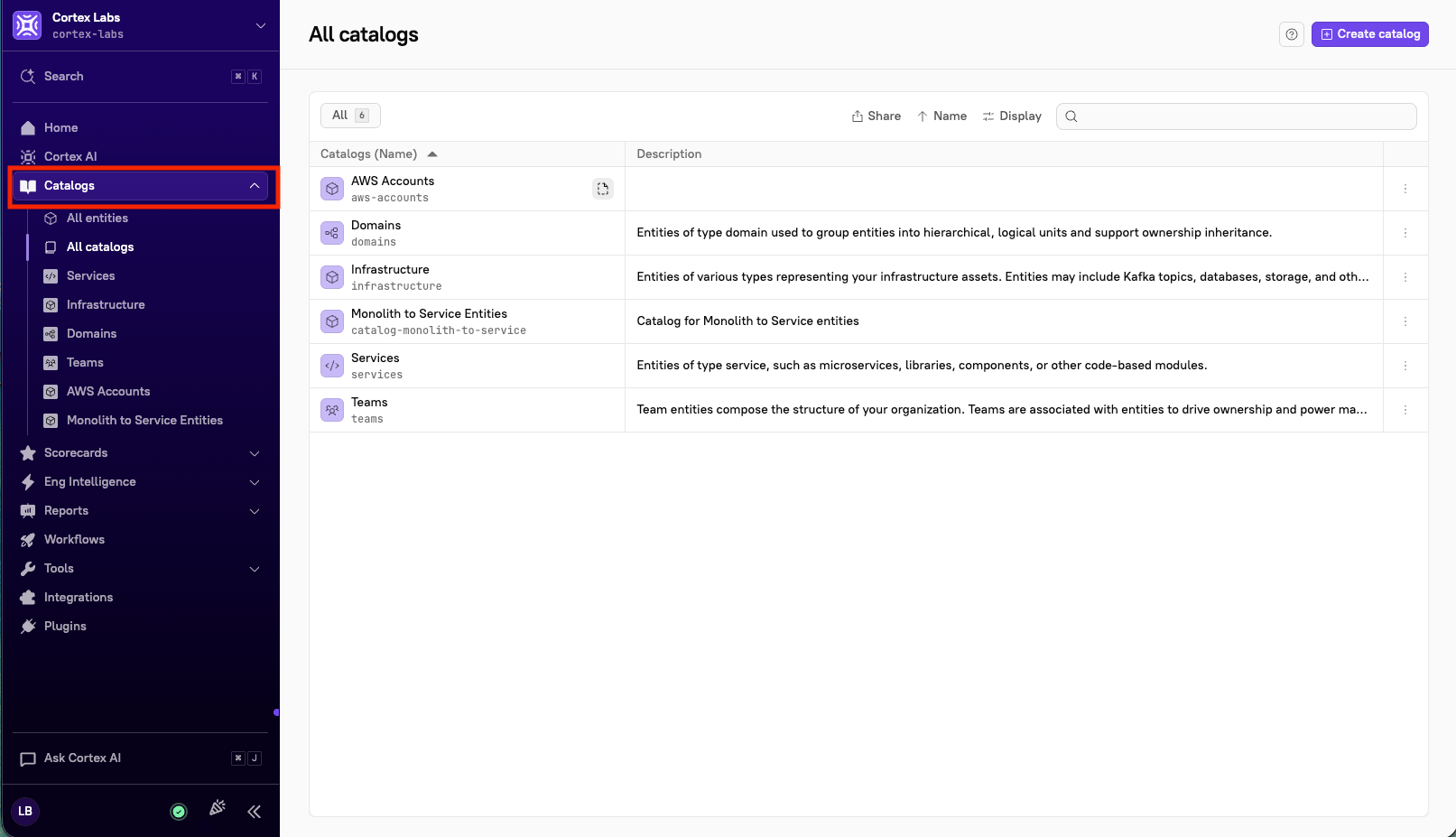
Users with the `View Catalogs` permission can view a catalog's entities list. To access an entity list, expand **Catalogs** from the main sidebar:

<div align="left" data-with-frame="true"><figure><img src="/files/yNbq8Qsj7VJOLVEsEOA9" alt="The &#x27;Catalogs&#x27; tab in the main sidebar." width="563"><figcaption></figcaption></figure></div>

### Viewing all catalogs

The **All catalogs** page shows the same list of catalogs as the **Catalogs** dropdown in the main sidebar. It includes a search bar and a sort by name function, as well as a toggle for displaying or hiding drafts (click **Display**). From this page, you can create new catalogs and edit existing ones.
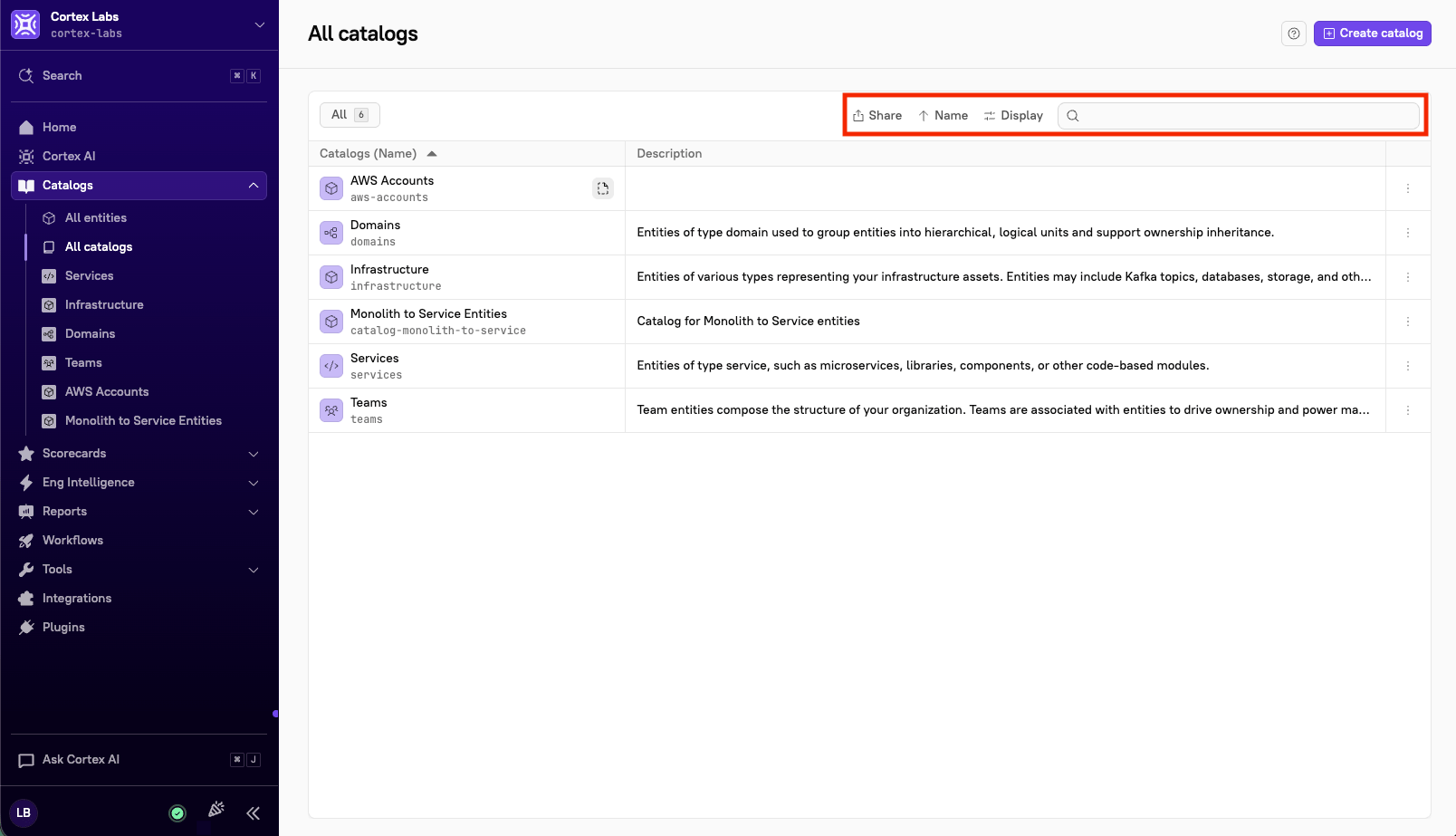
<div align="left" data-with-frame="true"><figure><img src="/files/c7Af2QqY7oodmJsFglrs" alt="The search and filter options on the &#x27;All catalogs&#x27; page." width="563"><figcaption></figcaption></figure></div>

### Viewing all entities

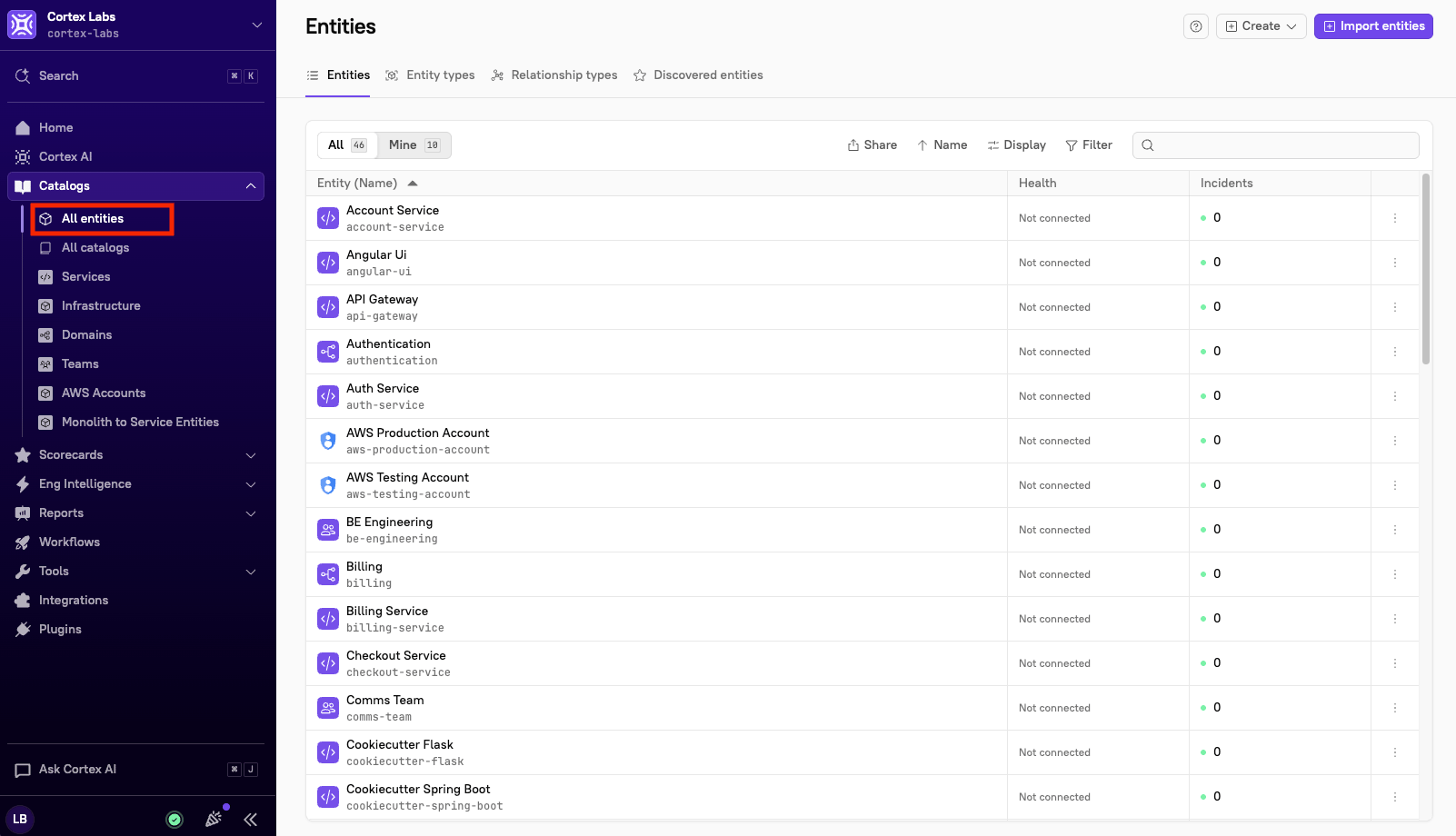
The **All entities** page includes every entity across all catalogs and entity types. To view all entity types, select the **Entity types** tab at the top of the page.

<div align="left" data-with-frame="true"><figure><img src="/files/GShoON9Ta6kqFDRWUras" alt="The &#x27;All entities&#x27; page." width="563"><figcaption></figcaption></figure></div>

Like the **All catalogs** page, **All entities** includes search, filter, and sort options.

{% hint style="info" %}
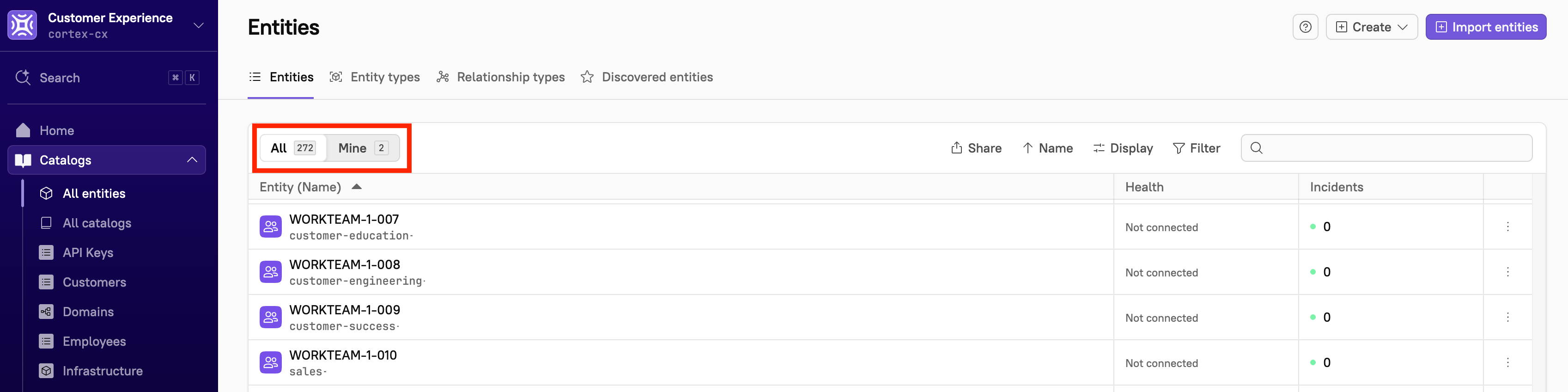
Select the **All** tab to view all entities. Select the **Mine** tab to view only entities where you are an owner or member. Cortex saves your selection and restores it the next time you open this page.
<img src="/files/XPX1ltM1su6PpTkrfvfN" alt="" data-size="original">
{% endhint %}

### Viewing a specific catalog

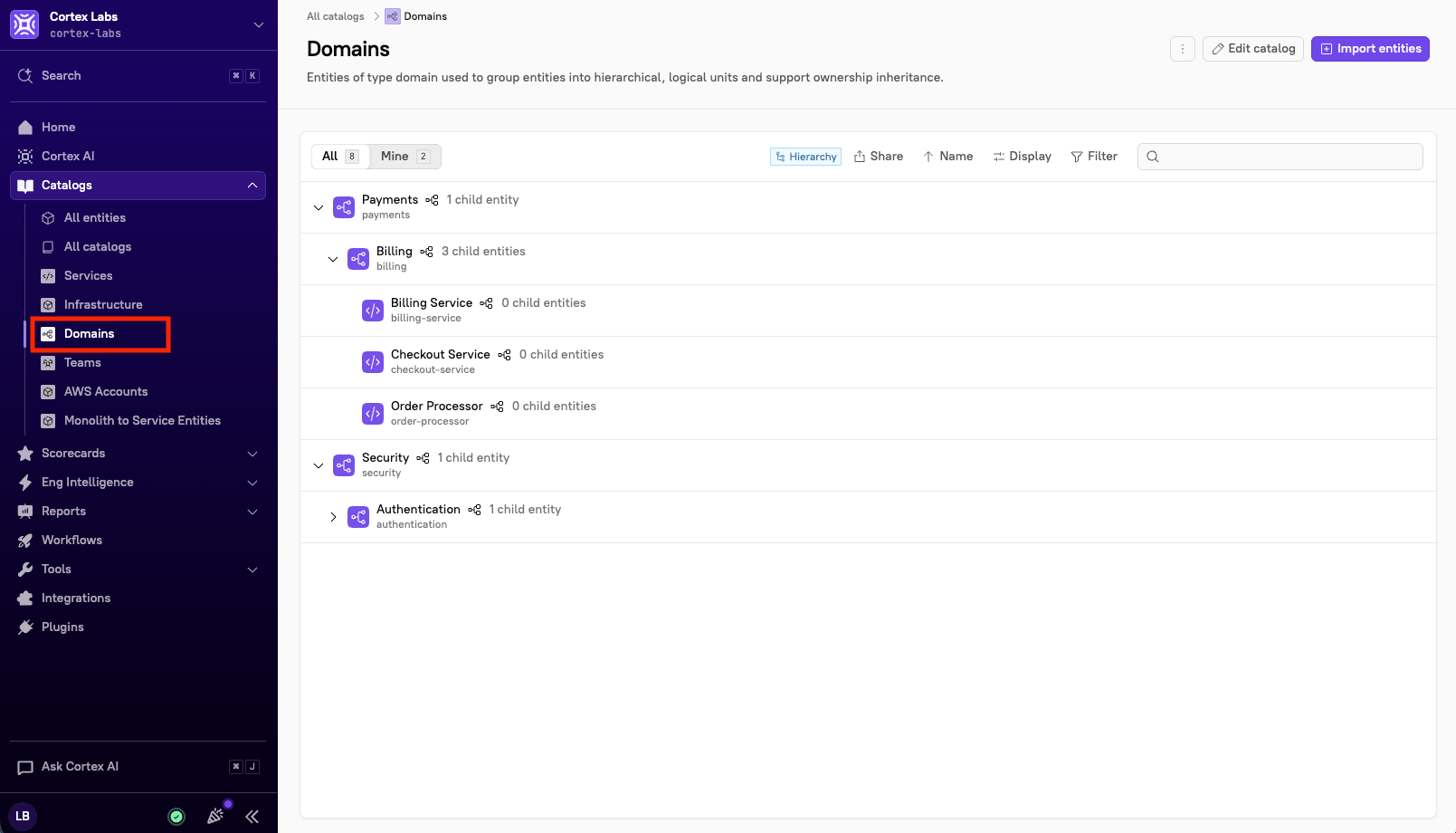
Select a catalog to view all of its entities:
<div align="left" data-with-frame="true"><figure><img src="/files/kpJWTfTd03gWgqvYldZ6" alt="The &#x27;Domains&#x27; catalog." width="563"><figcaption></figcaption></figure></div>

### Searching across and filtering entities

Cortex offers several ways to search and filter entities, and the available options depend on the entity type you're viewing. For details on search and filter options for each entity type, see:
* [Services](/ingesting-data-into-cortex/entities-overview/entities/adding-entities/add-services.md#searching-across-and-filtering-services)
* [Domains](/ingesting-data-into-cortex/entities-overview/entities/adding-entities/domains.md#searching-across-and-filtering-domains)
* [Teams](/ingesting-data-into-cortex/entities-overview/entities/adding-entities/teams/viewing-teams.md#searching-across-and-filtering-teams)

<div align="left" data-with-frame="true"><figure><img src="/files/ztKbHYwqWhy0PubZMvec" alt="The &#x27;Display&#x27; option at the top of a catalog." width="563"><figcaption></figcaption></figure></div>

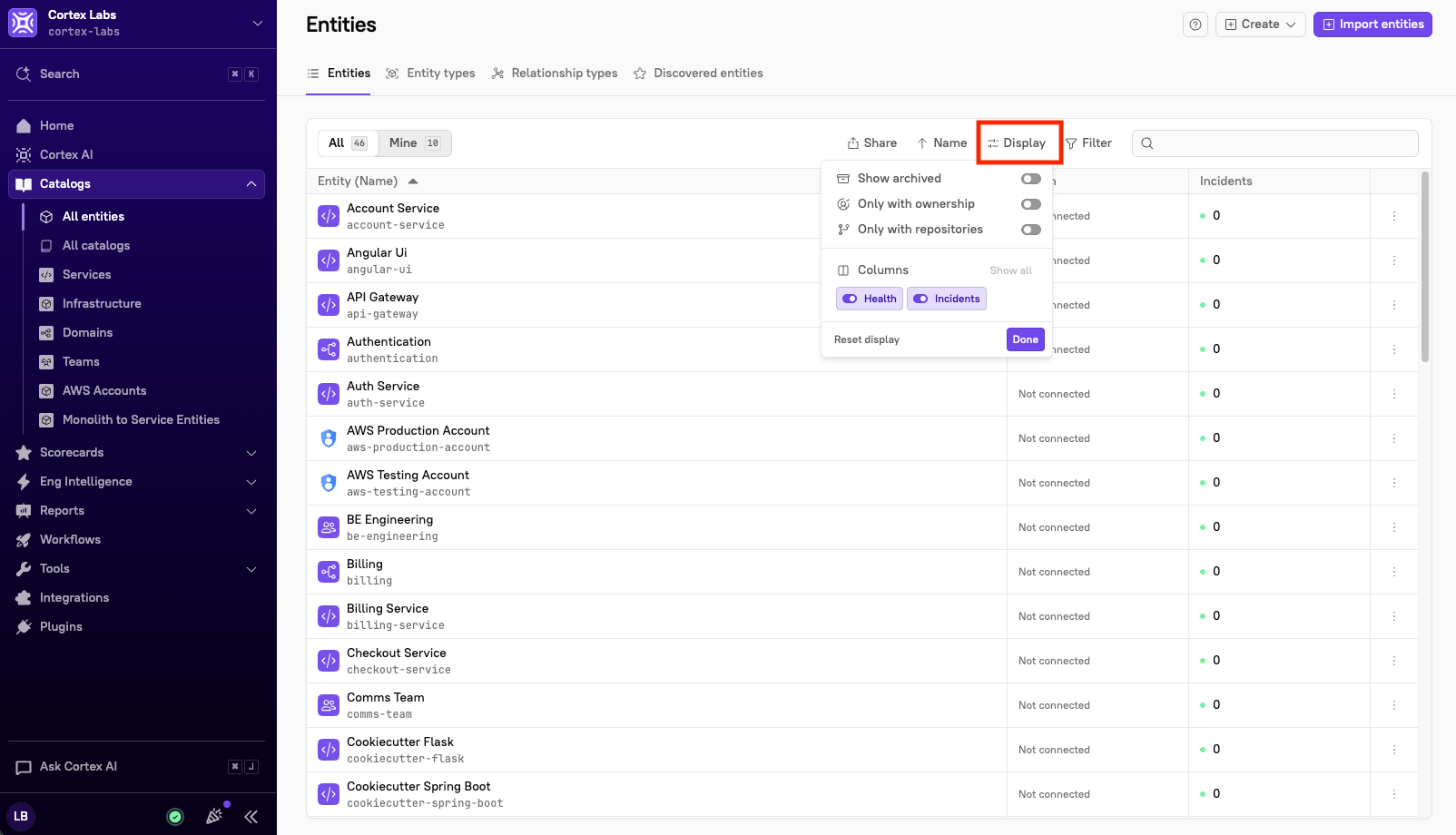
At the top of a catalog, click **Display** to turn on options like showing archived entities or switching between hierarchical and list views (availability depends on entity type). Click **Filter** to narrow the list by associated Git repository, unowned entities, AWS account ID or region, domain, entity type, group, team, or user.