# Progress report

The [Progress Report](https://app.getcortexapp.com/admin/reports/progress) shows you how performance on any given Scorecard has changed over time.

You can find the Progress report in the main nav under **Reports > Progress**.

{% hint style="success" %}
Use the Progress report to show how recent process changes or investments have paid off, or where progress has stalled.
{% endhint %}

## Using the Progress report

### Generate a Progress report

Select a Scorecard from the list, then a report is automatically generated based on that Scorecard.
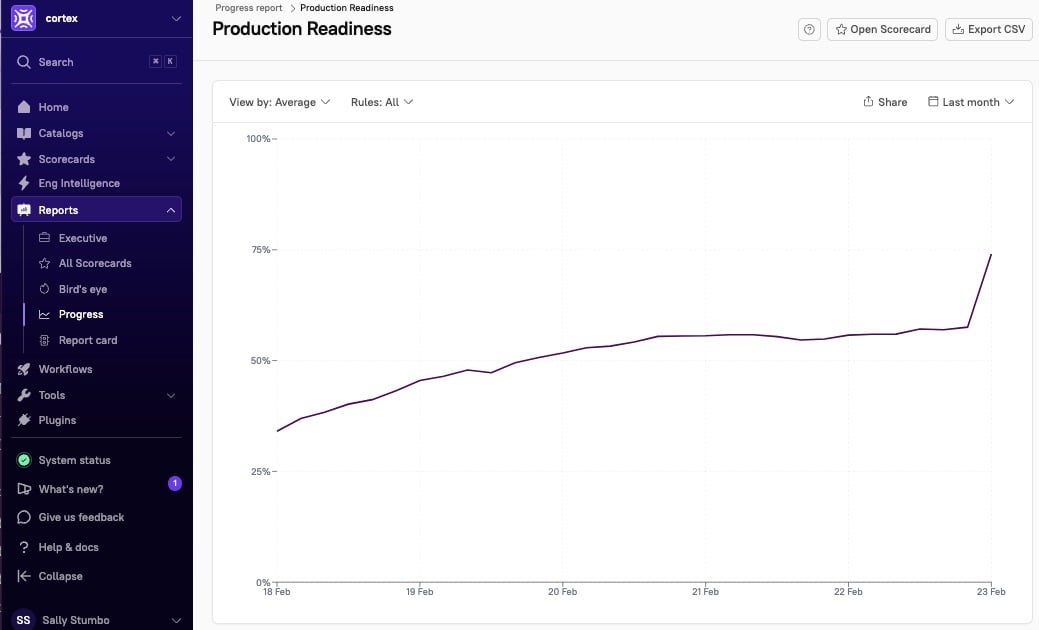
<figure><img src="https://826863033-files.gitbook.io/~/files/v0/b/gitbook-x-prod.appspot.com/o/spaces%2FJW7pYRxS4dHS3Hv6wxve%2Fuploads%2Fgit-blob-f4eb100e7cb8fef511871c3c49184967c747b206%2Fprogress-report.jpg?alt=media" alt=""><figcaption></figcaption></figure>

By default, the report displays data from the last month. To change the time range, click **Last month** in the upper right corner.

### Change the report grouping

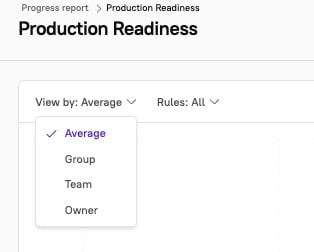
By default, the report displays average performance across all rules. You can also group by Team, owner, or group to see how different parts of your organization are performing over time. To change the group, click the **View by** dropdown in the upper left corner.

<div align="left"><figure><img src="https://826863033-files.gitbook.io/~/files/v0/b/gitbook-x-prod.appspot.com/o/spaces%2FJW7pYRxS4dHS3Hv6wxve%2Fuploads%2Fgit-blob-46f88c8e0d21c4fa58e93ad29973012a08078753%2Fprogress-report-grouping.jpg?alt=media" alt="" width="236"><figcaption></figcaption></figure></div>

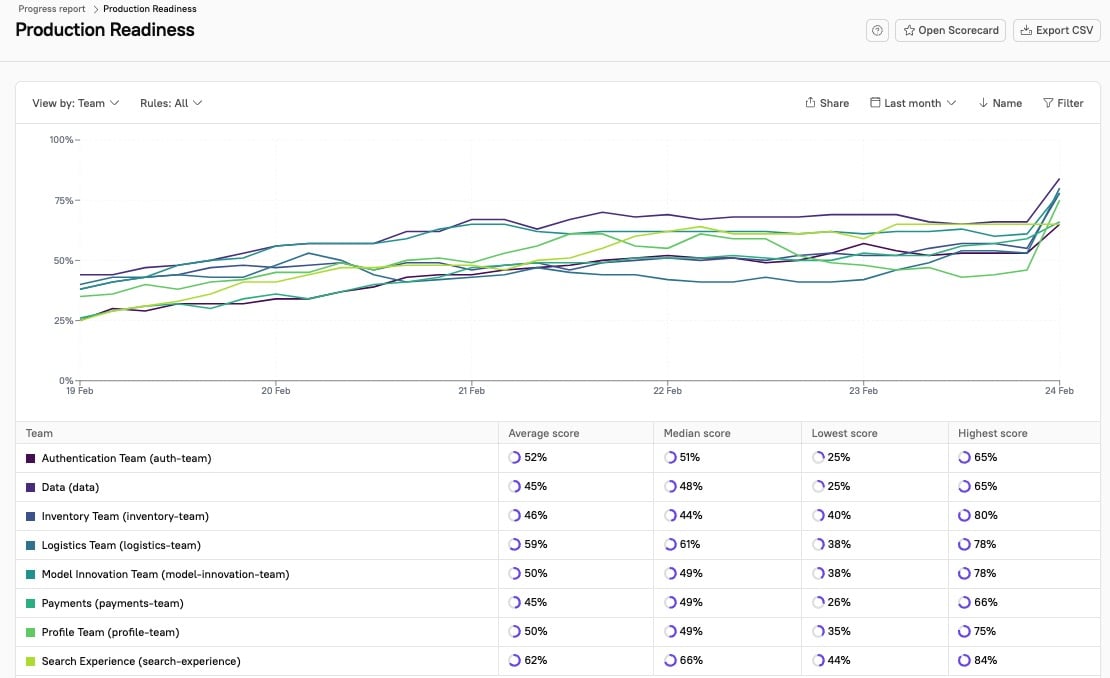
When you group, the page displays the data as a line graph and as a table. The table displays the average score, median score, lowest score, and highest score for entities that belong to a team or domain.

![The progress report displays a graph and data in the table.](https://826863033-files.gitbook.io/~/files/v0/b/gitbook-x-prod.appspot.com/o/spaces%2FJW7pYRxS4dHS3Hv6wxve%2Fuploads%2Fgit-blob-9a229d76175988b9467e192394b26932d39fb123%2Fprogress-team.jpg?alt=media)

### Filter the report

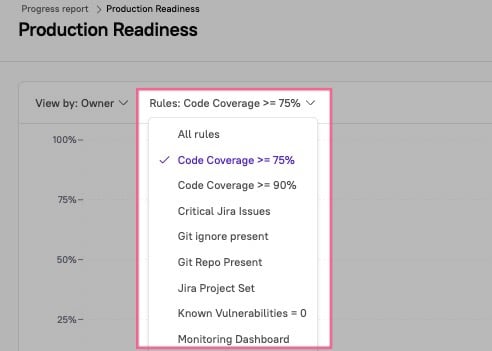
In the upper left corner, click the **Rules** dropdown to select a specific rule and see its performance more granularly.
<div align="left"><figure><img src="https://826863033-files.gitbook.io/~/files/v0/b/gitbook-x-prod.appspot.com/o/spaces%2FJW7pYRxS4dHS3Hv6wxve%2Fuploads%2Fgit-blob-f1b4aaf5d5fd1fe702ad98a275a4186765136060%2Fprogress-rules-filter.jpg?alt=media" alt="" width="369"><figcaption></figcaption></figure></div>

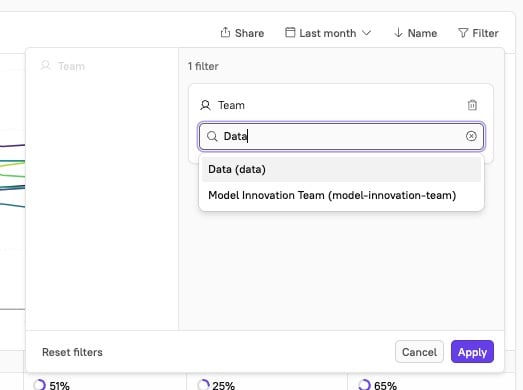
In the upper right corner, click **Filter** to select a specific entity to filter the report by.

<div align="left"><figure><img src="https://826863033-files.gitbook.io/~/files/v0/b/gitbook-x-prod.appspot.com/o/spaces%2FJW7pYRxS4dHS3Hv6wxve%2Fuploads%2Fgit-blob-09c2b0ab253a47f796928e91ba2e4e061cff87f9%2Fprogress-filter.jpg?alt=media" alt="" width="392"><figcaption></figcaption></figure></div>

### Share the Progress report

You can share the Progress report:

* **Send a link**: Click **Share** in the upper right corner of the report to copy the URL to your clipboard. You can share the link with anyone who has access to view the report in your Cortex workspace.
  * The pre-configured link will display your report with the full breadcrumb trail. This not only gives others the same insights and understanding, but also provides an opportunity for team members to explore the data further on their own.
* **Export as CSV**: In the upper right corner of the page, click **Export CSV** to download a CSV file of the report data.