> For the complete documentation index, see [llms.txt](https://docs.cortex.io/llms.txt). Markdown versions of documentation pages are available by appending `.md` to page URLs; this page is available as [Markdown](https://docs.cortex.io/guides/production-readiness/terraform/provision.md).
# Provision EC2 instance with Terraform
This Workflow allows you to gather information about the resources, scaffold a new repository, create a new Terraform workspace, create an entity in your Cortex workspace, then send a message to Slack to confirm that the EC2 instance has been created.
## How to use a Cortex Workflow to provision an EC2 instance with Terraform
### Considerations
* This Workflow makes HTTP calls to [Terraform Cloud](https://www.hashicorp.com/en/products/terraform), but it is possible to call other Terraform orchestrators, such as [Spacelift](https://www.spacelift.io/).
* This Workflow demonstrates how to create a PR, but if you are using PR automation such as [Atlantis](https://www.runatlantis.io/), then you do not need to include the Async HTTP call to Plan and Apply.
### Step 1: Register the Scaffolder template in Cortex
Follow the instructions to [register the Scaffolder template in Cortex](/streamline/workflows/scaffolder.md). Use the following template:
Cookiecutter template
Save the JSON template below to register in Cortex:
```json
{
"project_name" :"new-vm",
"resource_name": "my-ec2-instance",
"region": [ "us-east-1","us-east-2", "us-west-1","us-west-2"],
"instance_type": [ "t2.micro", "t2.medium","t2.large"],
"version": "0.2"
}
```
### Step 2: Start creating the Workflow
Follow the steps in the documentation to [create a Workflow](/streamline/workflows/create.md) and [configure its basic settings](/streamline/workflows/create.md#step-2-configure-your-workflow-settings).
### Step 3: Add blocks to the Workflow
The instructions on this page describe how to create this Workflow in the Cortex UI, but it is also possible to copy the Workflow YAML and add it to your workspace via the [Cortex CLI](https://pypi.org/project/cortexapps-cli/). This allows you to quickly set up the example configuration then iterate on it for your own use case. Expand the tile below to learn more.
Workflow YAML instructions
To upload the Workflow example YAML into your workspace:
1. Save the Workflow example YAML file below:
```yaml
name: "[Terraform Cloud] - New EC2 Instance"
tag: terraform-cloud-new-workspace
description: null
isDraft: false
filter:
type: GLOBAL
runResponseTemplate: |+
Your EC2 instance has been provisioned!
please use [this](https://{{ actions.get-region.outputs.result }}.console.aws.amazon.com/ec2/home?region={{ actions.get-region.outputs.result }}#InstanceDetails:instanceId={{actions.get-ec2-id.outputs.result }}) url
This has also been [added to Cortex](https://app.getcortexapp.com/admin/index?tag={{actions.slugify-resource-name.outputs.result}}) where you can perform Updates on this VM from the Workflows menu!
failedRunResponseTemplate: null
actions:
- name: Resource Details
slug: resource-details
schema:
inputs:
- name: Resource Name
description: null
key: resource-name
required: true
defaultValue: null
placeholder: my-ec2-instance
validationRegex: null
type: INPUT_FIELD
- name: Resource Size
description: null
key: resource-size
required: false
options:
- t2.micro
- t2.medium
- t2.large
defaultValue: t2.micro
placeholder: null
allowAdditionalOptions: false
type: SELECT_FIELD
- name: Resource Region
description: null
key: resource-region
required: false
options:
- us-east-1
- us-east-2
- us-west-1
- us-west-2
defaultValue: us-west-2
placeholder: null
allowAdditionalOptions: false
type: SELECT_FIELD
inputOverrides: []
type: USER_INPUT
outgoingActions:
- slugify-resource-name
isRootAction: true
- name: Slugify Resource Name
slug: slugify-resource-name
schema:
expression: .actions."resource-details".outputs."resource-name" | ascii_downcase
| gsub(" ";"-")
type: JQ
outgoingActions:
- getting-github-details
isRootAction: false
- name: Getting GitHub Details
slug: getting-github-details
schema:
expression: |-
{
"pr_name" : "PR for " + .actions."slugify-resource-name".outputs.result ,
"branch_name" : "branch-for-" + .actions."slugify-resource-name".outputs.result ,
"repo_name" : "cremerica/sample-iac-repo",
"path" : "modules/ec2s",
"commit_msg": "Commit automated by Cortex"
}
type: JQ
outgoingActions:
- scaffold-git-repo
isRootAction: false
- name: Scaffold Git Repo
slug: scaffold-git-repo
schema:
scaffolderTemplateId: st2babdd4cc74929f2
createNewRepository: false
createService: false
inputOverrides:
- inputKey: resource_name
outputVariable: actions.slugify-resource-name.outputs.result
editable: false
type: VALUE
- inputKey: region
outputVariable: actions.resource-details.outputs.resource-region
editable: false
type: VALUE
- inputKey: instance_type
outputVariable: actions.resource-details.outputs.resource-size
editable: false
type: VALUE
- inputKey: publisherRepoName
outputVariable: actions.slugify-resource-name.outputs.result
editable: false
type: VALUE
- inputKey: publisherPullRequestTitle
outputVariable: actions.getting-github-details.outputs.result.pr_name
editable: false
type: VALUE
- inputKey: publisherBranch
outputVariable: actions.getting-github-details.outputs.result.branch_name
editable: false
type: VALUE
- inputKey: publisherRepoFullName
outputVariable: actions.getting-github-details.outputs.result.repo_name
editable: false
type: VALUE
- inputKey: publisherCommitMessage
outputVariable: actions.getting-github-details.outputs.result.commit_msg
editable: false
type: VALUE
- inputKey: project_name
outputVariable: actions.slugify-resource-name.outputs.result
editable: false
type: VALUE
- inputKey: publisherPullRequestBody
outputVariable: actions.getting-github-details.outputs.result.pr_name
editable: false
type: VALUE
type: SCAFFOLDER
outgoingActions:
- merge-a-branch
isRootAction: false
- name: Merge a branch
slug: merge-a-branch
schema:
inputs:
repo: cremerica/sample-iac-repo
base_branch: main
head_branch: "{{actions.getting-github-details.outputs.result.branch_name}}"
commit_message: "y"
integrationAlias: cortex
actionIdentifier: github.mergeBranch
type: ADVANCED_HTTP_REQUEST
outgoingActions:
- create-workspace
isRootAction: false
- name: Create Workspace
slug: create-workspace
schema:
headers:
Content-Type: application/vnd.api+json
Authorization: "Bearer {{ context.secrets.tf_token }}"
httpMethod: POST
payload: "{\n \"data\":{\n \"type\":\"workspaces\",\n \"attributes\"\
:{\n \"auto-apply\": true,\n \"environment\":\"default\",\n\
\ \"name\":\"{{actions.slugify-resource-name.outputs.result}}\",\n \
\ \"terraform-version\":\"1.8.5\",\n \"working-directory\": \"\
modules/ec2s/{{actions.slugify-resource-name.outputs.result}}\",\n \"\
resource-count\":0,\n \"vcs-repo\":{\n \"branch\":\"\",\n\
\ \"identifier\":\"cremerica/sample-iac-repo\",\n \"display-identifier\"\
:\"cremerica/sample-iac-repo\",\n \"github-app-installation-id\"\
:\"ghain-d3rQou9dNGew4LVx\",\n \"repository-http-url\":\"https://github.com/cremerica/sample-iac-repo.git}\"\
,\n \"service-provider\":\"github_app\"\n },\n \"\
vcs-repo-identifier\":\"cremerica/sample-iac-repo\",\n \"project\":{\n\
\ \"data\":{\n \"id\":\"prj-nyRLtYxKHcWLggNU\",\n \
\ \"type\":\"projects\"\n }\n }\n }\n \
\ } \n}"
url: "https://app.terraform.io/api/v2/organizations/{{context.secrets.tf_organization}}/workspaces/"
type: HTTP_REQUEST
outgoingActions:
- add-aws-access-key-environment-variable
isRootAction: false
- name: Add AWS Access Key Environment Variable
slug: add-aws-access-key-environment-variable
schema:
headers:
Content-Type: application/vnd.api+json
Authorization: "Bearer {{ context.secrets.tf_token }}"
httpMethod: POST
payload: |-
{
"data": {
"type":"vars",
"attributes": {
"key":"AWS_ACCESS_KEY_ID",
"value":"{{context.secrets.aws_access_key_id}}",
"description":"some description",
"category":"terraform",
"hcl":false,
"sensitive":true
}
}
}
url: "https://app.terraform.io/api/v2/workspaces/{{ actions.create-workspace.outputs.body.data.id\
\ }}/vars"
type: HTTP_REQUEST
outgoingActions:
- add-aws-secret-key-environment-variable
isRootAction: false
- name: Add AWS Secret Key Environment Variable
slug: add-aws-secret-key-environment-variable
schema:
headers:
Content-Type: application/vnd.api+json
Authorization: "Bearer {{ context.secrets.tf_token }}"
httpMethod: POST
payload: |-
{
"data": {
"type":"vars",
"attributes": {
"key":"AWS_SECRET_ACCESS_KEY",
"value":"{{context.secrets.aws_secret_access_key}}",
"description":"some description",
"category":"terraform",
"hcl":false,
"sensitive":true
}
}
}
url: "https://app.terraform.io/api/v2/workspaces/{{ actions.create-workspace.outputs.body.data.id\
\ }}/vars"
type: HTTP_REQUEST
outgoingActions:
- plan-and-apply
isRootAction: false
- name: Plan and Apply
slug: plan-and-apply
schema:
headers:
Content-Type: application/vnd.api+json
Authorization: "Bearer {{context.secrets.tf_token}}"
httpMethod: POST
payload: |-
{
"data": {
"attributes": {
"variables": [
{ "key" : "cortex_callback", "value": "\"{{callbackUrl}}\"" },
{ "key" : "cortex_token", "value": "\"{{context.secrets.workflows}}\"" }
]
},
"type":"runs",
"relationships": {
"workspace": {
"data": {
"type": "workspaces",
"id": "{{actions.create-workspace.outputs.body.data.id }}"
}
}
}
}
}
url: https://app.terraform.io/api/v2/runs
timeoutInSeconds: 300
type: HTTP_REQUEST_ASYNC
outgoingActions:
- parse-arn
isRootAction: false
- name: Parse arn
slug: parse-arn
schema:
expression: .actions."plan-and-apply".outputs.result.output.data | split(":")
type: JQ
outgoingActions:
- get-ec2-id
isRootAction: false
- name: Get EC2 ID
slug: get-ec2-id
schema:
expression: ".actions.\"parse-arn\".outputs.result[5] | split(\"/\")[1]"
type: JQ
outgoingActions:
- get-region
isRootAction: false
- name: Get Region
slug: get-region
schema:
expression: ".actions.\"parse-arn\".outputs.result[3]"
type: JQ
outgoingActions:
- get-aws-account
isRootAction: false
- name: Get AWS Account
slug: get-aws-account
schema:
expression: ".actions.\"parse-arn\".outputs.result[4]"
type: JQ
outgoingActions:
- add-entity-to-catalog
isRootAction: false
- name: Add Entity to Catalog
slug: add-entity-to-catalog
schema:
inputs:
body: "openapi: 3.0.1\ninfo:\n title: {{actions.resource-details.outputs.resource-name}}\n\
\ x-cortex-tag: {{actions.slugify-resource-name.outputs.result}}\n x-cortex-type:\
\ AWS::EC2::Instance\n x-cortex-infra:\n aws:\n cloudControl:\n \
\ - type: AWS::EC2::Instance\n region: {{actions.get-region.outputs.result}}\n\
\ accountId: \"{{actions.get-aws-account.outputs.result }}\"\n \
\ identifier: {{actions.get-ec2-id.outputs.result}}\n x-cortex-metadata:\n\
\ terraform:\n workspace-id: {{actions.create-workspace.outputs.body.data.id}}\n\
\ x-cortex-git:\n github:\n repository: {{actions.getting-github-details.outputs.result.repo_name}}\n\
\ basepath: modules/ec2s/{{actions.slugify-resource-name.outputs.result}}\n\
\ x-cortex-groups:\n - terraform \n "
dryRun: false
appendArrays: false
failIfEntityDoesNotExist: false
integrationAlias: null
actionIdentifier: cortex.createOrPatchEntity
type: ADVANCED_HTTP_REQUEST
outgoingActions:
- send-message
isRootAction: false
- name: Send message
slug: send-message
schema:
channel: demos
message: |-
@{{context.initiatedBy.email}} - Your EC2 instance has been povisioned!
please use [this](https://{{ actions.get-region.outputs.result }}.console.aws.amazon.com/ec2/home?region={{ actions.get-region.outputs.result }}#InstanceDetails:instanceId={{actions.get-ec2-id.outputs.result }}) url
This has also been [added to Cortex](https://app.getcortexapp.com/admin/index?tag={{actions.slugify-resource-name.outputs.result}}) where you can perform Updates on this VM from the Workflows menu!
type: SLACK
outgoingActions: []
isRootAction: false
runRestrictionPolicies: []
iconTag: null
variables: []
```
2. Use the [Cortex CLI](https://pypi.org/project/cortexapps-cli/) to run this command, using the path to your Workflow YAML file:\
`cortex workflows create -f `
Expand the tiles below to learn about each block in this Workflow and how to configure them in the Cortex UI:
User input
In this example, we add a User Input block to gather resource details from the user. For the resource size and region, the user can select from the options configured here.
1. Click **+** in the center of the page. In the block library modal, choose **User input**.
2. In the block configuration side panel, enter a name and unique slug for this block.
1. In this example, we use the name `Resource details` and the slug `resource-details`.
3. Click **+Add user input**. Add the following:
* **Name**: Resource Name
* **Key**: resource-name
* **Type**: Text
* **Placeholder**: my-ec2-instance
* Click **Add input**.
4. Click **+Add user input**. Add the following:
* **Name**: Resource Size
* **Key**: resource-size
* **Type**: Select
* **Data source**: Manual
* **Placeholder**: In this example, the resource size options are t2.micro, t2.medium, and t2.large.
* Click **Add input**.
5. Click **+Add user input**. Add the following:
* **Name**: Resource Region
* **Key**: resource-region
* **Type**: Select
* **Data source**: Manual
* **Placeholder**: In this example, the region options are us-east-1, us-east-2, us-west-1, and us-west-2.
* Click **Add input**.
6. At the bottom of the side panel, click **Save**.
Data transformations
In this Workflow, we use two Data transformation blocks to reshape the data before scaffolding:
Create a data transformation to lowercase the resource name:
1. Click **+** in the center of the page. In the block library modal, choose **Data transformation**.
2. In the block configuration side panel, enter a name and unique slug for this block.
1. In this example, we use the name `Slugify Resource Name` and the slug `slugify-resource-name`.
3. Add a jq expression to take the output of the previous action, then downcase its characters:
```jq
.actions."resource-details".outputs."resource-name" | ascii_downcase | gsub(" ";"-")
```
4. At the bottom of the side panel, click **Save**.
Create a second data transformation to get GitHub details:
1. Click **+** in the center of the page. In the block library modal, choose **Data transformation**.
2. In the block configuration side panel, enter a name and unique slug for this block.
* In this example, we use the name `Getting GitHub details` and the slug `getting-github-details`.
3. Add a jq expression to take the output of the previous action, and use that to create a PR name and branch name:
```jq
{
"pr_name" : "PR for " + .actions."slugify-resource-name".outputs.result ,
"branch_name" : "branch-for-" + .actions."slugify-resource-name".outputs.result ,
"repo_name" : "example/sample-iac-repo",
"path" : "modules/ec2s",
"commit_msg": "Commit automated by Cortex"
}
```
4. At the bottom of the side panel, click **Save**.
Scaffolder
This block creates a new repository in your connected Git integration, using templating to apply the outputs of previous blocks to the Scaffolder configuration.
1. Click **+** in the center of the page. In the block library modal, select the **Scaffolder** block.
2. In the side panel, enter a name and unique slug for the block.
1. In this example, we use the name `Scaffold Git Repo` and the slug `scaffold-git-repo`.
3. Under **Scaffolder template**, select your template. In this example, we use the `New EC2 Instance` template.
4. Select the option to **Create a new repo**.
5. Add override variables. The **Variable** dropdown pulls in all the variables that are able to be overridden in the Git provider and in the Scaffolder template. In this example, we apply the following overrides:
* **resource\_name**: `actions.slugify-resource-name.outputs.result`
* This overrides it with the output of the "Slugify resource name" block earlier in the Workflow.
* **region**: `actions.resource-details.outputs.resource-region`
* This overrides it with the output of the resource region chosen during the "Resource details" block earlier in the Workflow.
* **instance\_type**: `actions.resource-details.outputs.resource-size`
* This overrides it with the output of the resource size chosen during the "Resource details" block earlier in the Workflow.
* **publisherRepoName**: `actions.slugify-resource-name.outputs.result`
* This overrides it with the output of the "Slugify resource name" earlier in the Workflow.
* **publisherPullRequestTitle**: `actions.getting-github-details.outputs.result.pr_name`
* This overrides it with the pr\_name output from the "Getting GitHub details" block earlier in the Workflow.
* **publisherBranch**: `actions.getting-github-details.outputs.result.branch_name`
* This overrides it with the branch\_name output from the "Getting GitHub details" block earlier in the Workflow.
* **publisherRepoFullName**: `actions.getting-github-details.outputs.result.repo_name`
* This overrides it with the repo\_name output from the "Getting GitHub details" block earlier in the Workflow.
* **publisherCommitMessage**: `actions.getting-github-details.outputs.result.commit_msg`
* This overrides it with the commit\_msg output from the "Getting GitHub details" block earlier in the Workflow.
* **project\_name**: `actions.slugify-resource-name.outputs.result`
* This overrides it with the output from the "Slugify resource name" block earlier in the Workflow.
* **publisherPullRequestBody**: `actions.getting-github-details.outputs.result.pr_name`
* This overrides it with the pr\_name output from the "Getting GitHub details" block earlier in the Workflow.
6. At the bottom of the side panel, click **Save**.
GitHub merge branch
This block sets the head branch name and merges it.
1. Click **+** in the center of the page. In the block library modal, select the **GitHub > Merge a branch** block.
2. In the side panel, enter a name and unique slug for the block.
* In this example, we use the name `Merge a branch` and the slug `merge-a-branch`.
3. Configure the block:
* **Repository**: Enter your repository name
* **Base branch**: Enter the name of the branch into which changes will be merged, e.g. `main`.
* **Head branch**: Enter the name of the head branch containing the changes to merge.
* In our example, we use the following template to pull the "branch name" output from the earlier Data transformation step whose slug is `getting-github-details`:\
`{{actions.getting-github-details.outputs.result.branch_name}}`
* **Commit message**: Optionally enter a commit message.
4. At the bottom of the side panel, click **Save**.
HTTP requests
There are three HTTP requests that perform the following actions: Create a workspace in Terraform, add the AWS access key environment variable, and add the AWS secret key environment variable.
**Create a workspace in Terraform**
1. Click **+** in the center of the page. In the block library modal, select the **HTTP request** block.
2. In the side panel, enter a name and unique slug for the block.
* In this example, we use the name `Create workspace` and the slug `create-workspace`.
3. Configure the block:
1. **HTTP method**: POST
2. **URL**: In our example, we set this to:\
`https://app.terraform.io/api/v2/organizations/{{context.secrets.tf_organization}}/workspaces/`
3. **Headers**: Set the following headers:
* `Content-Type`: `application/vnd.api+json`
* `Authorization`: `Bearer {{ context.secrets.tf_token }}`
4. **Payload**: In our example, we enter the following:
```json
{
"data":{
"type":"workspaces",
"attributes":{
"auto-apply": true,
"environment":"default",
"name":"{{actions.slugify-resource-name.outputs.result}}",
"terraform-version":"1.8.5",
"working-directory": "modules/ec2s/{{actions.slugify-resource-name.outputs.result}}",
"resource-count":0,
"vcs-repo":{
"branch":"",
"identifier":"cremerica/sample-iac-repo",
"display-identifier":"cremerica/sample-iac-repo",
"github-app-installation-id":"ghain-d3rQou9dNGew4LVx",
"repository-http-url":"https://github.com/cremerica/sample-iac-repo.git}",
"service-provider":"github_app"
},
"vcs-repo-identifier":"cremerica/sample-iac-repo",
"project":{
"data":{
"id":"prj-nyRLtYxKHcWLggNU",
"type":"projects"
}
}
}
}
}
```
4. Save the block.
**Add the AWS access key environment variable**
1. Click **+** in the center of the page. In the block library modal, select the **HTTP request** block.
2. In the side panel, enter a name and unique slug for the block.
* In this example we use the name `Add AWS Access Key environment variable` and the slug `add-aws-access-key-environment-variable`.
3. Configure the block:
1. **HTTP method**: POST
2. **URL**: In our example, we set this to:\
`https://app.terraform.io/api/v2/workspaces/{{ actions.create-workspace.outputs.body.data.id }}/vars`
3. **Headers**: Set the following headers:
* `Content-Type`: `application/vnd.api+json`
* `Authorization`: `Bearer {{ context.secrets.tf_token }}`
4. **Payload**: In our example, we enter the following:
```json
{
"data": {
"type":"vars",
"attributes": {
"key":"AWS_ACCESS_KEY_ID",
"value":"{{context.secrets.aws_access_key_id}}",
"description":"some description",
"category":"terraform",
"hcl":false,
"sensitive":true
}
}
}
```
4. Save the block.
**Add the AWS secret key environment variable**
1. Click **+** in the center of the page. In the block library modal, select the **HTTP request** block.
2. In the side panel, enter a name and unique slug for the block.
* In this example we use the name `Add AWS Secret Key environment variable` and the slug `add-aws-secret-key-environment-variable`.
3. Configure the block:
1. **HTTP method**: POST
2. **URL**: In our example, we set this to:\
`https://app.terraform.io/api/v2/workspaces/{{ actions.create-workspace.outputs.body.data.id }}/vars`
3. **Headers**: Set the following headers:
* `Content-Type`: `application/vnd.api+json`
* `Authorization`: `Bearer {{ context.secrets.tf_token }}`
4. **Payload**: In our example, we enter the following:
```json
{
"data": {
"type":"vars",
"attributes": {
"key":"AWS_SECRET_ACCESS_KEY",
"value":"{{context.secrets.aws_secret_access_key}}",
"description":"some description",
"category":"terraform",
"hcl":false,
"sensitive":true
}
}
}
```
4. Save the block.
Async HTTP request
Note: If you are using PR automation such as [Atlantis](https://www.runatlantis.io/), then you do not need to include this HTTP call to Plan and Apply.
1. Click **+** in the center of the page. In the block library modal, select the **Async HTTP request** block.
2. In the side panel, enter a name and unique slug for the block.
* In this example we use the name `Plan and Apply` and the slug `plan-and-apply`.
3. Configure the block:
1. **HTTP method**: POST
2. **URL**: In our example, we set this to:\
`https://app.terraform.io/api/v2/runs`
3. **Headers**: Set the following headers:
* `Content-Type`: `application/vnd.api+json`
* `Authorization`: `Bearer {{ context.secrets.tf_token }}`
4. **Timeout**: 5 minutes
5. **Payload**: In our example, we enter the following:
```json
{
"data": {
"attributes": {
"variables": [
{ "key" : "cortex_callback", "value": "\"{{callbackUrl}}\"" },
{ "key" : "cortex_token", "value": "\"{{context.secrets.workflows}}\"" }
]
},
"type":"runs",
"relationships": {
"workspace": {
"data": {
"type": "workspaces",
"id": "{{actions.create-workspace.outputs.body.data.id }}"
}
}
}
}
}
```
4. Save the block.
Data transformations
This four data transformations take output from previous blocks then parse the ARN, get the EC2 ID, get the AWS region, and get the AWS account.
**Parse the ARN**
1. Click **+** in the center of the page. In the block library modal, select the **Data transformation** block.
2. In the side panel, enter a name and unique slug for the block.
* In this example we use the name `Parse arn` and the slug `parse-arn`.
3. Enter a jq expression:
```jq
.actions."plan-and-apply".outputs.result.output.data | split(":")
```
4. Save the block.
**Get EC2 ID**
1. Click **+** in the center of the page. In the block library modal, select the **Data transformation** block.
2. In the side panel, enter a name and unique slug for the block.
* In this example we use the name `Get EC2 ID` and the slug `get-ec2-id`.
3. Enter a jq expression:
```jq
.actions."parse-arn".outputs.result[5] | split("/")[1]
```
4. Save the block.
**Get region**
1. Click **+** in the center of the page. In the block library modal, select the **Data transformation** block.
2. In the side panel, enter a name and unique slug for the block.
* In this example we use the name `Get region` and the slug `get-region`.
3. Enter a jq expression:
```jq
.actions."parse-arn".outputs.result[3]
```
4. Save the block.
**Get AWS account**
1. Click **+** in the center of the page. In the block library modal, select the **Data transformation** block.
2. In the side panel, enter a name and unique slug for the block.
* In this example we use the name `Get AWS account` and the slug `get-aws-account`.
3. Enter a jq expression:
```jq
.actions."parse-arn".outputs.result[4]
```
4. Save the block.
Create or patch entity
In this step, we use the output of previous blocks to create a new entity in Cortex.
1. Click **+** in the center of the page. In the block library modal, select the **Create or patch entity** block.
2. In the side panel, enter a name and unique slug for the block.
* In this example we use the name `Add entity to catalog` and the slug `add-entity-to-catalog`.
3. Under descriptor, enter the following:
```yaml
openapi: 3.0.1
info:
title: {{actions.resource-details.outputs.resource-name}}
x-cortex-tag: {{actions.slugify-resource-name.outputs.result}}
x-cortex-type: AWS::EC2::Instance
x-cortex-infra:
aws:
cloudControl:
- type: AWS::EC2::Instance
region: {{actions.get-region.outputs.result}}
accountId: "{{actions.get-aws-account.outputs.result }}"
identifier: {{actions.get-ec2-id.outputs.result}}
x-cortex-metadata:
terraform:
workspace-id: {{actions.create-workspace.outputs.body.data.id}}
x-cortex-git:
github:
repository: {{actions.getting-github-details.outputs.result.repo_name}}
basepath: modules/ec2s/{{actions.slugify-resource-name.outputs.result}}
x-cortex-groups:
- terraform
```
Send Slack message
In this step, we use the output of previous steps to send a templated message via Slack informing the user that their EC2 instance has been created..
1. Click **+** in the center of the page. In the block library modal, select the **Slack** block.
2. In the side panel, enter a name and unique slug for the block.
* In this example we use the name `Send message` and the slug `send-message`.
3. Select a Slack channel name.
4. Enter text for the message that will be sent via Slack. In our example, we use the following:
```
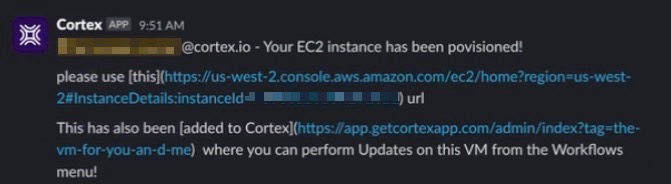
@{{context.initiatedBy.email}} - Your EC2 instance has been provisioned!
please use [this](https://{{ actions.get-region.outputs.result }}.console.aws.amazon.com/ec2/home?region={{ actions.get-region.outputs.result }}#InstanceDetails:instanceId={{actions.get-ec2-id.outputs.result }}) url
This has also been [added to Cortex](https://app.getcortexapp.com/admin/index?tag={{actions.slugify-resource-name.outputs.result}}) where you can perform Updates on this VM from the Workflows menu!
```
5. Save the block.
### Step 4: Run the Workflow
When you run the Workflow, the following events happen:
* The Workflow pauses to collect responses from the user during the User Input step.
* The Data transformation steps reshape the responses, then that reformatted data is used to create a repository during the Scaffolder step.
* A new Terraform workspace is created, and the AWS access key and secret key variables are included. The async HTTP request block triggers the planning and applying process in Terraform.
* The data is transformed, and the reformatted data is used to create an entity in Cortex.
* A message is sent in Slack to confirm that the EC2 instance has been provisioned. It includes a link to the EC2 instance and a link to the newly-created entity in Cortex:
* The entity in Cortex is connected to the repository and to the Terraform workspace.