> For the complete documentation index, see [llms.txt](https://docs.cortex.io/llms.txt). Markdown versions of documentation pages are available by appending `.md` to page URLs; this page is available as [Markdown](https://docs.cortex.io/streamline/workflows/scaffolder.md).
# Registering a Scaffolder template
Cortex's Scaffolder lets you automate project setup through reusable Workflows, creating new repositories and libraries, or adding functionality like CI scripts and infrastructure modules to existing services. Templates handle the boilerplate and plumbing, so new projects follow your team's best practices from day one.
Templating is powered by [Cookiecutter](https://cookiecutter.io), an open-source, industry-standard tool for generating project boilerplate. If you're using GitHub templates and want to convert them to Cookiecutter templates to use within a Cortex Workflow, see [Converting a repo to a Cookiecutter template](/streamline/workflows/scaffolder/convert-template.md).
{% hint style="success" %}
Looking for a quick introduction to Scaffolder? Check out the Cortex Academy course, [Intro to Scaffolder](https://academy.cortex.io/courses/introduction-to-scaffolder).
{% endhint %}
This article walks through adding the Scaffolder as a block in a [Workflow](/streamline/workflows.md). For advanced usage, see [Scaffolder advanced usage](/streamline/workflows/scaffolder/advanced-usage.md).
## Creating a Scaffolder template
**Prerequisites**
1. A Git integration with `write` access. The following integrations are available:
1. [Azure DevOps](/ingesting-data-into-cortex/integrations/azuredevops.md) - Configure the Azure DevOps token with `Code read, write & manage` access.
2. [Bitbucket](/ingesting-data-into-cortex/integrations/bitbucket.md)
1. Cloud - Configure the Bitbucket token with `Repositories - admin and delete` scopes.
2. Data Center - Bitbucket Data Center uses `OAuth` for authentication rather than workspace tokens. The configured OAuth credentials must have permissions to:
1. Read the source repository being cloned
2. Create a new repository
These permissions can be granted in several ways, including repository-level permissions or global read/write permissions. Choose the approach that best fits your organization's access policies.
3. [GitHub](/ingesting-data-into-cortex/integrations/github.md) - Cortex's GitHub app is pre-configured with permissions for the Scaffolder.
4. [GitLab](/ingesting-data-into-cortex/integrations/gitlab.md) - Configure the GitLab access token with `write` permissions.
2. Configure your username's [identity mappings](/configure/settings/managing-users/identity-mapping.md) for your Git provider.
### Step 1: Creating a Cookiecutter template
Before you can use the Scaffolder, you'll need a [Cookiecutter](https://cookiecutter.io) template. You can use an existing template or create a new one.
#### Using a Cookiecutter template
To get started quickly, you can use an [existing open source template](https://www.cookiecutter.io/templates).
1. Find an open source template and clone the repo.
2. Open your `cookiecutter.json` file, located in the root of the template repository.
3. In the file, add a `version` key and enter the version number. This lets Cortex record the template version used for each project in the Catalog, so you can track which projects are running outdated templates.
```json
{
"project_name": "My Project",
"database": ["postgres", "mysql"],
"version": "0.1.2"
}
```
4. Follow the Cookiecutter instructions to [generate the project](https://cookiecutter.readthedocs.io/en/stable/usage.html#keeping-your-cookiecutters-organized).
{% hint style="warning" %}
**Security restrictions for templates**
On Cortex Cloud, templates run in a restricted environment: Cookiecutter hooks, network access, and syscalls are disabled for security. If your template throws an exception, check that it isn't relying on any of these.
Cortex Server (self-hosted) has no such restrictions.
{% endhint %}
#### Creating a new Cookiecutter template
To create your own template, follow the [Cookiecutter tutorial](https://cookiecutter.readthedocs.io/en/stable/tutorials/tutorial2.html). Once your template is ready, use the [Cookiecutter documentation](https://cookiecutter.readthedocs.io/en/stable/usage.html#keeping-your-cookiecutters-organized) to generate a project from it.
### Step 2: Adding the template to Cortex
Users with the `Configure Scaffolder Templates` permission can add the Cookiecutter template to Cortex.
1. From the main sidebar, select **Workflows**.
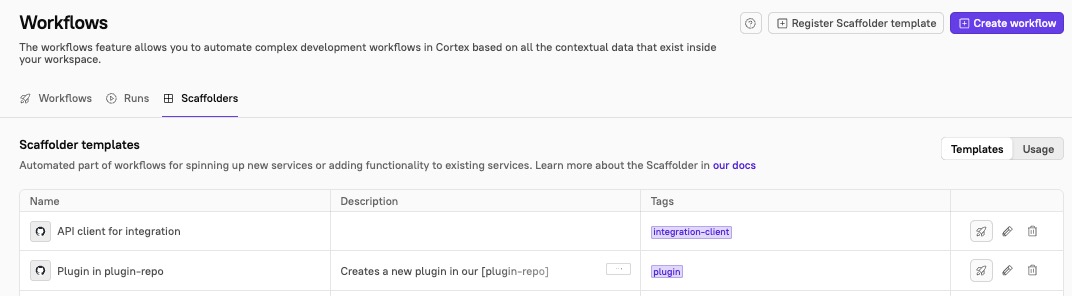
2. In the upper-right corner of the **Workflows** page, click **Register Scaffolder template**.
3. Configure the template:
* **Provider** - Select which Git provider you are using.
* **Name** - Enter a name for the template. This will be seen by developers when they create a service using the template.
* **Description** - Add a description to help others understand the template's purpose.
* **Tags** - Optionally, add tags to describe the template. For example, these could help developers understand whether the template is meant to be used for a specific service type, what language it uses, and more.
4. Below **Configuration**, fill in the fields:
* **Git provider configuration** - Enter the configuration, e.g., `default`
* By default, the option **Use this configuration for all git operations** is **enabled**. When enabled, Cortex uses the selected configuration for **all** Git operations (e.g., fetching the template details, populating the form options, and creating the new repo or Pull Request). The form options will be filtered to only those organizations or repositories that the selected configuration has access to.
* With this setting **disabled**, you can use a single Scaffolder template with multiple organizations/configurations. While the selected configuration must still have to access the template's repository, the remaining Git operations will be run dynamically based on the user's form selections. The Scaffolder form options will be populated using data from all configurations. Then, Cortex will automatically use a configuration with access to the selected organization (if scaffolding a new repository) or repository (if scaffolding a new PR) for all remaining Git operations.
* **Git URL** - Enter the git URL where your template lives, e.g. `https://github.com/cortexapps/cookiecutter-employee`
* **Git ref** (optional) - Enter a git ref (branch name, tag, or commit SHA) to pin the template to a specific version of the repository. For example, entering v1.0.0 will always pull the template as it existed at that tag, regardless of subsequent changes to the default branch. If left blank, the template will pull from the default branch.
* **Subdirectory for Cookiecutter template** (optional) - If your Cookiecutter template is not stored at the root of your repository, enter the subdirectory URL here.
* **Configuration requirements** - Select one of the following:
* **New service**. Cortex service descriptor will be generated for the service and it will be automatically added to relevant catalogs.
* If you don't select this option, you will still have the option to create a service entity when running the Scaffolder.
* **New pull request**. When enabled, the template can only be used to open pull requests against existing repositories.
* **Both**. Enable both "New service" and "New pull request" configurations.
* **Neither**. Disable both "New service" and "New pull request" configurations.
* **Visibility** - When creating a new repository choose the default visibility of the repository. If you do not specify, the template defaults to setting a new repository as private.
* The available options depend on the Git provider. The `Public` setting only works if the org containing the repository allows it. The `Internal` setting only works for GitHub Enterprise accounts.
* When running a Workflow that contains a Scaffolder block, you can configure an override to change the repo visibility.
* **Create cortex.yaml in git when creating a new service** - When enabled, a cortex.yaml will be created in git when the Scaffolder creates a new service.
* If you don't enable this setting, the entity descriptor will be added via the API.
* **Show README.md during Scaffolding** - When enabled, the project's README.md will be displayed when inputting the variables to use while rendering the template. If there is no README.md, nothing will be shown.
5. Click **Register Scaffolder template**.
If you see a "Failed to save template" error, ensure that you have provided a valid Git URL.
### Step 3: Create a Workflow with a Scaffolder step
After you have added a template to Cortex, you can start using the Scaffolder in a [Workflow](/streamline/workflows.md).
Follow the instructions in the [Workflows documentation](/streamline/workflows.md) for creating a Workflow and adding a Scaffolder block.
{% hint style="success" %}
If your Scaffolder template requires input variables, you can configure overrides in your [Workflow's Scaffolder block](/streamline/workflows/blocks.md#scaffolder). This allows you to use output from previous Workflow steps as the responses to the template. To streamline the process and avoid extra prompts, you can add a [User Input block](/streamline/workflows/blocks.md#user-input) before the Scaffolder to collect responses that will be used in the Scaffolder template.
See an end-to-end Scaffolder Workflow example in [Scaffolding a new service with custom data based on user input](/guides/production-readiness/standardize-new-service-creation.md).
{% endhint %}
## View Scaffolder templates
View all templates available to your organization under [**Workflows > Scaffolders**](https://app.getcortexapp.com/admin/workflows?activeTab=scaffolders).
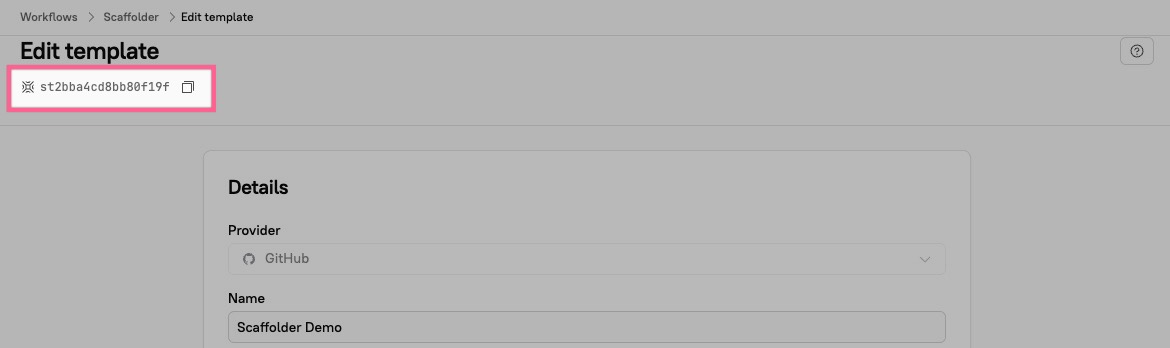
The template's [Cortex ID (CID)](/ingesting-data-into-cortex/entities-overview/entities.md#cortex-id) can be found at the top of the page while editing the Scaffolder template:
## Troubleshooting and FAQ
**When running a Scaffolder and choosing from my list of Azure DevOps projects, some projects aren't appearing as expected.**
This can happen if you have enabled the option **Use this configuration for all git operations** when [configuring your template in Cortex](#step-2-add-the-template-to-cortex). Disable this setting for the ability to choose from all configurations.
**When running a Scaffolder Workflow that pushes template files to a newly created repository, the Workflow completes successfully, but no files appear in the repository.**
This occurs when the branch name entered during the Scaffolder run does not match the default branch configured in your Git provider. For GitLab, Azure DevOps, and Bitbucket, the branch specified must match the repository's default branch (typically `main` or `master`). If it does not match, the Workflow will report successful completion but template files will not be pushed to the new repository.
**Scaffolding workflow appears stuck with no error**
Scaffolder runs might hang without surfacing an error when cloning large repositories or monorepos to open a pull request. Enabling sparse checkout can resolve this by cloning the repository without retrieving all of its git object data. This option is effective when a Scaffolder run only creates new files; if it needs to modify or delete existing files, use the standard clone path instead.
How to recognize the issue:
* The scaffolding step runs for around 5 minutes and then terminates. This is the clone timeout — if the operation doesn't complete within that window, it's cancelled.
* The run fails with exit code 137, which indicates the process was killed by the system (typically due to memory pressure).
* The target repository is large. You can measure it with `git count-objects -v`.
If you run into any of these issues, it's recommended that you toggle on the sparse checkout option in your Scaffolder template:
1. From the main sidebar, select **Workflows**.
2. Select the **Scaffolders** tab.
3. On the **Scaffolders** page, locate the template, then click the **pencil icon** next it.
4. Toggle on **Enable sparse checkout**.
5. Click **Update Scaffolder**.