

Cortex customer Archer saves 24 hours per new service created by using Workflows to automate service creation with best practices built in. Learn more below.
Create a Workflow to standardize new service creation
Prerequisites
Before getting started:- Create a Jira API token with the
write:issue:jirapermission. - Your Cortex role must have the permissions
Edit Workflows,Execute Workflow runs,Configure Scaffolder templates, andExecute Scaffolder. - You should have already configured your version control provider integration with
writeaccess. - Make sure you have already registered your Scaffolder template.
- In this example, we use the cookiecutter-spring-boot repository.
Step 1: Configure the Workflow basic settings
Follow the steps in the documentation to create a Workflow and configure its basic settings.Step 2: Add blocks to the Workflow
Add the following blocks to the Workflow:User input
User input
This block contains the three fields that a user is prompted to fill out when the Workflow is run.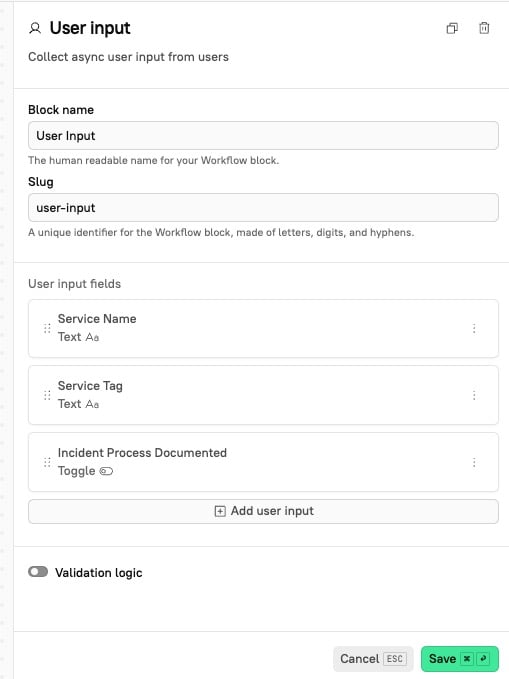
- Click + in the center of the page. In the block library modal, select the User input block.
- In the side panel, enter a name and unique slug for the block.
- Click +Add user input. Configure the input:
- Name: Enter
Service Name. - Key: Enter
service-name. - Description: Optionally enter a description for this input.
- Required: Toggle this setting on if you want to require your users to enter input for this field.
- Type: Select
Text. - Click Add input.
- Name: Enter
- Click +Add user input again. Configure the input:
- Name: Enter
Service Tag. - Key: Enter
service-tag. - Description: Optionally enter a description for this input. In our example, we add a description to ensure that users understand what a Cortex tag is in Cortex:
The Cortex tag is a unique identifier that's used throughout Cortex. Do not use spaces. Example: my-service - Required: Toggle this setting on if you want to require your users to enter input for this field.
- If you are asking for a unique tag, we recommend setting this field as required.
- Type: Select
Text. - Click Add input.
- Name: Enter
- Click +Add user input again. Configure the input:
- Name: Enter
Incident Process Documented. - Key: Enter
incident-process-documented. - Description: Optionally enter a description for this input. In our example, we add a description to ensure that users understand what this step is asking for:
Has the incident process been submitted to your team lead? - Required: Toggle this setting on if you want to require your users to enter input for this field.
- Type: Select
Toggle. - Default value: In our example, we set this to
Falseto ensure users don’t accidentally send a false positive. - Click Add input.
- Name: Enter
- Click Save at the bottom of the side panel.
Scaffolder
Scaffolder
This block creates a new repository in your connected Git integration, using templating to apply the outputs of the User Input step as the project name, app name, and repository name.
- Click + in the center of the page. In the block library modal, select the Scaffolder block.
- In the side panel, enter a name and unique slug for the block.
- Under Scaffolder template, select your template. In this example, we use the
Spring Boot Template. - Select the option to Create a new repo.
- Add override variables. The Variable dropdown pulls in all the variables that are able to be overridden in the Git provider and in the Scaffolder template. In this example, we apply the following overrides:
- project_name:
actions.user-input.outputs.service-name- This overrides it with the output of the “Service name” field from the User Input block earlier in the Workflow.
- creator:
context.initiatedBy.email- This overrides it with the email address of the person who initiated the Workflow.
- app_name:
actions.user-input.outputs.service-name- Like the project_name override, this one also overrides it with the output of the “Service Name” field from the User Input block.
- publisherRepoName:
actions.user-input.outputs.service-tag- This overrides it with the output of the “Service Tag” field from the User Input block earlier in the Workflow. This ensures that the repo name matches the Cortex tag.
- project_name:
- Click Save at the bottom of the side panel.
Cortex custom data
Cortex custom data
Earlier in the Workflow, the User Input step prompts a user to enter a service name, tag, and to use a toggle to indicate whether the incident process was documented.The Add custom data for entity block determines where the user’s response (the custom data) is recorded. Running this step results in the output of the
Incident Process Documented toggle being added to an entity.- Click + in the center of the page. In the block library modal, select the Add custom data for entity block.
- In the side panel, enter a name and unique slug for the block.
- Configure the custom data details:
- Entity tag or ID, use templating to reference the service tag provided by the user during the User Input step:
{{actions.user-input.outputs.service-tag}} - Key:
incident-process-documented - Value:
"{{actions.user-input.outputs.incident-process-documented}}"
- Entity tag or ID, use templating to reference the service tag provided by the user during the User Input step:
- Click Save at the bottom of the side panel.
HTTP request
HTTP request
Step 4: Add an HTTP request block
This step creates a Jira ticket for tracking and security review.- Click + in the center of the page. In the block library modal, select the Add custom data for entity block.
- In the side panel, enter a name and unique slug for the block.
- Configure the HTTP request:
- HTTP method: Select
POST. - URL: Enter your Jira API URL.
- Headers: Include an authorization header and set the value to your Jira token.
- Payload: In the payload, you can choose the project in Jira where you want the ticket created, and you can include other information such as the title of the Jira ticket (the
summary) and the description of the ticket (thecontent:text). See Jira’s API documentation for more information on formatting the payload. In this example, we include the following payload:
- HTTP method: Select
- Click Save at the bottom of the side panel.
Run the Workflow
- In the list of Workflows, locate your new service creation Workflow and click Run.
- You will be redirected to a page showing the Workflow’s steps.
Workflow run steps
Workflow run steps
-
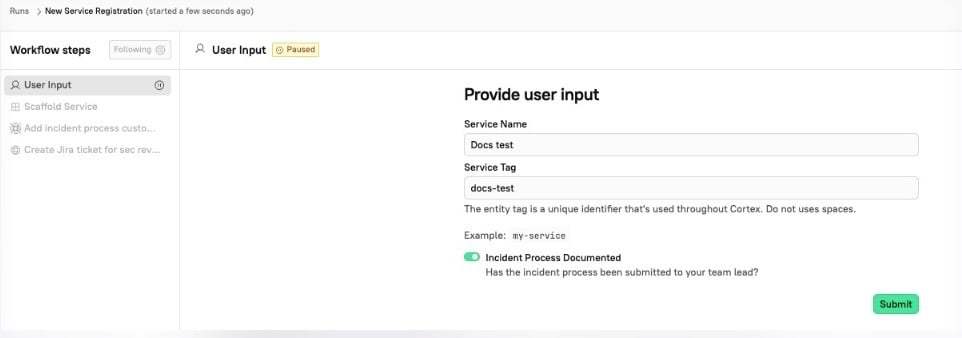
The User Input block runs, which pauses the Workflow until the Workflow initiator enters a response.
-
In this example, we enter
Docs testas the Service Name,docs-testas a Service Tag, and toggle on the option for Incident Process Documented.
-
In this example, we enter
-
The Scaffolder block runs, which prompts you to configure and run the Spring Boot Template that was selected while configuring the Scaffolder step.
- Because of the overrides that were configured in the Scaffolder step, the Project Name, App Name, Creator, and Repository fields are pre-filled. The overridden fields cannot be edited unless you select the option to make override fields editable while configuring the Scaffolder block.
-
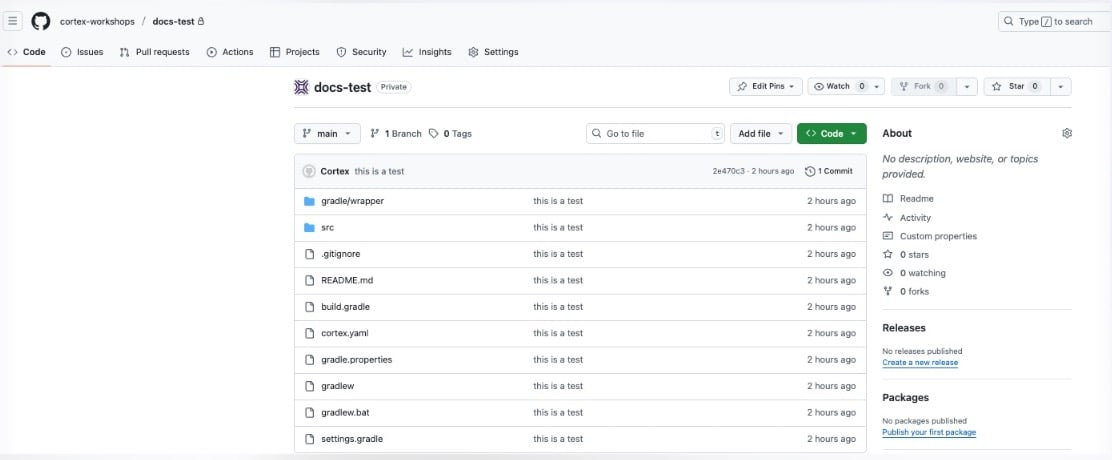
During this step, you must also select the organization to create the repository in, include the branch name and a commit message, and choose the visibility of your repo. When you are finished, click Submit. A repository will be created in the organization you selected:
-
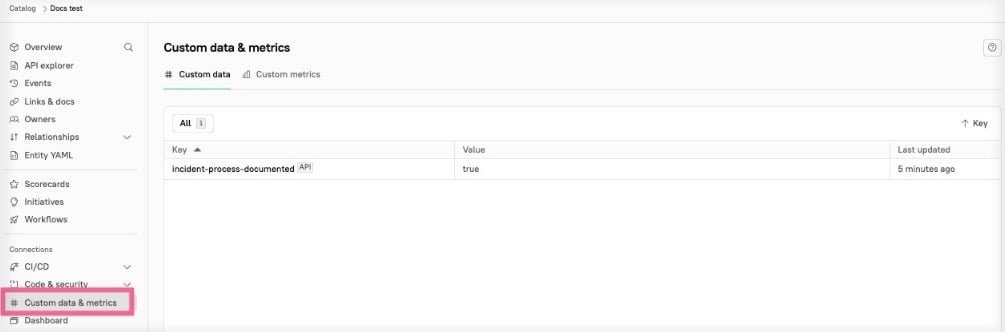
The Add custom data block runs. The newly-created entity for the repository now contains the
incident-process-documentedkey and value. You can see this in the Output tab of the block during the Workflow run, and in the entity details page Custom data & metrics sidebar link:
-
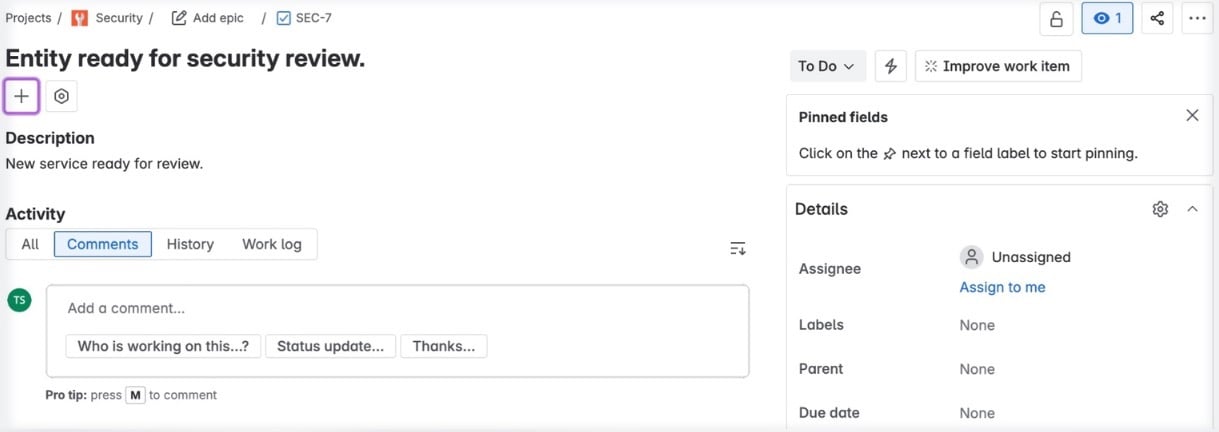
The HTTP request block runs. A ticket is created in Jira requesting a review from the security team. The title and description were set automatically based on the payload provided while configuring the HTTP request step:
Example: Archer’s deployment Workflow
Cortex customer Archer implemented a Workflow combining scaffolding, infrastructure, deployment configuration, and cloud resources into a single process. All new services follow a consistent, repeatable workflow that includes best practices and requirements by default.Outcome
- Their teams go from concept to deployed service on a Kubernetes cluster in under 3 hours.
- They save 24 hours per new service creation.
- They saved an estimated $72,000 across 30+ Workflow runs in 3 months.