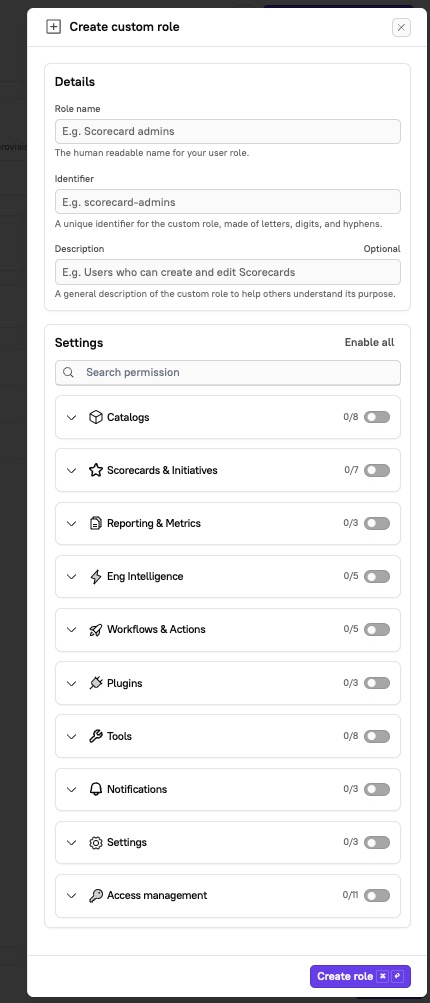
| Catalogs | Catalogs view | View catalogs and entities |
| Catalogs | Entity types edit | Create, edit, and delete entity types |
| Catalogs | Catalogs edit | Create, edit, and delete catalogs |
| Catalogs | Entities edit | Create, edit, and delete entities |
| Catalogs | Entities archive | Archive entities |
| Catalogs | Entities delete | Delete entities |
| Catalogs | Entity dependency discovery enable | Sync dependencies directly when on the dependency graph feature |
| Catalogs | Entity verification period configure | Create and edit periods for verifying Cortex entities |
| Scorecards & Initiatives | Scorecards view | View scorecards |
| Scorecards & Initiatives | Scorecards edit | Create, edit, and delete scorecards |
| Scorecards & Initiatives | Scorecards re-evaluation execute | Manually trigger a scorecard’s evaluation via the UI |
| Scorecards & Initiatives | Scorecard exemptions view | View scorecard exemptions |
| Scorecards & Initiatives | Scorecard exemptions configure | Approve or revoke scorecard exemptions |
| Scorecards & Initiatives | Initiatives view | View initiatives |
| Scorecards & Initiatives | Initiatives edit | Create, edit, and delete initiatives |
| Reporting | Scorecard report view | View scorecard reports |
| Reporting | CQL report view | Ability to view CQL reports |
| Reporting | CQL report edit | Create, edit, and delete CQL reports |
| Eng Intelligence | Eng Intelligence view | View the Eng Intelligence metrics across all teams, users, groups, and entities |
| Eng Intelligence | Eng Intelligence configure | Configure Eng Intelligence settings |
| Eng Intelligence | Custom Metrics configure | Create, edit, and delete Eng Intelligence custom metrics |
| Eng Intelligence | Custom Metric data edit | Create, edit, and delete Eng Intelligence custom metrics data points via API |
| Workflows | Workflows edit | Create, edit, and delete workflows |
| Workflows | Workflows view | View workflows |
| Workflows | Workflow runs view | View workflow runs |
| Workflows | Workflow runs execute | Ability to run workflow |
| Plugins | Plugins edit | Create, edit, and delete plugins |
| Plugins | Plugin proxies edit | Create, edit, and delete plugin proxies |
| Plugins | Plugin appearance configure | Manage appearance of plugins |
| Tools | Relationship graph enable | View and engage with relationship graph |
| Tools | Onboarding management view | View onboarding management |
| Tools | Onboarding management enable | Trigger onboarding management notifications |
| Tools | Discovery audit events configure | Ignore or import entities found in the discovery audit tool |
| Tools | Scaffolder templates configure | Create, edit, and delete Scaffolder templates |
| Tools | Scaffolder execute | Run the Scaffolder |
| Tools | Query builder (basic) enable | Access to query builder tool that allows CQL queries to be created and run adhoc |
| Tools | Query builder (with 3rd party integrations) enable | Access to query builder tool that allows CQL queries to be created and run adhoc, including queries of 3rd party integration data |
| Notifications | Workspace notification settings configure | Enable or disable workspace notification settings |
| Notifications | Notification logs view | View notification logs |
| Notifications | Notification logs execute | Resend a notification |
| Settings | Settings configure | Edit workspace settings, identity mappings, and integration configurations |
| Settings | Appearance settings configure | Edit workspace appearance settings, including logo upload, plugin placement throughout the app, entity overview tabs and navigation order, and catalog sort order |
| Settings | IP allowlist configure | Configure restriction for Cortex app and public API access to specified IPs |
| Settings | GitOps logs view | View GitOps logs |
| Settings | OpenID Connector & SCIM configure | Manage OpenID application details and SCIM for Auth0, Azure, Google, and Okta |
| Settings | Roles view | View workspace role definitions and user role assignments |
| Settings | Roles configure | Manage workspace role definitions and user role assignments |
| Settings | Breaking API changes view | View breaking API changes |
| Settings | Create API keys edit | Create, edit, and delete Cortex API keys |
| Settings | Identity mappings configure | Review how team members defined in the team catalog are matched to external accounts (e.g. GitHub, Jira, PagerDuty, ClickUp, or Slack). |
| Settings | Integrations configure | Install, uninstall, and configure integrations |
| Access Management | Create secrets edit | Create, edit, and delete secret keys used in plugin proxies, secure access to 3rd party APIs, etc |
| Access Management | Audit logs view | View audit logs |