

Cortex AI chat is in Research Preview
- Responses can be slow, especially for questions spanning many teams or entities.
- Not all Cortex data is reachable from chat yet, so it can’t answer every question about your organization.
- It can’t take action on your behalf. It won’t create or edit Scorecards, Initiatives, Dashboards, or Workflows, and it won’t change the report’s content or filters.
Accessing Cortex AI
You can chat with Cortex AI from the summary section on the Executive briefing tab or from a metric card.Admins and users with the Enable AI Chat permission can access Cortex AI.
To access Cortex AI via the summary section:
- From the main sidebar, select OpEx Review.
- From the Executive briefing tab, locate the summary section on the left side of the page.
- At the bottom of the summary, do one of the following:
- Select a pre-populated question.
- Enter your question in the Ask Cortex AI field, then press Enter.
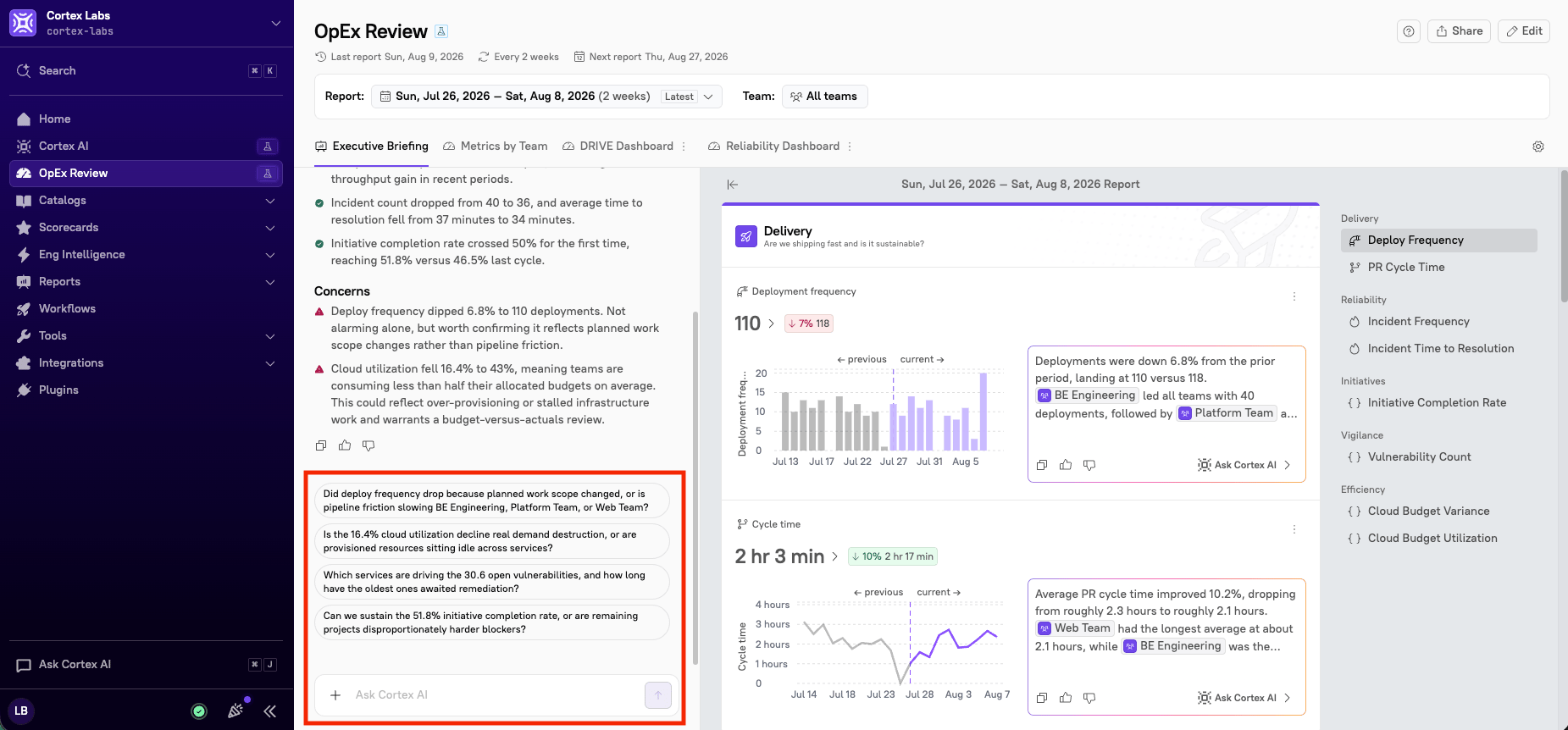
- From the main sidebar, select OpEx Review.
- From the Executive briefing tab, locate the metric card you want to dig into.
- At the bottom of the card, click Ask Cortex AI. The side panel opens with the metric summary pre-populated.

- Do one of the following:
- Select a pre-populated question.
- Enter your question in the Ask Cortex AI field, then press Enter.
What you can ask
Cortex AI is built for follow-up questions on whatever metric or insight you’re looking at, for example:- Which teams or services are driving this increase?
- How does this compare to last quarter?
- What changed in the last two weeks?
- Why a specific team’s metric moved (for example, Why did Platform Engineering’s deploy frequency drop?)
- How two teams or time periods compare
- What a metric or threshold means, useful for less technical leaders in the room
Drafting follow-ups with Cortex AI
When a discussion turns into an action item, ask Cortex AI to draft a follow-up, for example Create a follow-up for Platform Engineering to look into the cycle time increase. Cortex AI drafts the follow-up as a card showing the action item, the assignee, and the review it will be tracked against. Review the draft, then click Save follow-up. Cortex AI doesn’t create the follow-up until you save it. To draft follow-ups in chat, you need theEdit OpEx Comments & Follow-ups permission in addition to Enable AI Chat.
What to expect from a response
Answers are intended to be discussed in your OpEx meeting. Responses are typically two to four sentences, or a short bulleted list. Responses are designed to:- Call out specific teams or services by name where relevant
- Suggest a next step when there is one
- Link to a relevant data source, such as an entity page, filtered view, or Data Explorer, if it helps to dig in further