> For the complete documentation index, see [llms.txt](https://docs.cortex.io/llms.txt). Markdown versions of documentation pages are available by appending `.md` to page URLs; this page is available as [Markdown](https://docs.cortex.io/streamline/plugins/creating-plugins.md).
# Creating a plugin
[Plugins](/streamline/plugins.md) let you pull data into Cortex from any source, expose custom metrics, and customize the UI to match your other internal tools. A plugin is an application embedded in Cortex that uses a plugin proxy to send requests to third-party services.
To quickly spin up a plugin repository, use the Scaffolder in a Workflow. The generated repository includes:
* React and TypeScript
* Linting and formatting via [ESLint](https://eslint.org/) and [Prettier](https://prettier.io/)
* Testing via [`testing-library`](https://testing-library.com/)
* Compilation to a single HTML file via [webpack](https://webpack.js.org/)
* The Cortex React plugin package ([`@cortexapps/react-plugin-ui`](https://www.npmjs.com/package/@cortexapps/react-plugin-ui)), which provides access to context, proxy usage, CSS variables for theme-based styling, and UI components.
* The Cortex Plugin core package ([@cortexapps/plugin-core](https://www.npmjs.com/package/@cortexapps/plugin-core)).
Cortex offers a [cookiecutter template](https://github.com/cortexapps/cookiecutter-cortex-plugin) with examples using `react-plugin-ui`.
{% hint style="warning" %}
**Plugin package update (April 2025)**
As of April 2025, all new plugins use the `@cortexapps/react-plugin-ui` package, which gives plugins the same look and feel as Cortex itself when rendered in an iframe.
If you created your plugin before April 2025 and it uses components from `plugin-core/components`, upgrade `plugin-core` to version `3.0.0-beta.4` or later to migrate those components to the new design.
{% endhint %}
## Creating a plugin
### Prerequisites
Users with the `Configure Plugins` permission can create a plugin for use in Cortex.
### Step 1: Registering the plugin
Follow the steps below to register the plugin. Registration is a prerequisite for creating it.
{% hint style="info" %}
By default, the plugin stays in draft mode until you manually set it live, giving you a chance to test and review before making it available.
{% endhint %}
1. From the main sidebar, select **Plugins**.
2. In the upper-right corner, click **Register plugin**.
3. Do the following:
1. Under **Plugin name**, enter a display name for the plugin (required).
2. Under **Identifier**, enter a unique identifier made of letters, numbers, and/or hyphens for the plugin.
3. Under **Description**, enter a description of the plugin to help others understand its purpose.
4. Under **Display icon**, select an icon to be used when displaying this plugin across Cortex.
5. Under **Minimum user role**, select the minimum user role required to be able to see this plugin. You can choose default or custom roles. Note that you will not be able to delete a custom role if it is associated with a plugin.
6. Under **Associated proxy**, if you have configured a [proxy](#create-a-plugin-proxy), select the proxy to use for proxy fetches from this plugin.
7. Under **Configure requirements**, select one of the following configuration types:
* **Global** - Select this option if you want to configure the plugin to appear in the main sidebar or as a tab on the engineering homepage.
* **Specific entity types** - Select this option if you want to plugin to display in the sidebar of entity pages. If selected, choose an entity type from the drop-down menu.
* **Both options** - Select this option to have the ability to display the plugin in the main sidebar, on the engineering homepage, and on entity pages. If selected, choose an entity type from the drop-down menu.
In the next step, you'll create the plugin.
### Step 2: Creating the plugin
In the **Code** section of the registration page, choose whether to create your plugin repository from a template or from scratch.
1. Under **Create plugin**, select one of the following options:
* **Duplicate repo with template** - Select this option to create a plugin repository from a template.
* In the **Duplicate plugin template** side panel, do the following:
1. Under **Project name**, enter a name for the plugin project (required).
2. Under **License**, enter licensing information for the plugin, e.g. MIT, Apache 2.0 (required).
3. In the **Configure output** section, select one of the following:
1. **Create a new repo** - Select this option to generate a brand-new standalone repository to hold the duplicated plugin template code.
1. From the **GitHub Organization** drop-down menu, select the GitHub org account under which the new plugin repository will be created (required).
2. Under **Repo name**, enter the name of the new repository that will be created to hold this plugin's source code (required).
3. Under **Branch**, enter the default branch (e.g. `main` or `master`) that will be initialized as the service's primary branch (required).
4. From the **Visibility** drop-down menu, select whether the repository is public (open to everyone) or private (restricted to authorized users).
2. **Open a pull request** - Select this option to push the duplicated template into an existing repository as a new branch and open a PR for review.
1. From the **Repository** drop-down menu, select the existing repository where the generated plugin code will be added via pull request.
2. Under **Branch to create**, enter the branch name (source branch) where the generated code will be pushed and from which the PR will be opened (required).
3. Under **Subdirectory**, enter the folder path inside the existing repository where the generated plugin service will live.
4. Optionally, toggle on **Create a corresponding Cortex entity** to automatically register a matching Cortex catalog entity alongside the plugin so the new service is tracked in Cortex. If toggle on, do the following:
1. Under **Entity name**, enter the human-readable display name for the new Cortex entity as it appears in the catalog (required).
2. Under **Cortex tag**, enter a unique identifier of letters, numbers, and/or hyphens to reference the entity programmatically across Cortex.
3. Under **Description**, enter a short summary explaining what the service does and its purpose in the catalog.
5. Click **Save**.
* **Download template.zip** - Select this option to create a plugin from scratch. A zip file automatically downloads. You can then manually configure your repository.
In the next step, you'll generate the HTML file for your plugin.
### Step 3: Cloning the repository and installing dependencies
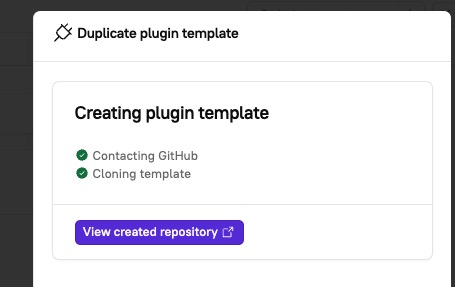
After you create a plugin from a template in Cortex, a link is displayed to see your created repository.
1. In GitHub, navigate to your newly-created plugin repository.
* If you created the plugin from a template, a link is displayed to view the repository. Click **View created repository**.
2. [Clone the repository locally](https://docs.github.com/en/repositories/creating-and-managing-repositories/cloning-a-repository).
3. Install dependencies via `yarn`. You can also use `npm` commands if preferred.
4. If you need to make any changes to the plugin, modify the code before the next step.
5. Run `yarn build` to generate a single HTML file representing your plugin (output at `./dist/ui.html`).
6. In Cortex, navigate to the plugin's registration page.
In the next step, you'll upload, preview, and save the plugin to Cortex.
### Step 4: Uploading and previewing the plugin
While still in the **Code** section of the registration page, you'll upload and preview your plugin. Once you're satisfied, the plugin can be saved and added to your Cortex tenant.
1. Under **Upload & preview** plugin, upload the HTML file generated from running `yarn build` in the previous step.
2. Optionally, toggle on **Dev mode**. Click the **down arrow** next to the toggle to open the **Plugin preview**.
* When in dev mode, the preview for the HTML file uses code running at `http://localhost:9000/ui.html`. To run your plugin code from this location, use `yarn dev` or `npm run dev` from your plugin.
3. In the **Plugin preview**, review the plugin and make any necessary changes.
4. Click S**ave plugin**.
{% hint style="info" %}
Looking to add theme-based styling? Refer to the [documentation](/streamline/plugins/creating-plugins/editing-a-plugin.md#adding-theme-based-styling).
{% endhint %}
### Creating a plugin proxy
To access authenticated external APIs, you can configure a plugin proxy to add request headers to requests matching a URL prefix. See [Creating a plugin proxy](/streamline/plugins/creating-plugins/plugin-proxy.md) for more information.
## Sharing a plugin
Users with the `Configure Plugins` permission can share a plugin with anyone who has access to view plugins in their Cortex workspace.
1. From the main sidebar, select **Plugins**.
2. Locate the plugin you want to share, then click the **Overflow menu**.
3. Select **Share**. A link is copied to your clipboard.
## Troubleshooting and FAQ
**When developing a plugin that uses an iframe, the rendered output appears compressed. How can this be resolved?**
This issue occurs if the iframe’s height property is not set to 100%. The following example demonstrates an iframe configured to stretch to the full height of the page.
```
```