

Running a CQL query
The Query builder allows you to define your query without needing to learn CQL upfront. You will need theRun query builder permission. If you are running queries on third-party integrations, you will also need the Run query builder with third-party integrations permission.
Step 1: Build a query
- On the right side of the Query builder page, click the CQL builder tab. \
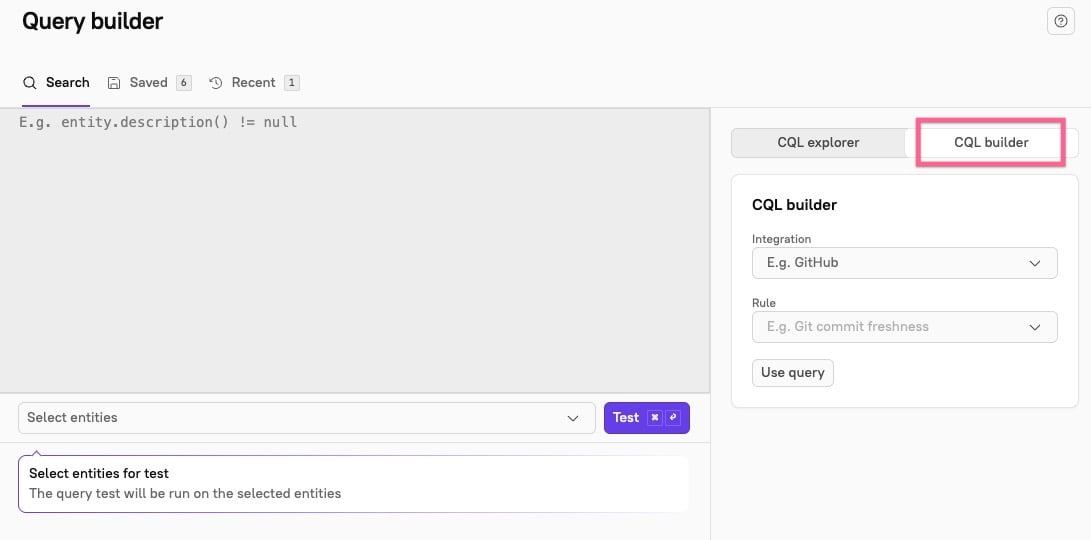
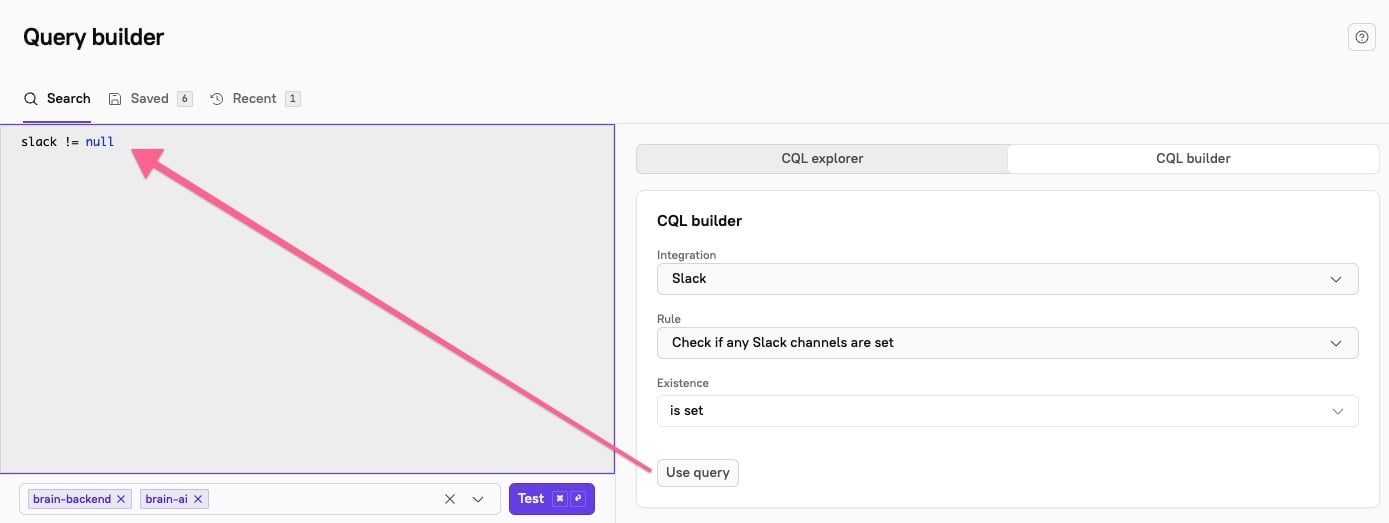
- In the CQL builder, choose and integration and a rule to evaluate.
- The rules available in the dropdown menu will depend on the integration you’ve selected.
- Depending on the rule you choose, you may need to configure additional fields.
- Click Use query. The query will automatically populate into the CQL text editor on the left side of the page.\
Step 2: Test the query
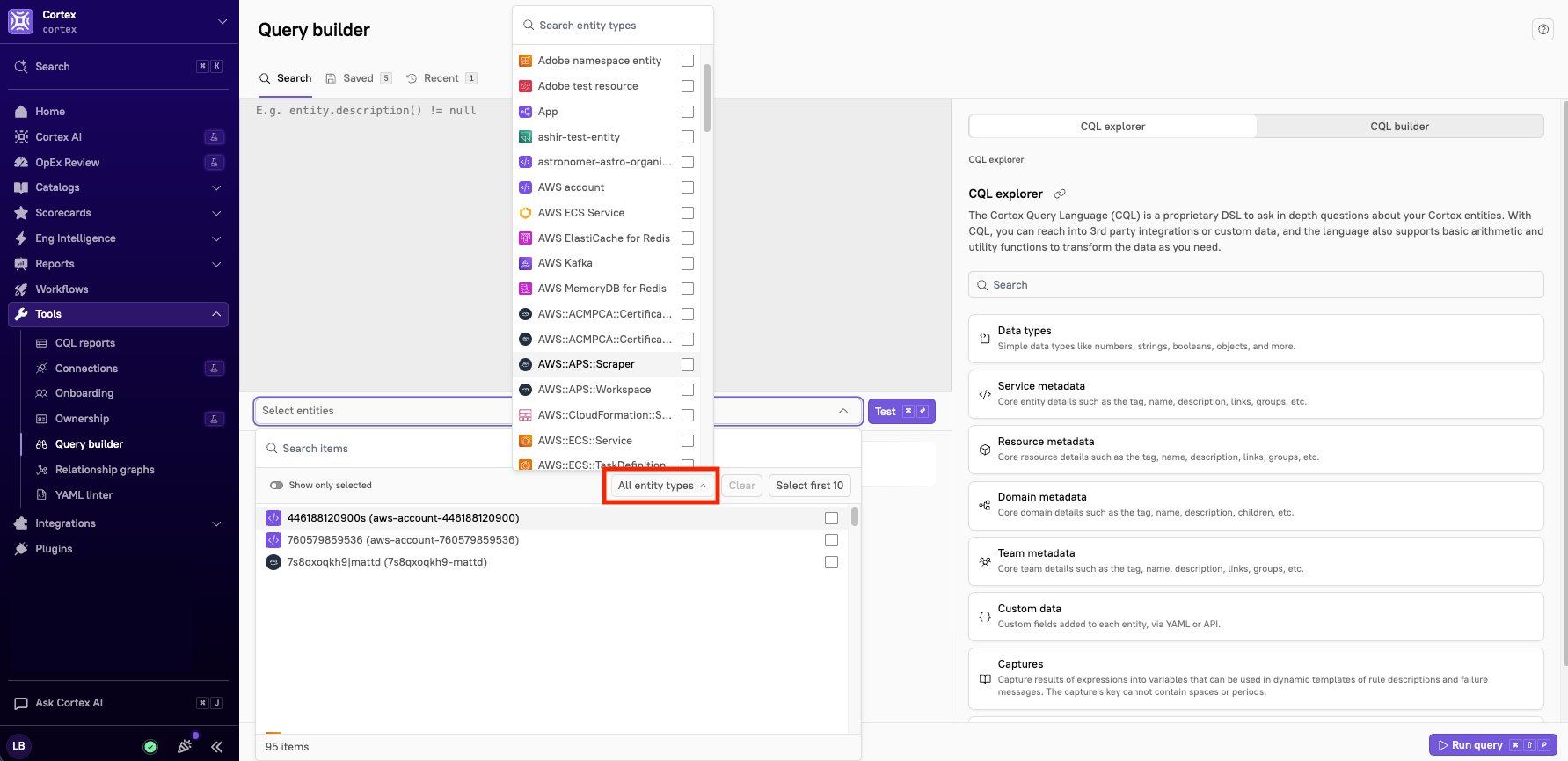
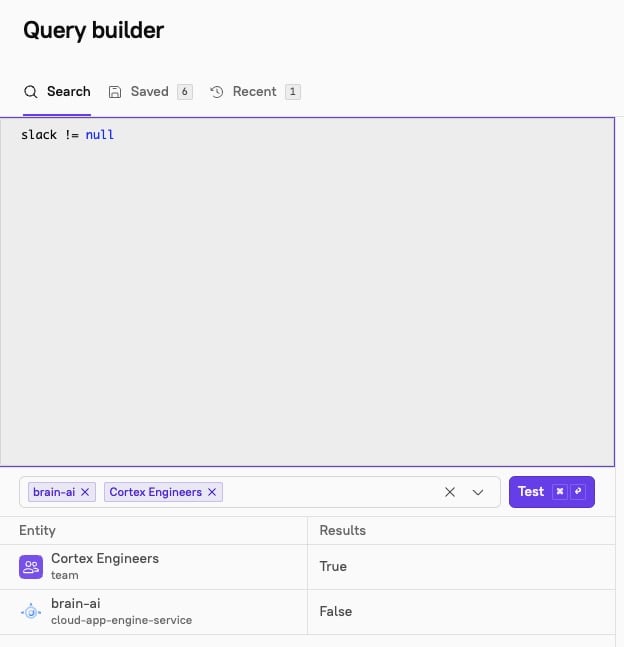
- Under the CQL editor on the left, open the Select entities dropdown.
-
Optionally, to narrow the list of entities, click All entity types, then select one or more entity types. You can search the list by type name, and clear your selections to return to the full list.
-
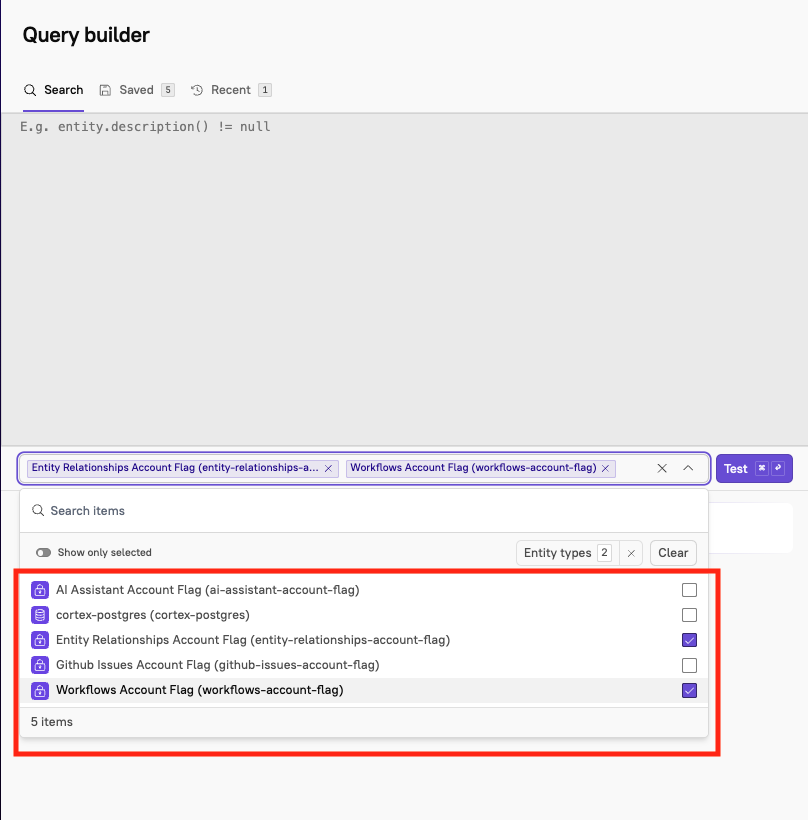
After you’ve selected the entity type, select the entity or entities you want to test the query against.
-
Click Test. The results appear under the text editor. Review the results to verify that the query is working as you expect.
Step 3: Run the query
- In the lower right corner of the page, click Run query.
- In the side panel that opens, choose whether to run the query on all entities or select specific entities.
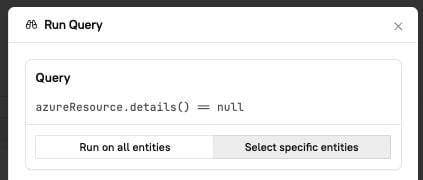
- At the bottom of the side panel, click Run query.
- In the confirmation modal that appears, click Yes, run query.
View and share results
After running the query, the page displays a list of all entities matching the criteria. In the upper right corner of the list, you can sort and filter the list. As you apply filters to your list, Cortex will also update the number of matching entities, so you can easily see at a glance how many entities match your requirements. You can share the results in two ways:- Send a link: Click Share in the upper right corner of the results list to copy the URL to your clipboard. You can share the link with anyone who has access in your Cortex workspace.
- Export as CSV: In the upper right corner of the page, click Export CSV to download a CSV file of the data.
Running rules on multiple queries
If you want to run a query on more than one rule, you can join multiple queries together withAND and OR.
For example:
CQL errors
The following errors may occur when running a CQL query:400: This typically indicates a misconfiguration with an integration. For example, you may be missing an entity registration required for an integration.403: This occurs if there are missing or improper permissions.429: This occurs when hitting the rate limit for an integration. Cortex will retry 5 times before responding with this error. To prevent rate limit issues, we have built a self-throttling system that proactively throttles before hitting a rate limit from the vendor.500: This indicates that the integration itself returned an error.
Save a query
While viewing the results of a query you ran, you can save the query to use again in the future:- In the upper right corner of the results page, click Save query.\

- In the side panel, configure the query details:
- Enter a name and description for your query.
- To allow other users in your Cortex workspace to see the query, enable the toggle next to Share across organization.
- Click Save.
View active, recent, and saved queries
Below the CQL search text box, you can see active queries. This section displays the ongoing process of your submitted query. When the query is complete, it will appear under Recent. Along the top of the query builder, you can click into tabs to view Saved and Recent queries. Click into any of the queries in these lists to view the results of the query.
Saved queries
Click the Saved tab to view a list of your saved queries, and queries that others have saved and shared across your organization. Query results are not automatically updated, but you can refresh a query manually: While viewing the results page, click the 3 dots icon, then click Refresh.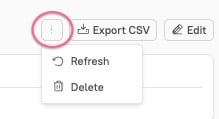
When configuring a CQL report, it is possible to enable automatic refresh.