

Cortex connects to many third-party vendors whose system interfaces frequently change. As a result, integration behavior or configuration steps may shift without notice. If you encounter unexpected issues, check with your system administrator or refer to the vendor’s documentation for the most current information. Additionally, integration sync times vary and are subject to scheduling overrides and timing variance.
Cortex conducts a background sync of Workday identities every day at 9 a.m. UTC.
Connecting an entity to Workday
Discovering entities automatically
By default, Cortex matches entities to Workday teams using the Cortex tag. For example, an entity with the tagplatform-infra maps to a Workday team named platform-infra. If your Workday team names don’t align with your Cortex tags, override the mapping in the entity descriptor.
Team names are case-sensitive and must exactly match the
teamDisplayName or teamName field in your Workday report.Importing teams automatically
You can choose to automatically import discovered teams and team relationships from Workday into Cortex. Before enabling auto import, make sure your Workday report includes themanagerEmail field to ensure that team relationships are imported.
- From the main sidebar, click your avatar in the bottom-left corner.
- Click Settings.
- In the Settings menu, locate the Workspace section, then expand Entities.
- Select Teams.
-
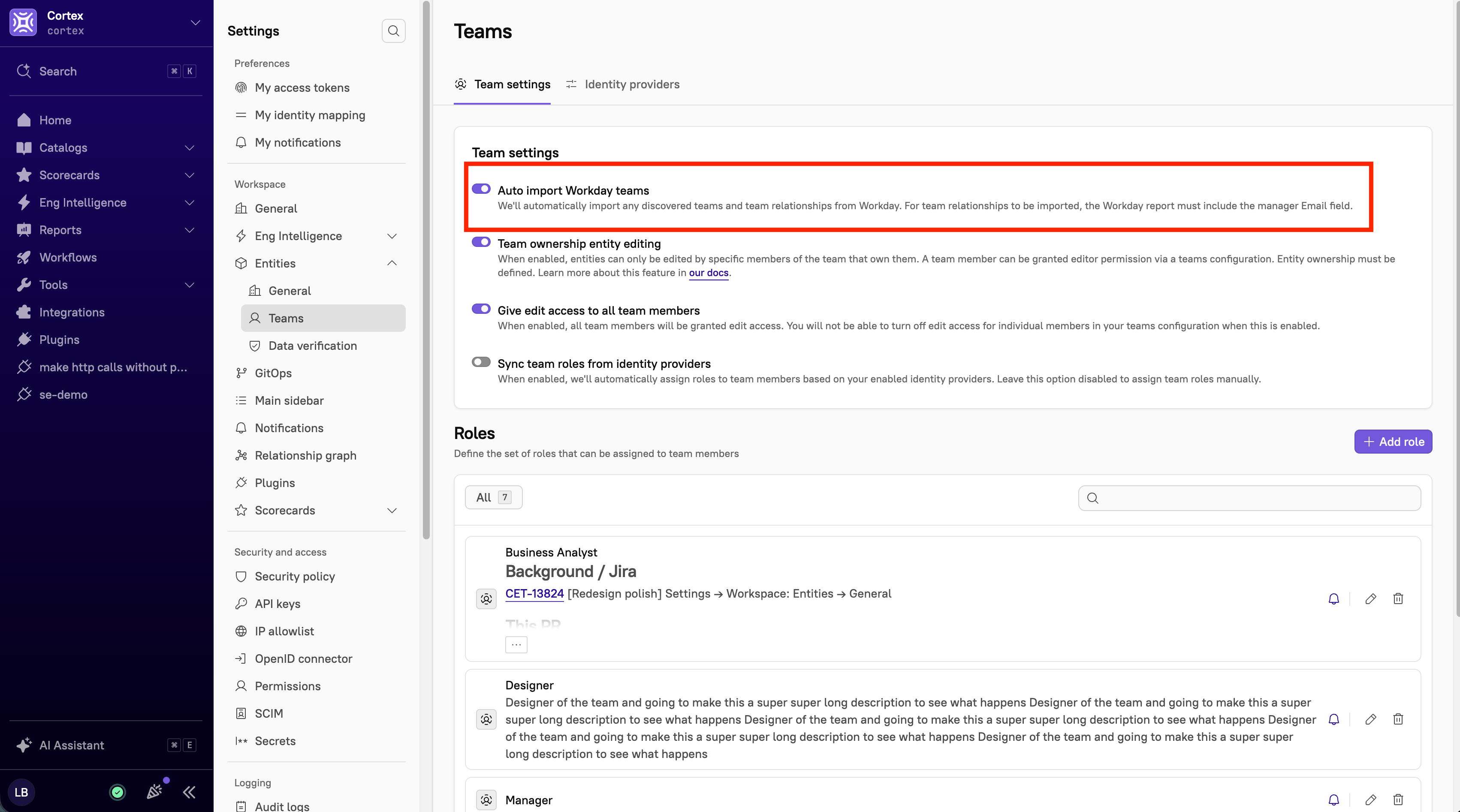
In the Team settings section, toggle on Auto import Workday teams.
-
At the top of the page, select the Identity providers tab.
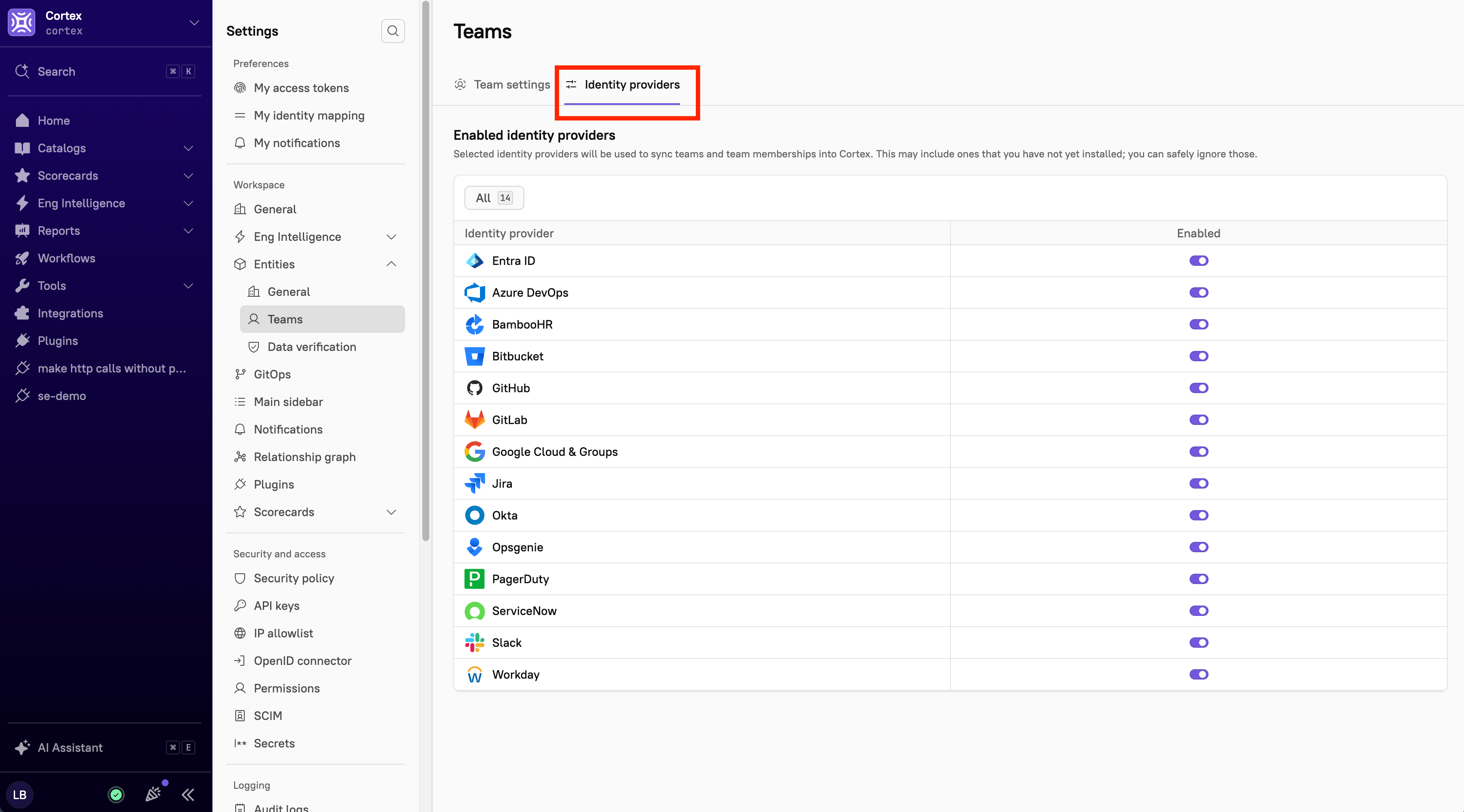
- Locate Workday, then toggle on the Enabled option.
If a Workday team you’re importing shares a tag with an existing Cortex entity, Cortex appends
-team to the imported team’s tag to avoid a collision.For example, if the tag payments already exists in Cortex when you import a Payments team from Workday, Cortex imports the team’s tag as payments-team.When Cortex processes a sync, it checks whether a deleted team is backed by a non-Cortex provider before re-creating it. A Workday-managed team is only re-created if (1) a service YAML references it as an owner, or (2) the team’s own YAML is re-processed.
Importing teams from the catalog
If you’d rather choose which Workday teams to bring into Cortex than import all of them, you can select them from the catalog. Cortex builds the team hierarchy as part of the import, so the teams arrive with their parent and child relationships already in place.- From the main sidebar, expand Catalogs, then select All entities.
- Click Import entities, then select Import discovered entities.
- Select Workday as the source.
- On the Select entities to import page, click Sync entities.
- The daily background sync also stores the hierarchy, so an integration that’s been connected longer than a day is already covered.
- Select the teams you want, then click Next step. The Edit details page is displayed.
- Review the information, make any necessary changes, then click Confirm import. See Importing teams from an integration for more information.
Cortex stores your Workday hierarchy separately from your teams, so you can delete Workday teams and import them again without losing their relationships. To pick up an org structure change from Workday, run a sync before you import again.
Triggering a sync manually
You can sync teams manually at any time. Note that performing a manual sync does not create new teams, but it does update membership and hierarchy relationships for existing Workday-managed teams.- From the main sidebar, select Integrations.
- Locate Workday, then click Settings.
- In the Sync team for Workday section, click Sync teams.
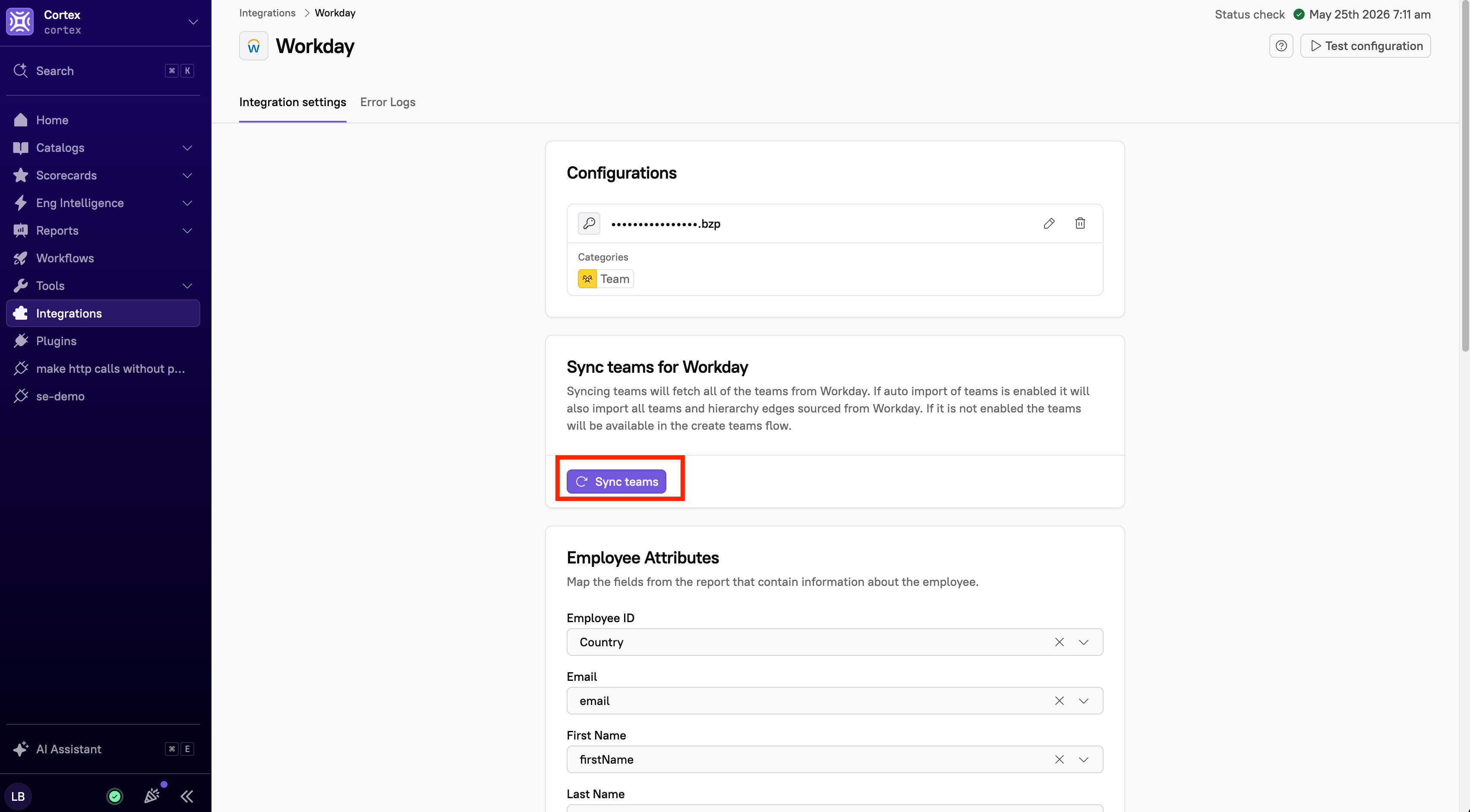
Manual sync updates membership and hierarchy for existing Workday-managed teams. It does not create new teams and will not re-create a deleted team unless a service YAML references it as an owner or the team’s own YAML is re-processed.
Syncing ownership from Workday
For any entity type, use the entity descriptor to assign Workday teams as owners by referencing the team’s Cortex tag. Assigned teams then appear as owners on the entity’s page in Cortex, linking it to the team members and hierarchy imported from Workday.The YAML examples on this page show only the
x-cortex-* block. When you add one to an entity descriptor, nest it inside the info section. Blocks at the root level of the file are ignored without an error. For a full example, see Defining entities with YAML.
Cortex syncs Workday identities every day at 9 a.m. UTC. You don’t need identity mappings for Workday teams. Cortex uses each member’s email address from Workday.
To compare ownership sources, see the Ownership sources reference.
Using the Workday integration
Entity pages
Once you set up the integration, Cortex imports and structures your team hierarchy automatically. Imported Workday teams display the description Automatically created by Cortex. Each team’s details page lists detected members under the Members tab. If your Workday report includes therole field, Cortex displays each member’s role in a badge next to their name.
Creating Scorecard rules and writing CQL queries with the Workday integration
See examples below.All ownership details
All ownership details
A special built-in type that supports a null check or a count check, used to enforce ownership of entities.Definition:
ownership: Ownership | NullExampleAn initial level in a security Scorecard might include a rule to ensure an entity has at least one team as an owner:All owner details
All owner details
List of owners, including team members and individual users, for each entity.Definition:
ownership.allOwners()ExampleThe Scorecard might include a rule to ensure that entity owners all have an email set:Team details
Team details
List of teams for each entity.Definition:
ownership.teams(): List<Team>ExampleThe Scorecard might include a rule to ensure that an entity owners all have a description and are not archived:Viewing Workday integration logs
This feature is available in Cortex cloud.
