> For the complete documentation index, see [llms.txt](https://docs.cortex.io/llms.txt). Markdown versions of documentation pages are available by appending `.md` to page URLs; this page is available as [Markdown](https://docs.cortex.io/ingesting-data-into-cortex/integrations/incidentio/using-the-integration-for-incident.io.md).
# Using the integration for incident.io
How to use the integration for incident.io in Cortex
{% hint style="info" %}
Cortex connects to many third-party vendors whose system interfaces frequently change. As a result, integration behavior or configuration steps may shift without notice. If you encounter unexpected issues, check with your system administrator or refer to the vendor's documentation for the most current information. Additionally, integration sync times vary and are subject to scheduling overrides and timing variance.
{% endhint %}
This article explains how to use the integration for incident.io. For configuration instructions, see [Configuring the integration for incident.io](/ingesting-data-into-cortex/integrations/incidentio.md). For instructions on connecting incident.io to entities, see [Connecting entities to incident.io](/ingesting-data-into-cortex/integrations/incidentio/connecting-entities-to-incident.io.md).
## Viewing incident data
You can view incident data in the incident list and on an [entity's details page](/ingesting-data-into-cortex/entities-overview/entities/details.md).
### Incident list
{% hint style="info" %}
The incident list is in Public Beta.
{% endhint %}
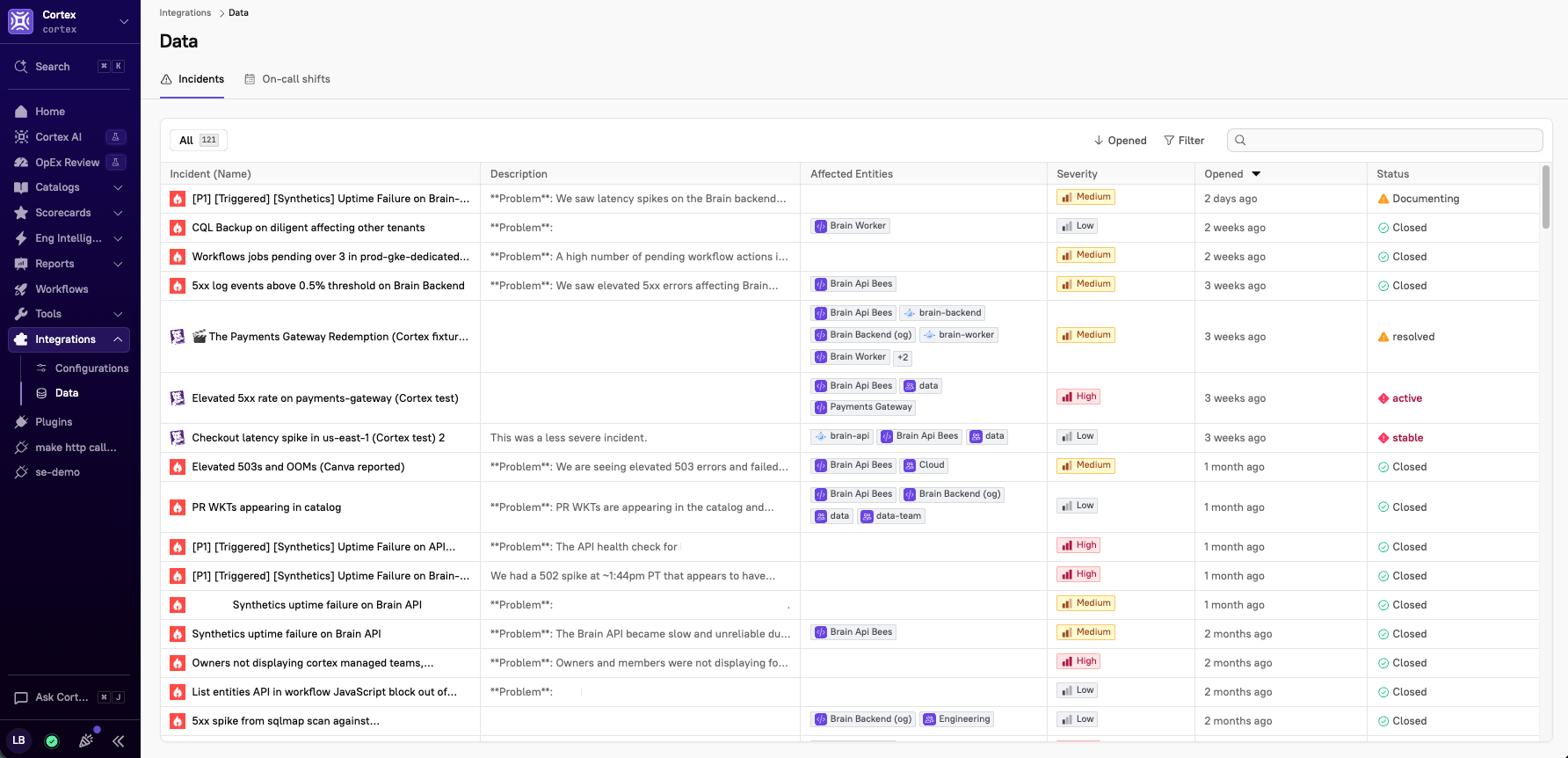
See every incident across your organization in one place, with metadata including severity, status, and affected entities.
**To access the incident list**:
1. From the main sidebar, expand **Integrations**, then select **Data**.
2. Select the **Incidents** tab.
The list is sorted by most recently opened incidents first.
{% hint style="info" %}
Cortex ingests all available incidents from incident.io. Incidents marked as [declined or merged](https://docs.incident.io/incidents/triaging) or [canceled](https://docs.incident.io/incidents/delete-incidents#can-i-delete-or-hide-an-incident) are treated as deleted in Cortex and won't appear in your catalog or contribute to Scorecards.
{% endhint %}
#### Searching across and filtering the incident list
There are several ways to search and filter the list:
* To find specific incidents, use the search bar in the upper-right corner of the page and type to search.
* By default, the list sorts by most recently opened incident. Click **Opened** to reverse the order, or click **Name** to sort alphabetically instead.
* Click **Filter** to narrow down your list by date range, severity level, or status.
### Incidents on an entity's details page
View incidents in the following places on an entity's details page:
* On the **Overview** tab; active incidents are prominently displayed at the top of the page
* In the left details sidebar, locate **Connections**, then select **Incidents**
## Viewing on-call information
{% hint style="info" %}
Incident.io on-call is in Public Beta.
{% endhint %}
### **On-call shift data**
View all on-call shifts ingested via the incident.io integration in a single place. This allows you to see exactly what data Cortex has brought in from the integration and what entities it's been linked to within Cortex.
**To access the on-call list**:
1. From the main sidebar, expand **Integrations**, then select **Data**.
2. Select the **On-call shifts** tab.
3. Do one of the following:
* Select the **All** tab to view all on-call shifts in your workspace.
* Select the **Mine** tab to view only your on-call shifts.
The list is sorted alphabetically by schedule name. Click a row to open a side panel showing who's on call now, who's on call next, and the teams the schedule is associated with.
#### **Searching across and sorting the on-call list**
To search and sort the list:
* Use the search bar in the upper-right corner of the page and type to search.
* By default, the list sorts alphabetically by schedule name. Click **Name** to sort from Z to A.
### On-call on an entity's details page
View current on-call information in the following places on an entity's details page:
* In the metadata sidebar in the **On-call now** block
* In the left details sidebar, locate **Connections**, then select **On-call**
* Click a row to open a side panel showing who's on call now, who's on call next, and the teams the schedule is associated with.
### Engineering homepage
View upcoming on-call rotations in the **My on-calls** block on your engineering homepage. Cortex shows on-call schedules up to six months out.
## Creating Scorecard rules with incident.io data
### Incident expressions
CQL lets you write rules and queries against incident data. See the [CQL documentation](https://app.getcortexapp.com/admin/cql-explorer?path=CQL%20explorer\&path=Integrations\&path=incident.io) for the complete list of available incident expressions.
{% hint style="info" %}
Create Scorecard rules using incident-based CQL expressions to track operational health. Common Scorecard rules built on incident data include:
* Ensure services have had no critical incidents in the past 30 days.
* Verify mean time to resolution meets your SLOs.
* Check that all production services have on-call schedules configured.
{% endhint %}
### On-call expressions
CQL lets you write rules and queries against on-call data. See the [CQL documentation](https://app.getcortexapp.com/admin/cql-explorer?path=CQL%20explorer\&path=Integrations\&path=incident.io\&path=On-call) for the complete list of available on-call expressions.
{% hint style="info" %}
Create Scorecard rules using on-call based CQL expressions to track operational readiness, for example:
* Verify that all production services have an on-call schedule configured
* Ensure critical services have on-call coverage before go-live
{% endhint %}
## Incident metrics in Eng Intelligence
{% hint style="info" %}
Incident metrics in Eng Intelligence is in Public Beta.
{% endhint %}
Incident metrics in [Eng Intelligence](/improve/eng-intelligence.md) are powered by the same unified data pipeline as the incident list, so the numbers stay consistent across Cortex. Eng Intelligence supports the following incident metrics:
* Incident frequency
* Mean time to resolution (MTTR)
## Syncing data from incident.io
Cortex syncs data from incident.io as follows:
* Schedule data is synced every hour
* Incident data is synced every 15 minutes
## Viewing incident.io integration logs
{% hint style="info" %}
This feature is available in Cortex cloud.
{% endhint %}
While viewing an integration's settings page, select the **Logs** tab to view error logs from the last 7 days. You can filter the logs list by configuration and by operation (for example, you could filter to view errors surfaced only via Scorecards).
Click into a row to get more information, including time stamp, status code, full error, and request path.
## Troubleshooting and FAQ
I connected incident.io but no on-call data appears on my entity.
On-call requires an explicit registration. Confirm the entity has a `SCHEDULE` or `TEAM` registration, either on the entity's details page or in the entity descriptor, and that the ID matches the one in incident.io.
I registered a team but see no schedules.
A `TEAM` registration maps every schedule whose team field matches that team in incident.io. If the team has no schedules attached, nothing maps. Register the schedule directly instead.
An incident exists in incident.io but doesn't appear in Cortex.
Incidents marked as declined, merged, or canceled are treated as deleted in Cortex. Check the incident's status in incident.io first. If the status looks right, confirm the custom field value on the incident matches the entity's name or identifier.