> ## Documentation Index
> Fetch the complete documentation index at: https://docs.cortex.io/llms.txt
> Use this file to discover all available pages before exploring further.
# Connecting entities to Google Cloud Platform
> Automatically import Google Cloud resources and Google Groups as entities, discover dependencies between them, and keep ownership in sync
Cortex connects to many third-party vendors whose system interfaces frequently change. As a result, integration behavior or configuration steps may shift without notice. If you encounter unexpected issues, check with your system administrator or refer to the vendor's documentation for the most current information. Additionally, integration sync times vary and are subject to scheduling overrides and timing variance.
This article explains how to connect entities to GCP. For configuration instructions, see [Configuring the integration for Google Cloud Platform](/ingesting-data-into-cortex/integrations/google/connecting-entities-to-google-cloud-platform). For instructions on using the integration, see [Using the integration for Google Cloud Platform](/ingesting-data-into-cortex/integrations/google/using-the-integration-for-google-cloud-platform).
## Connecting an entity to GCP
Cortex gives you two ways to connect entities to Google Cloud: automatically or manually.
Automatic connections rely on Cortex importing your Google Cloud resources and matching labels to discover dependencies, so entities stay up to date with little upkeep.
Manual connections let you define ownership, infrastructure resources, dependencies, and SLOs directly in the entity descriptor, giving you more control when automatic discovery doesn't fit your setup.
Most teams use a mix of both, depending on how consistently their Google Cloud resources are labeled.
### Automatically importing Google Cloud resources
This feature doesn't automatically import team entities. To import them, see [Adding team entities to Cortex](/ingesting-data-into-cortex/entities-overview/entities/adding-entities/teams#adding-team-entities-to-cortex).
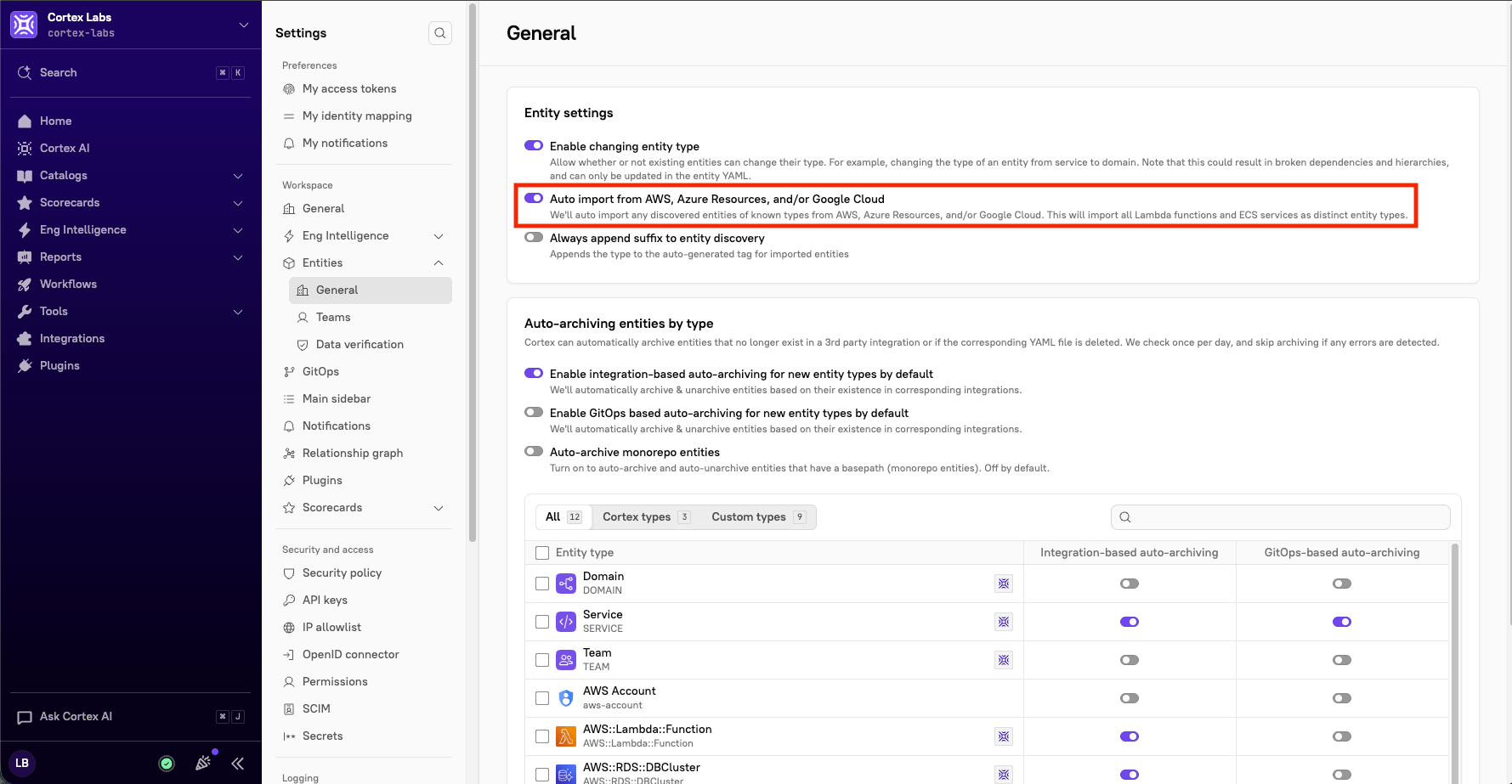
1. From the main sidebar, click your avatar in the bottom-left corner.
2. Select **Settings**.
3. From the **Settings** menu, locate the **Workspace** section, then expand **Entities**.
4. Select the **General** tab.
5. In the **Entity settings** section, toggle on **Auto import from AWS, Azure, and/or Google Cloud**.
 ### Manually importing Google Cloud resources via entity descriptor
To explicitly connect an entity to GCP, add the `x-cortex-infra` block to the entity's YAML, specifying the resource's name, project ID, and type.
| Field | Description | Required? |
| - | - | - |
| `resourceName` | Name of the GCP resource. For functions, use the format `location/function`. | |
| `projectId` | The GCP project ID the resource belongs to | |
| `resourceType` | The resource type, e.g. `function`, `storage` | |
**Example**
```yaml theme={null}
x-cortex-infra:
Google Cloud:
resources:
- resourceName: us-central1/send-invoice
projectId: cortex-production
resourceType: function
- resourceName: cortex-invoice-exports
projectId: cortex-production
resourceType: storage
```
## Ownership and dependencies for Google Cloud entities
### Syncing ownership from Google Groups
Cortex can use Google Groups as an ownership provider, automatically syncing group memberships so entity ownership always reflects your current mailing lists.
Cortex runs this ownership sync for Google teams every day at 9 a.m. UTC.
Cortex uses [identity mappings](/configure/settings/managing-users/identity-mapping) to connect group members to Cortex users when they exist, and falls back to each member's email address from Google otherwise.
To compare ownership sources, see the [Ownership sources reference](/ingesting-data-into-cortex/entities-overview/entities/ownership/ownership-sources).
To assign a Google Group as an owner in your entity descriptor, use the group's full email address:
| Field | Description | Required? |
| - | - | - |
| `type` | Must be `group` | |
| `name` | The full Google Group email address | |
| `provider` | Must be `GOOGLE` | |
| `description` | Free-text description of the owner | |
**Example**
```yaml theme={null}
x-cortex-owners:
- type: group
name: checkout-team@cortex.io
provider: GOOGLE
description: Owns the checkout service and its dependencies
```
### Discovering dependencies automatically
By default, Cortex looks for a `service` label on your Google Cloud resources and matches its value against each entity's [Cortex tag](/ingesting-data-into-cortex/entities-overview/entities#cortex-tag) to automatically map dependencies. If needed, you can [customize the label key](/ingesting-data-into-cortex/integrations/google#customizing-the-key-name) in Cortex.
If you'd rather define these dependencies explicitly, add an `x-cortex-dependency` block to your entity descriptor:
| Field | Description | Required? |
| - | - | - |
| `key` | The label key on the GCP resource to match against | |
| `value` | The label value on the GCP resource to match against | |
**Example**
```yaml theme={null}
x-cortex-dependency:
gcp:
labels:
- key: service
value: checkout-service
- key: env
value: production
```
### Connecting SLOs
Reference a Service Level Objective (SLO) from Google Cloud Observability by adding its project and service ID to the entity's descriptor:
| Field | Description | Required? |
| - | - | - |
| `projectId` | The GCP project ID the SLO belongs to | |
| `serviceId` | The unique ID from the service's page in Google Cloud Observability | |
**Example**
```yaml theme={null}
x-cortex-slos:
gcp:
- projectId: cortex-production
serviceId: iLE2e4HvR_service-checkout
- projectId: cortex-production
serviceId: iLE2e4HvR_service-billing
```
Find the `serviceId` value as the Unique ID on the [service page in Google Cloud Observability](https://console.cloud.google.com/monitoring/services).
## Related topics
- [Using the integration for Google Cloud Platform](/ingesting-data-into-cortex/integrations/google/using-the-integration-for-google-cloud-platform.md)
- [Google Cloud Platform](/ingesting-data-into-cortex/integrations/google.md)
- [Internally hosted integrations](/ingesting-data-into-cortex/integrations/axon-relay.md)
### Manually importing Google Cloud resources via entity descriptor
To explicitly connect an entity to GCP, add the `x-cortex-infra` block to the entity's YAML, specifying the resource's name, project ID, and type.
| Field | Description | Required? |
| - | - | - |
| `resourceName` | Name of the GCP resource. For functions, use the format `location/function`. | |
| `projectId` | The GCP project ID the resource belongs to | |
| `resourceType` | The resource type, e.g. `function`, `storage` | |
**Example**
```yaml theme={null}
x-cortex-infra:
Google Cloud:
resources:
- resourceName: us-central1/send-invoice
projectId: cortex-production
resourceType: function
- resourceName: cortex-invoice-exports
projectId: cortex-production
resourceType: storage
```
## Ownership and dependencies for Google Cloud entities
### Syncing ownership from Google Groups
Cortex can use Google Groups as an ownership provider, automatically syncing group memberships so entity ownership always reflects your current mailing lists.
Cortex runs this ownership sync for Google teams every day at 9 a.m. UTC.
Cortex uses [identity mappings](/configure/settings/managing-users/identity-mapping) to connect group members to Cortex users when they exist, and falls back to each member's email address from Google otherwise.
To compare ownership sources, see the [Ownership sources reference](/ingesting-data-into-cortex/entities-overview/entities/ownership/ownership-sources).
To assign a Google Group as an owner in your entity descriptor, use the group's full email address:
| Field | Description | Required? |
| - | - | - |
| `type` | Must be `group` | |
| `name` | The full Google Group email address | |
| `provider` | Must be `GOOGLE` | |
| `description` | Free-text description of the owner | |
**Example**
```yaml theme={null}
x-cortex-owners:
- type: group
name: checkout-team@cortex.io
provider: GOOGLE
description: Owns the checkout service and its dependencies
```
### Discovering dependencies automatically
By default, Cortex looks for a `service` label on your Google Cloud resources and matches its value against each entity's [Cortex tag](/ingesting-data-into-cortex/entities-overview/entities#cortex-tag) to automatically map dependencies. If needed, you can [customize the label key](/ingesting-data-into-cortex/integrations/google#customizing-the-key-name) in Cortex.
If you'd rather define these dependencies explicitly, add an `x-cortex-dependency` block to your entity descriptor:
| Field | Description | Required? |
| - | - | - |
| `key` | The label key on the GCP resource to match against | |
| `value` | The label value on the GCP resource to match against | |
**Example**
```yaml theme={null}
x-cortex-dependency:
gcp:
labels:
- key: service
value: checkout-service
- key: env
value: production
```
### Connecting SLOs
Reference a Service Level Objective (SLO) from Google Cloud Observability by adding its project and service ID to the entity's descriptor:
| Field | Description | Required? |
| - | - | - |
| `projectId` | The GCP project ID the SLO belongs to | |
| `serviceId` | The unique ID from the service's page in Google Cloud Observability | |
**Example**
```yaml theme={null}
x-cortex-slos:
gcp:
- projectId: cortex-production
serviceId: iLE2e4HvR_service-checkout
- projectId: cortex-production
serviceId: iLE2e4HvR_service-billing
```
Find the `serviceId` value as the Unique ID on the [service page in Google Cloud Observability](https://console.cloud.google.com/monitoring/services).
## Related topics
- [Using the integration for Google Cloud Platform](/ingesting-data-into-cortex/integrations/google/using-the-integration-for-google-cloud-platform.md)
- [Google Cloud Platform](/ingesting-data-into-cortex/integrations/google.md)
- [Internally hosted integrations](/ingesting-data-into-cortex/integrations/axon-relay.md)