Cortex integrates with Terraform in two different ways, depending on whether you want to manage Cortex resources using Terraform or use Cortex to drive Terraform runs for your infrastructure.To learn about managing Cortex resources using Terraform, see Manage entities using Cortex Terraform Provider.
How to manage Terraform infrastructure in Cortex
Prerequisite
Expand the tile below for instructions on provisioning a new instance.Provision a new instance and update the instance name
Provision a new instance and update the instance name
- Provision a new instance
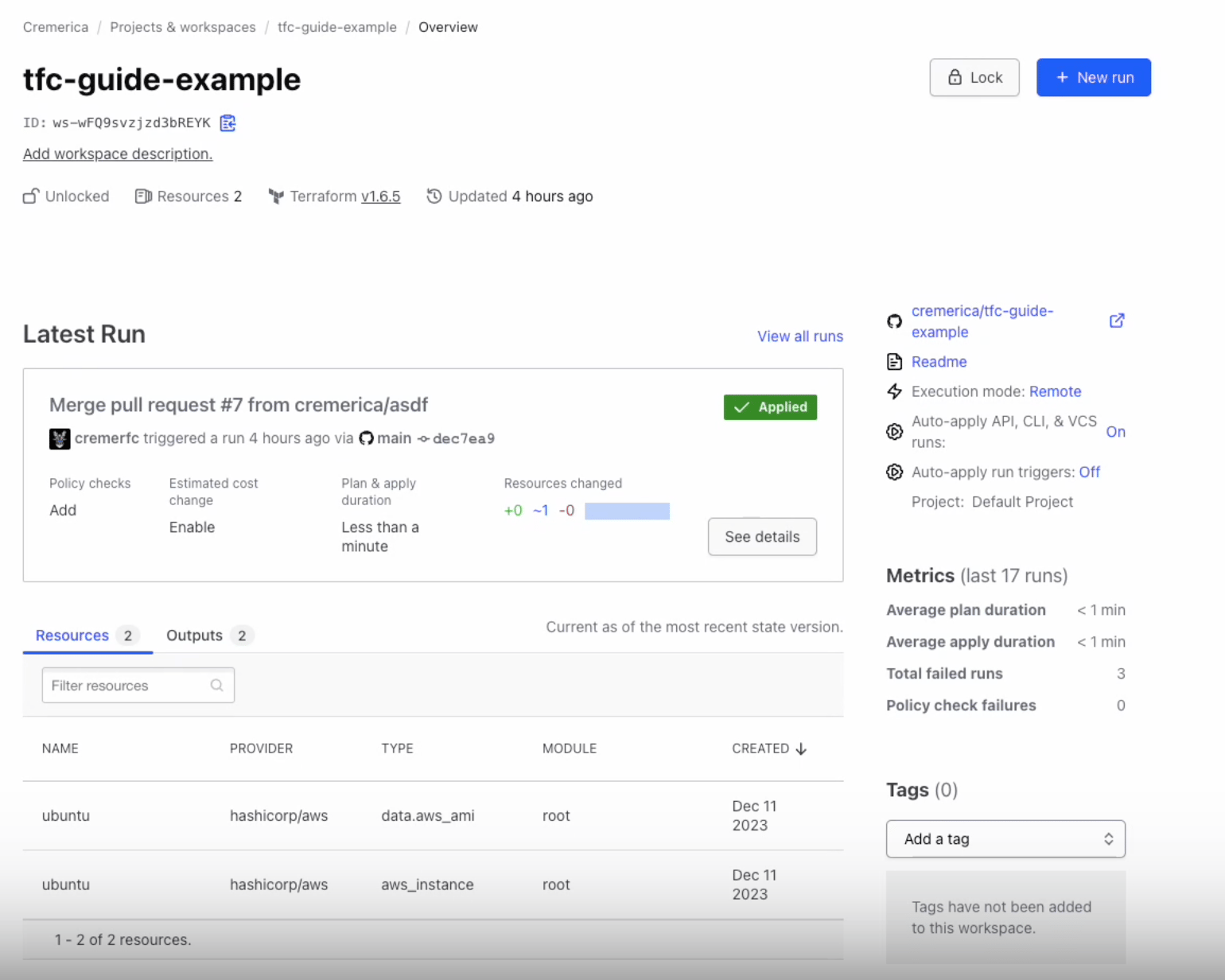
- Terraform will automatically provide you with a starter workspace when you begin — our example workspace is named “tfc-guide-example”.
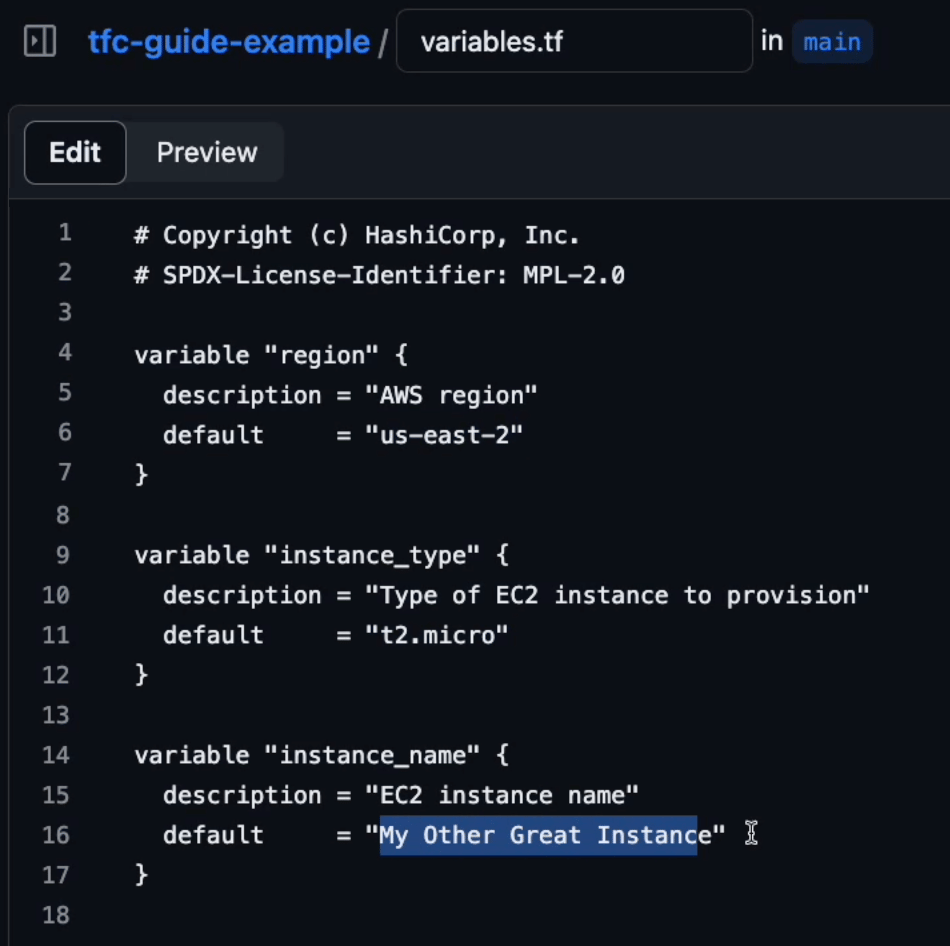
- Update the instance name in the Terraform
variables.tffile.- All Terraform modules come with a file called
variables.tf. As part of the Terraform script, we can enter variables for a given set, like region or instance type. In the example screen shot below, the variable name is “My Other Great Instance”.
- All Terraform modules come with a file called
-
Note: Terraform modules also come with a
main.tffile, which contains instructions and information about the action. In our example, themain.tffile describes the instance that we’re going to create through Terraform.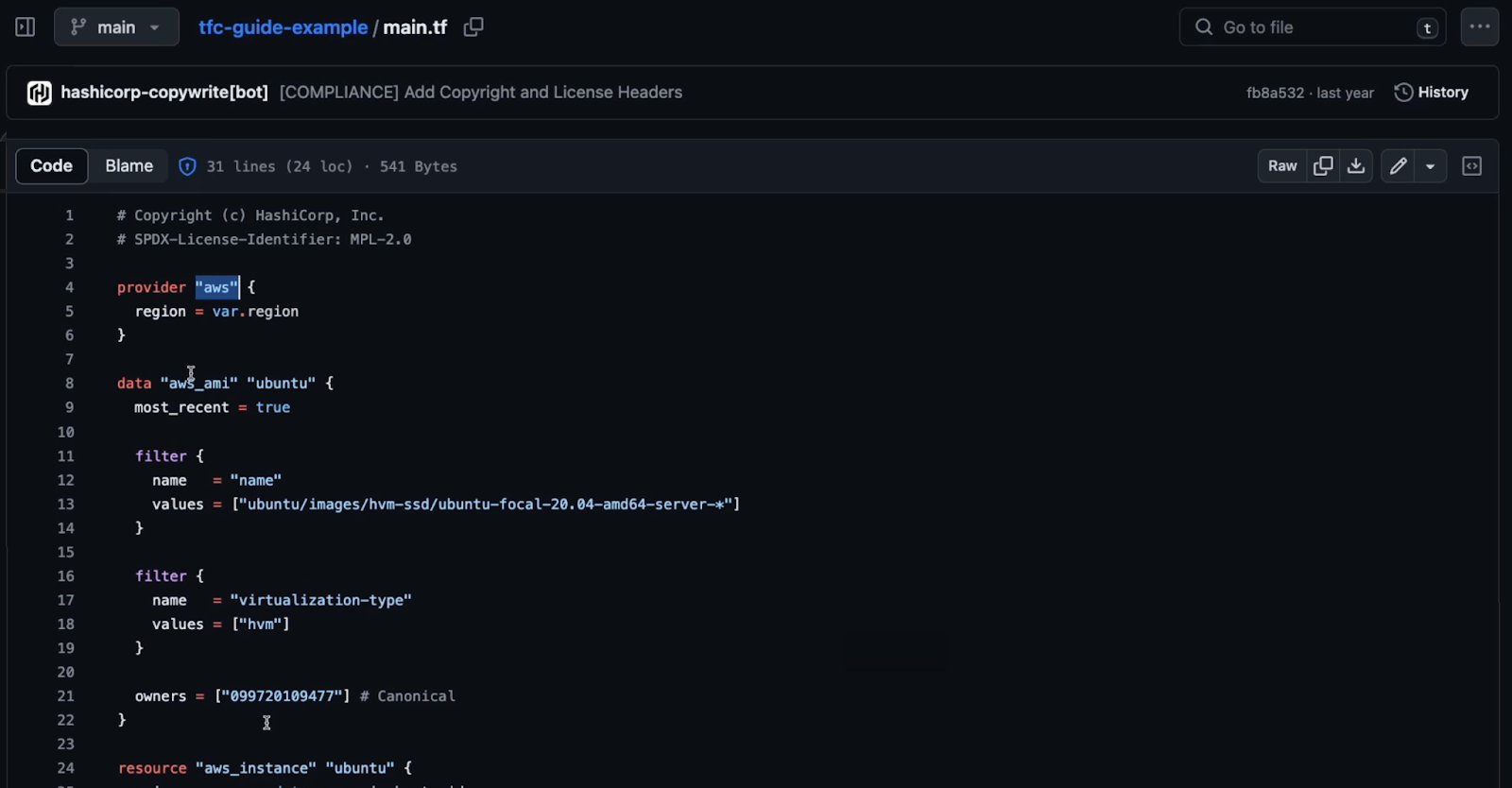
Terraform stores a “state” about your infrastructure and configuration when it’s deployed. State maps resources to this configuration, and will update any time variables or properties are changed.
Step 1: Confirm your instance name update in Terraform
In Terraform Cloud, navigate to the Run page. Verify that the changes you made to the instance name invariables.tf have applied.
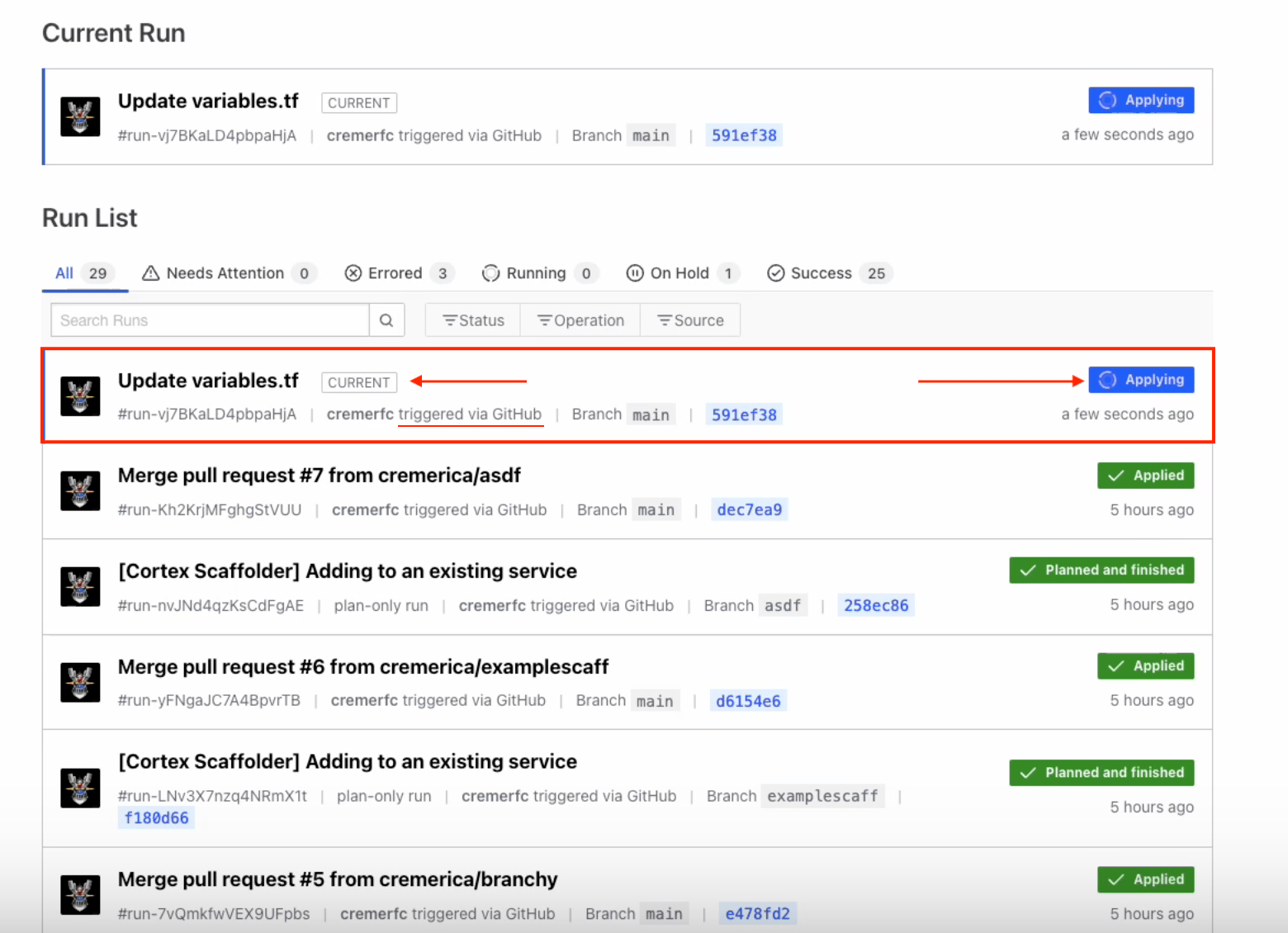
plan and apply.
- The
plancommand creates a plan and preview of the changes that will be made to your infrastructure. During the plan stage, Terraform assesses themain.tffile with variables and compares it against the state. If there are differences, Terraform prompts you to approve and apply the change. - When you navigate to the run that was triggered by updating
variables.tf, you can see that the plan was automatically conducted. In this case, the plan was to create an instance with the name provided earlier. Verify that the run displays a “Plan finished” message.
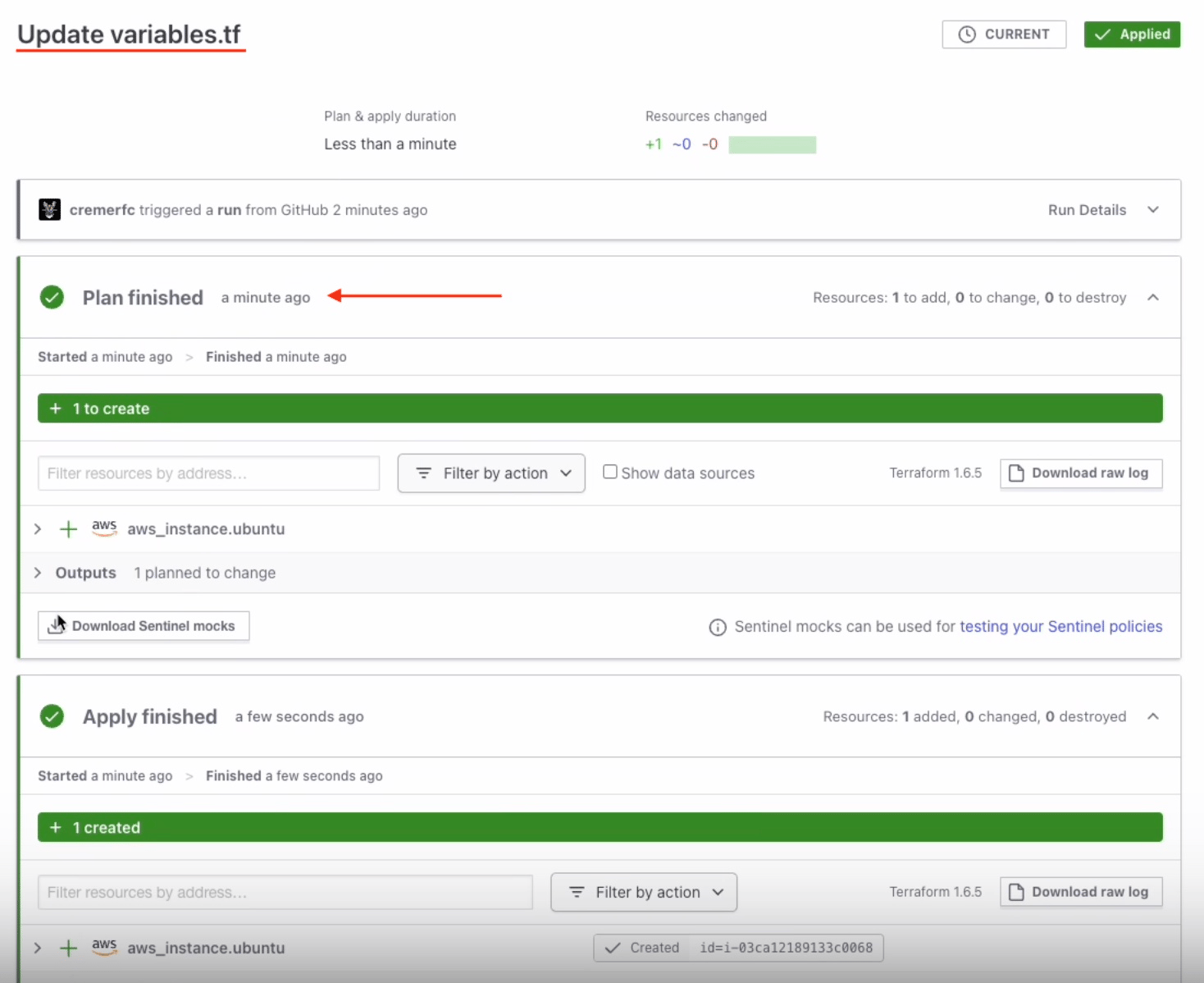

In this example, we made direct modifications to the main branch, but typically, you will edit a separate branch and create a pull request. This approach will run a plan in Terraform, but will not automatically apply changes.
Step 2: Add the Terraform template in Cortex
Cortex not only integrates with Terraform, but can enhance your use of it. Once the integration is set up, you’ll use a Scaffolder step in a Workflow to interact with Terraform. You must have theConfigure Scaffolder templates permission.
When using the Scaffolder, it’s best to edit a secondary branch and create a pull request — the Scaffolder will actually create the pull request for you, which someone else can approve to apply the changes.
- Create a Cookiecutter JSON file that is equivalent to your Terraform module.
- In this file, we defined the region and instance name. You’ll then update the fields in the
variables.tffile so it knows to pull information from the Cookiecutter JSON.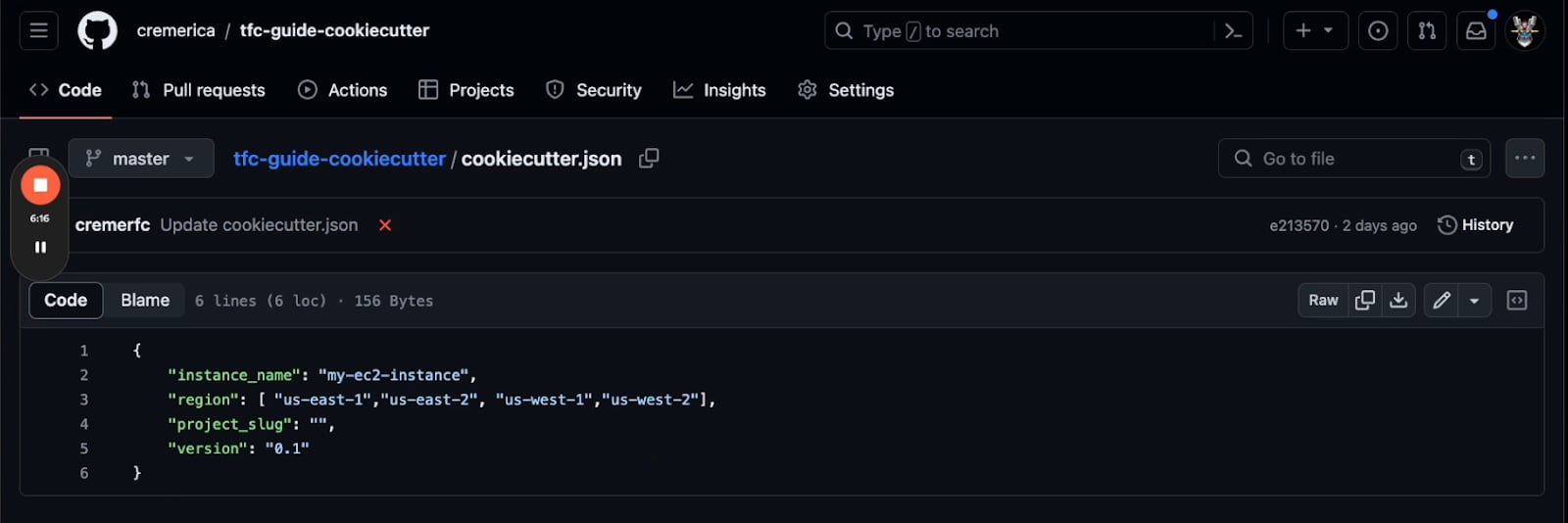
- In this file, we defined the region and instance name. You’ll then update the fields in the
- Register your template in Cortex.
- After you have added the template to Cortex, you can create a Workflow that includes a Scaffolder block using the template.
- Run the Workflow. When you run it, Cortex will automatically open a pull request against the selected repository.
Verify that the process worked
Verify the process
Verify the process
To verify that the process worked, open Terraform Cloud and navigate to Runs.Any runs that originate from Cortex will have 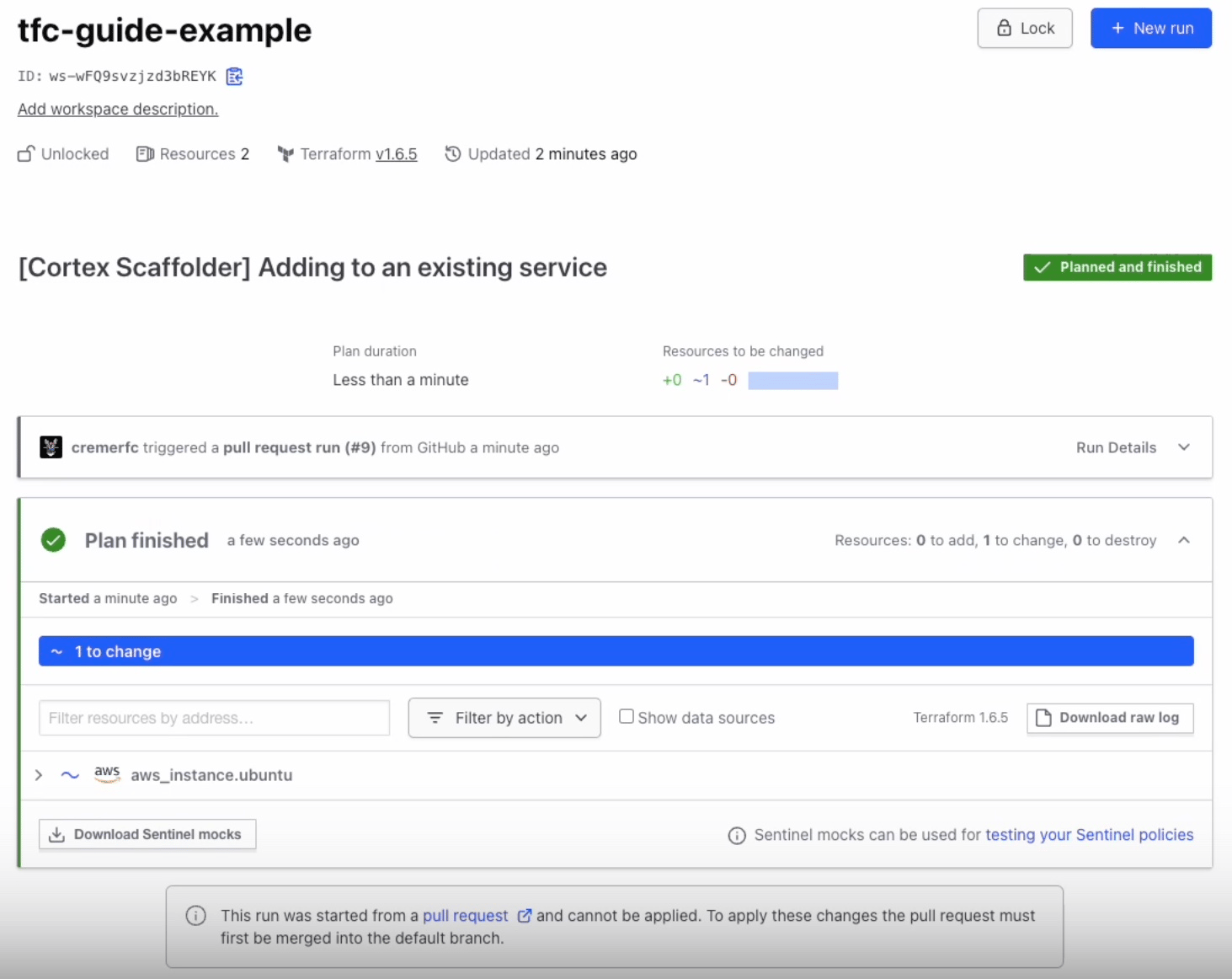
[Cortex Scaffolder] at the start of their name. Click into one of these runs to see its status and how many changes were proposed.Execute a run via a Workflow
Terraform Cloud also has an API that can be used to make updates without following the pull request workflow. You can use a Workflow in Cortex to execute a run through the API. If a run is set to automatically apply, then Cortex will handle the rest of the process.- Create a Workflow in Cortex.
- Add a user input block.
- Define inputs for
Instance name,Region, andInstance type.
- Define inputs for
- Add an HTTP request block. Configure the following fields:
- HTTP method: Select
POST. - URL: Enter the URL for the Terraform API you want to call.
- Headers: Add
Authorization: Bearer {{token}}andContent-type: application/(name). - Payload: Build the payload by referencing the outputs of the “User input” block, e.g.,
{{actions.input.outputs.instance-name}}
- HTTP method: Select
- Save the Workflow. After saving, click Run at the top of the Workflow to run it.
variables.tf file with information that was entered in the fields.
Verify the run
Verify that the action was successful
Verify that the action was successful
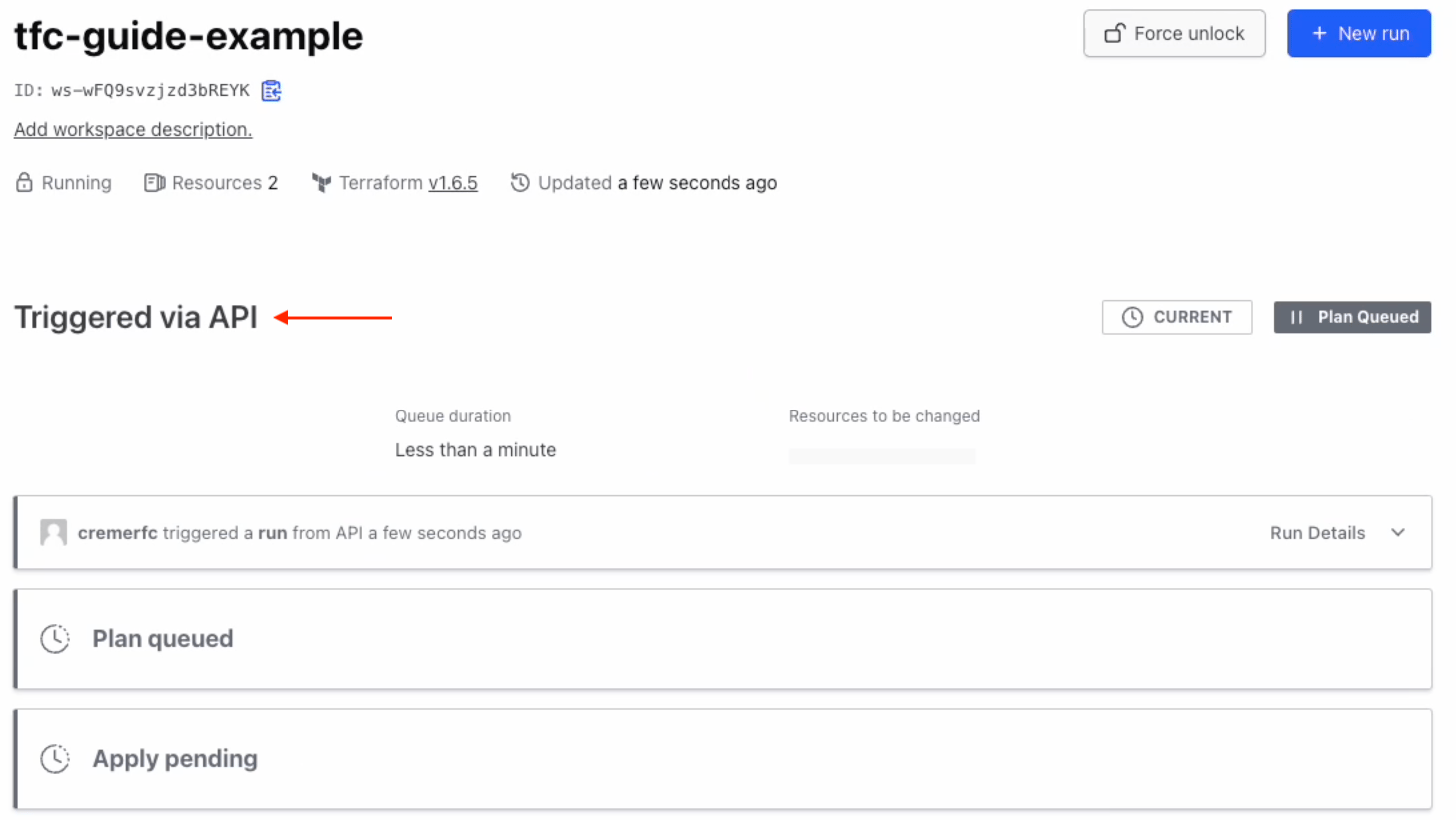
In Terraform Cloud, you can verify that the action was successful and the run was queued. Runs triggered by actions are named “Triggered via API.”