> For the complete documentation index, see [llms.txt](https://docs.cortex.io/llms.txt). Markdown versions of documentation pages are available by appending `.md` to page URLs; this page is available as [Markdown](https://docs.cortex.io/improve/reports/birds-eye/legacy-birds-eye-report.md).
# Legacy Bird's Eye report
{% hint style="info" %}
A new version of the Bird's eye report is now available in Public Beta, with with hierarchical rollups and support for custom entity relationships. Documentation on the new Bird's Eye report can be found [here](/improve/reports/birds-eye.md).
{% endhint %}
The legacy [Bird’s eye report](https://app.getcortexapp.com/admin/reports/heatmap) provides deep insights into how entities are performing by visualizing Scorecard data as a heat map. This report is designed to be hierarchy-aware, making it easy to navigate the data.
You can find the Bird's eye report in the main nav under **Reports > Bird's eye**. Use the *Switch to legacy view* or *Switch to new view* link below the report header to toggle between experiences.
## Using the Bird's eye report
### Generate a Bird's eye report
To generate a Bird's eye report:
1. Navigate to **Reports > Bird's eye**.
2. Select a Scorecard from the list.
A report will generate based on the chosen Scorecard:
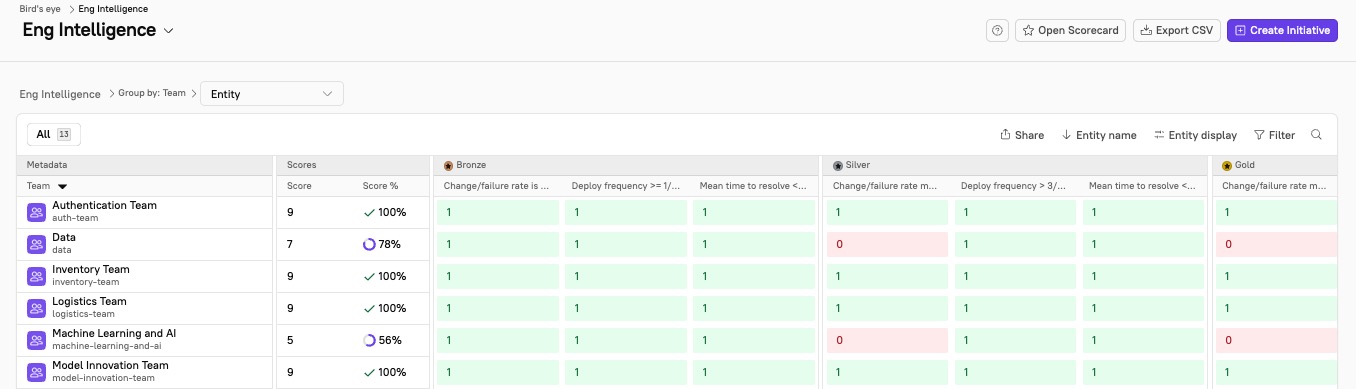
Evaluated entities are represented as rows. At a glance, see each entity's **Score** and **Score Percentage**, followed by a column for each scorecard rule. If the selected Scorecard has levels, the rules in the report are grouped by level.
### Filter the report
In the upper right corner of the report, click **Filter**. The filter options available (domains, entities, levels, or teams) depend on the Scorecard.
### Change how the report is grouped
By default, the Bird's eye report is grouped by the entity being evaluated in the Scorecard. Depending on the Scorecard, you may also be able to group by domain, team, and Scorecard level. At the top of the page, click the **Entity** dropdown to change the group.
#### Group by teams
When you Group by team, the report will replace the first two columns with the entity count and average score for each team. The pass/fail for each rule will be replaced by the percent of entities that are passing a rule.

#### View team hierarchy
When you group by Team, you can view teams in the [hierarchy](/ingesting-data-into-cortex/entities-overview/entities/adding-entities/teams.md#understanding-hierarchies) that you've set up in Cortex. In the upper right corner of the report, click **Team display > Hierarchy**.
You can navigate the report by clicking through departments and teams. If a team owns other teams, the Bird’s eye report will indicate which entities are owned directly by the parent team, and which are assigned to the children.
Hierarchy view will stay enabled as you click through the report. At any level, you can toggle off hierarchy view, and the report will display teams again.
If you click into a team, the report will return to an entity-level view where you can get an in-depth look at how individual entities are performing.
### Breadcrumbs and filters
The breadcrumbs at the top of the page preserve your path, making it easy and intuitive to traverse the data. As you navigate through the report, you can continue to refine your view by grouping.
Each time you go further into the report, your action is appended to the breadcrumbs, just like a filter.
The Bird’s eye report also has a filter function, which is helpful when you know exactly what you’re looking for. The same options for grouping exist as filters, so you have two different ways to navigate this report at any time.
When you don’t have specific data to pull, the breadcrumbs allow for a natural way to explore the data. The breadcrumbs can also be useful when you’re sharing your reports, so others can see exactly how you achieved this view.
### Levels
If you’re using levels in your Scorecards, you can toggle the report to display levels instead of rules. When viewing the report by entity, this will display the level each entity has achieved. When you begin grouping, the report will aggregate entities, and will present the number of entities that have achieved a specific level.
## Share the Bird's eye report
You can share the Bird's eye report:
* **Send a link**: Click **Share** in the upper right corner of the report to copy the URL to your clipboard. You can share the link with anyone who has access to view the report in your Cortex workspace.
* The pre-configured link will display your report with the full breadcrumb trail. This not only gives others the same insights and understanding, but also provides an opportunity for team members to explore the data further on their own.
* **Export as CSV**: In the upper right corner of the page, click **Export CSV** to download a CSV file of the report data.